








Everything MACgrid does
190 features in 20 groups, with screens from the app itself. Everything shown is sample content.
Drag to an edge or a corner
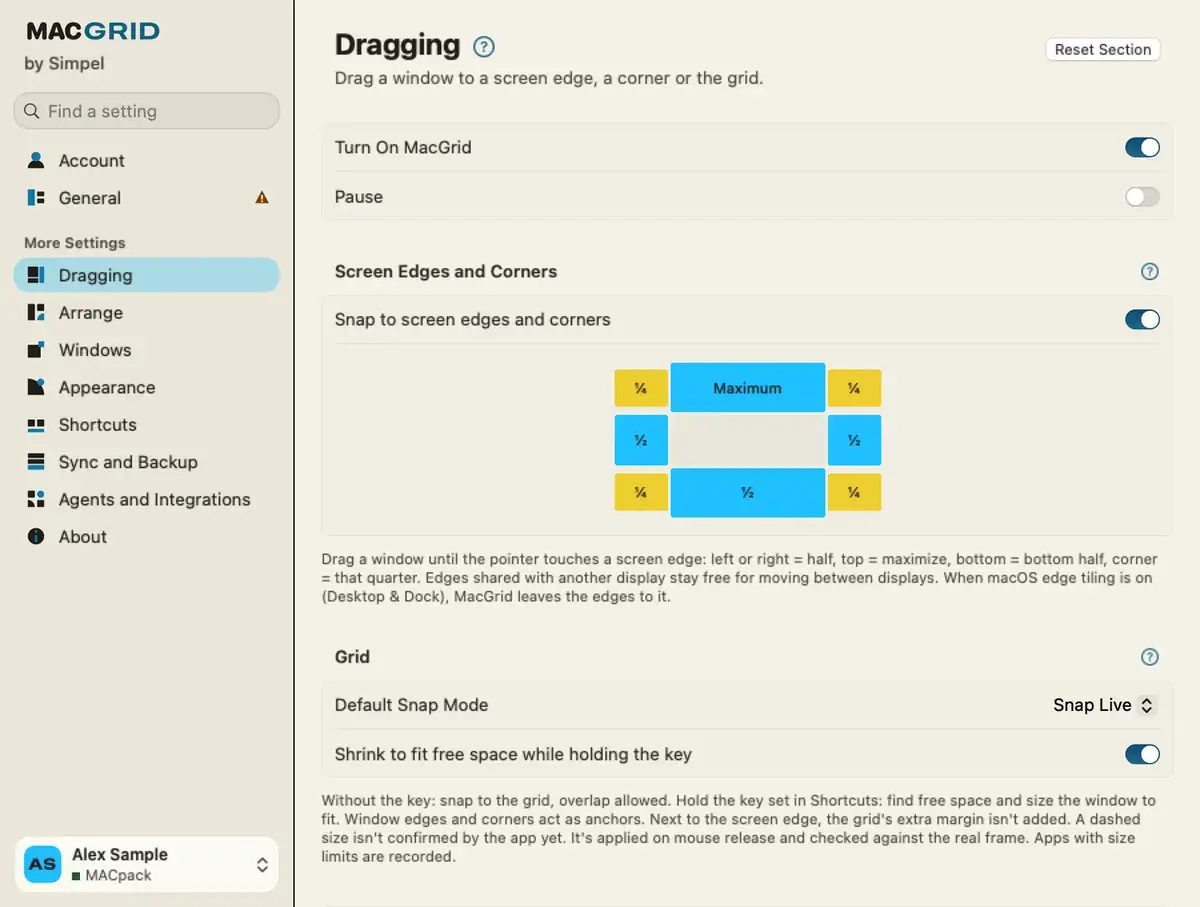
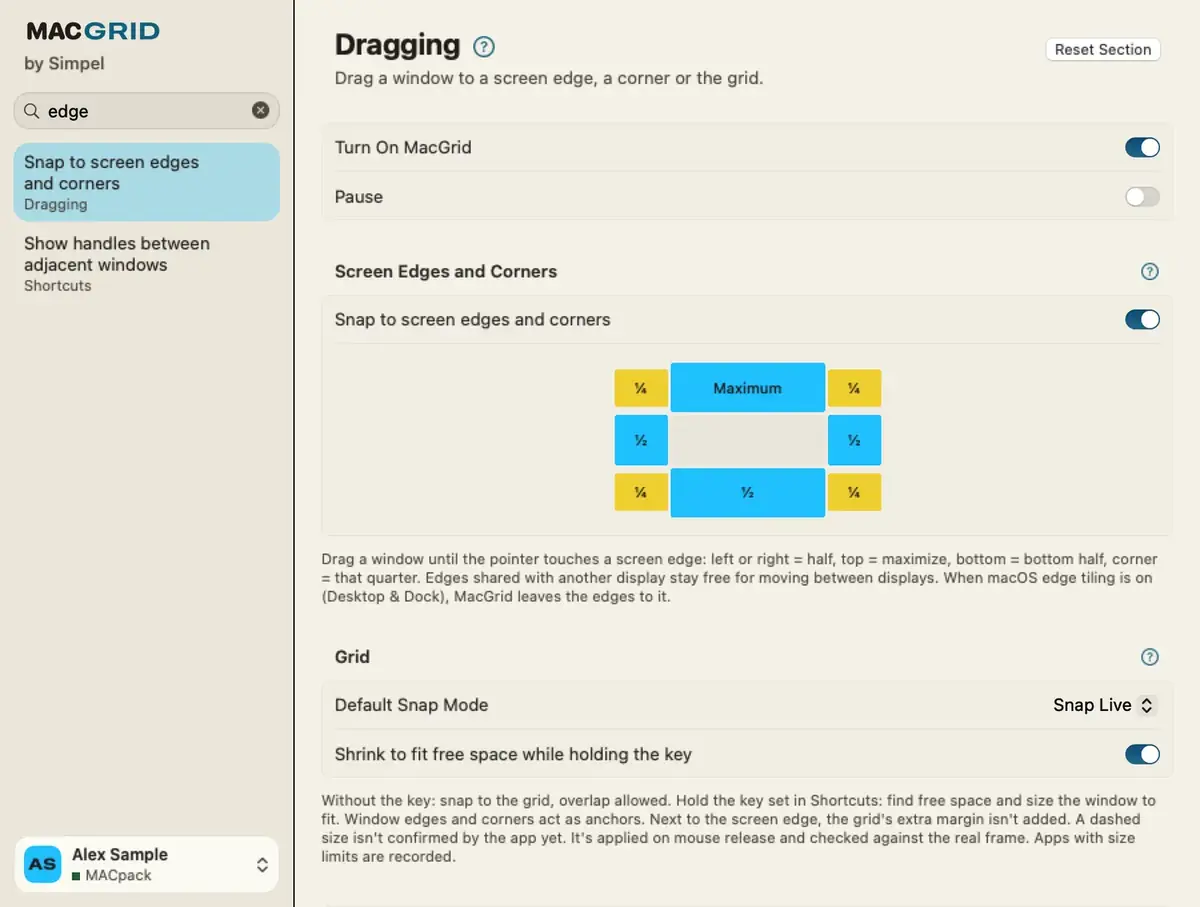
Drag a window by its title bar until the pointer touches the screen edge, and let go.


- Left or right
- Half the screen
- Top
- The whole screen
- Bottom
- The bottom half
- Corners
- A quarter of the screen
- Between displays
- An edge shared with another display stays free, so you can still move windows across
- macOS tiling
- When the macOS edge tiling is on, MACgrid leaves the edges to it
- Near the edge
- Within 24 pt of the edge, the window edge locks to the screen edge; gaps stay only between windows
- Turn it off
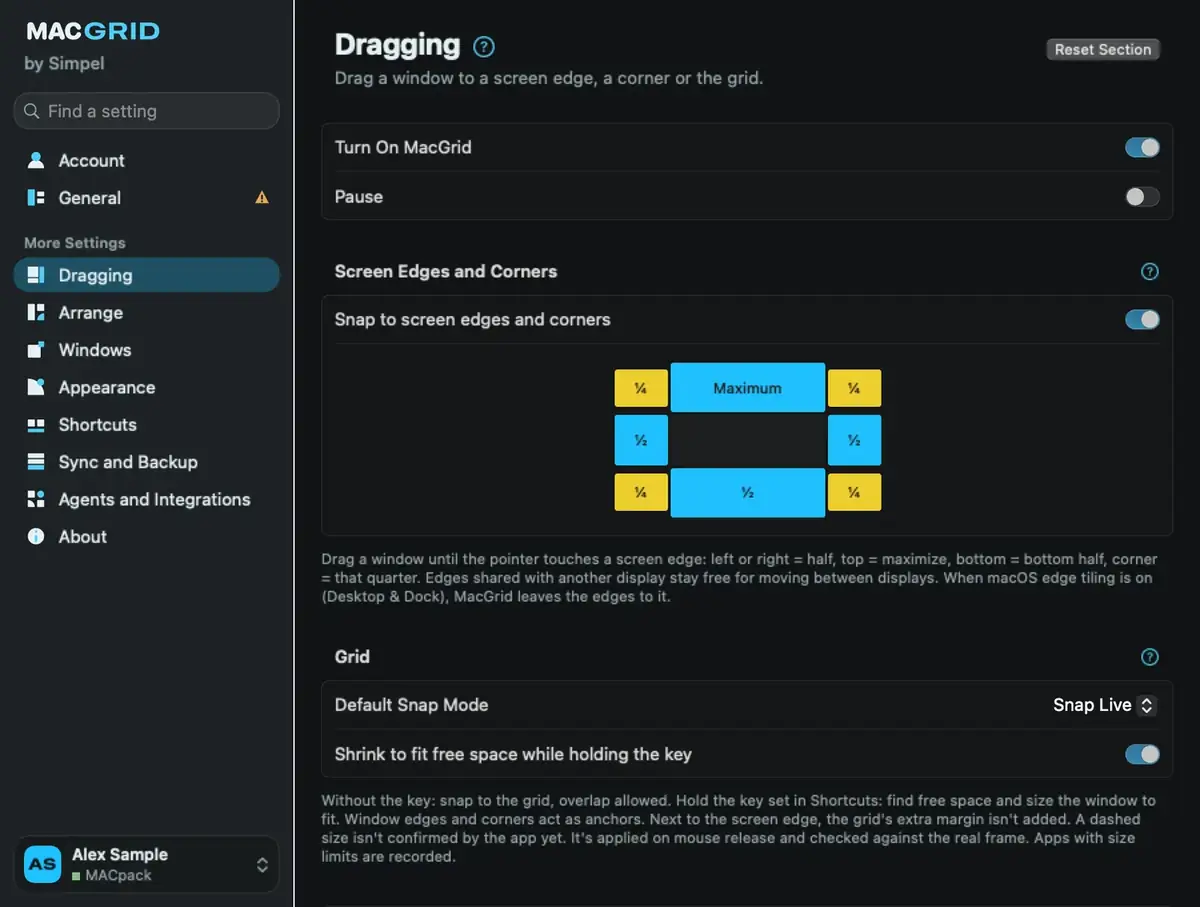
- One switch in Settings › Dragging, with a picture of every edge and corner
Line windows up on a grid
While you drag, a light grid appears and the window lands on whole cells.


- Square cells set by cell size, number of rows or number of columns
- Cell size 64 pt and window gap 8 pt to start, both adjustable
- Space between windows: none, small or large, in plain words on the first Settings page
- One grid for every display, or a separate grid for each
- Snap Live moves the window cell by cell; Preview shows where it lands and moves it on release
- Hold ⌘ while dragging to find free space and shrink the window to fit it
- Pick the free-space key yourself: ⌘, ⌥, ⌃, ⇧ or a mix
- Cell snap sensitivity (6 pt) stops the window flickering between two cells
- Target settle time from 0 to 150 ms (35 ms to start)
- A dashed outline means the app hasn't confirmed the size yet
- When a window lands, a cyan line runs round it and the trackpad gives a light tap
- Changing the grid never moves the windows you have open
- Escape puts the window back where it was before the drag
Resize two windows at once
Windows that touch share an edge. Drag the edge and every window on it follows.

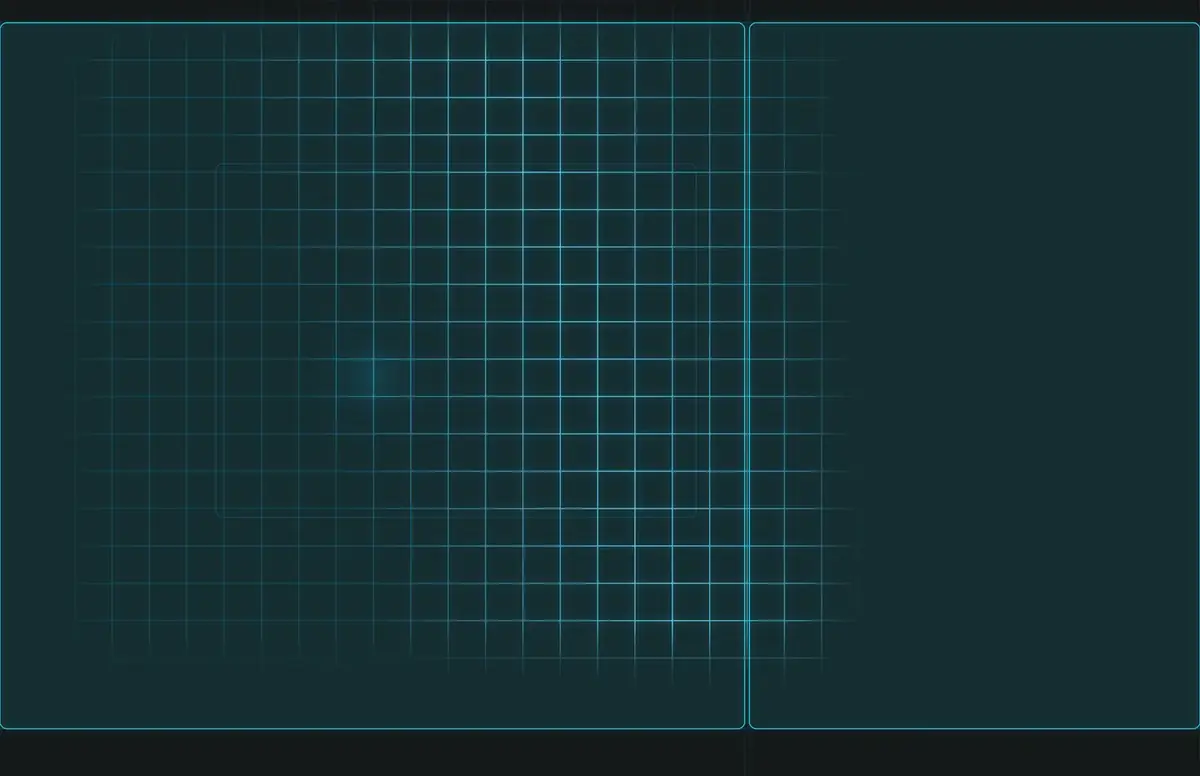
Drag the line between two
Point near the shared edge and a small pill appears. Drag it left or right, up or down; no key needed.

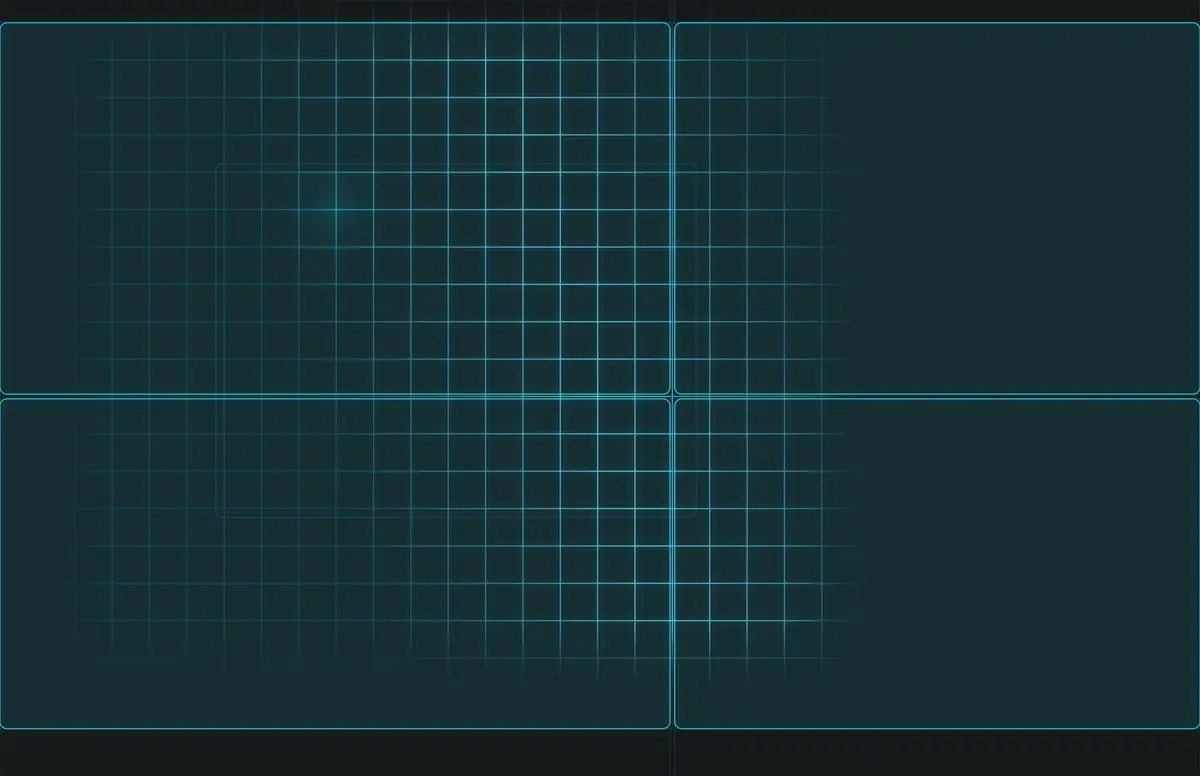
Drag where windows meet
Where three or four windows meet, a round handle resizes both ways at once: a T of three, or a 2 × 2 block.


Too small? You see it first
If a spot is smaller than the app allows, it turns red and says so. The window is never squeezed below its minimum.
Your way of dragging
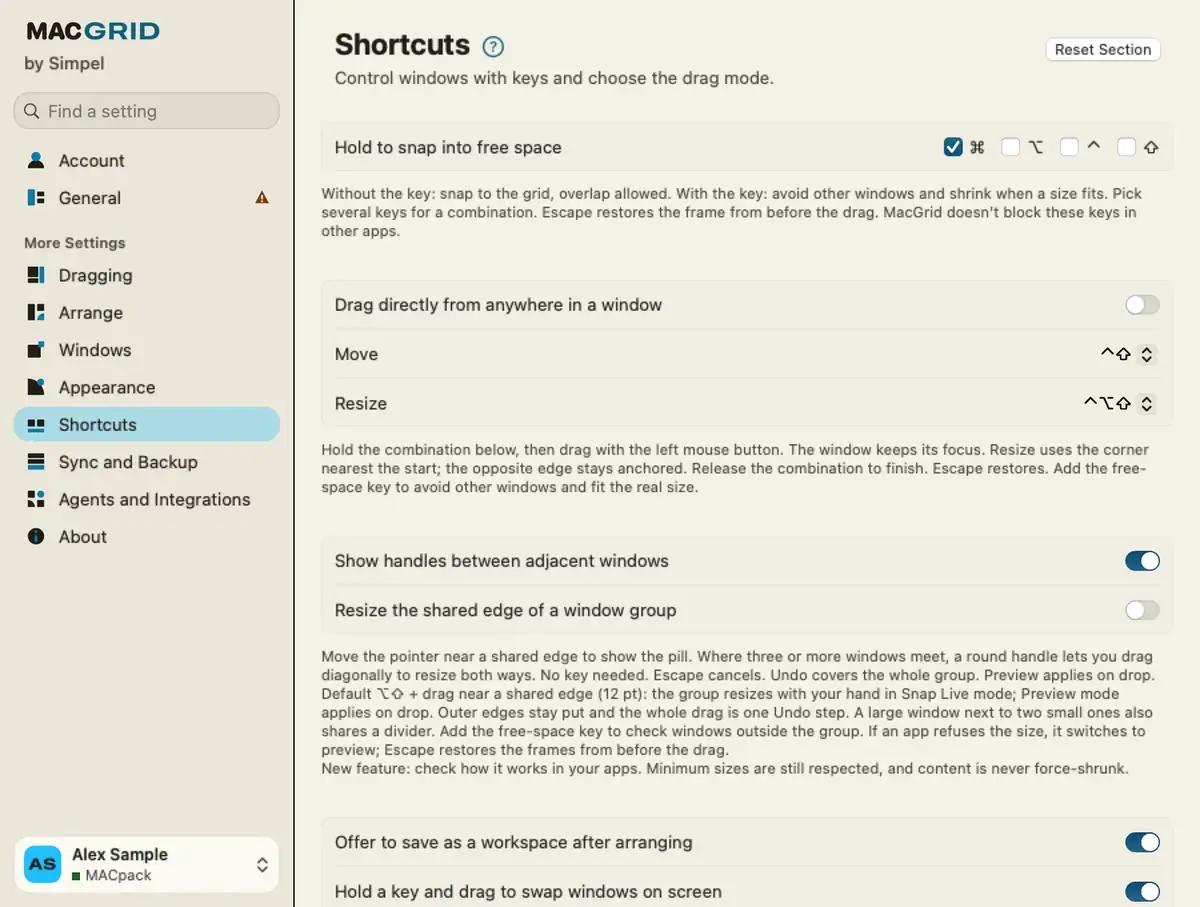
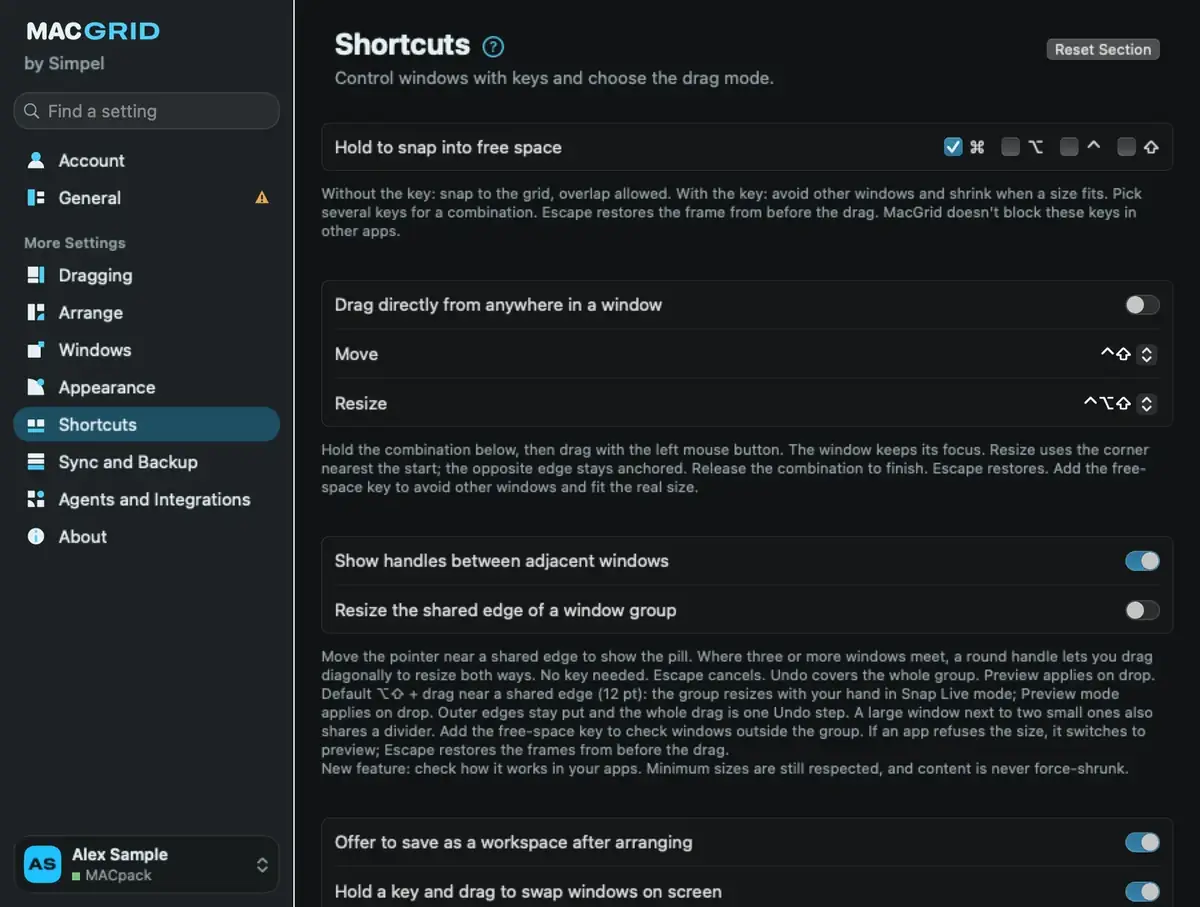
Hold ⌥⇧ for a live group resize, drag from anywhere in a window with ⌃⇧, or hold ⌃⌥ and drop on a window to swap the two.
Place windows from the keyboard
Every placement has a menu item and a shortcut. All shortcuts start with ⌃⌥ and you can change any of them.
- 32 window actions: halves, thirds, two thirds, fourths, corners, centre, centre half, almost maximise (90 %), fill
- Press a half or corner key again to cycle ½ → ⅔ → ⅓ (can be turned off)
- Maximise only the height or only the width
- Move by one cell, or grow and shrink by one cell
- Restore the size a window had before it was tiled
- Record a new key combination for any action, zone or layout; clashing keys don't run
- Steps aside for ⌃⌥ while VoiceOver is running
- ⌃⌥/ shows every shortcut on one sheet, with a filter
- The same six placements sit as buttons in the menu-bar panel
| ⌃⌥← / → | Left or right half |
| ⌃⌥↑ / ↓ | Top or bottom half |
| ⌃⌥U I J K | The four corners |
| ⌃⌥E / T | First or last two thirds |
| ⌃⌥↩ | Fill the work area |
| ⌃⌥C | Centre the window |
| ⌃⌥⌫ | Size before tiling |
| ⌃⌥⇧ + arrows | Move one cell |
| ⌃⌥N / ⌃⌥⇧N | Next or previous display |
| ⌃⌥⇥ | Next zone |
| ⌃⌥Z / ⌃⌥⇧Z | Undo or redo |
| ⌃⌥F | Tile all windows |
| ⌃⌥A | Pick and arrange windows |
| ⌃⌥Space | Overview (coming soon) |
| ⌃⌥1 … 4 | Workspace 1 to 4 |
| ⌃⌥S | Save the display as a workspace |
| ⌃⌥H | Show apps a layout hid |
| ⌃⌥. | Focus the active window |
| ⌃⌥P | Command palette |
| ⌃⌥⌘ + arrows | Go to the window on that side |
| ⌃⌥⌘⇧ + arrows | Swap with the window on that side |
| ⌃⌥/ | All shortcuts |
Type a command, jump to a window
For when you know what you want but not where it is.
Command palette
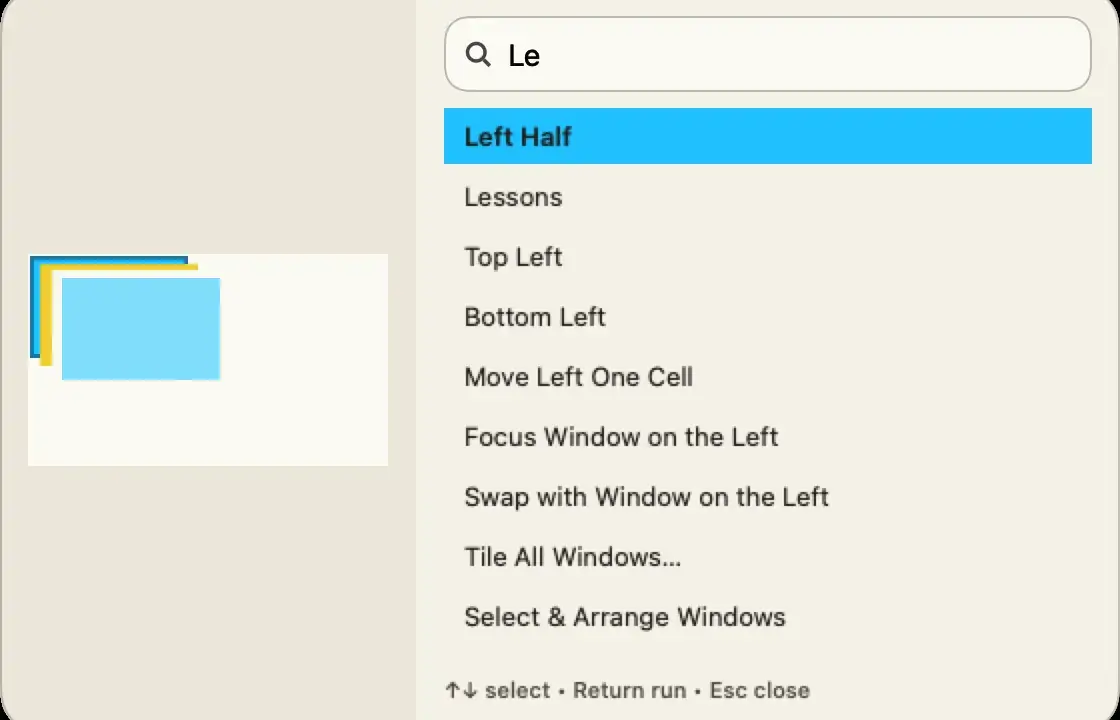
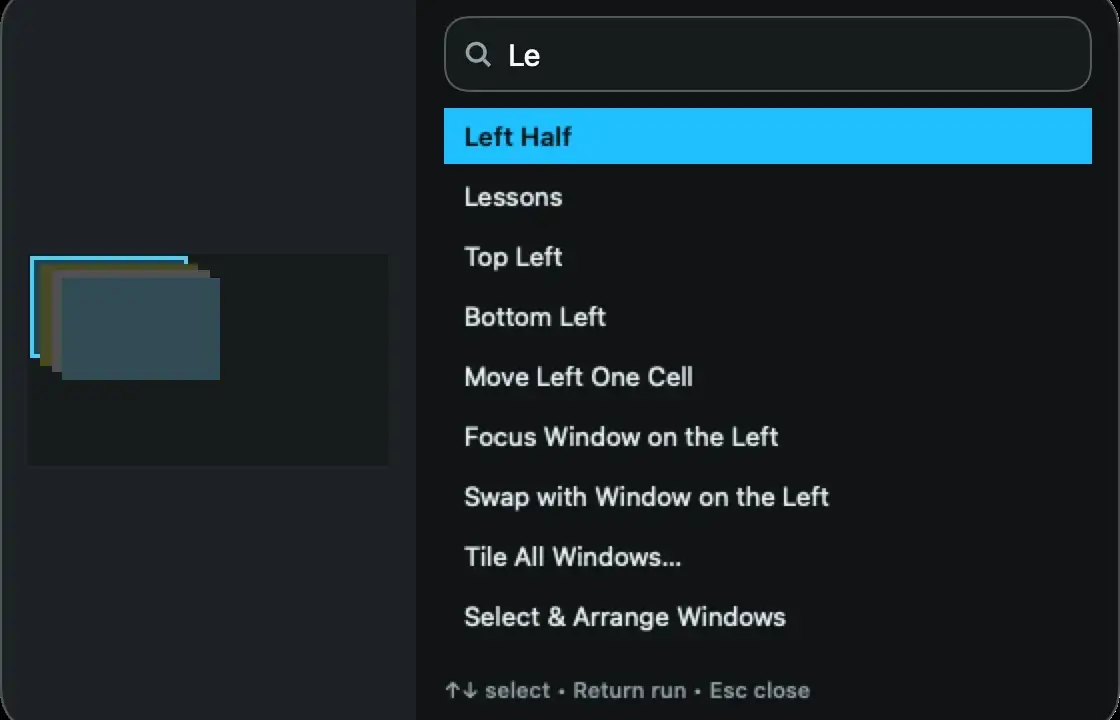
⌃⌥P, then type "left half". It finds every action, zone, layout, workspace, Settings page and Help article, and works fully from the keyboard.
Quick switches
Pause MACgrid or turn shortcuts on and off from the palette, without opening Settings.
Find Window
Type part of an app name to bring its window forward.
Recent-window switcher (coming soon)
Hold the shortcut and press again to step through windows in the order you used them; let go to switch.
Go left, right, up or down
⌃⌥⌘ and an arrow focuses the neighbouring window; add ⇧ to swap places with it, with Undo.
Focus one window
⌃⌥. brings the active window to the middle on a quiet backdrop. Press again, click outside or Escape to put it back.
Pick windows and let MACgrid arrange them
The Arrange panel knows how small each app can get, so every window you pick really fits.
Pick in order
⌃⌥A opens the panel. Click windows in priority order, or search by app.
Choose a pattern
Optimal, Columns, Rows, Grid, Main + Side, Center, Spiral or Random.
Check the fit
A meter shows how much of the display the smallest sizes take, and warns before anything doesn't fit.
Adjust by hand
Drag cells to swap them, or drag the bar between cells to resize.
Arrange
MACgrid measures, places and checks each window, then offers to save the result as a workspace.
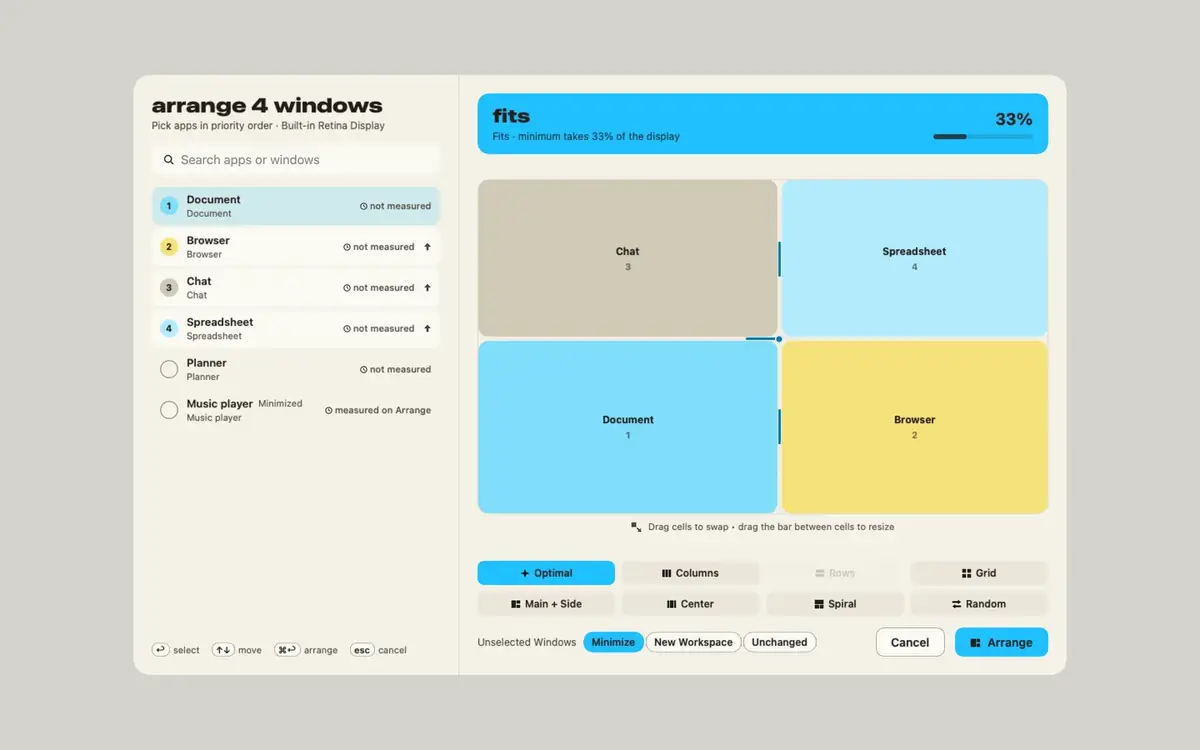
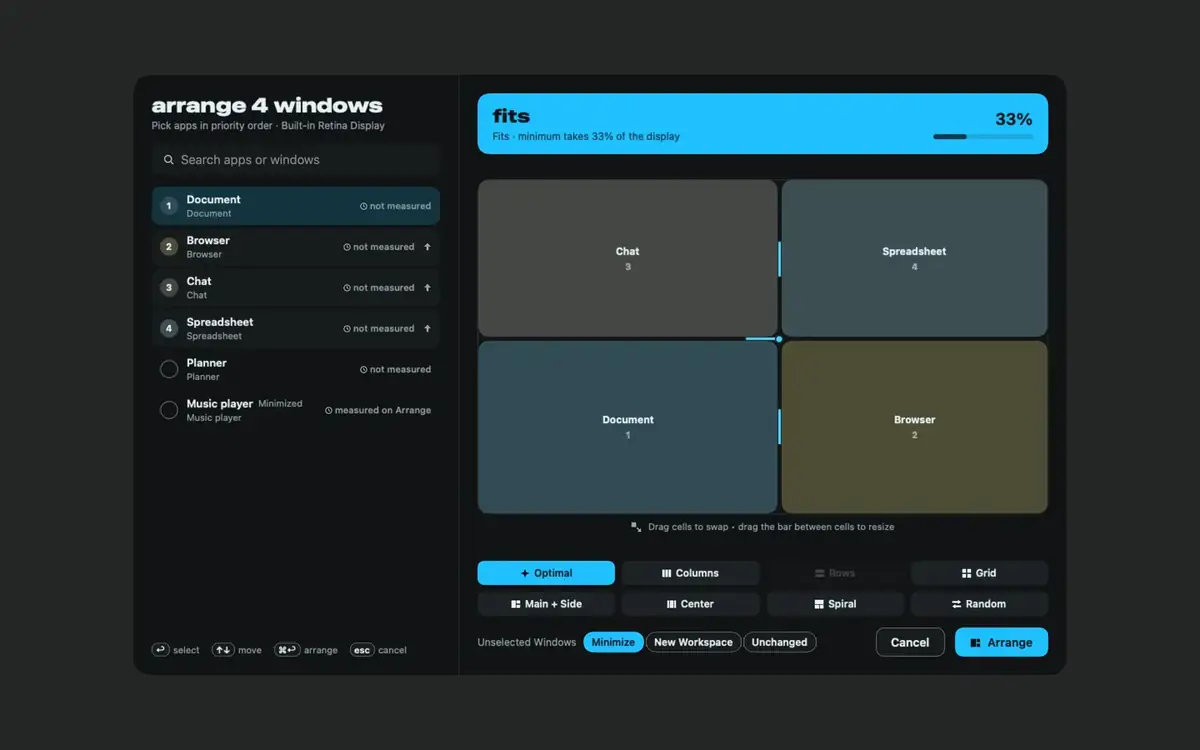
- Windows you didn't pick: minimise them, move them to a new workspace, or leave them
- Minimised windows appear in the list too
- Keys all the way: ↩ select, ↑↓ move, ⌘↩ arrange, esc cancel
- A progress card shows each step: measure sizes, place windows, check the result
- If something fails, Try Again runs the same choice; Back returns to the picker
- Measures several apps at the same time, so a first arrange takes about a second
Tile everything in one go
No picking, no planning: one command lays out the whole screen with no overlap.
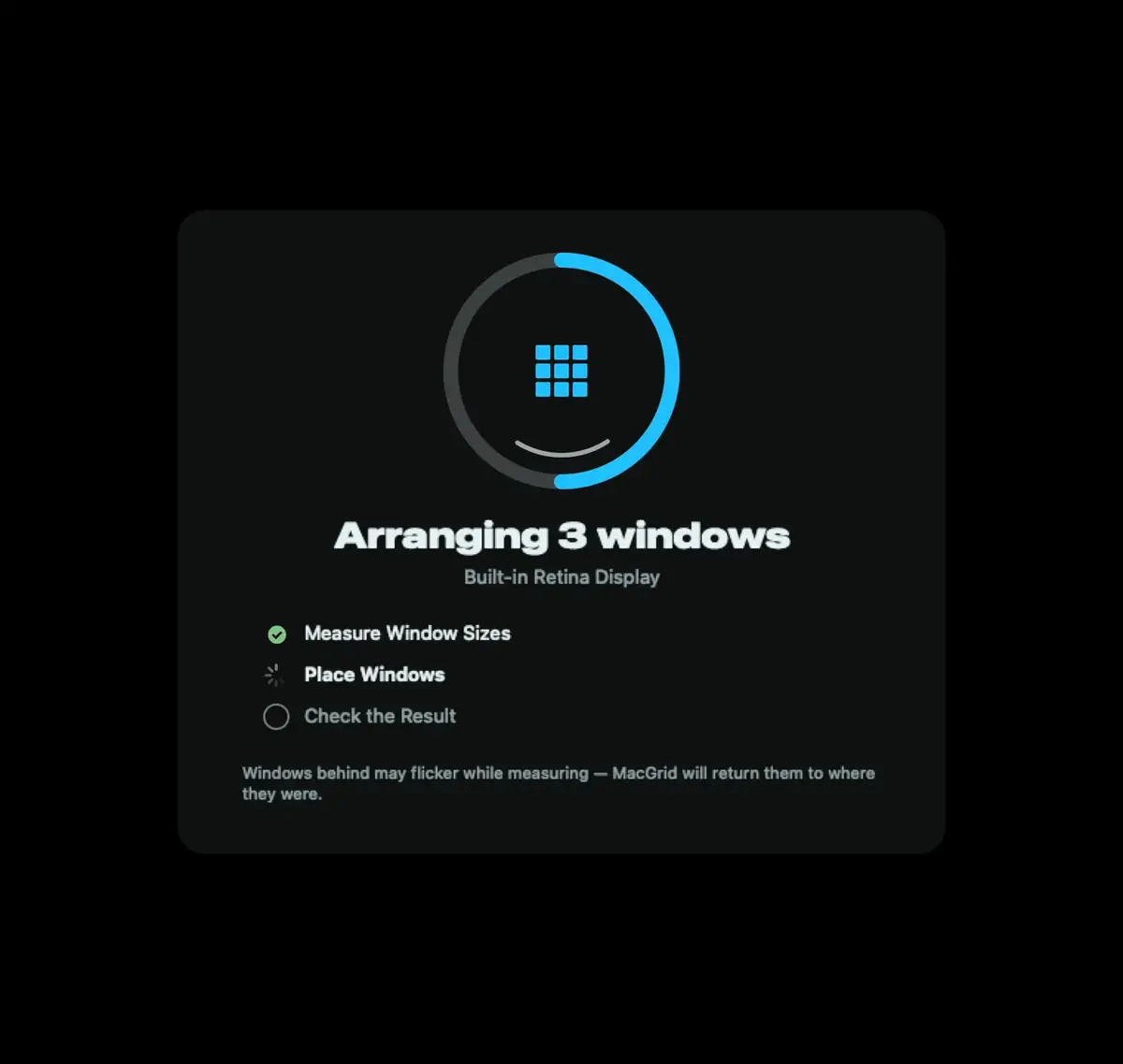
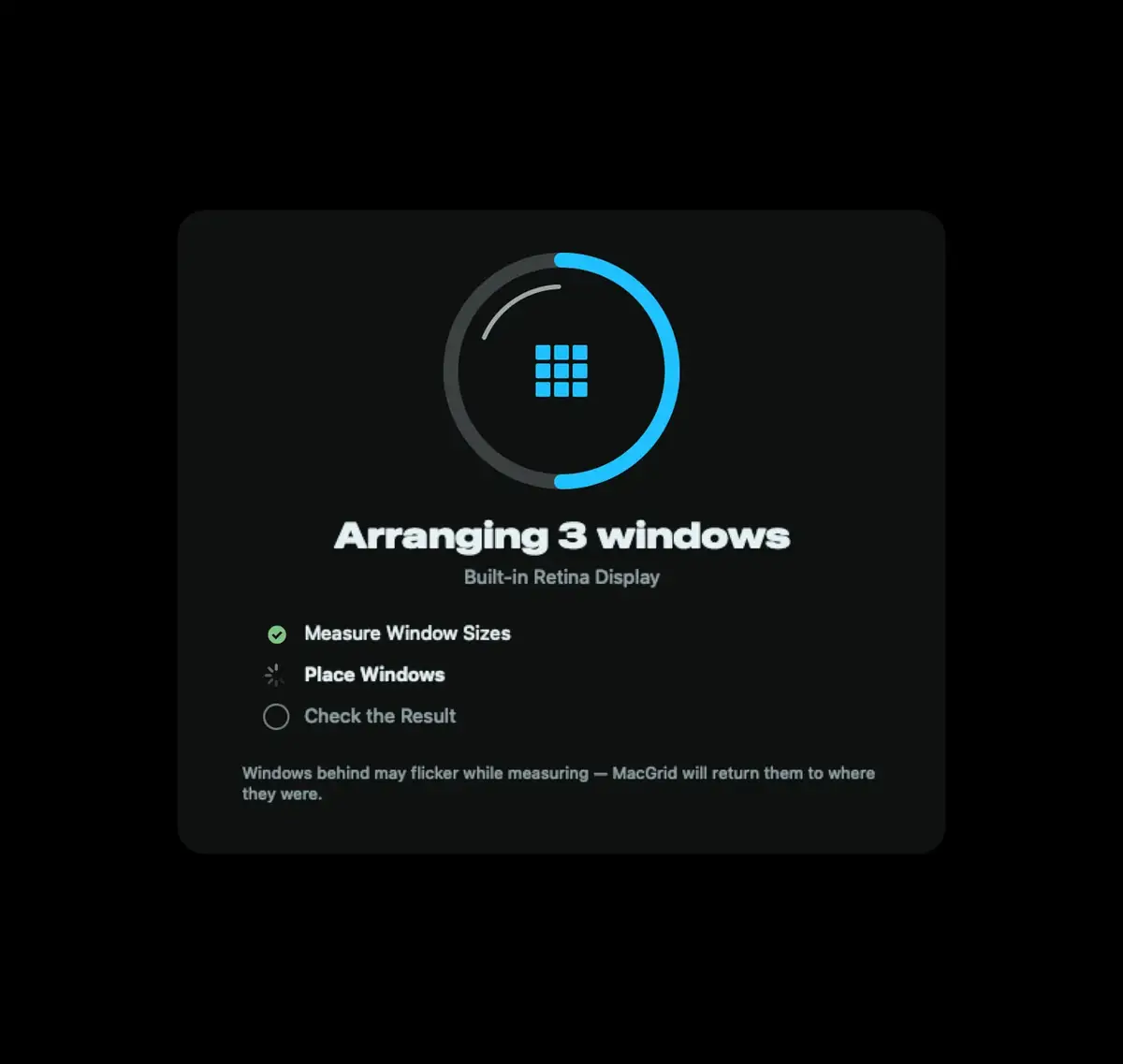
- Tile All Windows (⌃⌥F) on every display
- Tile only the active app's windows; they may sit over other apps
- Shrinks the group evenly until everything fits, then lines it up on the grid
- Uses each app's minimum and maximum size, per side
- Apps that round their size: MACgrid replans with the real size, up to 7 tries
- Closes leftover gaps by sliding windows up and left, keeping their size
- Fixed-size windows keep their size; apps you excluded stay put
- Back to Previous Layout undoes the whole tile in one step
- Preview a selected group first, with unselected windows kept clear
Your own zones
When halves and quarters don't match how you work, draw your own areas of the screen.


- Zones sized as a share of the screen, so they fit any display
- Start from two columns, three columns or four corners
- Rename a zone and change its position and size
- Zones for all displays, or separate zones per display
- Hold ⌥ while dragging a title bar to drop the window into a zone; add ⌘ to check for free space
- Place in Zone from the menu, the palette or a shortcut of its own
- ⌃⌥⇥ moves the window to the next zone, ⌃⌥⇧⇥ to the previous one
- A zone too small for an app is refused and the window goes back
Layouts and workspaces
Save how your desk looks for each kind of work and bring it back with one key.
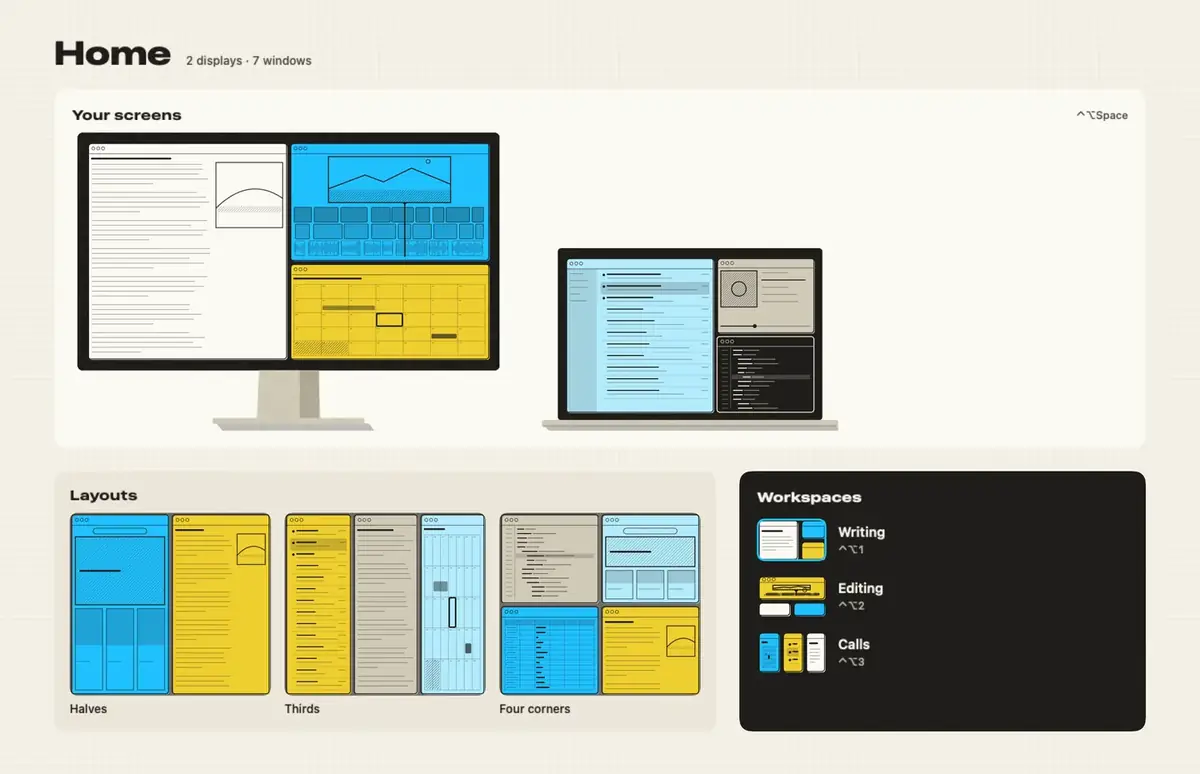
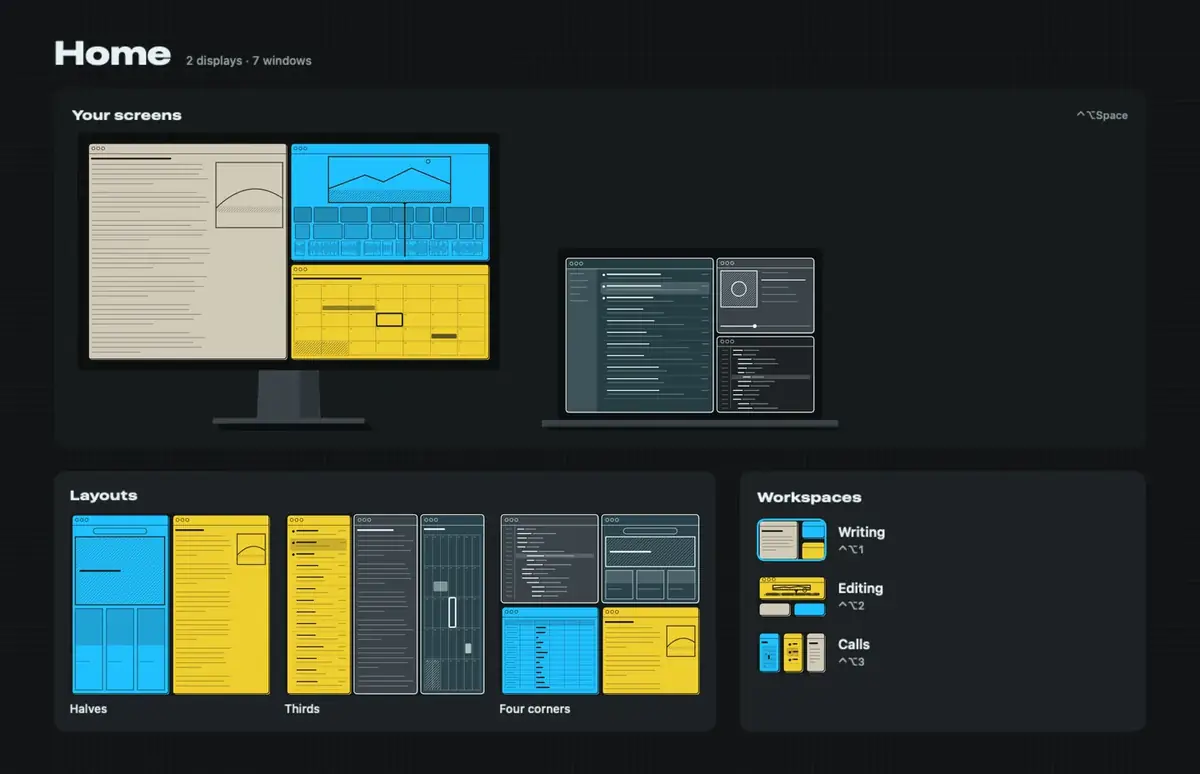
Save by task
Name a layout after the work it is for. Saving never moves a window.
Preview, then restore
See the layout on each display before it runs. It finds the same windows, or documents with a unique ID, and lets you match the rest by hand.
Opens what is missing
A layout can open apps that are closed and hide the others; ⌃⌥H shows them again.
Four workspaces on keys
⌃⌥1 to ⌃⌥4 bring a workspace back and open any closed apps; ⌃⌥S saves the current display as one.
Opens when you plug in
Tie a workspace to a set of displays and it opens by itself when they reconnect.
Rename, remove, keep a copy
Manage layouts in Settings or the menu-bar panel. The previous library is kept when you replace it.
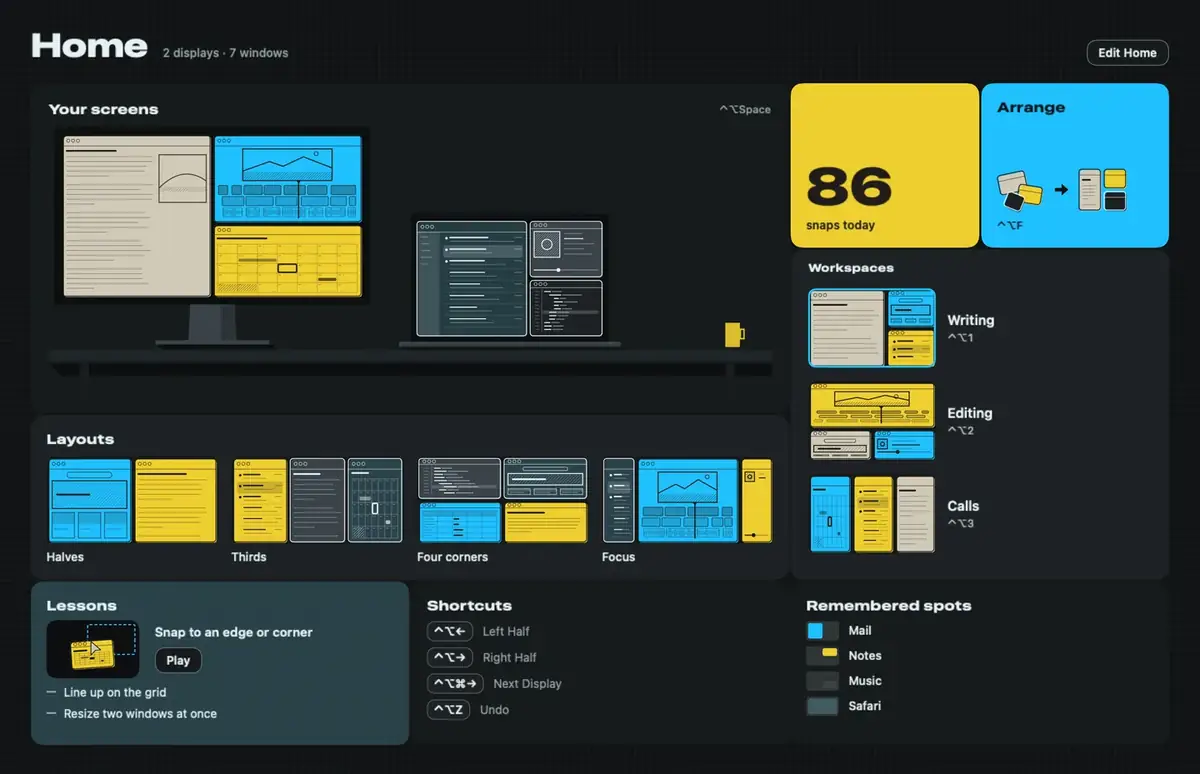
Home: your desk at a glance
MACgrid's main window shows your screens, layouts and workspaces as pictures you can click. Edit Home to arrange the tiles on a 6 × 4 board.
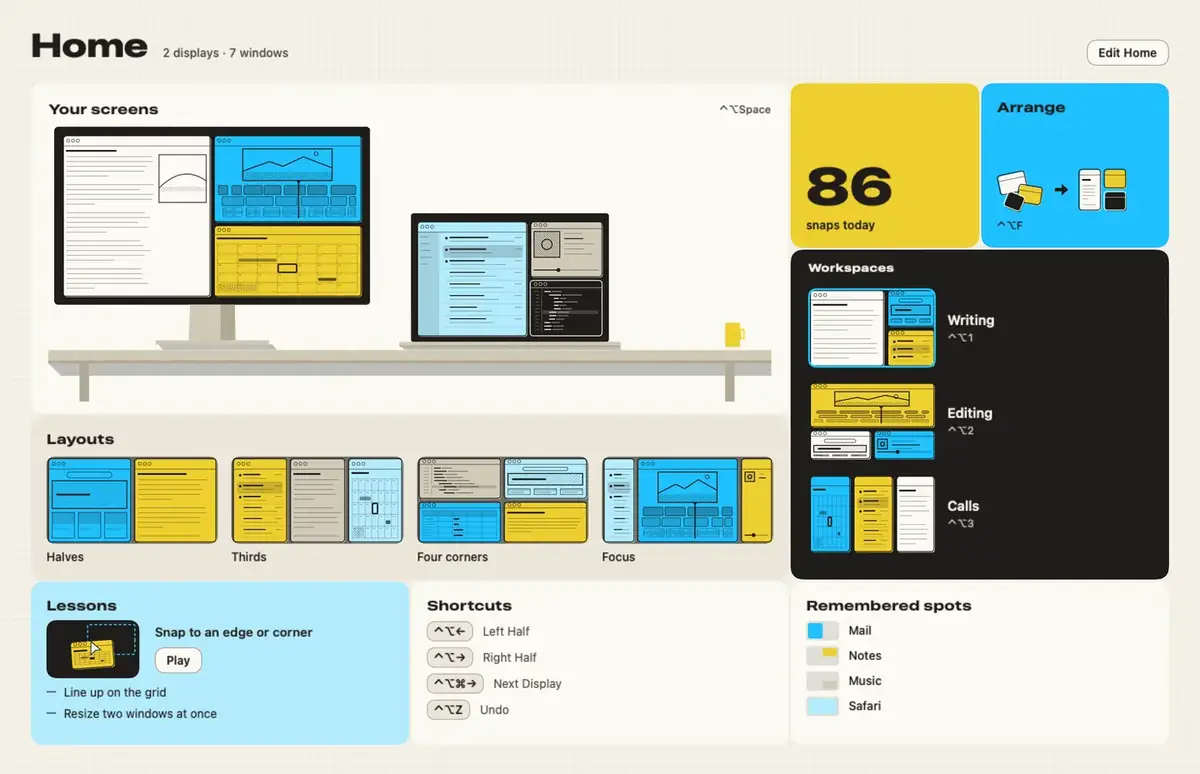
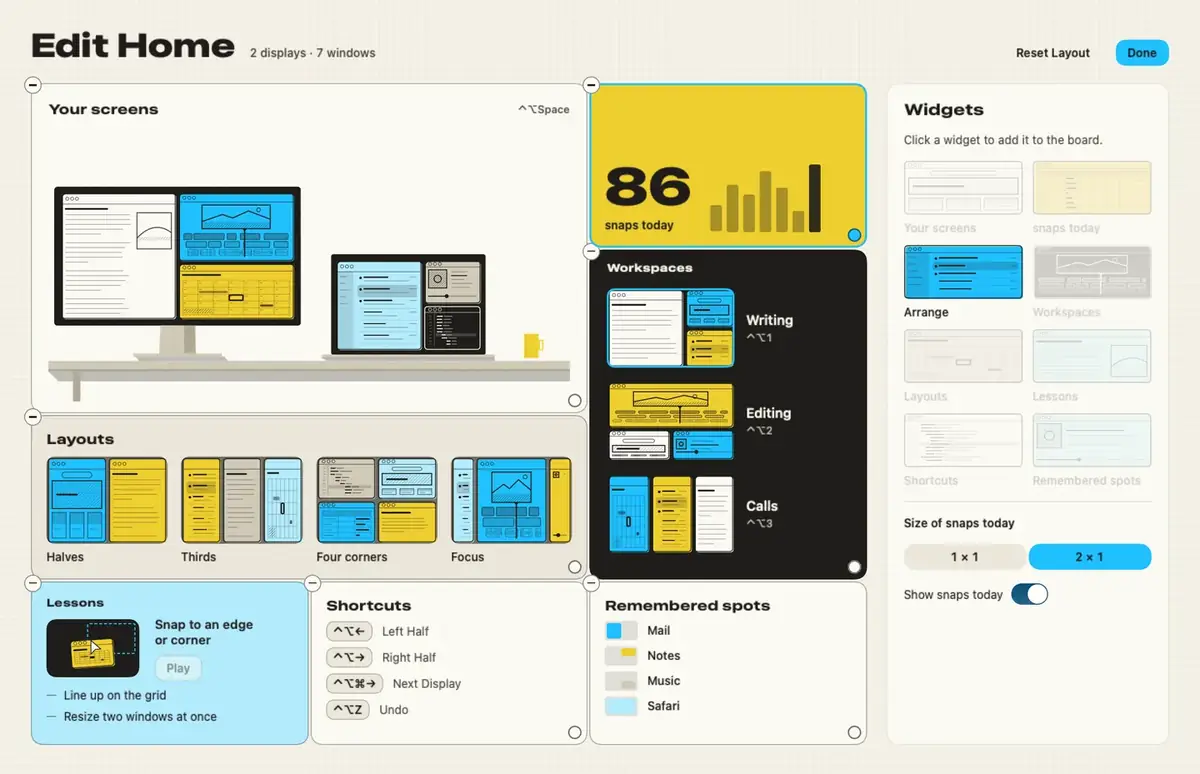
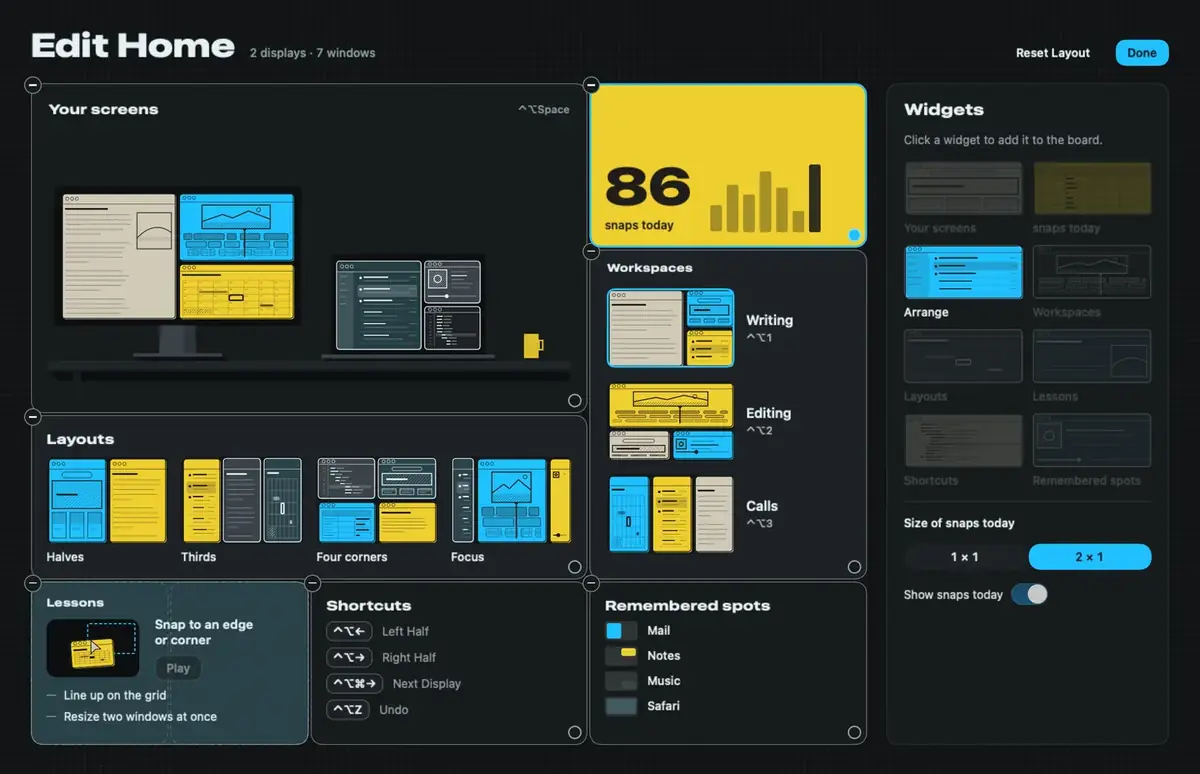
- Your screens
- Every display and its windows, drawn to scale
- Snaps today
- A count of today's snaps, with a small chart; hide it if you like
- Arrange
- One click to the Arrange panel
- Workspaces and layouts
- Thumbnails with their keys; click one to bring it back
- Lessons and shortcuts
- A lesson to play and the keys you use most
- Remembered spots
- Where each app's new windows will open
- Edit Home
- Add, remove, move and resize tiles; Reset Layout starts over
- Compact or Full
- Compact keeps screens, layouts and workspaces with more room; Full shows every tile
New windows and app rules
Decide where newly opened windows go, and which apps MACgrid leaves alone.
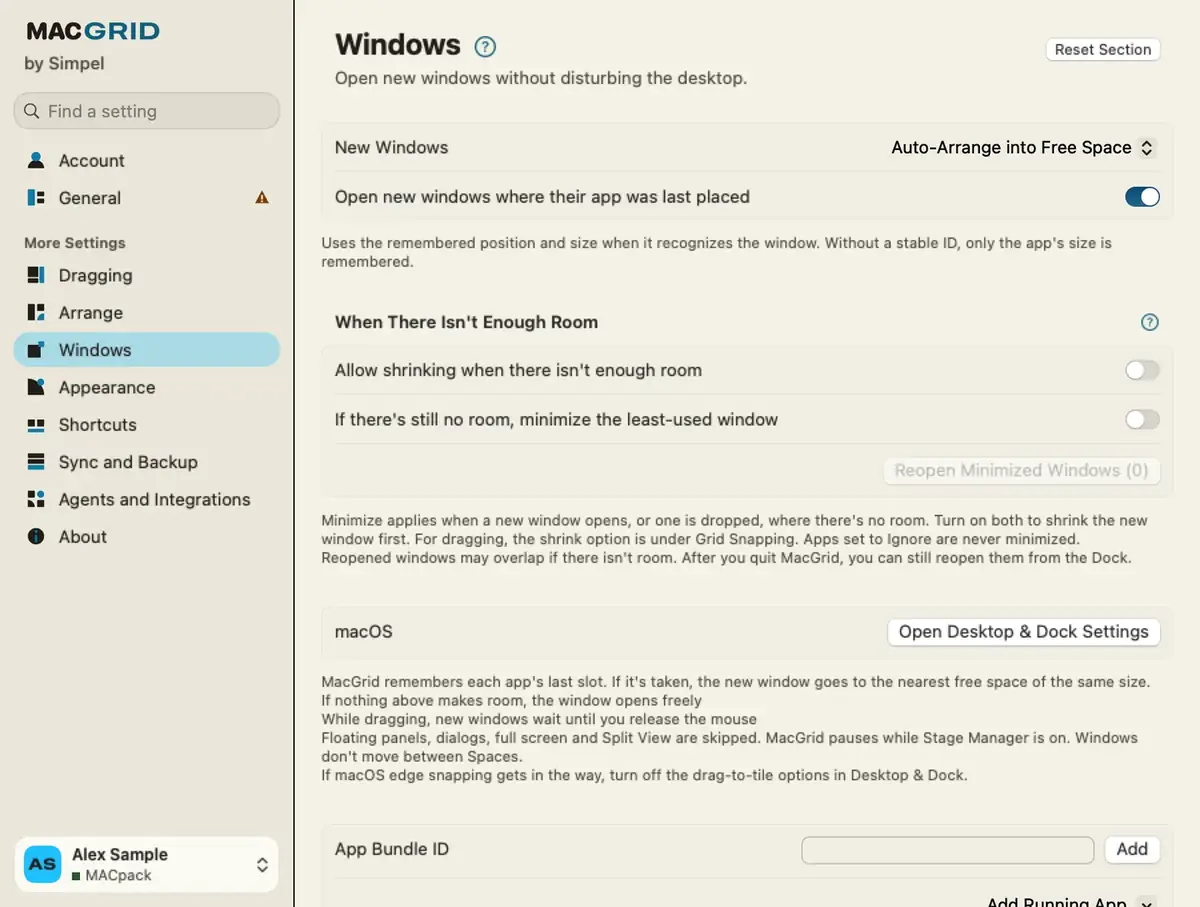
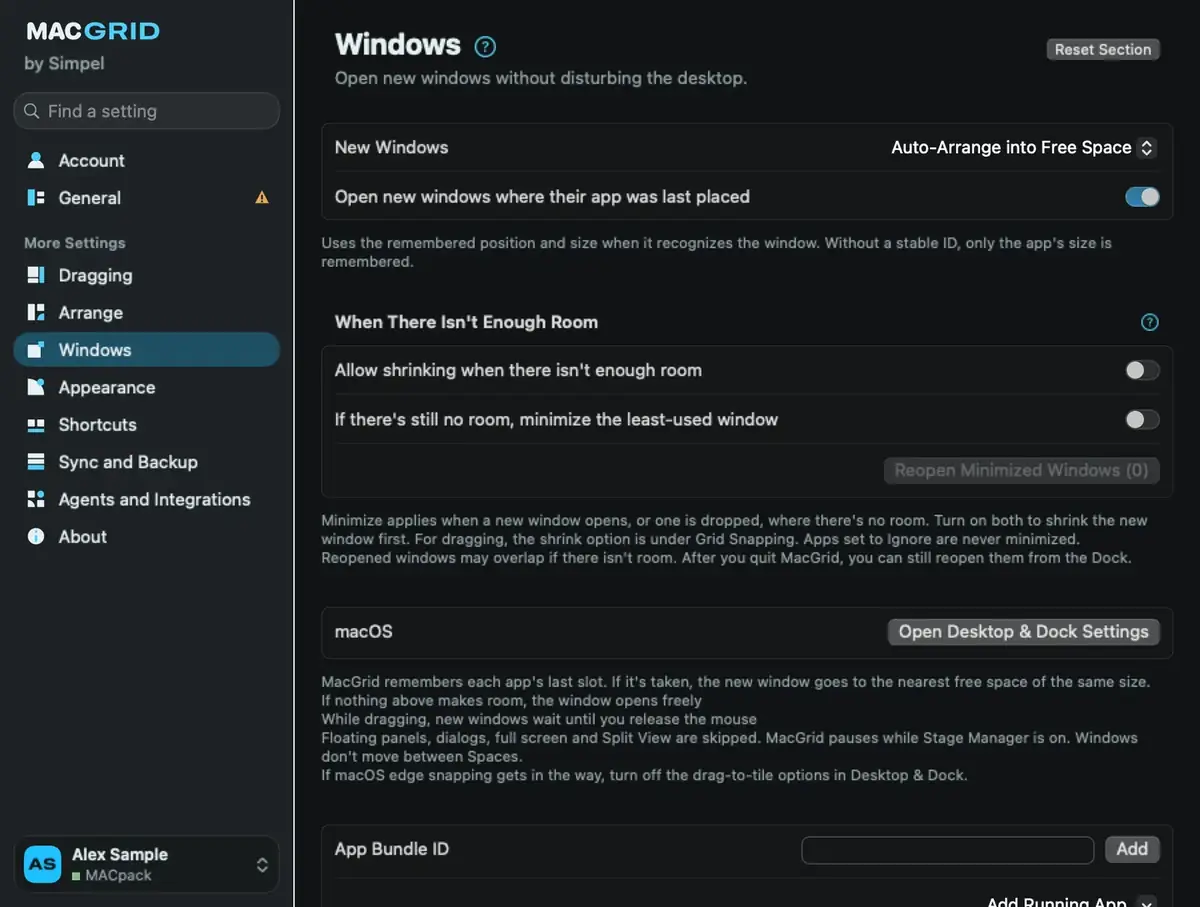
- Three modes: arrange into free space, bring to front once, or ignore
- New windows open where that app was last placed, or the nearest free spot of the same size
- Not enough room: shrink the new window, or minimise the least-used one
- Reopen Minimized Windows brings them all back from the menu
- Floating panels, dialogs, full screen and Split View are skipped
- While you drag, new windows wait until you let go
- Per-app rules: leave an app alone, or move it but never resize it
- Add a rule from a running app or by its bundle ID
- Settings › Apps shows how moving and resizing went for each app, and can retry one window
Everything from the menu bar
Click the MACgrid icon at the top right. Every command starts there.
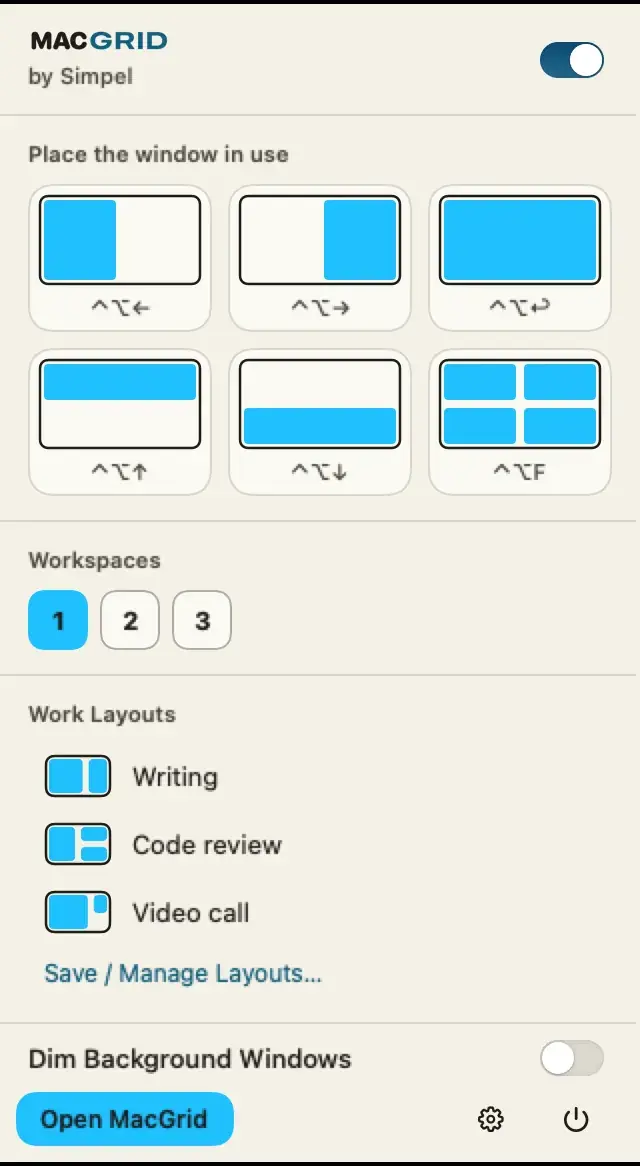
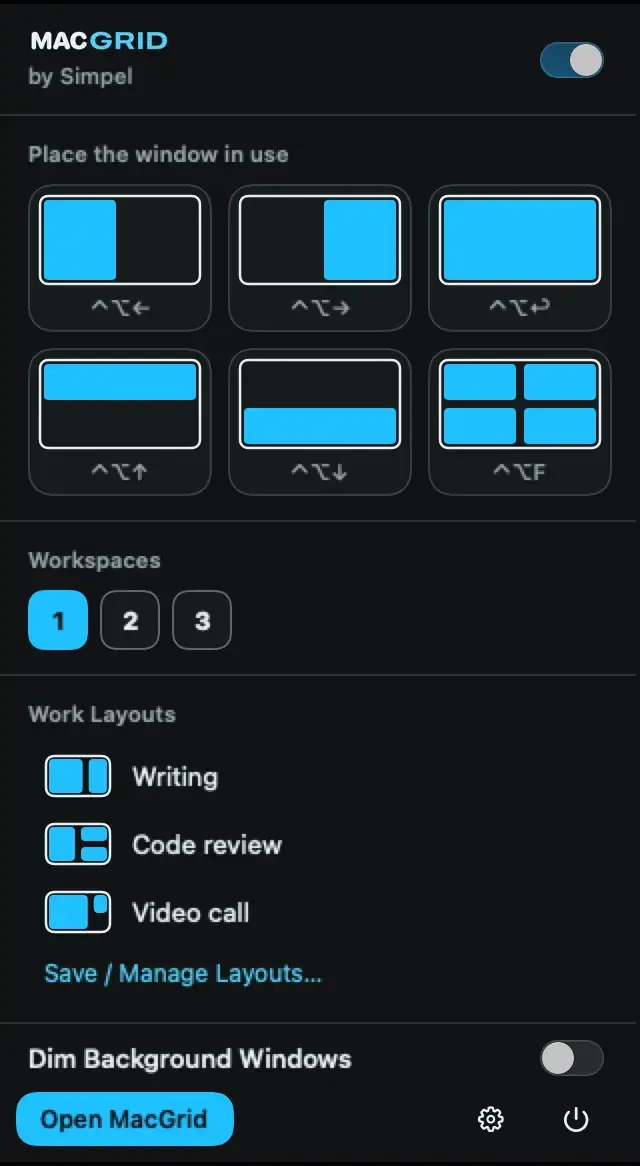
- A switch turns MACgrid on or off; Pause rests it while another app moves windows
- Six buttons place the window you are using
- Numbered workspace buttons and your work layouts
- Dim Background Windows with a switch that shows its state (coming soon)
- Open MACgrid on the left, Settings and Quit on the right
- Control-click opens the classic menu with every command
- Shows when permissions are missing or MACgrid is paused
- Hide the icon while MACsuite shows the MACgrid menu for you; it comes back if MACsuite stops
- No Dock icon while it runs in the background; a Dock icon only while a window is open
See every window, dim the rest (coming soon)
Find the window hidden behind the others, then keep your eyes on the one you use.
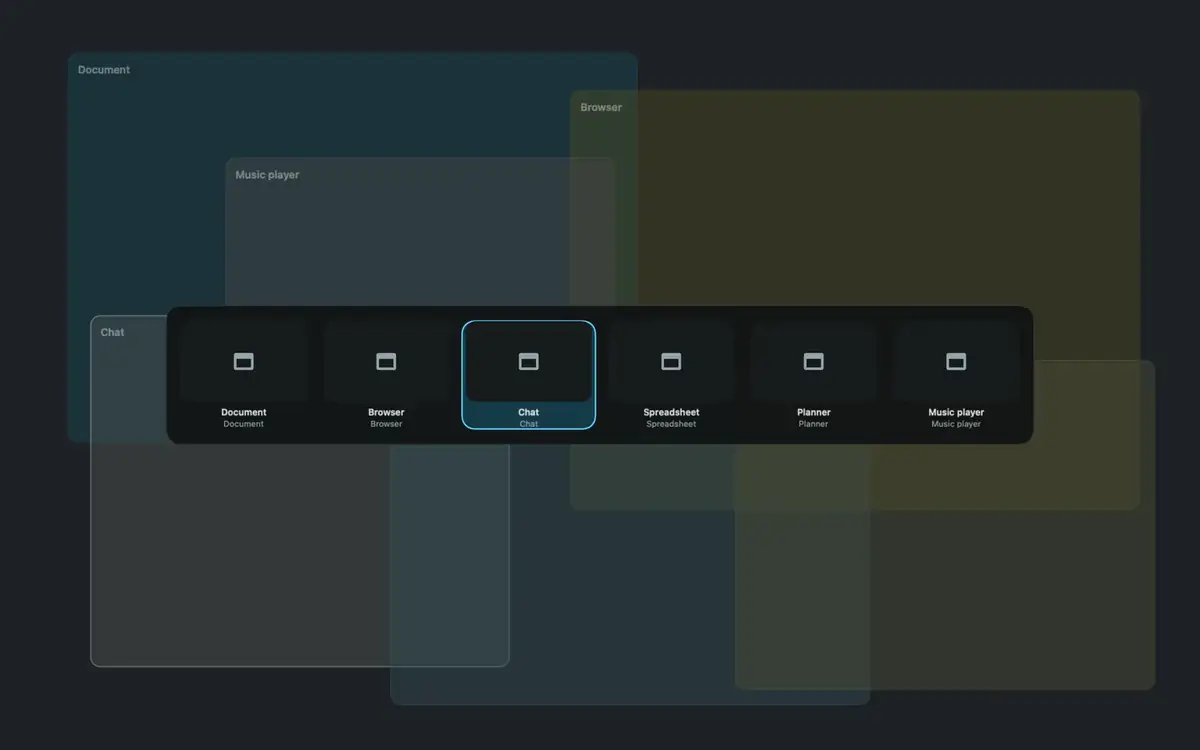
- Overview (coming soon)
- ⌃⌥Space shows every window small; click to keep looking, open the original to work in it
- Rearrange in Overview (coming soon)
- Drag frames to swap places without resizing the real windows
- Live pictures
- Optional; asks for Screen Recording only when you turn it on. Pictures stay in memory and are never saved or sent
- Dock (coming soon)
- Point at an app in the Dock to list its windows
- Recent windows
- Step through windows in the order you used them, then let go to switch
- Dim background (coming soon)
- Tints every window behind the one you use. Turn it on by shaking the pointer, a shortcut, the menu, or keep it always on
- Dim style (coming soon)
- Strength from 15 to 85 %, a flat colour, and an optional coloured border on the window in use
More than one display
Plug in, unplug, move your desk: your setup follows.
- ⌃⌥N sends the window to the next display, ⌃⌥⇧N to the previous one
- A grid, zones and look for each display, or one for all
- New display? Grids, zones, workspaces and remembered spots carry over when only one display matches
- Or pick the old display for a new one by hand
- A layout for a display that is gone asks which display to use instead
- Restore Remembered Positions after a display change scattered your windows
- Display: try a resolution for more room; nothing changes until you click Try, and the old one comes back if you don't keep it
- Works with the Dock at the bottom, left, right or hidden, even as it changes size
Undo, and windows that land where they should
Every move is checked against where the window really ended up.
Undo and redo
⌃⌥Z puts windows back where they were before MACgrid's last change; ⌃⌥⇧Z repeats it. A whole tile or group resize is one step.
Reads the real frame
After each move MACgrid reads back where the window actually is, not where the pointer went.
Puts things back
If an app refuses a size, MACgrid restores the frames from before and checks that too. It never adds a false Undo step.
Respects every app
Never below an app's minimum or above its maximum. Apps that round sizes get a few smaller tries, each after a checked restore.
Stays out of the way
Pauses while Mission Control is open or Stage Manager is on, and tells you when Stage Manager changes.
Never lost
Quitting leaves windows where they are. Minimised windows can be reopened from the menu, or from the Dock after you quit.
Make it look and feel your way
Graph paper, flat colour blocks and a cyan grid, with calmer options when you want them.
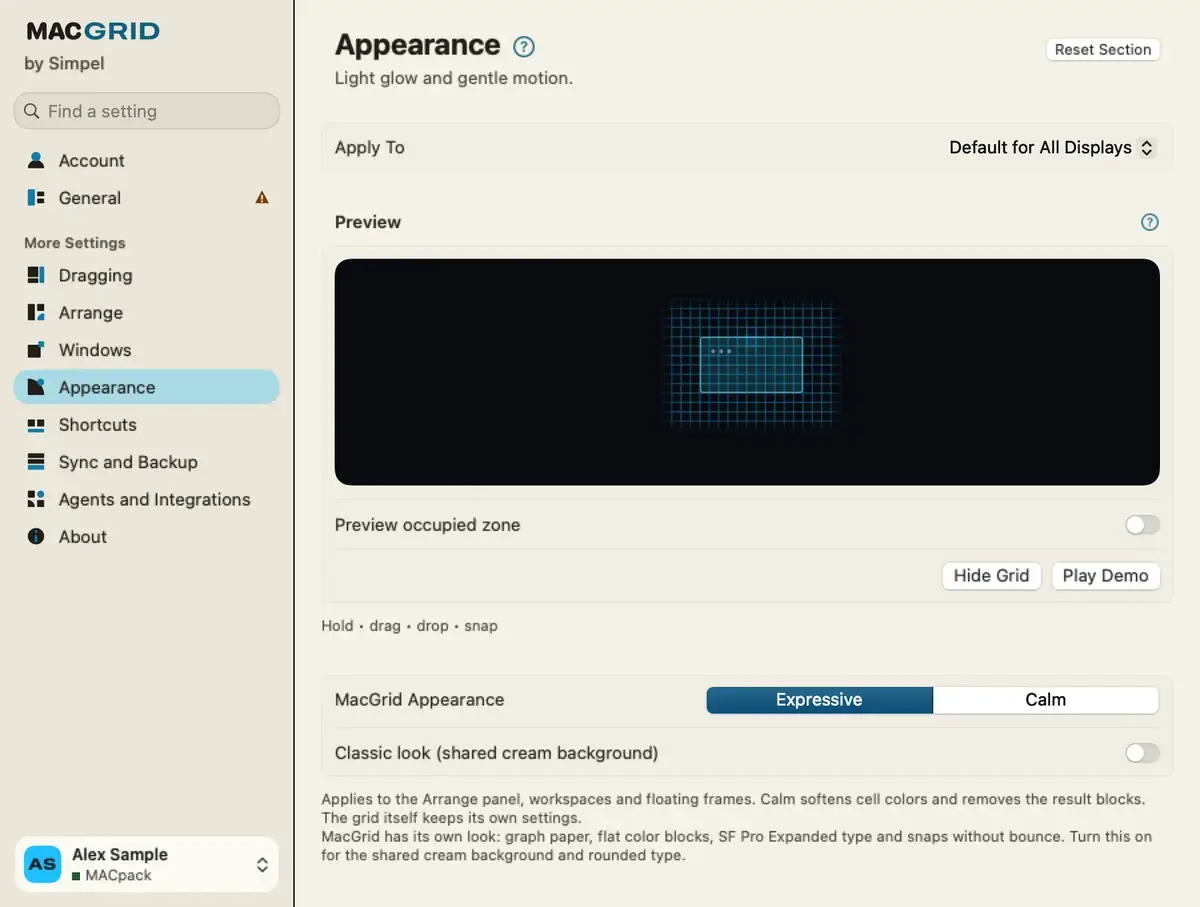
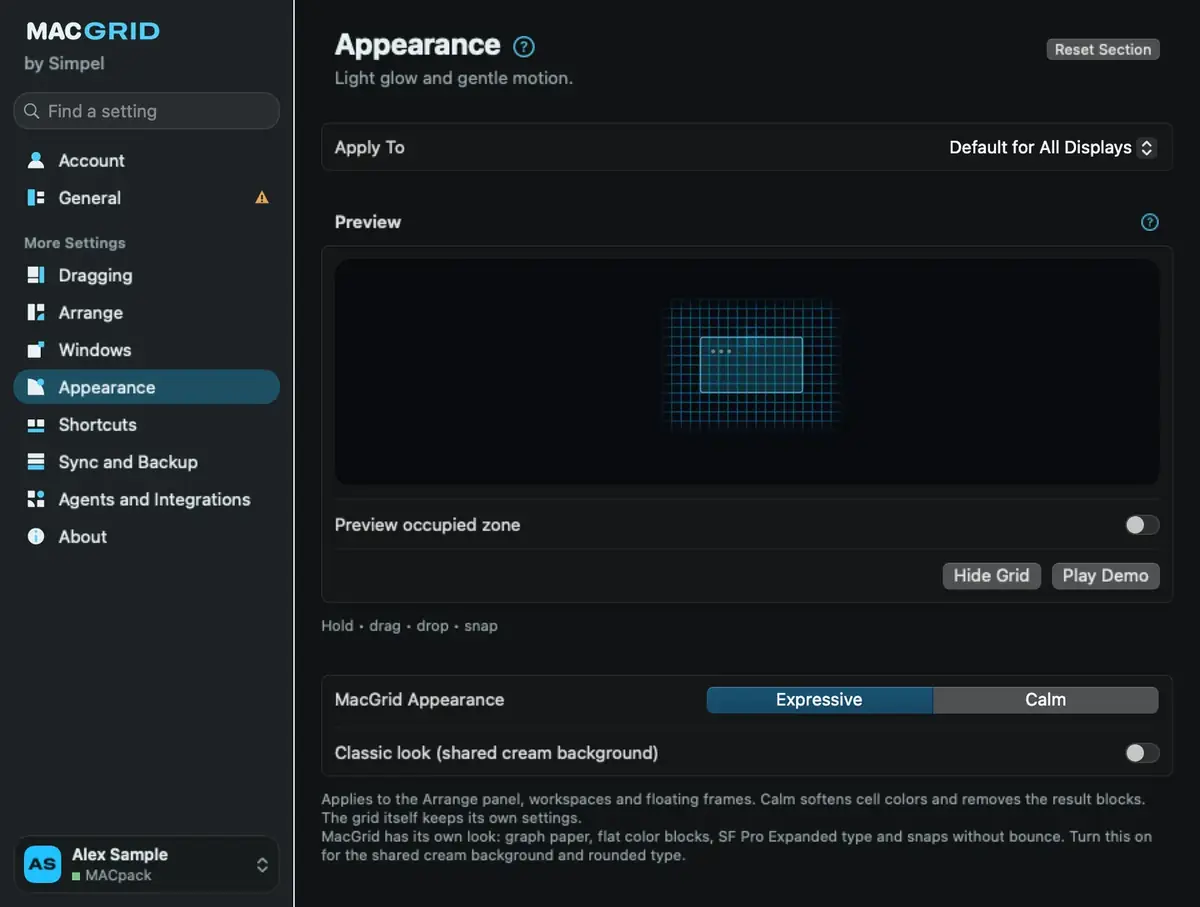
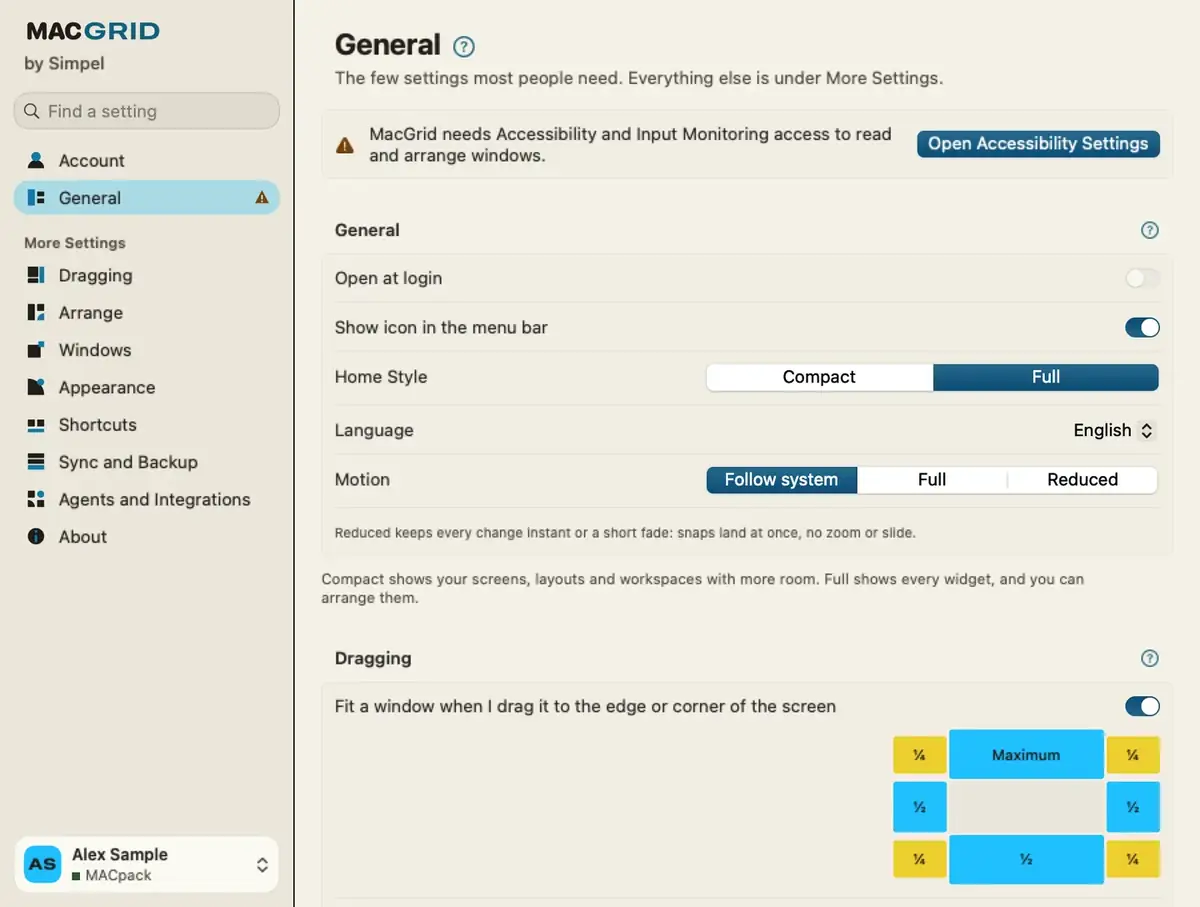
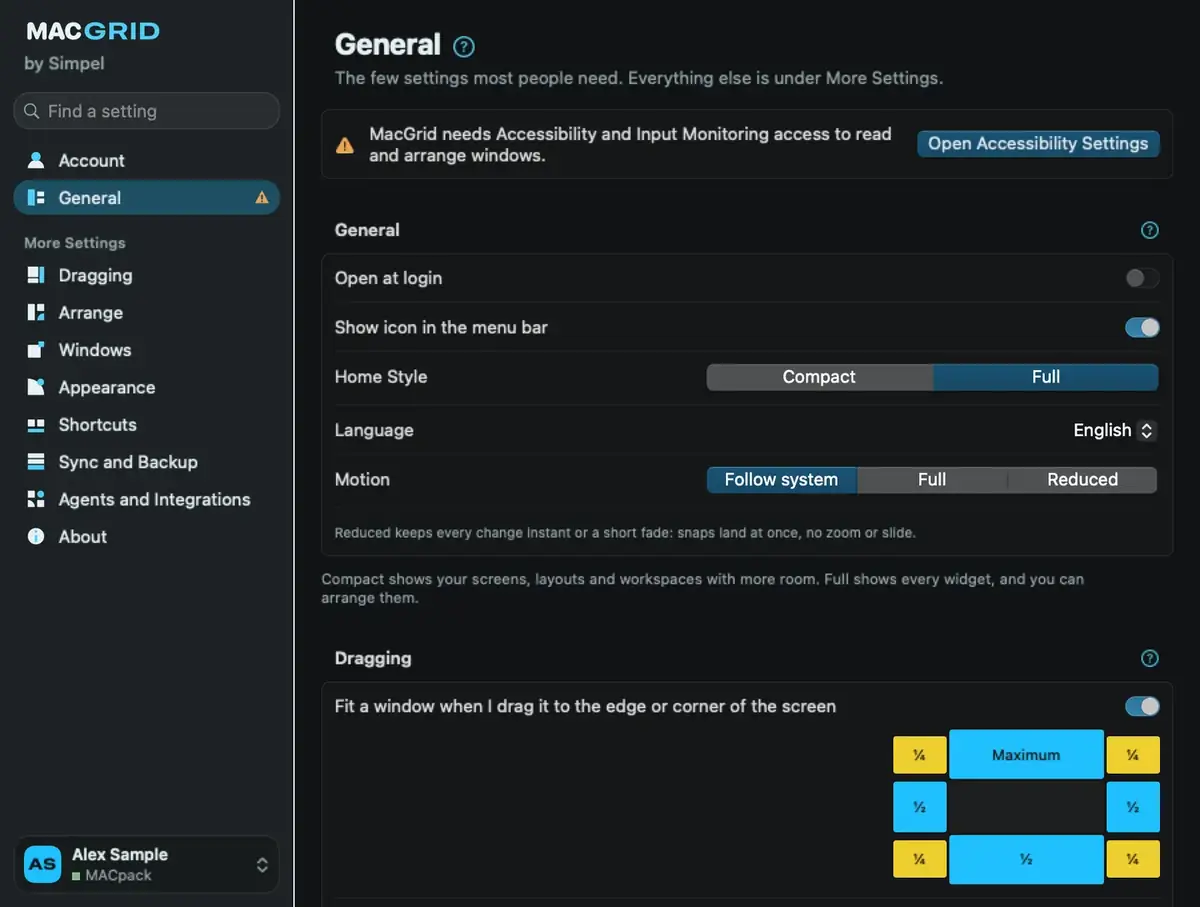
- Grid style
- Soft Neon, Electric or Minimal, with colour, line thickness and glow
- Preview
- Play Demo shows hold, drag, drop and snap right in Settings
- MACgrid look
- Expressive uses bold colour blocks; Calm tones them down; Classic brings back the cream background
- Motion
- Follow system, Full or Reduced; Reduced lands snaps at once with only short fades
- Contrast
- Increase Contrast makes target outlines thicker and labels solid
- Light and dark
- Every window, panel and overlay in both
- Language
- English, Tiếng Việt, 한국어, 简体中文 and 日本語, or follow the Mac
- Home and menu bar
- Compact or Full Home, and show or hide the menu-bar icon
Learn it in minutes
A short guide on day one, then lessons, videos and an article for every menu and setting.
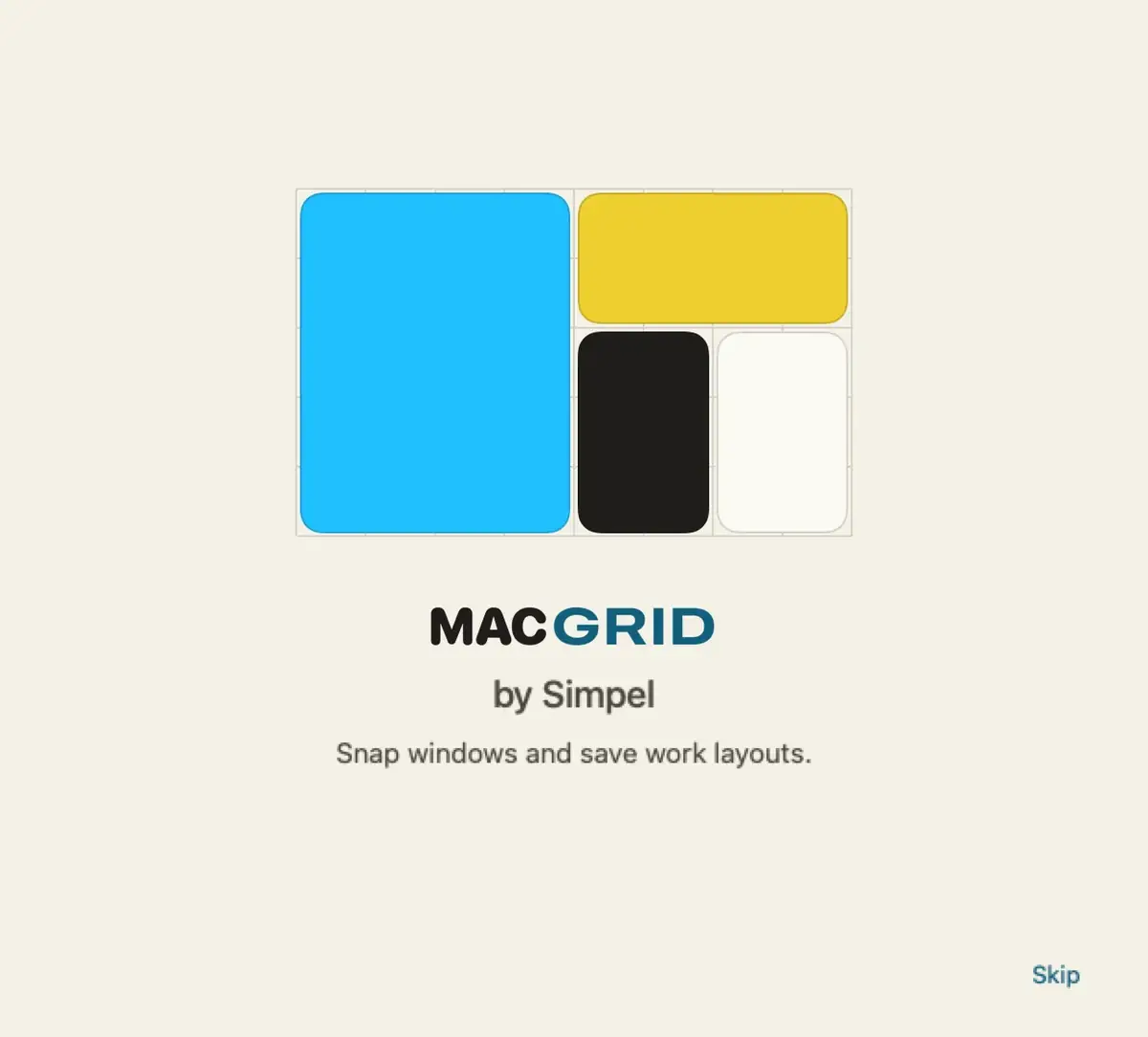
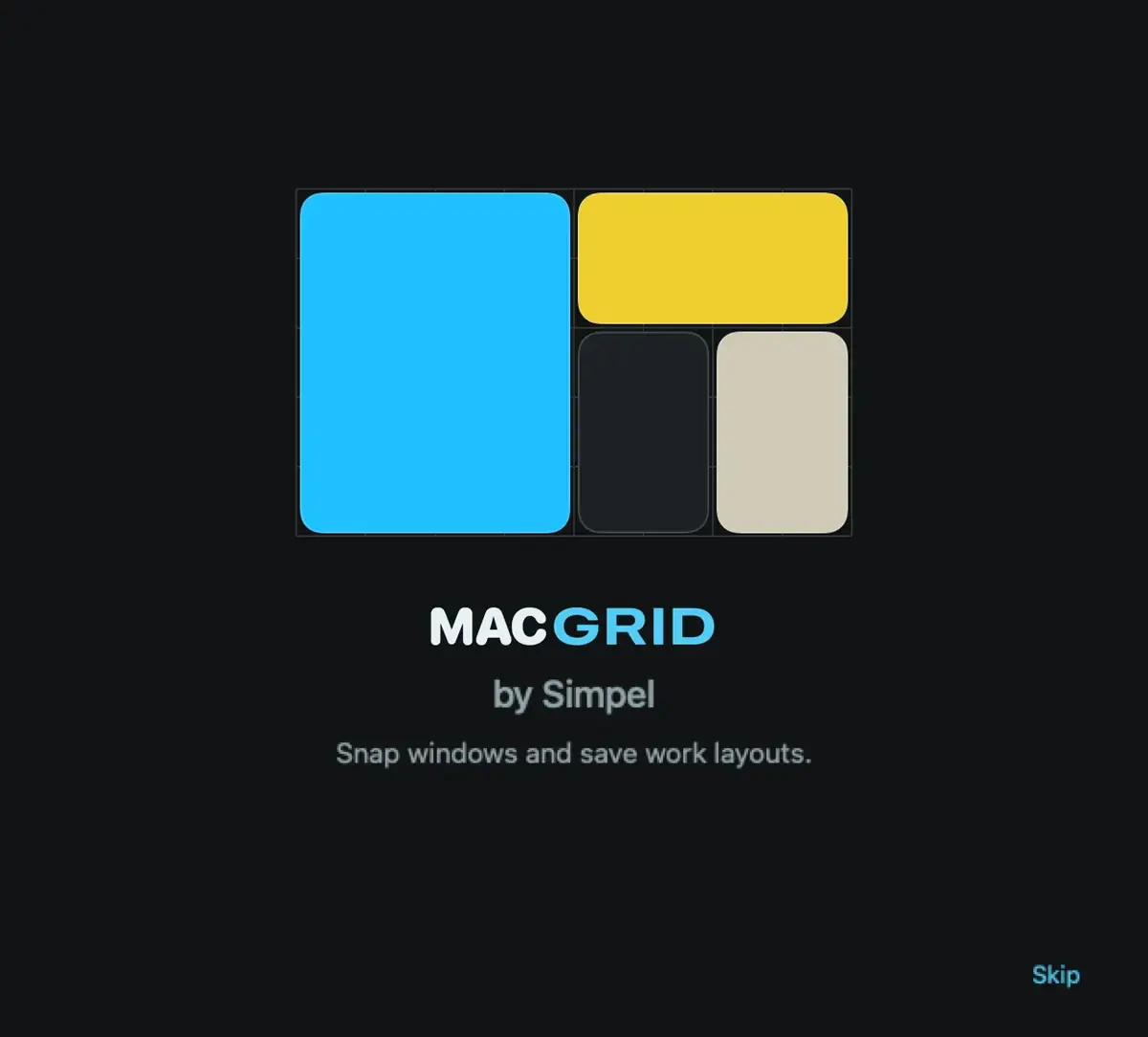
A short intro
Graph paper and four blocks snapping into place. Click to skip; with Reduce Motion it only fades.
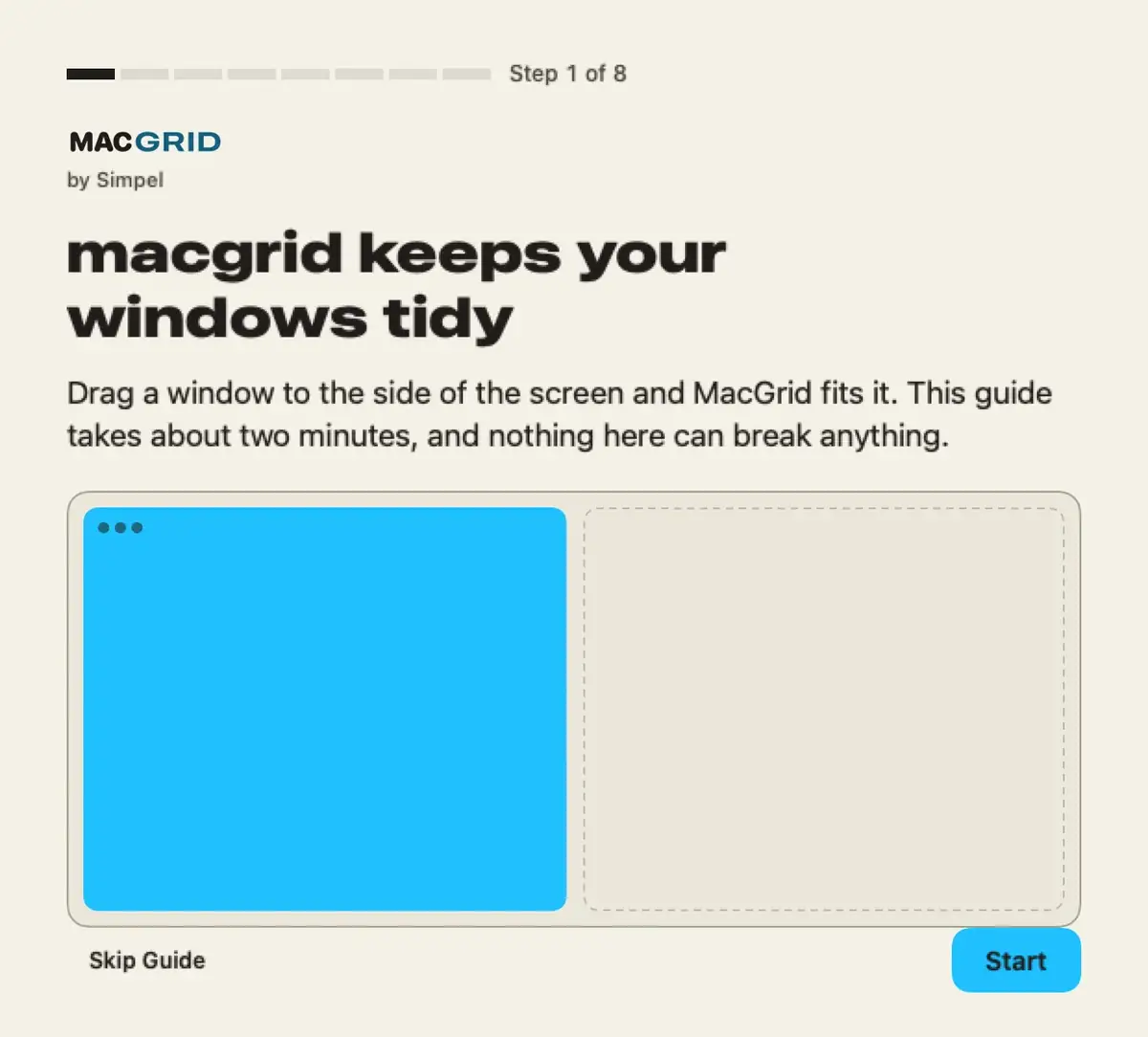
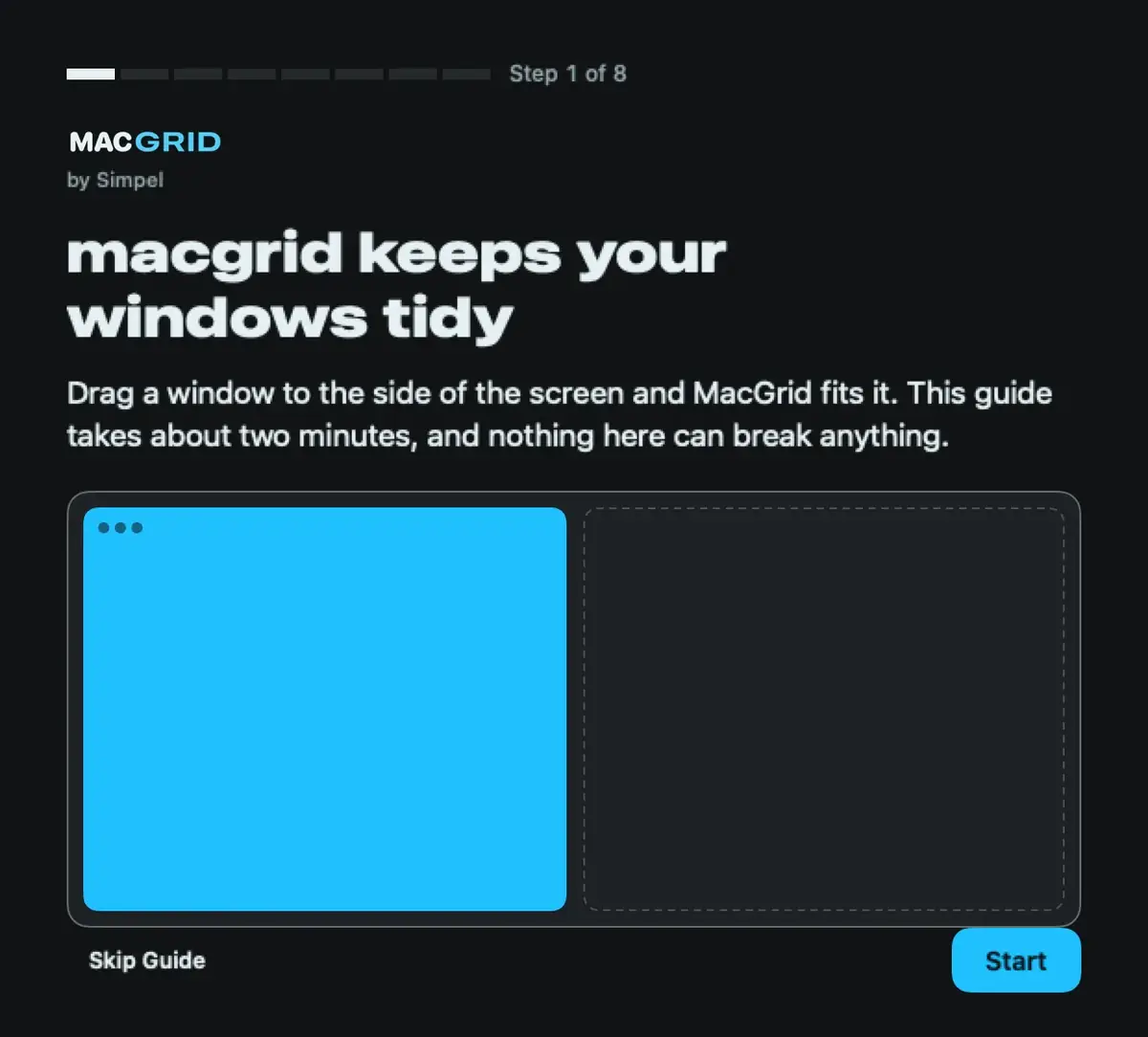
An eight-step guide
One idea per step, large type, one main button. Skip any step and reopen it at the same place.
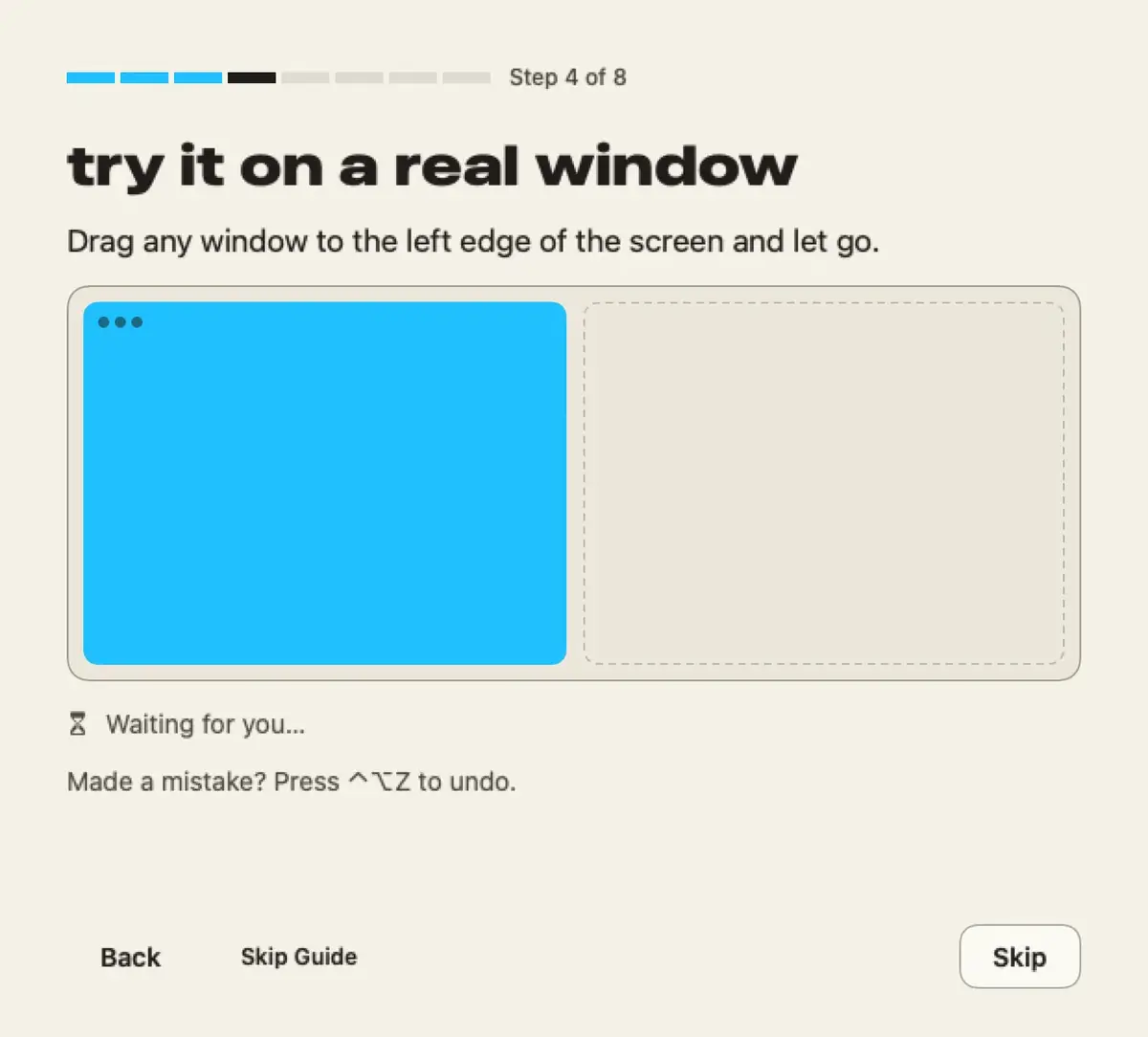
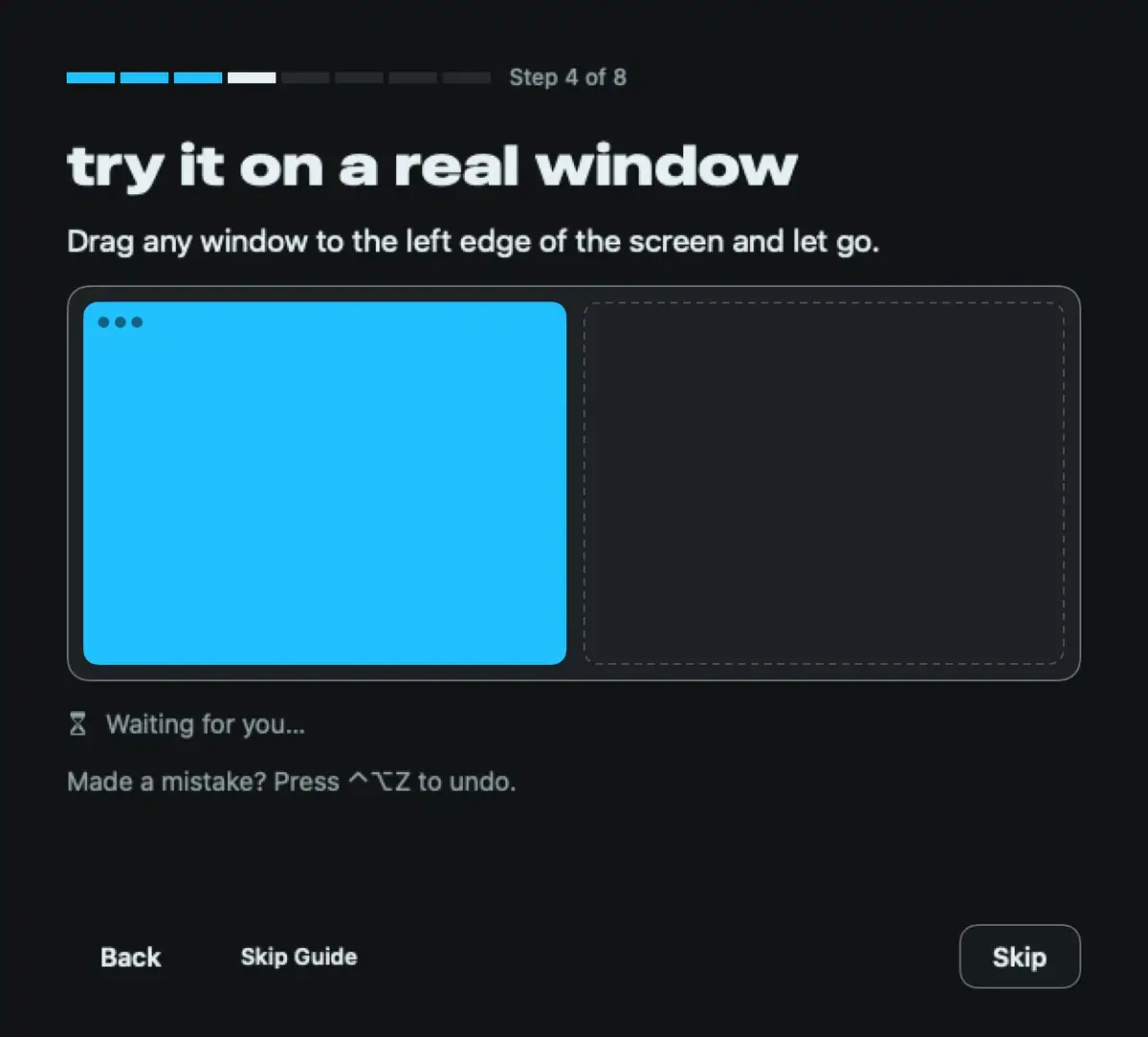
Practice on a real window
Drag any window to the left edge. Permission steps move on by themselves once macOS allows them.
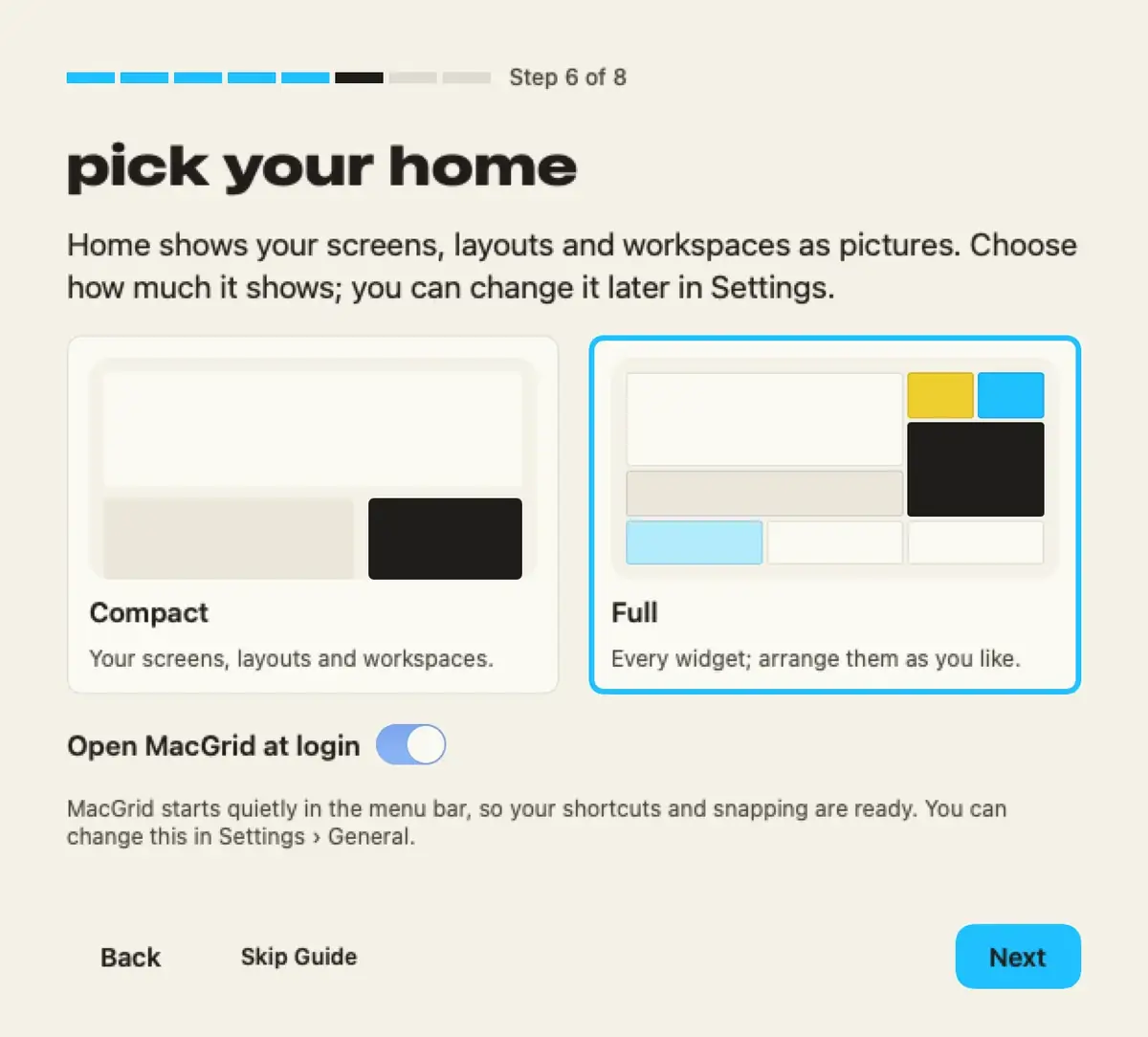
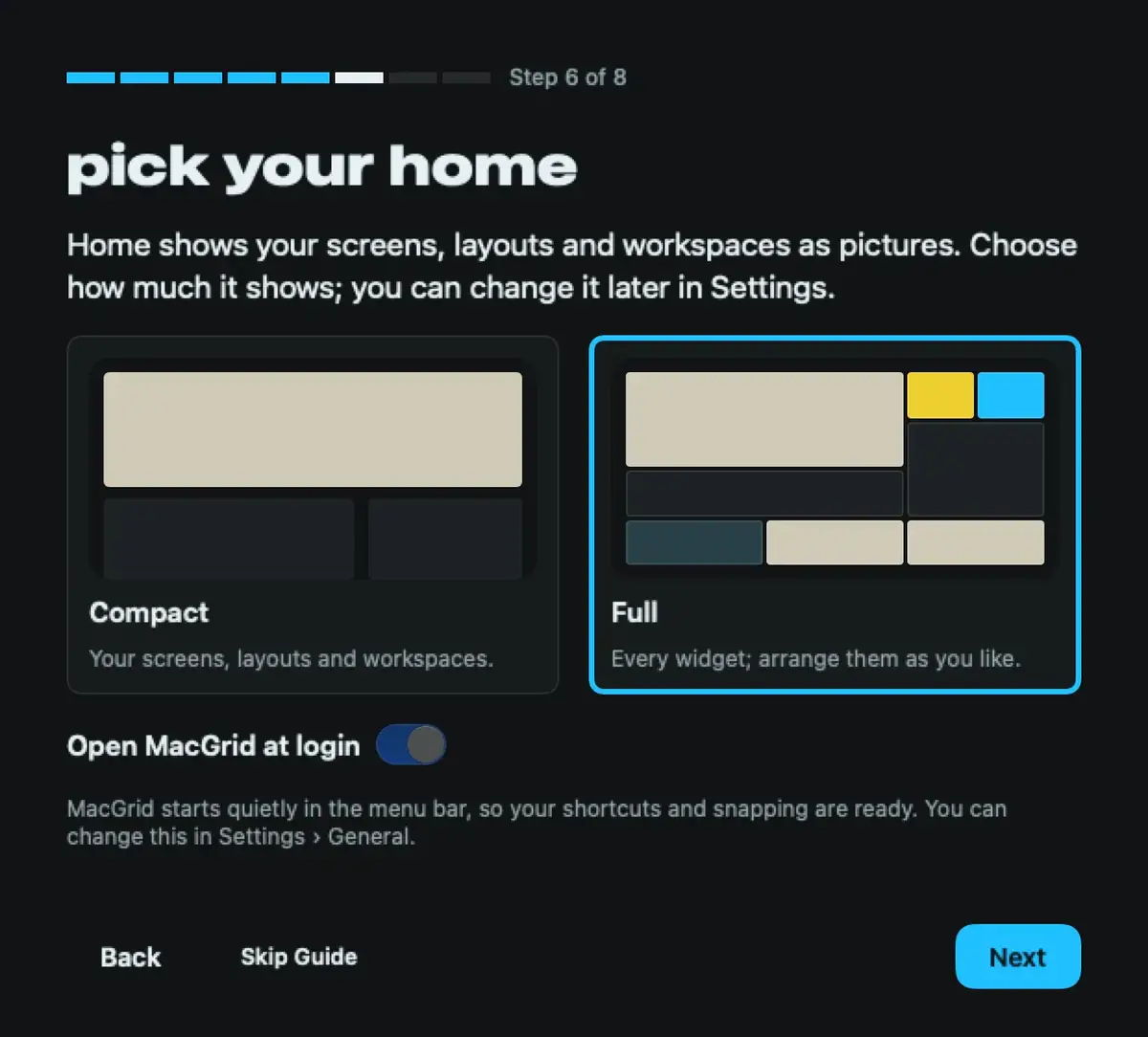
Pick your Home
Compact or Full, and whether MACgrid opens at login, right in the guide.
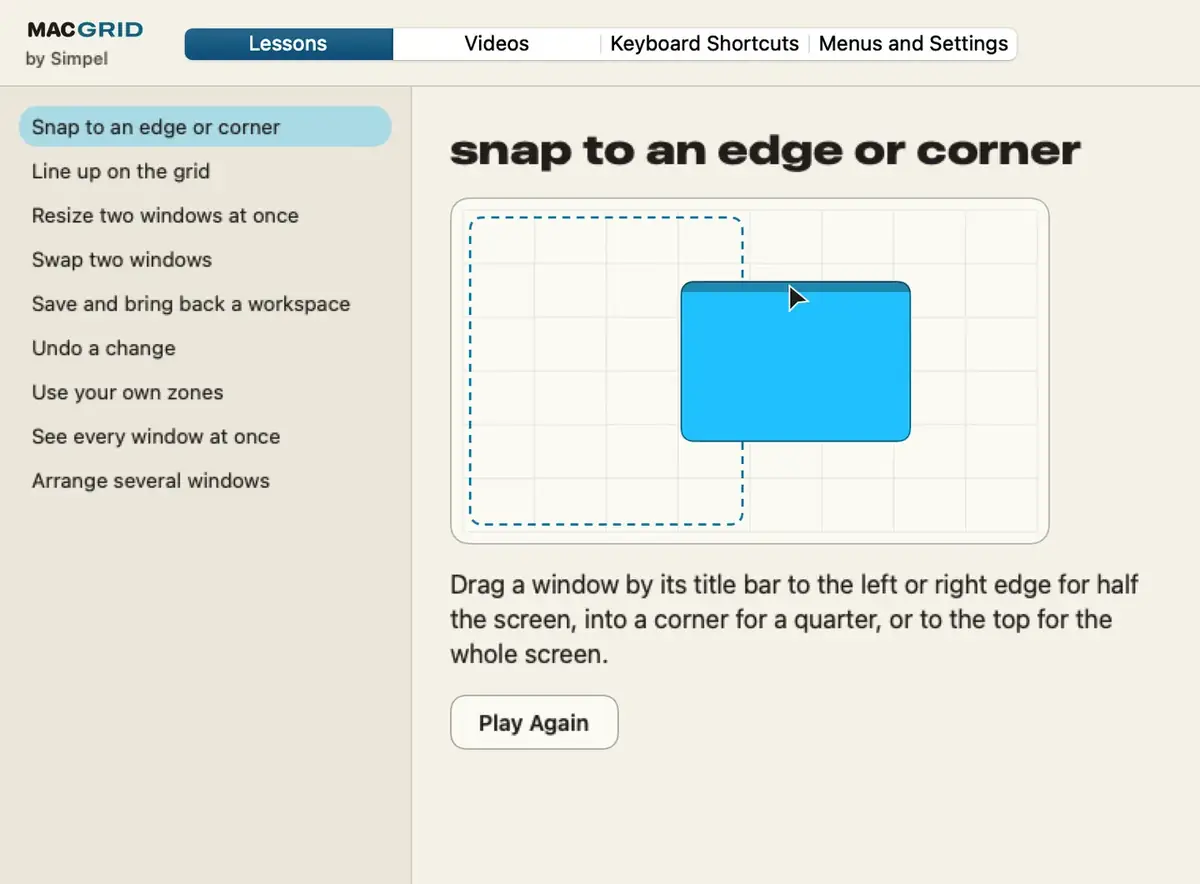
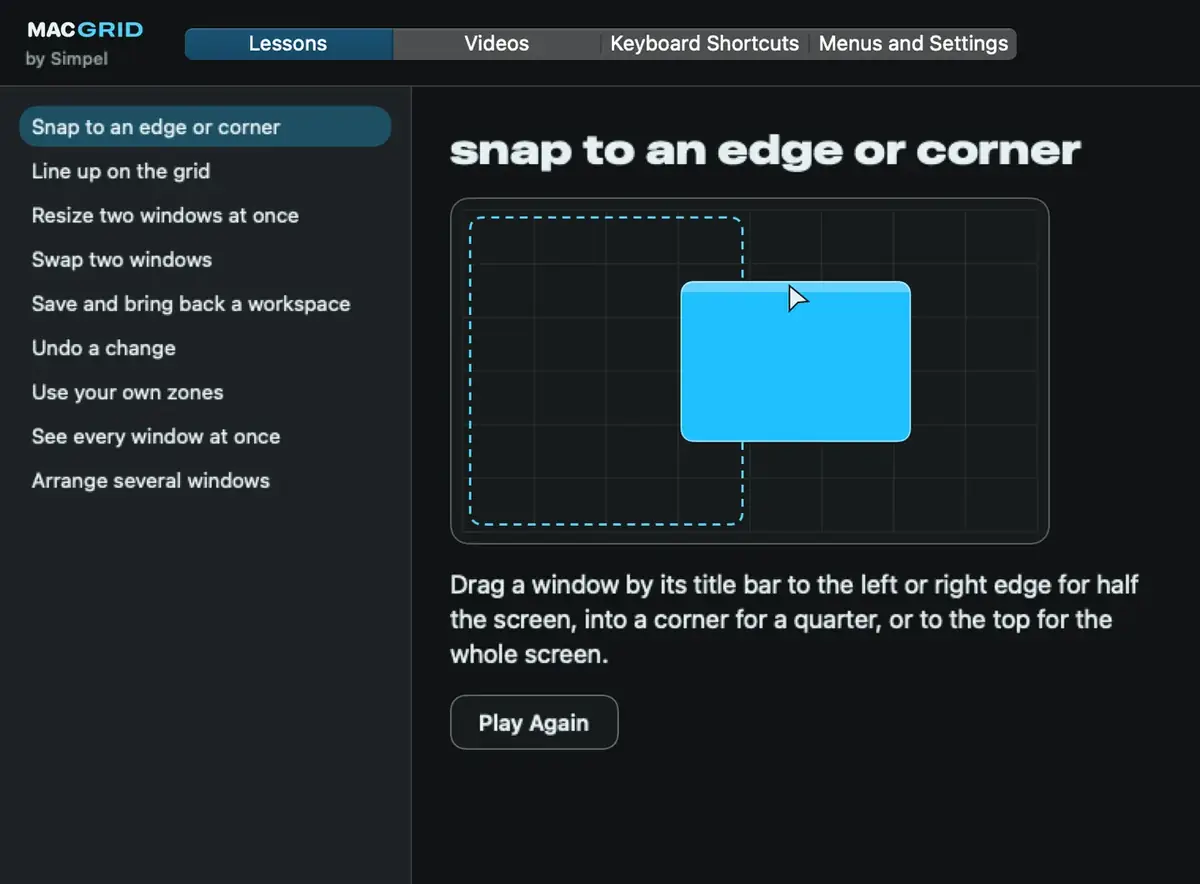
Nine lessons
Edges, grid, resizing two windows, swapping, workspaces, undo, zones, seeing every window, arranging. Each plays once and replays.
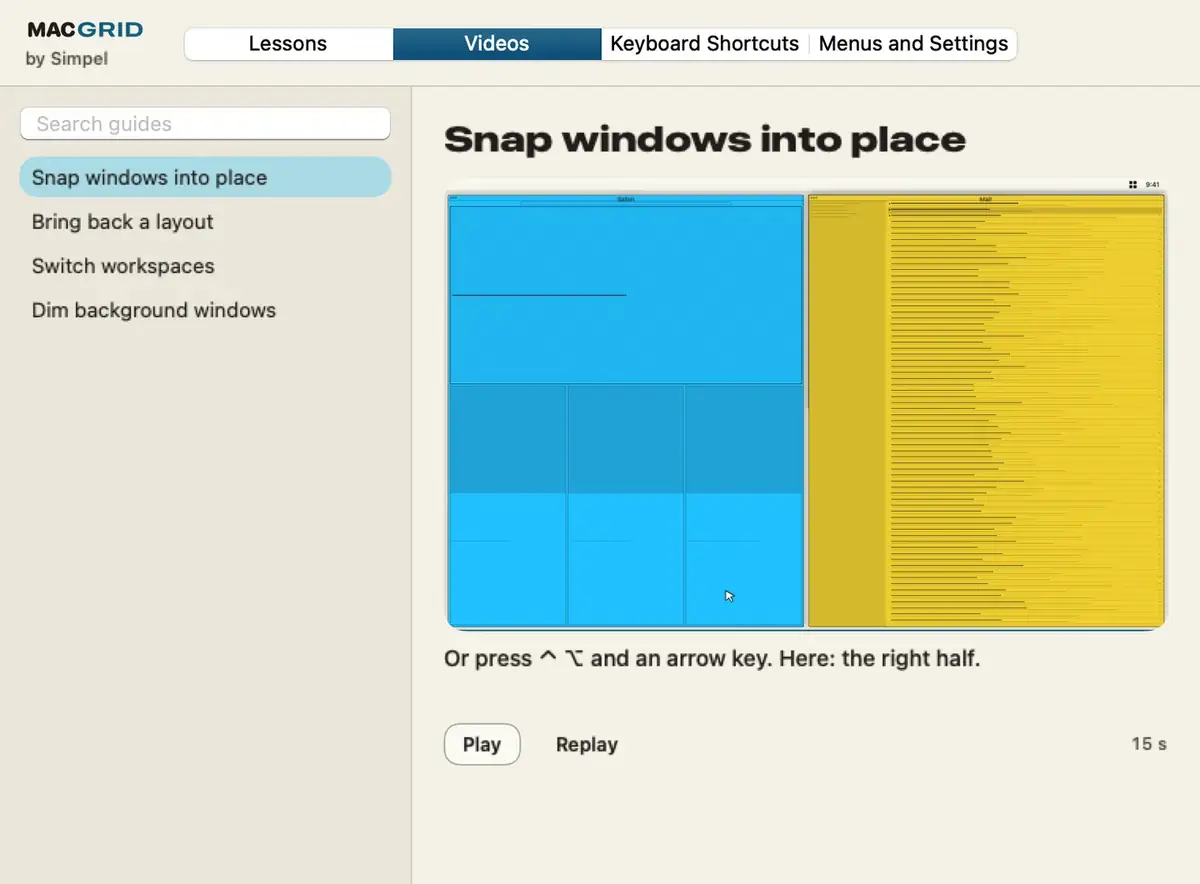
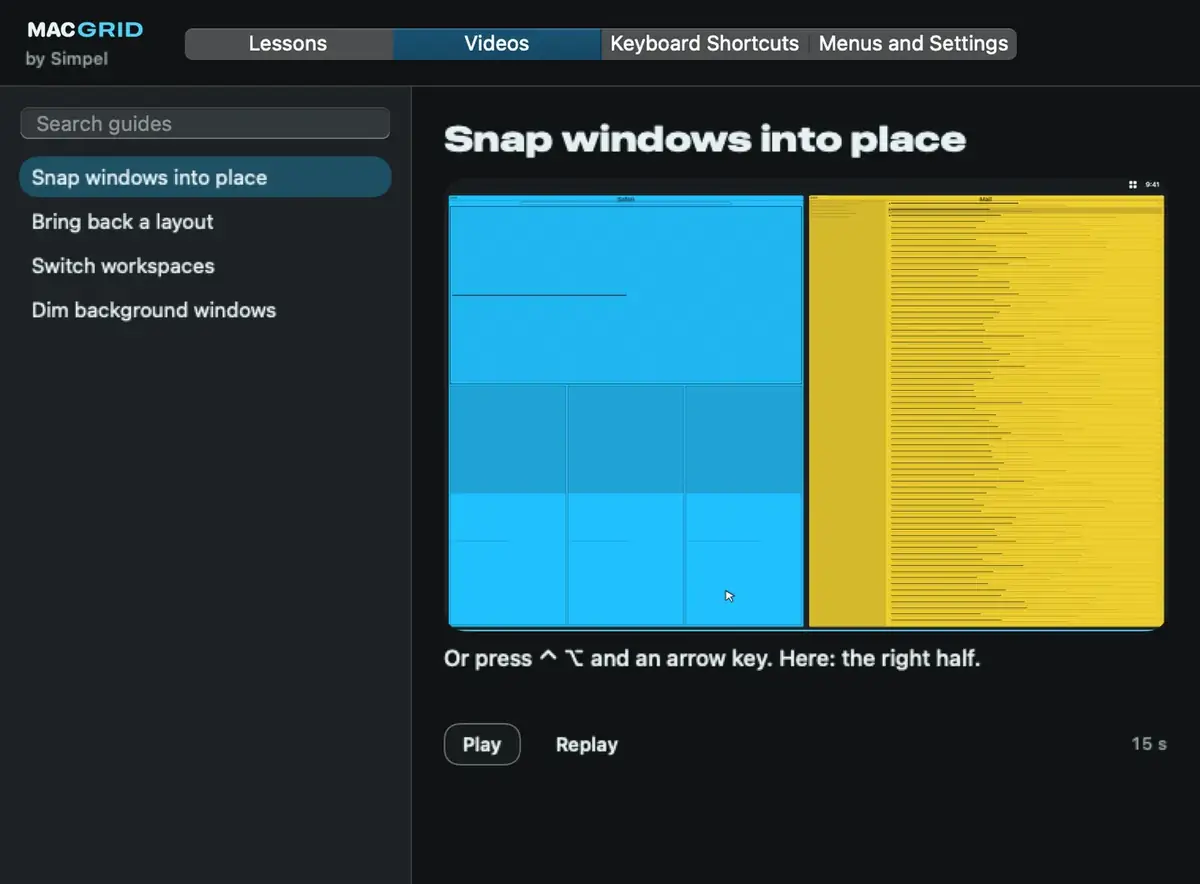
Guide videos
Short clips of snapping, bringing back a layout, switching workspaces and dimming.
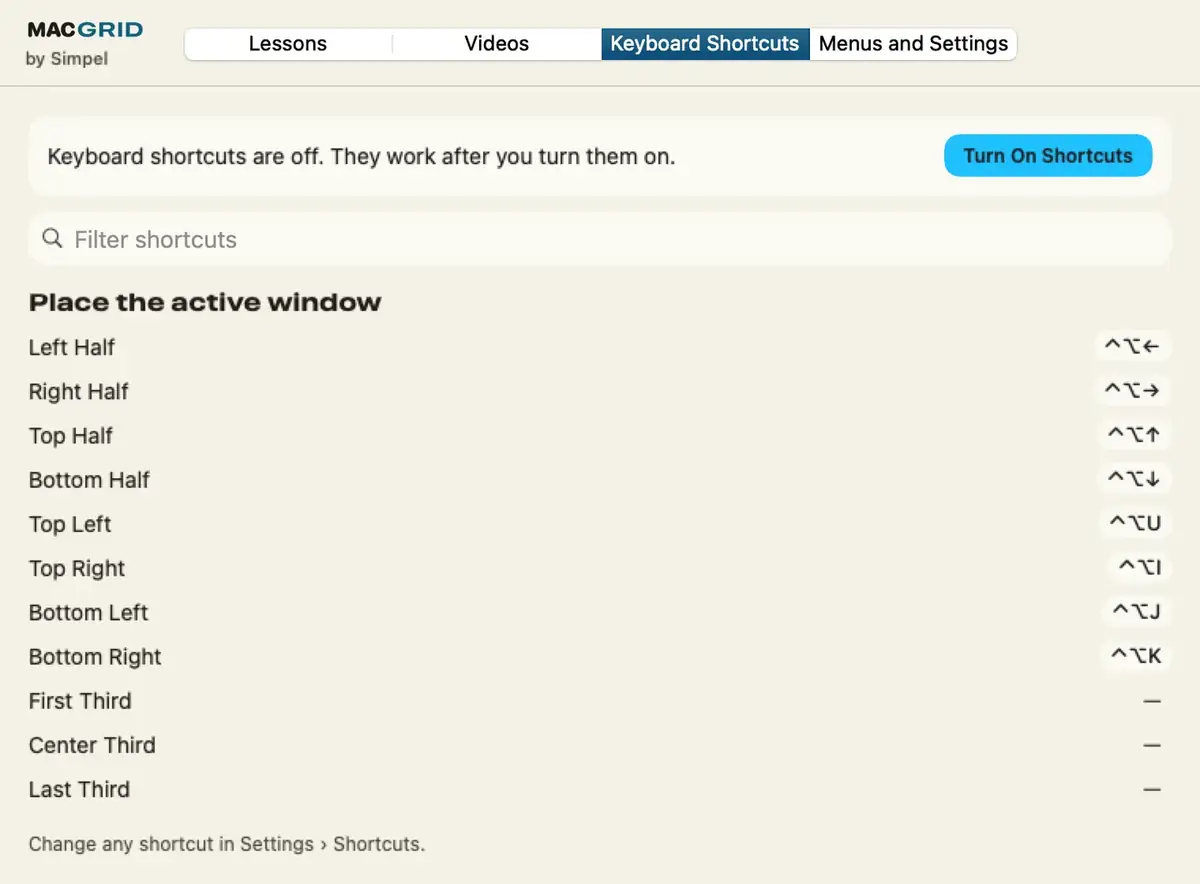
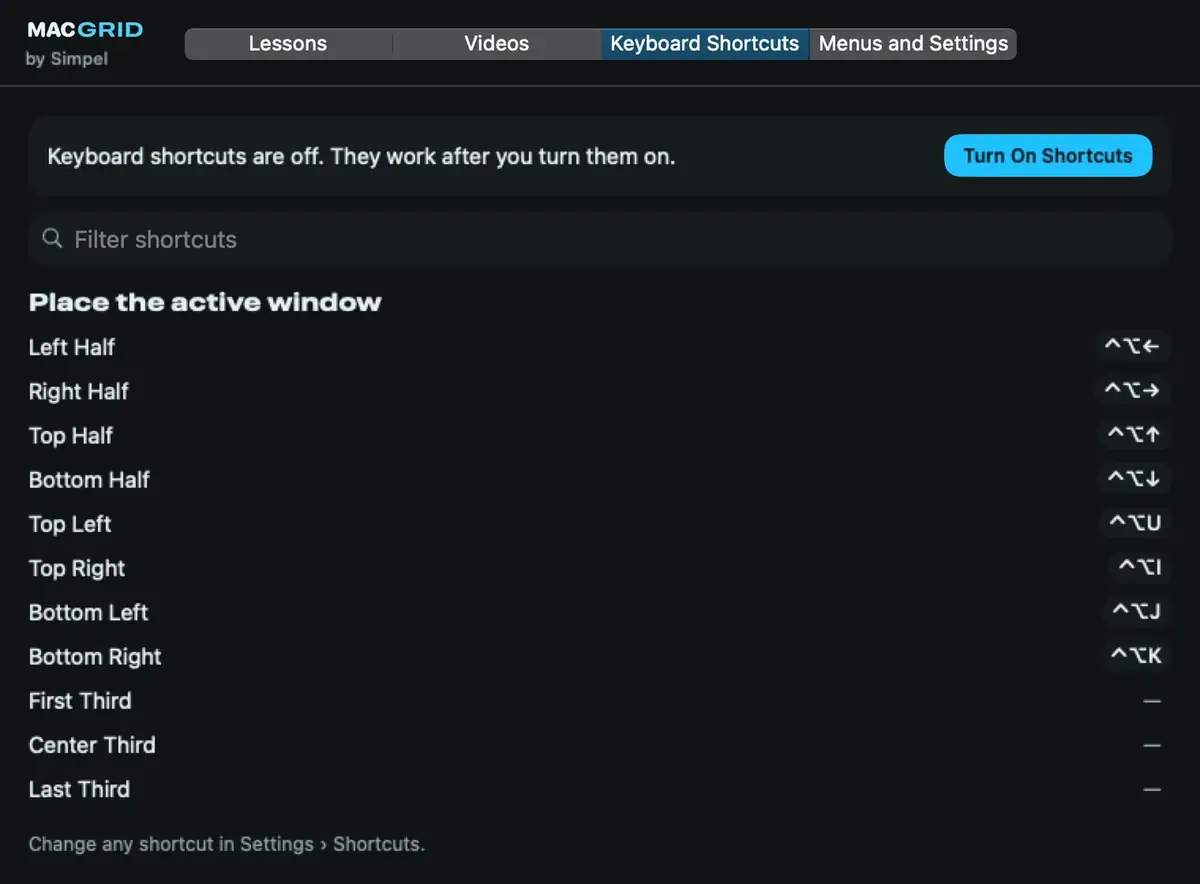
Every shortcut
One sheet in groups with a filter; if shortcuts are off, one button turns them on.
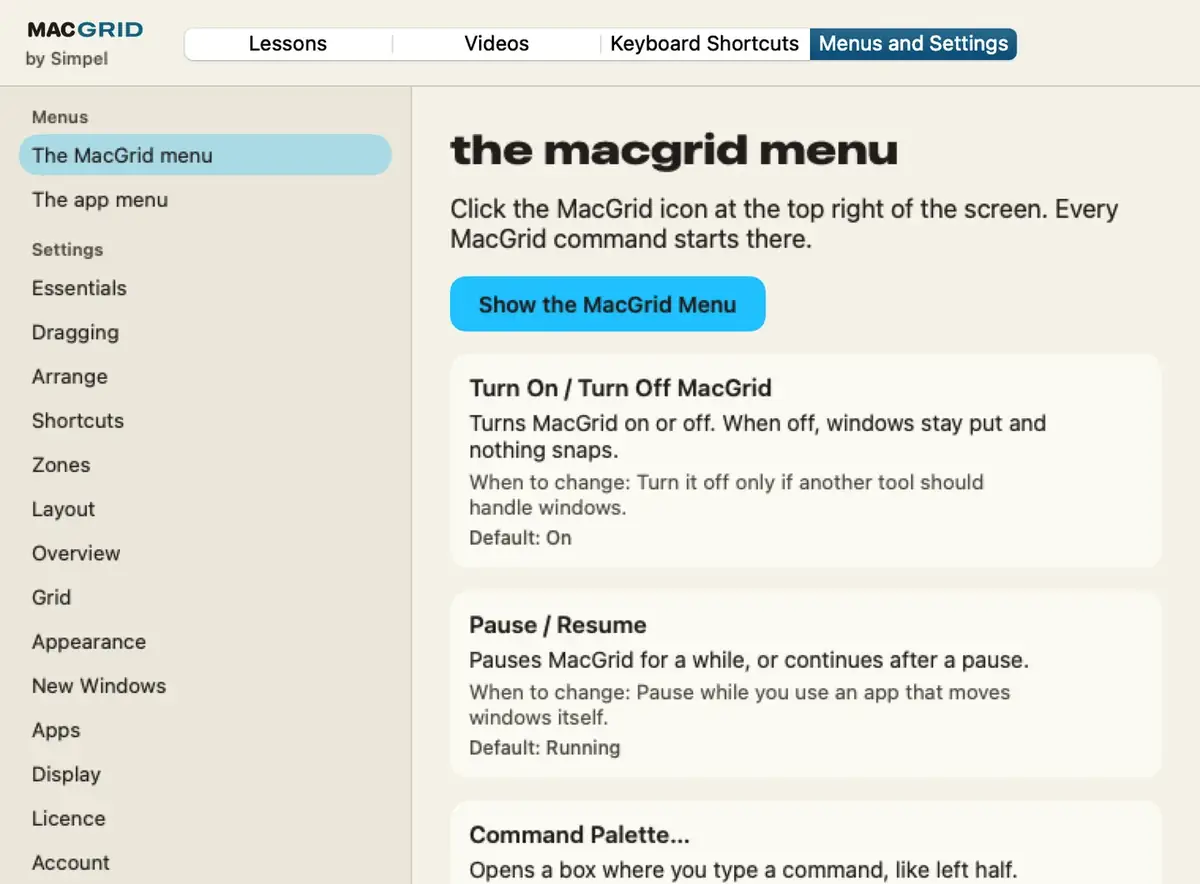
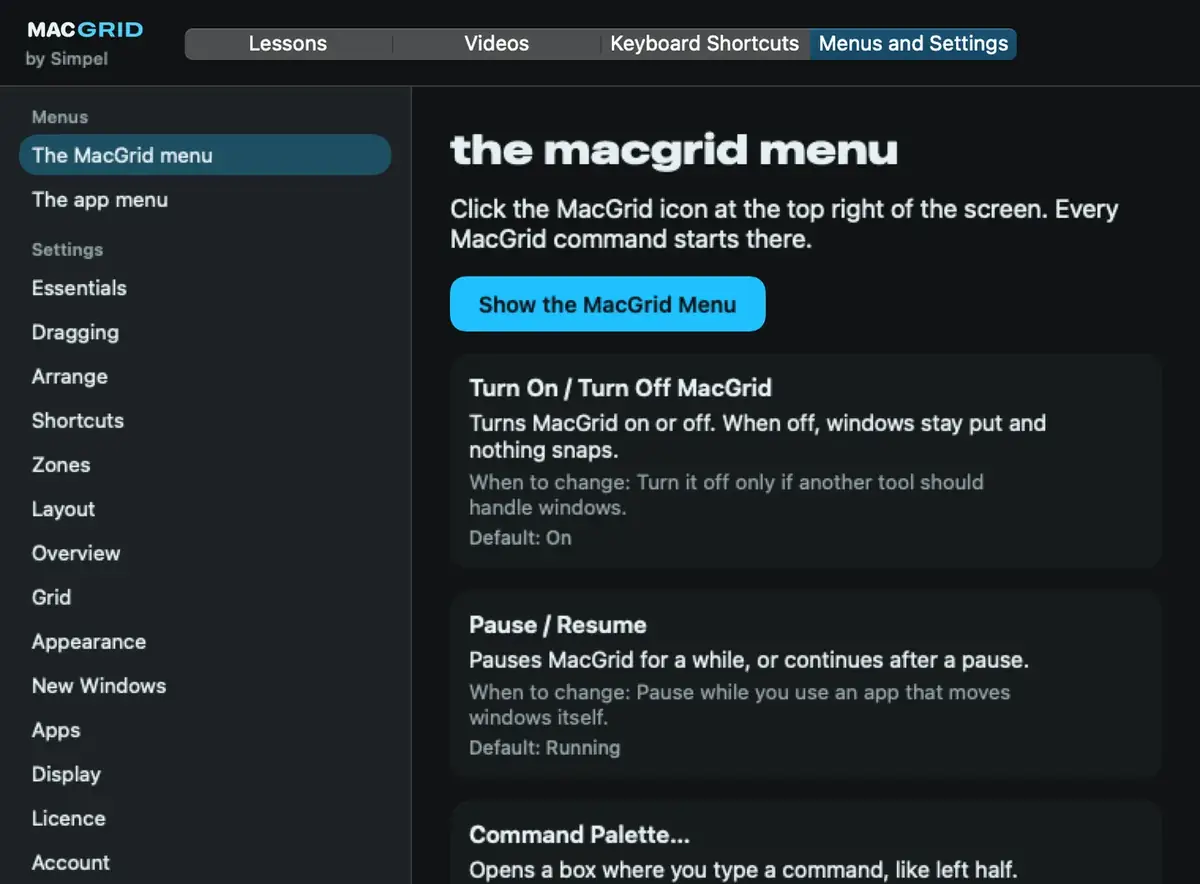
Menus and Settings
Every menu item and setting: what it does, when to change it and its default, with a button that opens it.
Sync, backup and your data
Your setup is plain files on your Mac. Move it, back it up, or take it with you.
| Bring in | Take out | |
|---|---|---|
| Simpel Sync | Takes in changes from your other Macs, backing up before each one | Sends grid, snapping, shortcuts, zones, app rules, layouts and workspaces through iCloud Drive or a folder you pick |
| Backups | Restore from the list or from a backup file | Every day and before an import, a restore or a display move; keeps the last 10; export one backup file |
| Configuration | Import shows what will change first and backs up; duplicate layouts are skipped | A versioned JSON file you can keep or share |
| All my data | — | Layouts, workspaces and settings as plain JSON files in a folder you pick, even without a licence |
| Reset | Reset one section, or every setting after an automatic backup | Layouts, workspaces and your language stay |
- Sync is free and not tied to your licence
- Window positions, on/off and language stay on each Mac
- Two Macs change the same layout: both versions are kept
- Never stores window titles or document contents
- A damaged or newer settings file is never overwritten with defaults
- Your windows, layouts and Sync never lock because of the licence
Let an AI agent arrange your windows
152 local MCP tools use the same actions and checks as the app itself, with no clicks or screenshots.
windows_list           6 windows, 2 displays
arrange_candidates     Document, Browser, Chat
arrange_plan           optimal, fits
arrange_apply          measuring sizes
arrange_status         done, 3 frames checked
workspace_save "Writing"- Every feature in the app has a tool: windows, edges, zones, layouts, workspaces, Home, settings, backups, help
- Agents never get window titles or document contents
- An agent asks once; you click Allow or Don't Allow in MACgrid
- Allowed Agents: remove one, or all, at any time
- Agent Activity shows which agent asked for what, and when
- macgrid:// links open Home, Help and Settings pages, and never run an action
- MACsuite can show MACgrid's menu and widgets in its own panel
Made for the Mac
A small menu-bar app that starts quietly and stays light.
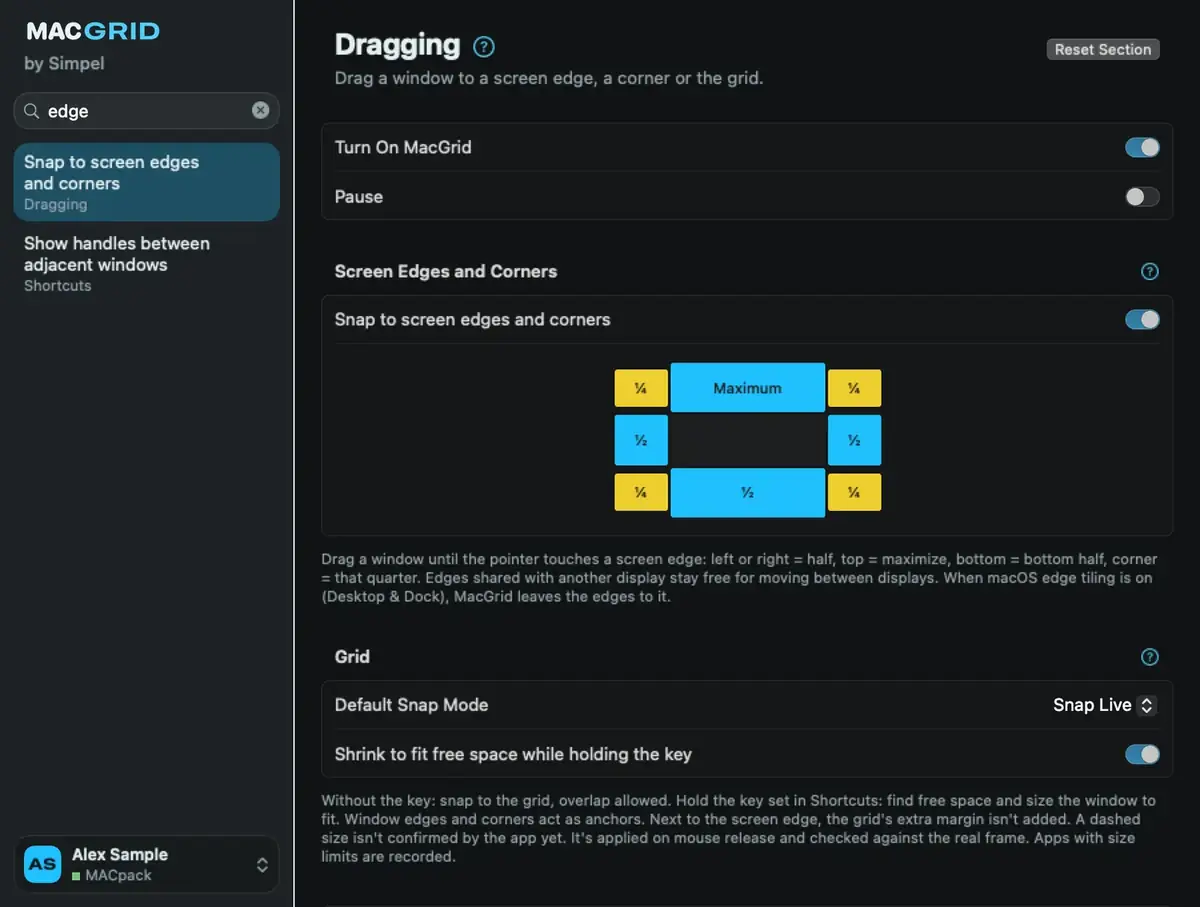
- Open at login starts MACgrid in the menu bar with no window
- Find any setting with ⌘F, even typed without accents
- ⌘1 to ⌘9 switch Settings pages; a (?) on each group opens its help
- General keeps the few settings most people need, in plain words
- Help menu: Search Help (⌘?), Get Started, Replay the Tour, Keyboard Shortcuts, Report a Problem, What's New
- What's New for the version you use, right in Settings
- Updates download in the background, are signature-checked, and install when you quit
- Sign in with a 6-digit email code or a licence key; no password to remember
- Account tab with your plan, Macs, updates, receipts and security
- A free trial after you confirm your email
- Only one copy runs at a time; opening it twice brings the running one forward
- Light when idle: little memory and almost no CPU
- Needs Accessibility and Input Monitoring; Settings opens the right macOS page for you
Try it on your own notes
Every feature here is in MACgrid today, except the ones marked coming soon.