








Everything MACget does
214 features in 20 groups, with screens from the app itself. Everything shown is sample content.
The Lobby, where every download starts
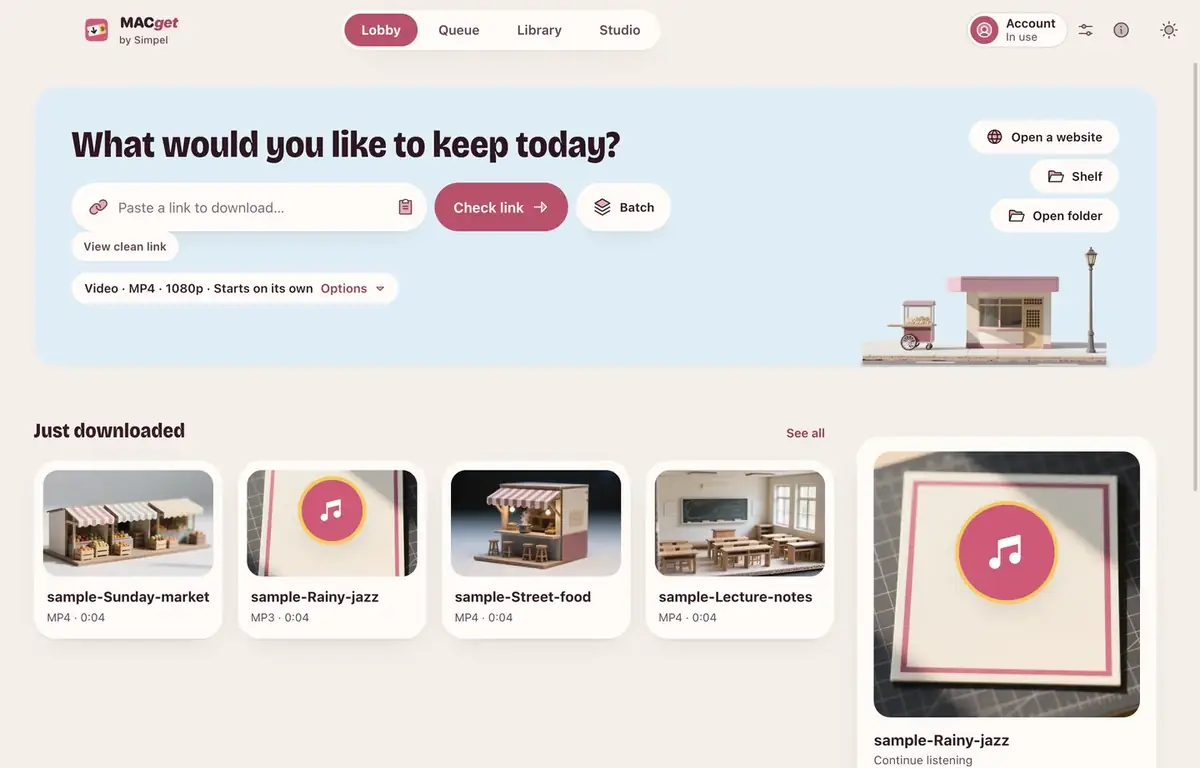
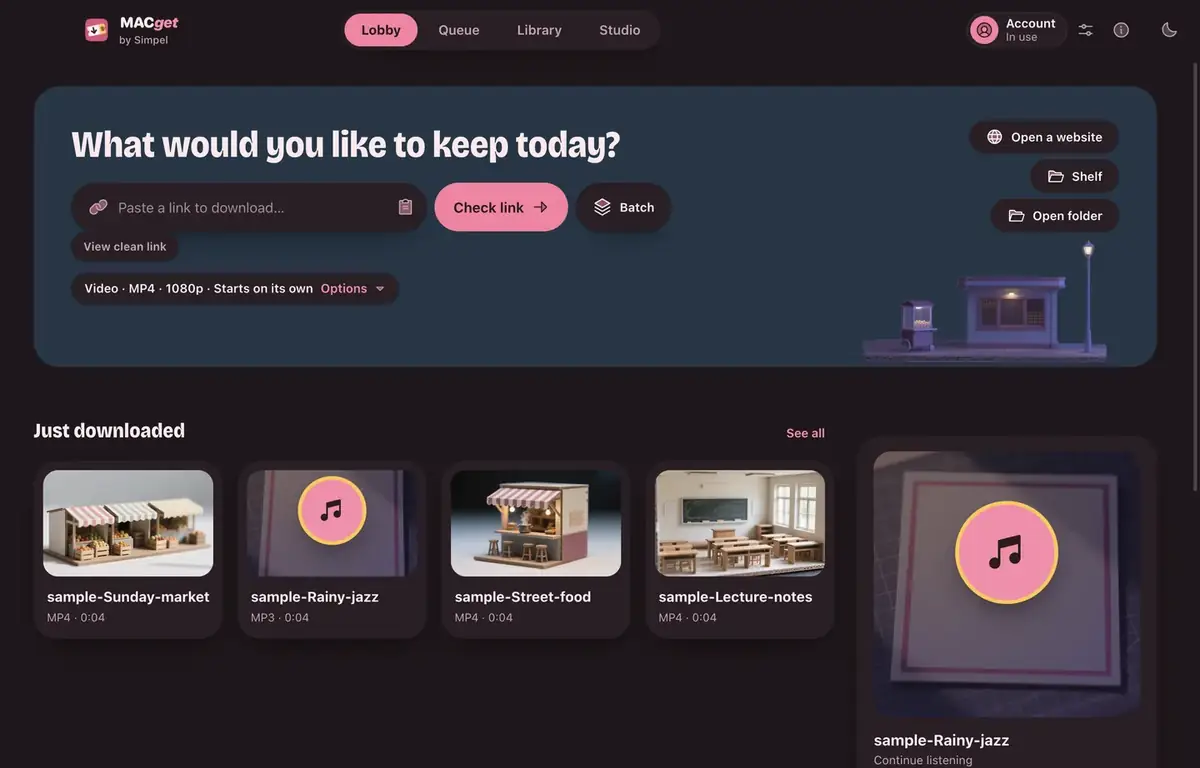
One paste field on a drawn street, with what you saved lately and what is playing just below.
Paste field
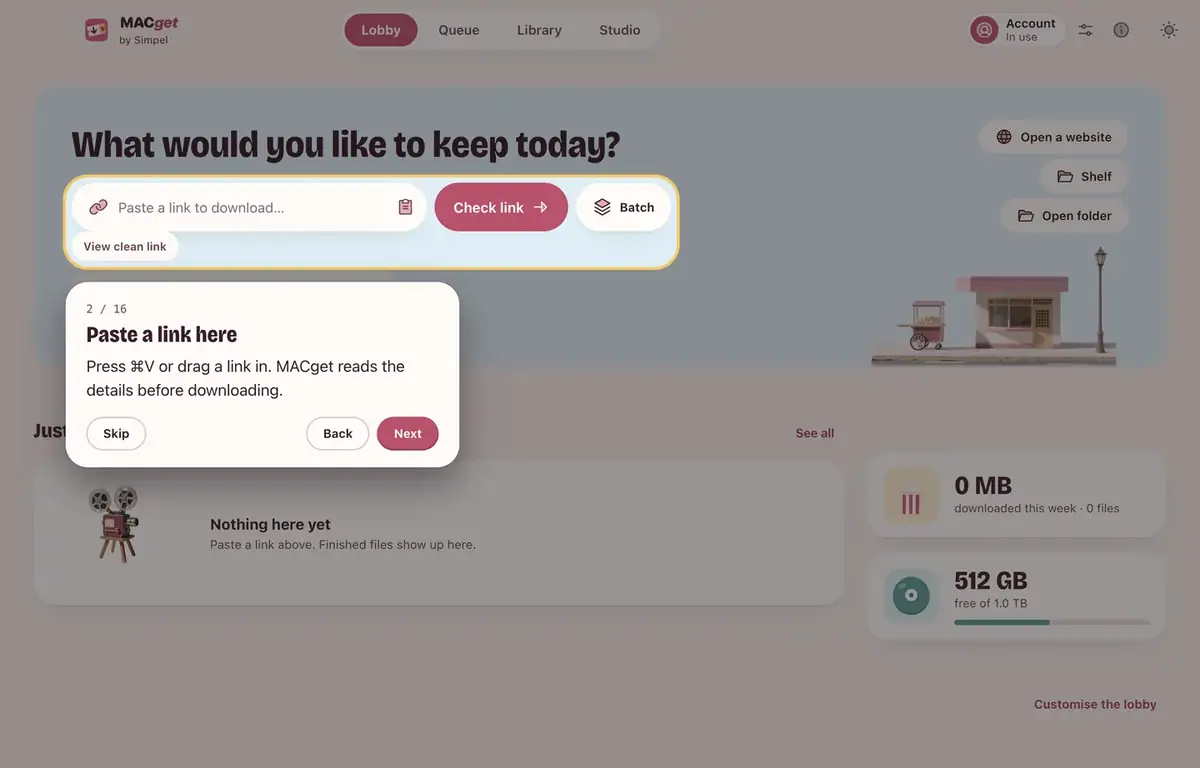
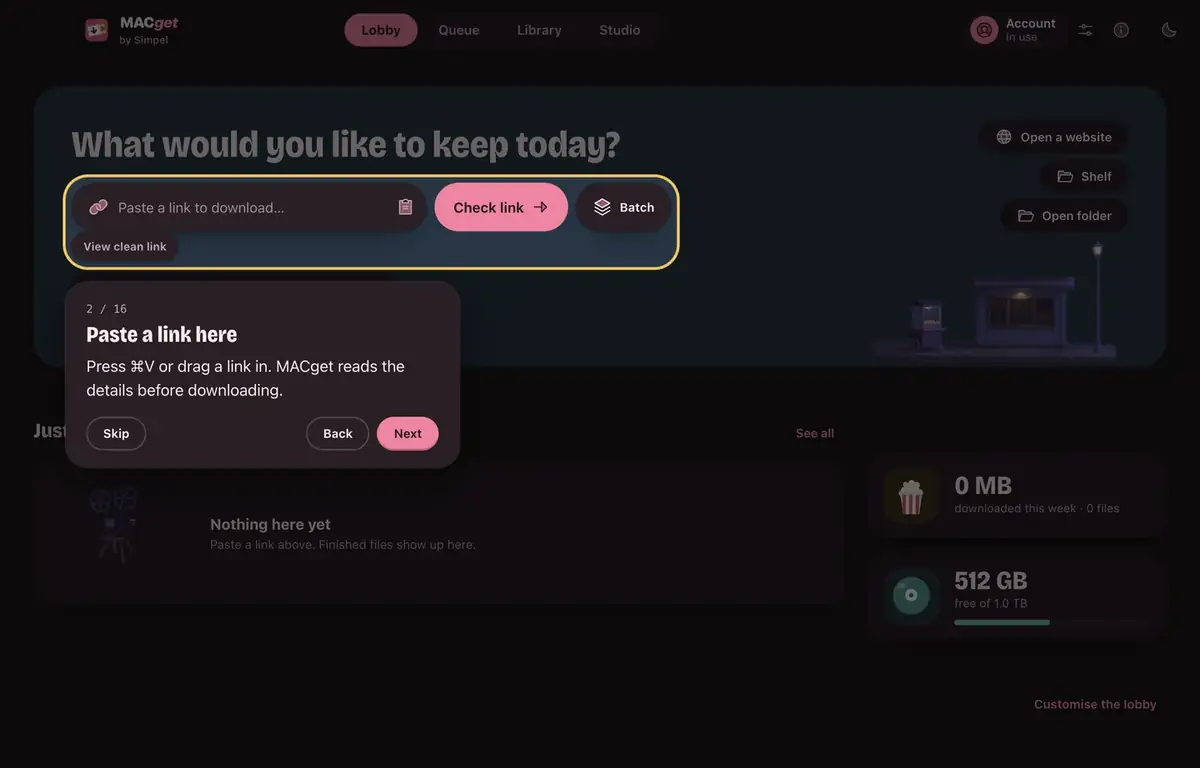
Paste a link, press Check link, then download. ⌘V works anywhere in the Lobby.
Batch
One link per line, up to 100 at once.
View clean link
Preview the link with known trackers removed. The original link is always kept.
Options in one line
Video, audio or the original file, format and quality on one line. Click to change.
Just downloaded, Downloading
Your newest files and the jobs still running, right under the paste field.
Now listening, This week, Drive
Pick up where you stopped, see what you saved this week and how much space is left.
Subscriptions
New items from the channels you follow.
Customise the Lobby
Sizes S, M and L; hide, add or drag blocks, or move them with the arrow keys. The layout is kept.
Compact or Full
Full adds a drawn street at dusk, a Studio block and bigger pictures. It syncs between your Macs.
Three quick buttons
Open a website, Shelf and Open folder sit next to the paste field.
Save a link in four steps
For video, music and files you have the right to keep. MACget reads the link first, so you see what you will get.
Paste
Press ⌘V, drag the link in, or send it from Safari.
Check
MACget reads the title, length and the qualities on offer.
Choose
Video, audio or the original file; quality, format, library and playlist.
Download
Progress by step: picture, sound, merging, writing details. The file lands in the Library.
- Picks the closest quality that does not go over the one you asked for
- MP4s open in QuickTime, Photos, iMovie and on iPhone: H.264 and AAC first
- Sources with only VP9 or AV1, often 4K, become HEVC on the Mac’s hardware afterwards; you can turn this off
- Posts with several photos or videos become one download per item
- Photo-only posts are read too
- Files with chapters join the Library grouped under the main file
- Video from a direct link gets a frame as its cover, kept in a cache only
- The cover flies to the Library tab when a download finishes
- Smart Mode: paste, drop or open a link and it downloads at once with your current options
Formats in and out
What MACget reads and what it writes. Your original stays as it is.
| Bring in | Take out | |
|---|---|---|
| Video | A link, or MP4, MOV, MKV and more from your Mac | MP4, MKV or WebM up to 4K; codec from the source, or H.264, HEVC, VP9, AV1 |
| Audio | A link, or MP3, WAV and other audio files | MP3, M4A, FLAC, Opus or WAV; 128, 192, 256 or 320 kbps |
| Original file | Any direct HTTP or HTTPS link | The exact bytes from the source |
| Subtitles | SRT and VTT, or text subtitles inside a video | Uploaded and auto subtitles, as files or embedded in the video |
| Cover and details | Cover art inside music files | JPG thumbnail, info file; title, channel, date and chapters written into the file |
| Lists | M3U and CSV | M3U and CSV |
| Settings | A MACget settings file, checked first | Your settings and presets as one file |
| Backups | A MACget backup, previewed before restore | A backup folder, with media if you want, SHA-256 checked |
| All your data | — | Library, queue and settings to a folder you choose, even without a licence |
- FLAC and WAV never pretend to raise the quality of a lossy source
- After a download MACget checks codec and size; a mismatch is reported and the file kept
- Each job keeps its own options; new defaults only affect new downloads
- Bitrate conversion runs as its own step, with progress, pause and cancel
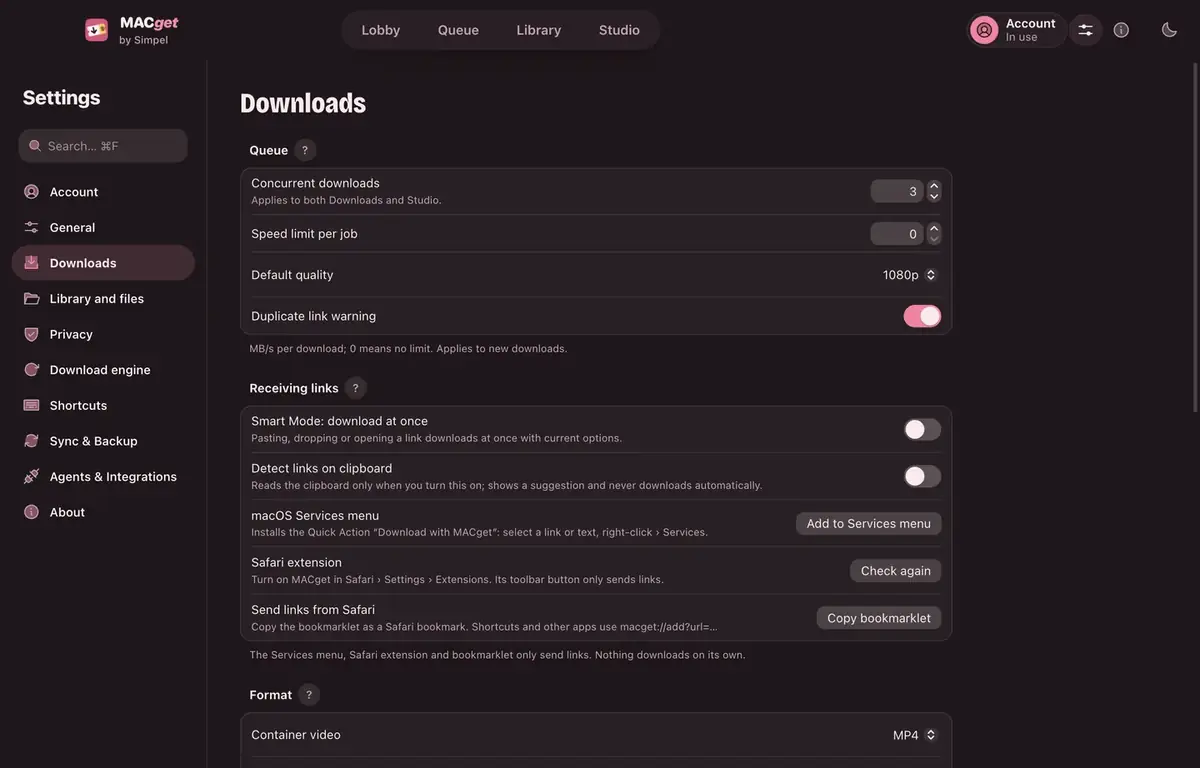
Download options, one row each
Everything you can set before a download, in the grouped macOS style. Each row says what it does and its default.
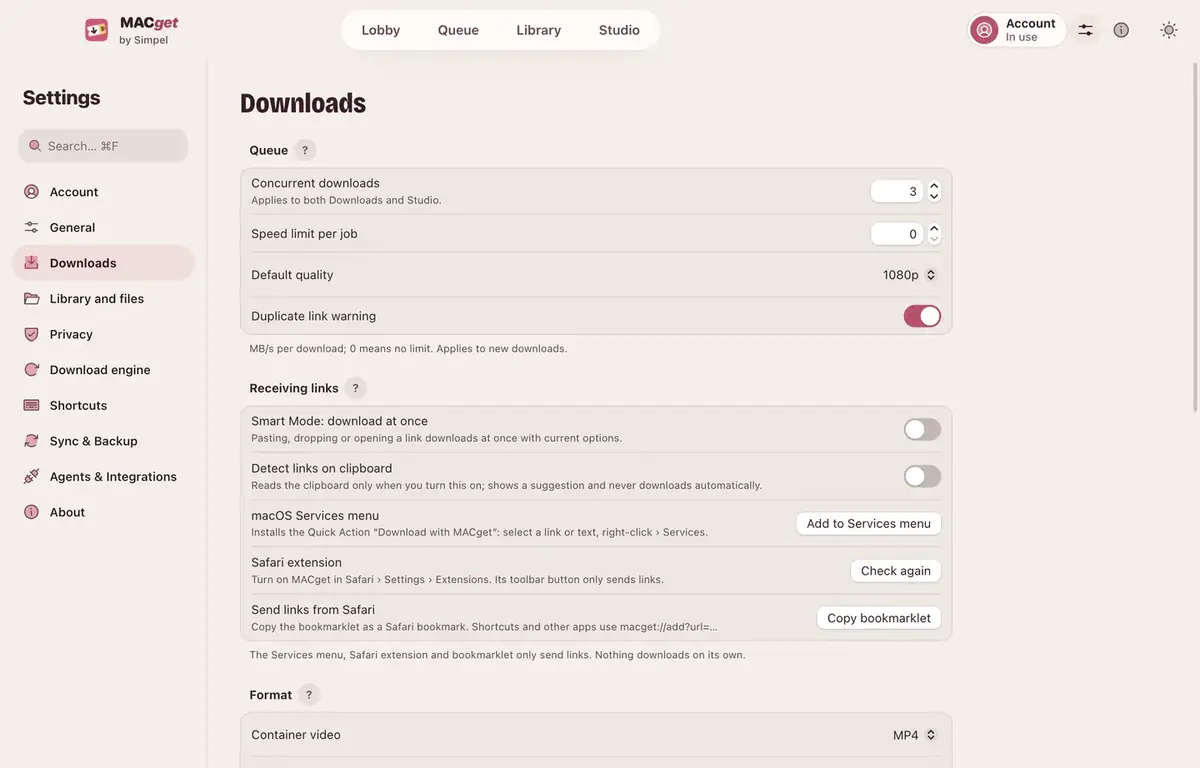
- Container
- MP4 opens everywhere, MKV keeps every stream, WebM for the web.
- Opens on Apple devices
- On by default: H.264 and AAC first.
- Subtitles
- Uploaded subtitles, auto subtitles, embedded in the video. Off by default.
- Cover and details
- Save a JPG thumbnail, embed cover art, metadata and chapters.
- Split by chapter
- Each chapter as its own file, for albums, podcasts and courses.
- Sponsor segments
- Mark or cut the sponsor segments that viewers have marked.
- Just a clip
- A start and end time; optionally cut to the exact frame, re-encoded on your Mac.
- Default quality
- 1080p, until you choose another.
- Duplicate warning
- On: asks again before you download the same link twice.
- Presets
- Save, load and delete sets of options. Three to start: reference video, M4A, vertical video.
Playlists, channels and folders
Paste a playlist, a channel or a long list, keep only what you want, and let new items arrive on their own.
Paste the list
A playlist or channel expands to up to 100 items before anything is added.
See every item
Items you already have, or saved on another Mac, are marked; new ones are ticked for you.
Follow
Follow the channel from the same sheet, with its own quality and preset.
New items queue up
MACget checks again after errors and when your Mac wakes; find them under New from subscriptions.
- Batch: one link per line, up to 100
- Duplicate links are flagged before a whole batch is added; you can still download twice on purpose
- Watch a folder: new media files are copied into the Library, the originals stay
- Watched folders wait until a file has stopped changing, and skip hidden and half-written files
- Filter the Queue to what came from followed channels
The Queue, every job on a ticket
Downloads and Studio jobs, newest first. Running, waiting and finished jobs each have their place.
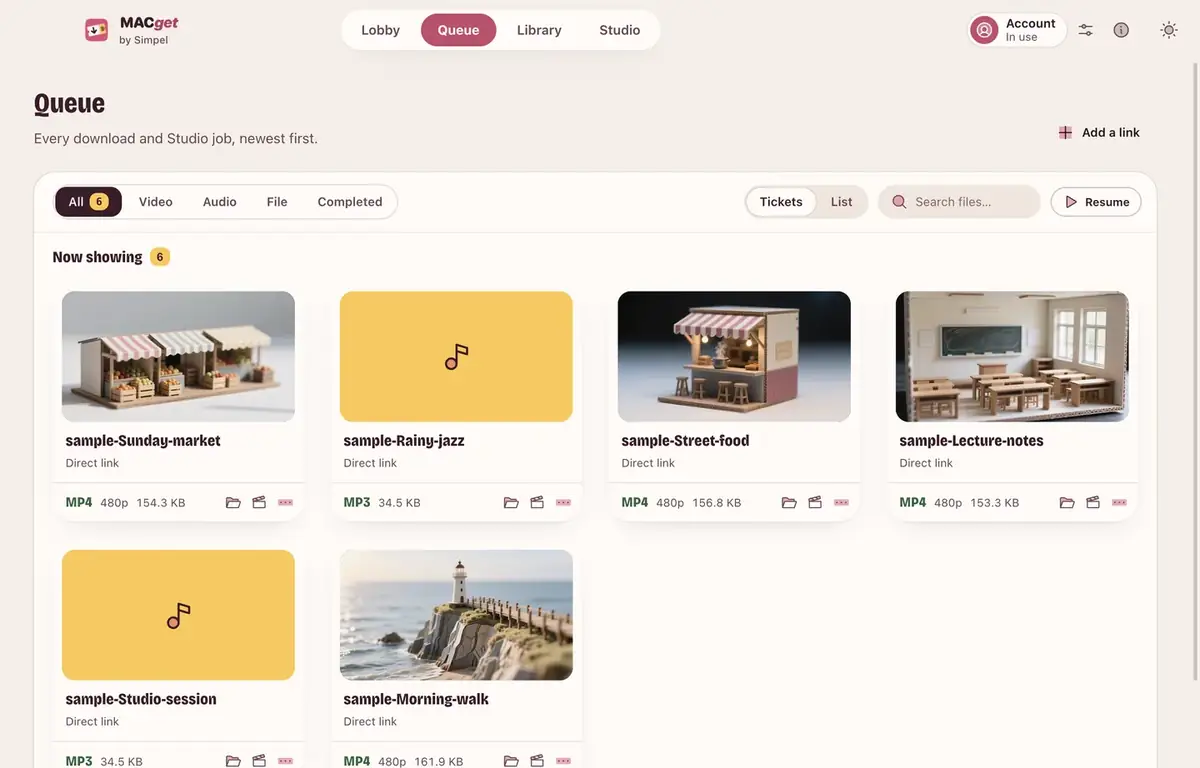
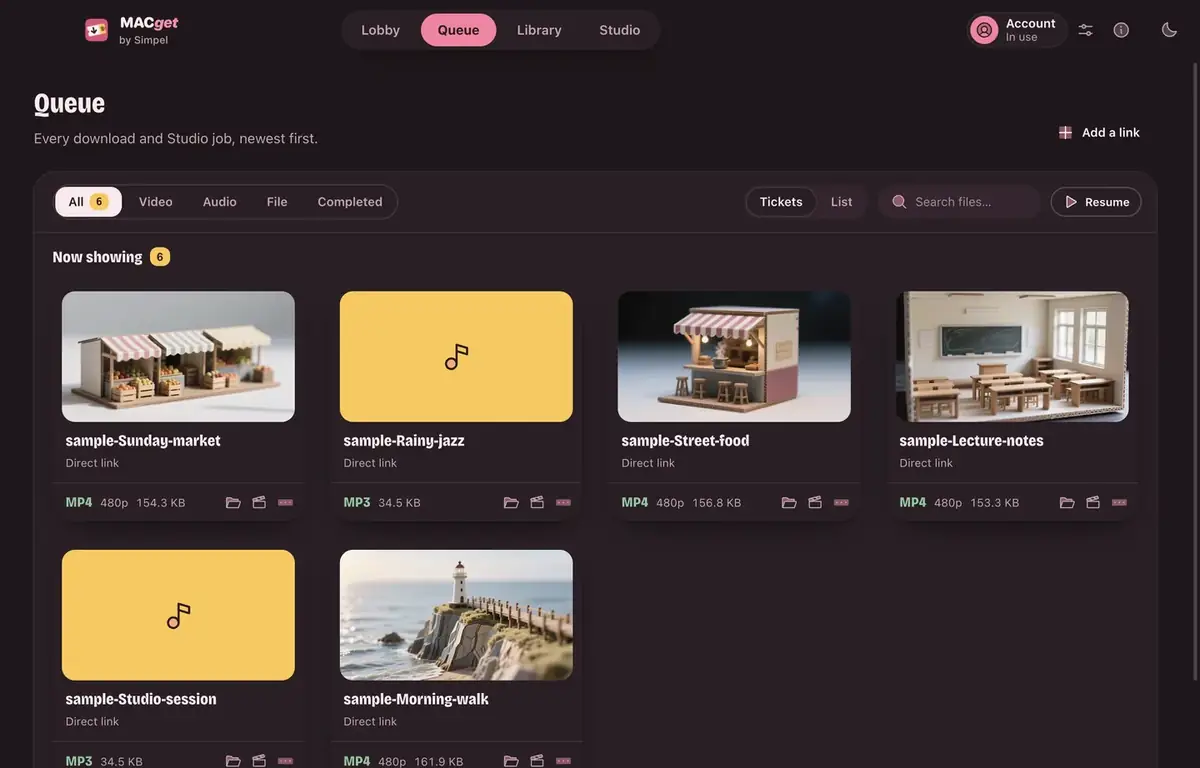
Ticket wall or list
Finished jobs line up as tickets with covers under Now showing; switch to a detailed list.
Filters and search
All, Video, Audio, File and Completed, plus a search field.
Pause, resume, retry, cancel
For one job or the whole queue. Removing a job keeps the downloaded file.
Replace the source
Give a stopped job a new link without starting over.
Schedule (coming soon)
Set a time for a download. It runs while MACget is open and survives a restart.
Progress you can read
Each step is named, and the bar never jumps back to zero between picture and sound.
Errors with a fix
One sentence on the cause and a button: sign in, update the engine, open Settings or change options.
Drag out
Click a cover to play it, drag it to put the file in Finder.
1 to 6 at once
Choose how many jobs run together, and a speed limit per job.
Dock progress
The Dock icon shows overall progress and how many jobs are running or waiting.
Keeps going when things go wrong
Slow networks, full disks, sleep and quitting are all handled, so a long list finishes.
- Network errors retry on their own, waiting longer each time, up to a minute
- A download that makes no progress for 60 seconds stops and tries again
- Large direct files download in several parts at once; set the number of connections, 1 turns it off
- If a server refuses parts, MACget falls back to a single download by itself
- Free space is checked before and during a download; jobs pause before the disk fills up (512 MB kept free by default)
- After the Mac sleeps, only the jobs paused by sleep resume
- Jobs cut off by quitting come back paused, never restarted silently
- Studio jobs that were cut off start again and keep the partial file aside
- HTTP, HTTPS and SOCKS5 proxy for downloads; no password is stored (coming soon)
- Keep the Mac awake while downloading or processing, off by default; the display can still sleep
- Only one copy of MACget runs, and its data is written safely
A download engine that keeps up
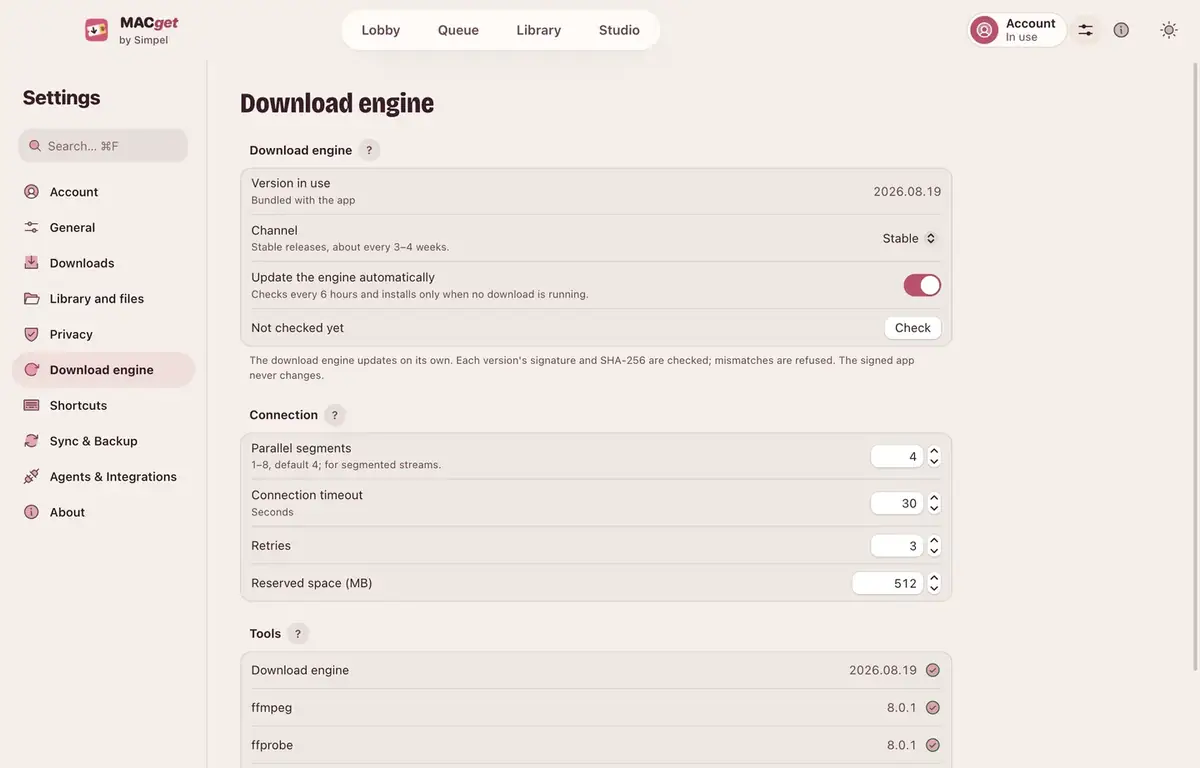
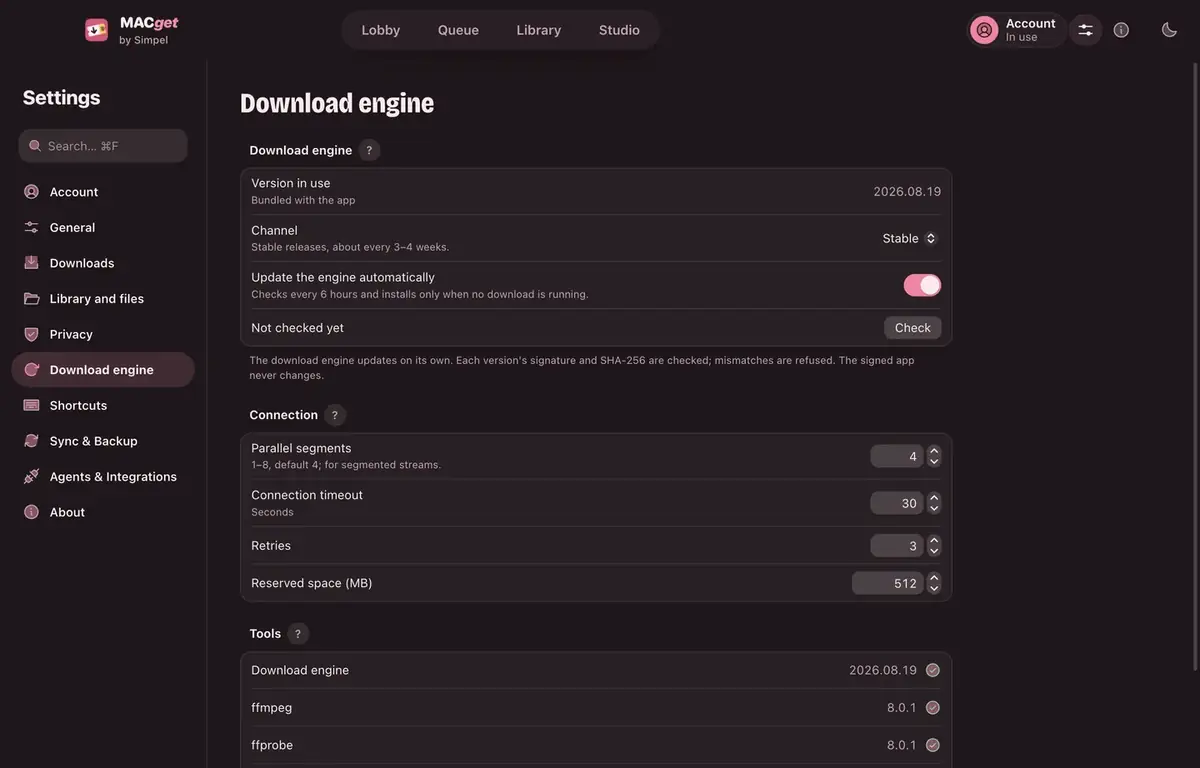
When a site changes how it works, the engine updates without waiting for a new MACget.
- Updates on its own
- Checks every 6 hours and installs only when nothing is downloading.
- Checked before use
- Each version’s signature and SHA-256 are checked; a mismatch is refused.
- Channel
- Stable releases, about every 3 to 4 weeks.
- Roll back
- Go back to the previous engine from Settings.
- Update and retry
- Errors caused by a site change come with an “Update engine and retry” button.
- Ships with the app
- The engine comes inside MACget; it is never fetched from somewhere else.
- Connection
- Parallel segments 1 to 8, connection timeout, retries and reserved disk space.
- Tools
- The versions of the engine and media tools are listed; each tool gets only the permissions it needs.
A Library for music, video and documents
Everything you saved or added, on this Mac. Drag files in from Finder to add them.
Six tiles
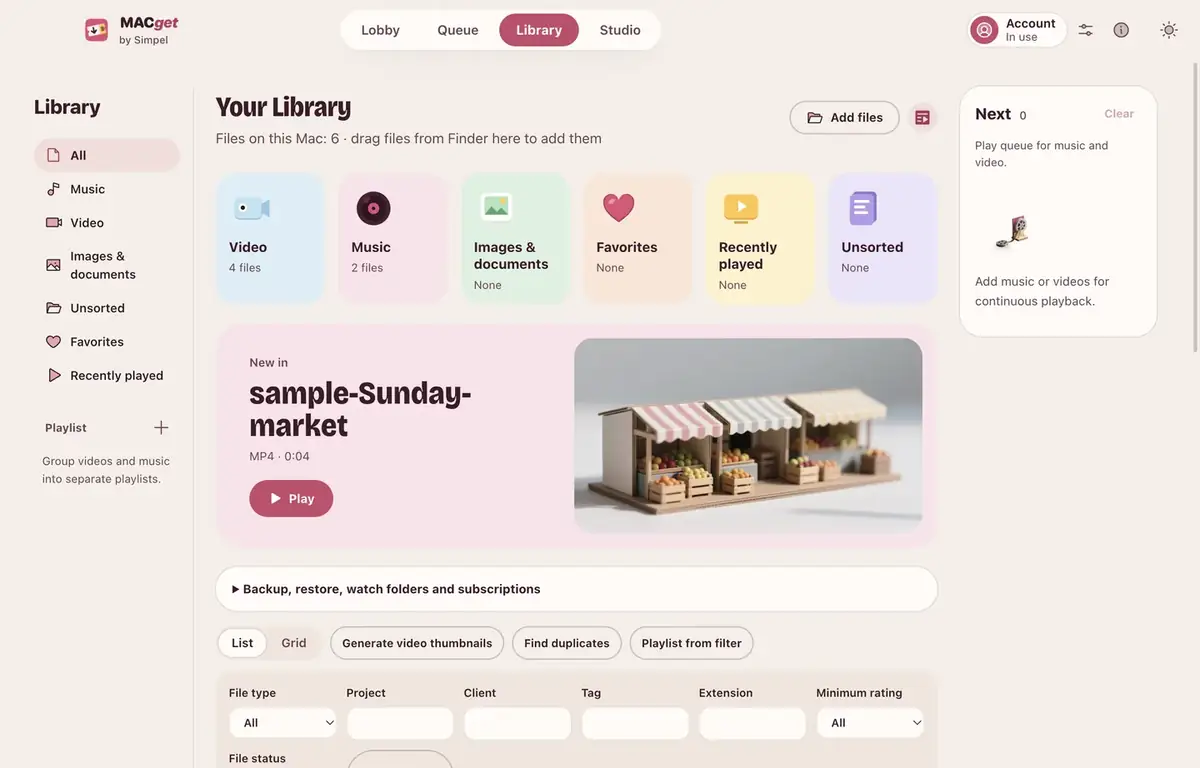
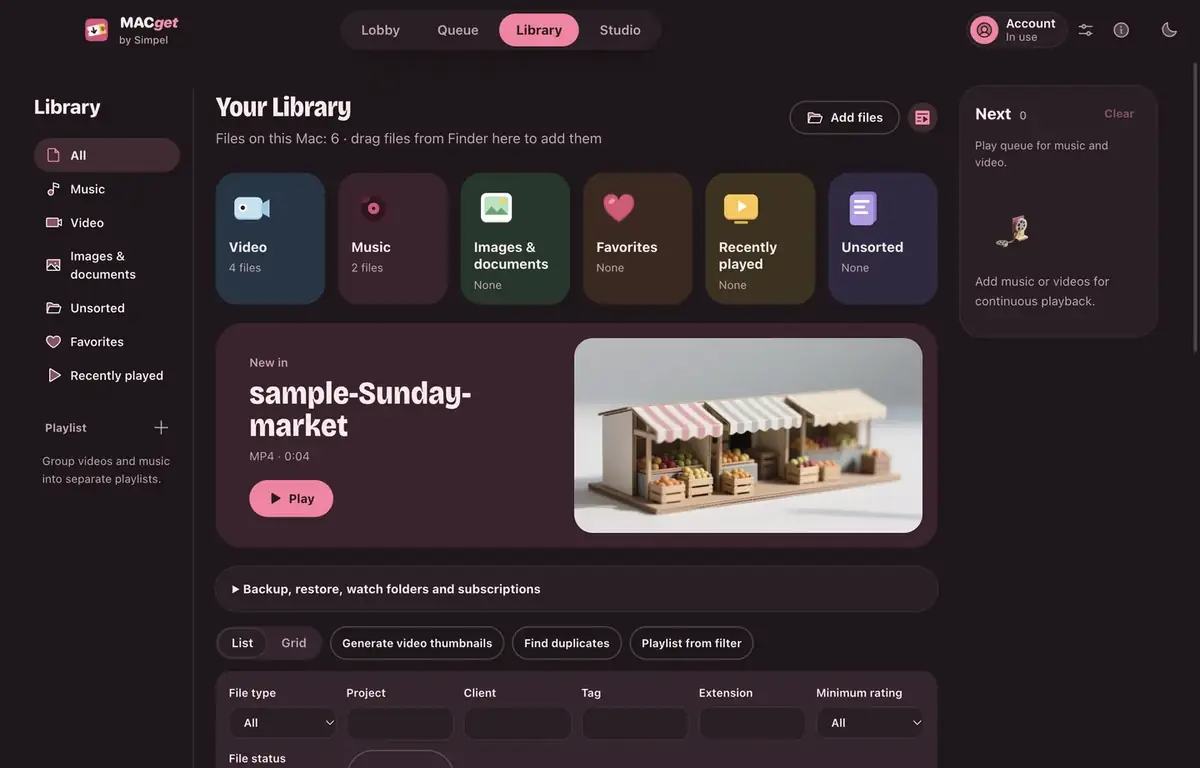
Video, Music, Images & documents, Favorites, Recently played and Unsorted.
New in
Your newest film or album, shown large with a Play button.
List or grid
Even 16:9 tiles: video pictures fill the frame, square album covers sit in the middle.
Filters
File type, project, client, tag, extension, rating and file status.
Playlists
Make your own, or a playlist from a filter that updates by itself.
Stars, tags and notes
0 to 5 stars, favourites, tags, project, client and a note for each file.
Find duplicates
Compares every byte by SHA-256. Only the extra entry is removed, never the file.
Rename in bulk
Up to 100 files with a preview, using {title}, {index}, {project}, {client} and {date}. Nothing is overwritten.
Thumbnails and filmstrip
Real frames from your videos; an 8-frame strip, click a frame to jump there.
Timecode notes
Markers with a start and an optional end; click one to jump.
Undo removal
The last 20 removals, for 30 minutes. Select many to remove them at once.
Library health
Finds missing files, unplugged drives and leftover partial downloads, and relinks moved files by name and size.
Sort into libraries
Pick the destination library and playlist apart from the format; moving an item moves the real file.
Search
By name, artist, project or tag, sorted as you like.
Play it in the app
A player for video and music that keeps going while you work in other pages.
- Click Play on a finished file to open it right away
- Speed from 0.25× to 4×, volume and mute
- SRT and VTT subtitles, and text subtitles inside a video
- Choose the audio track
- Fit or fill the frame, full screen and Picture in Picture
- Play queue: add next, reorder, shuffle, repeat one or all
- Remembers where you stopped in each file
- A bar at the bottom keeps playing as you switch pages; − makes it small, X stops picture and sound
- Files that need it are converted in the background, with progress and cancel; the source stays as it is
- Cover art inside music files shows right after import
Open files without leaving MACget
Safe previews: nothing in a file runs, no scripts, formulas or macros.
Images
Zoom and rotate.
PDF
Pages, zoom and search.
Text and code
Search and copy; big files open in 2 MB parts.
DOCX
Headings, bold, italic, alignment and tables.
XLSX
Cell values, 500 rows by 100 columns at a time, up to 20 sheets.
ZIP
The list of contents, up to 100,000 entries; read text files inside, CRC checked, without unpacking.
Other files
Shows the file’s details.
Studio: twelve tools for media files
Use a file on your Mac or one you downloaded. Studio always writes a new file and leaves the original alone.
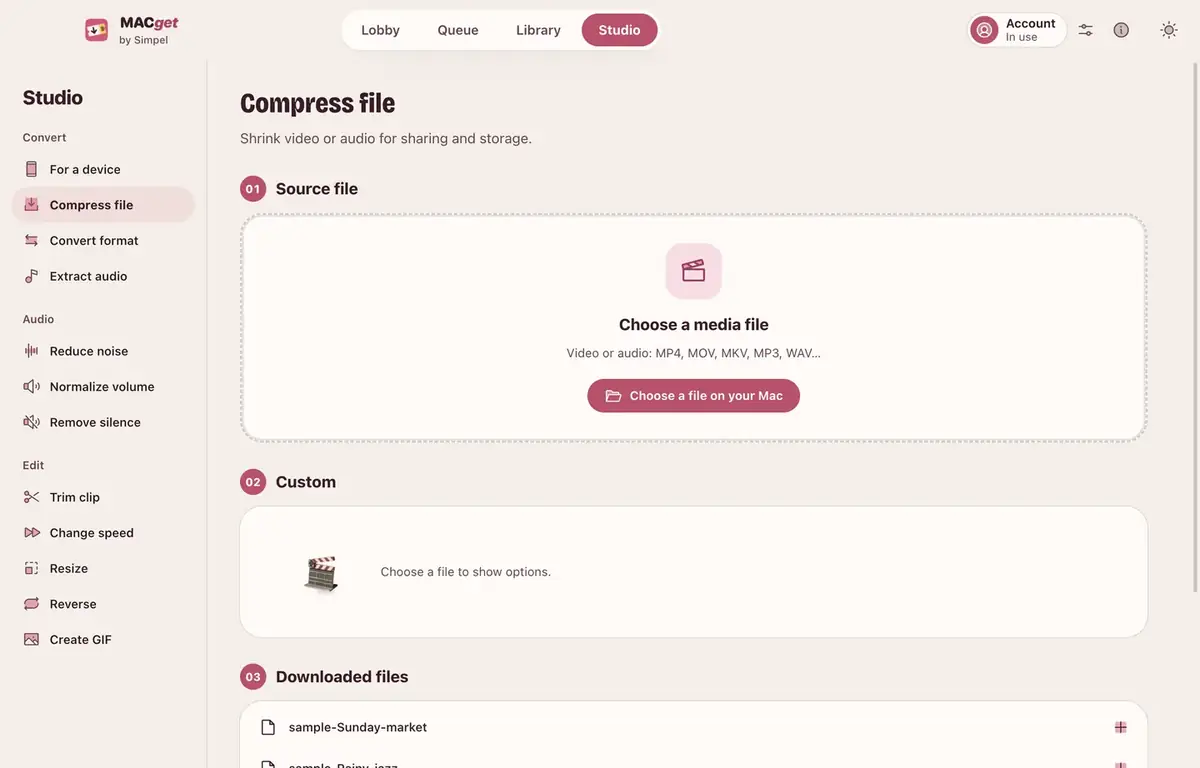
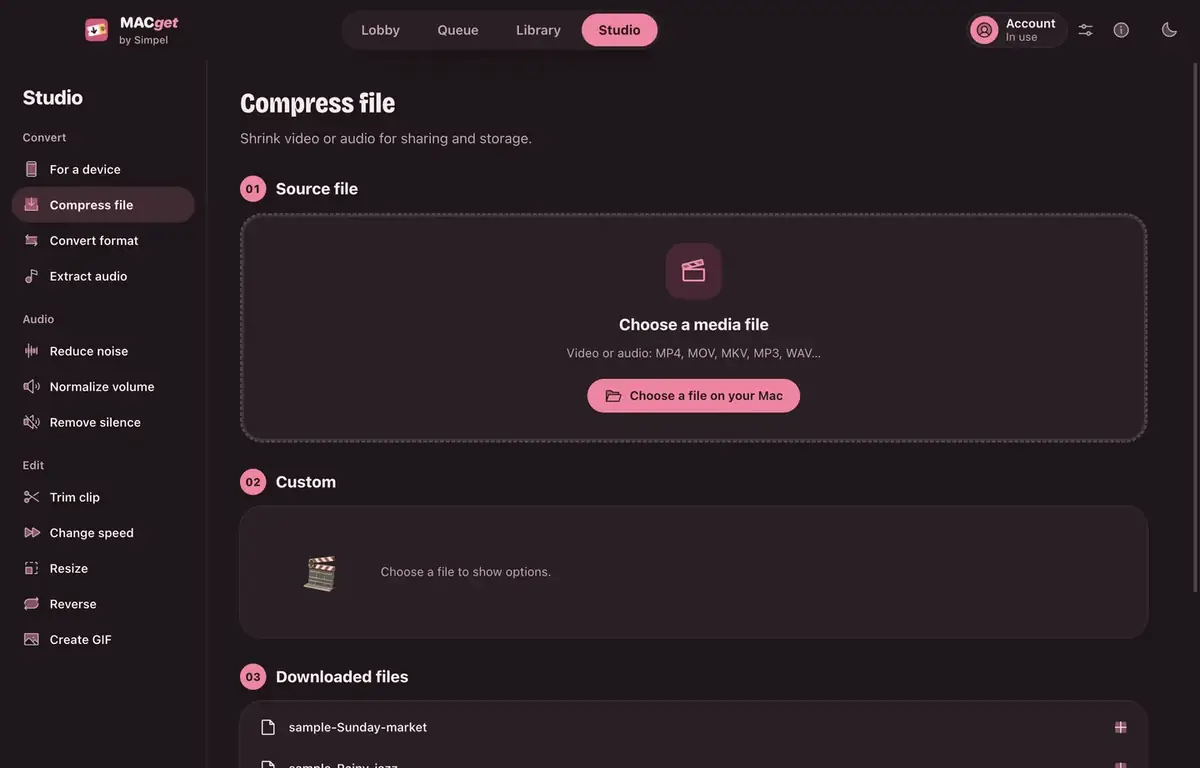
Templates: chat apps (16 MB), email (25 MB), iPhone, video sites
For a device
Ready settings for where the video goes; several videos at once, also from the Library’s right-click menu.
Compress file
To 10, 25 or 50 MB or a size you type; checked so it never goes over.
Convert format
MP4, MOV, MP3 or WAV.
Extract audio
Pull the sound out of a video.
Reduce noise
Calm steady background noise.
Normalize volume
Even out loud and quiet files.
Remove silence
Cut the quiet gaps out of audio.
Trim clip
Keep just the part you need.
Change speed
Faster or slower.
Resize
Fit to vertical, horizontal or square.
Reverse
Play backwards, for clips under 2 minutes.
Create GIF
A short looping picture from a video.
Download, process and file it in one go
A preset can carry up to six Studio steps, so a link becomes a finished file in the right playlist.
Preset    Vertical clip
Link      Video · MP4 · 1080p
Step 1    Trim clip       0:12 – 0:42
Step 2    Resize          vertical
Step 3    Compress file   25 MB
Library   Video › “Clips”
Result the download + 3 new files- Up to 6 Studio steps after a download
- Each step is its own job with progress
- The download and every processed version are kept
- An error shows on the first job; retry or continue the step that stopped
- After a restart, unfinished steps come back paused
- Presets carry the mode, quality, format, extra files, library, playlist and catalog details
- The compress step can aim at a size in MB
- Presets never run commands of their own
The Shelf holds things for later
A side drawer for files and links until you choose where they go.
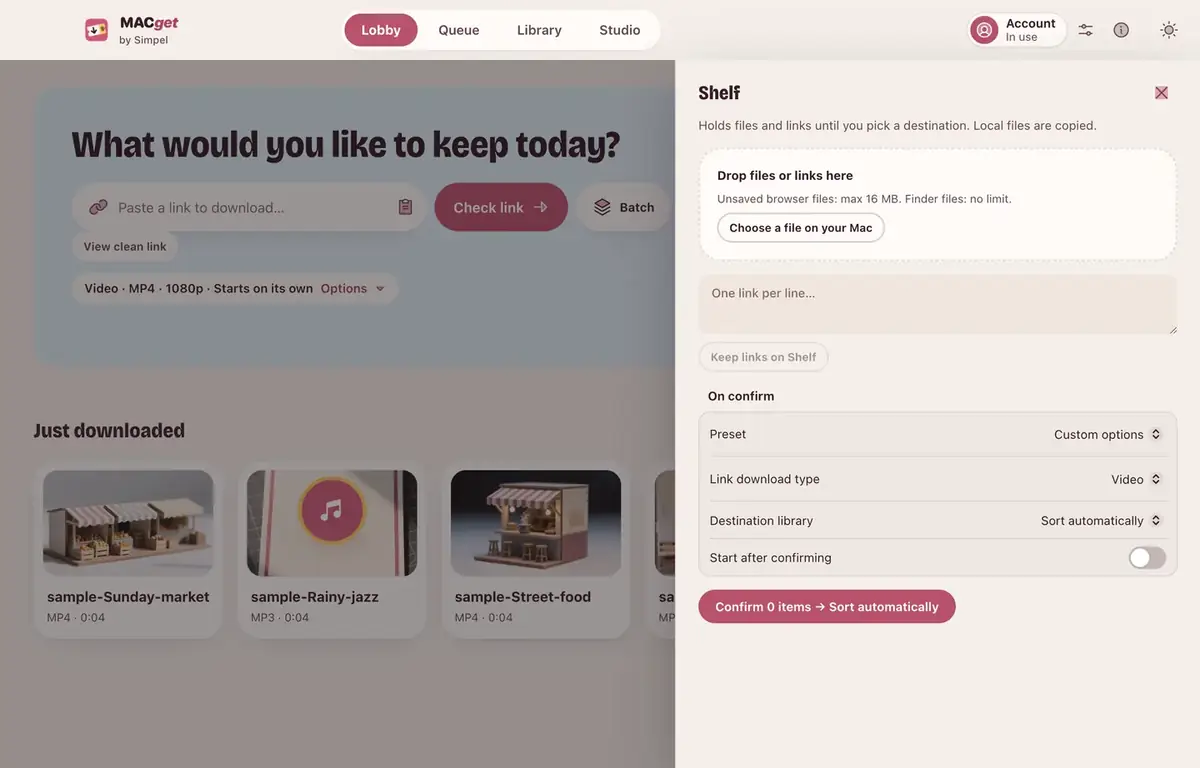
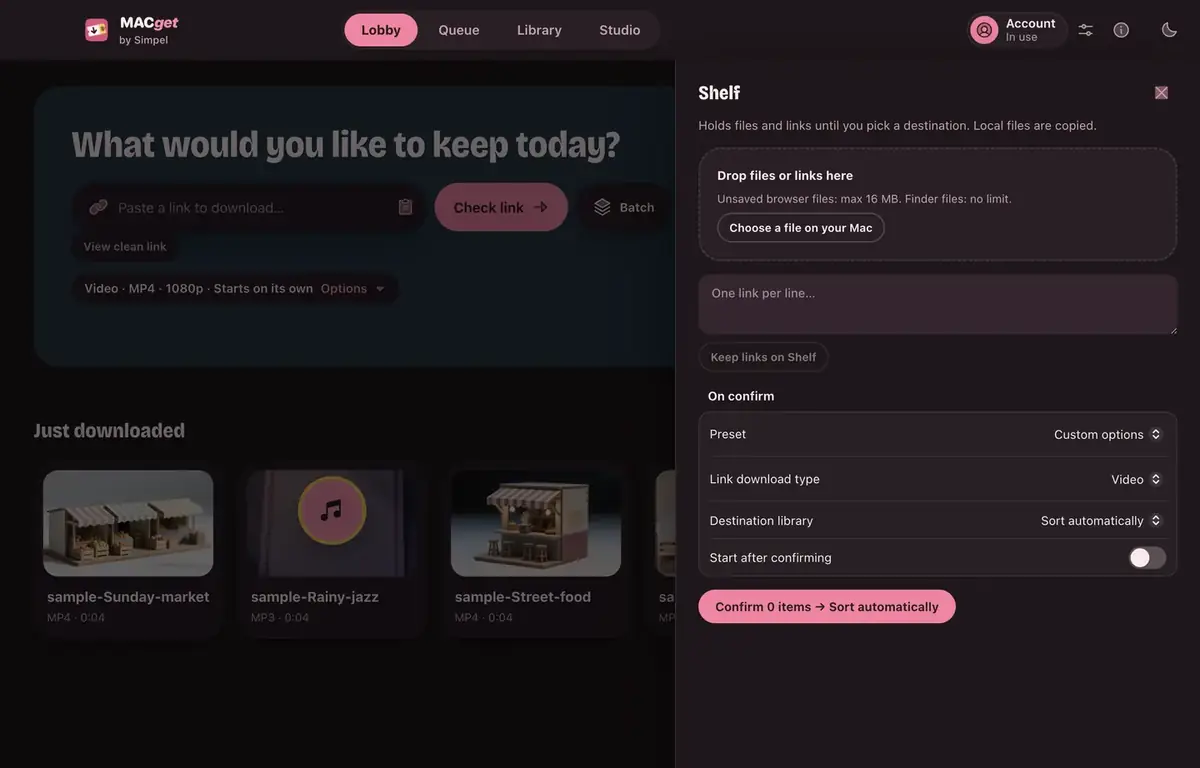
- Holds
- Up to 100 files and links.
- Drop in
- Files from Finder with no size limit; unsaved browser files up to 16 MB.
- Links
- One per line, and you can keep them on the Shelf.
- On confirm
- Pick a preset, download type, library, and whether to start at once.
- Starts paused
- Items go to the Queue paused unless you turn on Start after confirming.
- Copies
- Local files are copied with progress; the source is never moved or deleted.
- Drag out
- Finished items drag straight to Finder or another app.
A browser for finding media
Open a page, play the media, and MACget lists what can be downloaded. For your own uploads and content you may keep.
- Real tabs: drag, pin, duplicate, close and reopen
- History, bookmarks in folders and session restore
- Find in page, zoom, mute, full screen and pop-ups
- Select video: point at the video on the page, also inside embedded frames, and click it
- When a source is unclear, MACget says so instead of guessing
- Media, Link and Tab lists at the side; download one or many with your quality, library and playlist
- Files a page hands you join the media list
- Sign in once in the MACget browser for posts that need it; that sign-in is used for links from the same site
- Sign-ins stay in memory; each download gets a temporary cookie file that is deleted afterwards
- Cookies from another browser on your Mac only when you turn it on
- Its own sandboxed session: pages cannot reach your files or the app
- Clear browser data in one click
- Errors say whether a page needs sign-in, is blocked in your region, has an expired short link or holds only photos
Menu bar, Dock and other apps
Send a link to MACget from wherever you are, and keep an eye on downloads without opening the window.
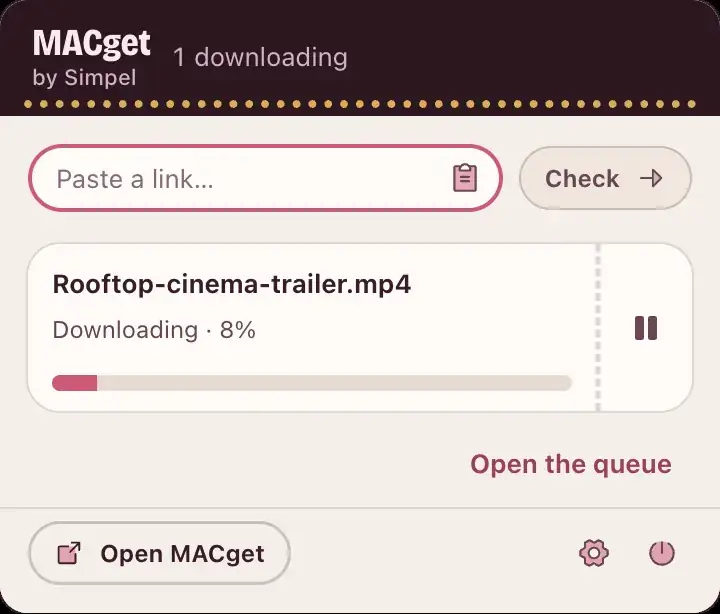
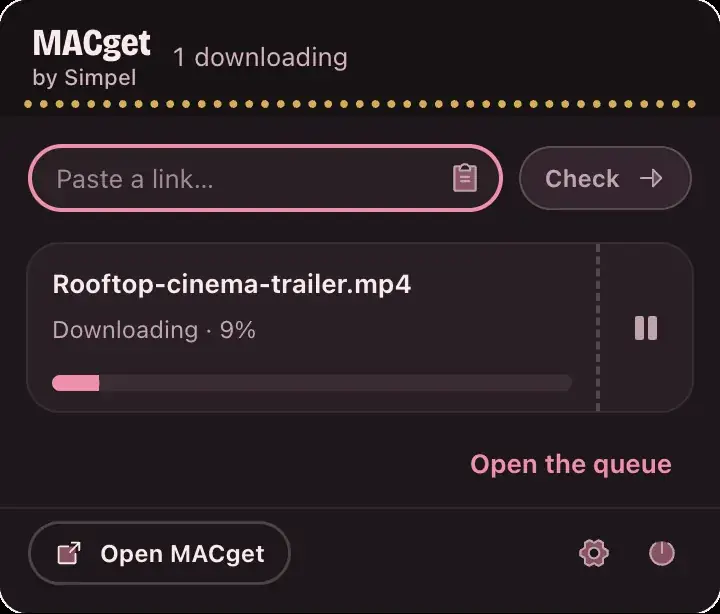
- Menu bar panel: paste a link, see what is downloading, pause or resume
- Menu bar icon with the number of running downloads; right-click for the full menu
- Download with MACget in the macOS Services menu
- Safari extension: a toolbar button and a right-click item; it only sends the link
- A bookmarklet and macget:// links for Shortcuts and other apps; they check the link and never download on their own
- Detect links on the clipboard, only when you turn it on; it suggests and never downloads
- Drop links on the window to check them, drop files to put them on the Shelf
- Dock menu; clicking a notification opens the right page
- Open at login, hidden and ready in the menu bar; off by default
- Close the window and downloads keep running in the background; no Dock icon without a window
- MACsuite shows two MACget tiles, Paste link and Queue, and can hold MACget’s menu in its own menu bar
Keyboard and accessibility
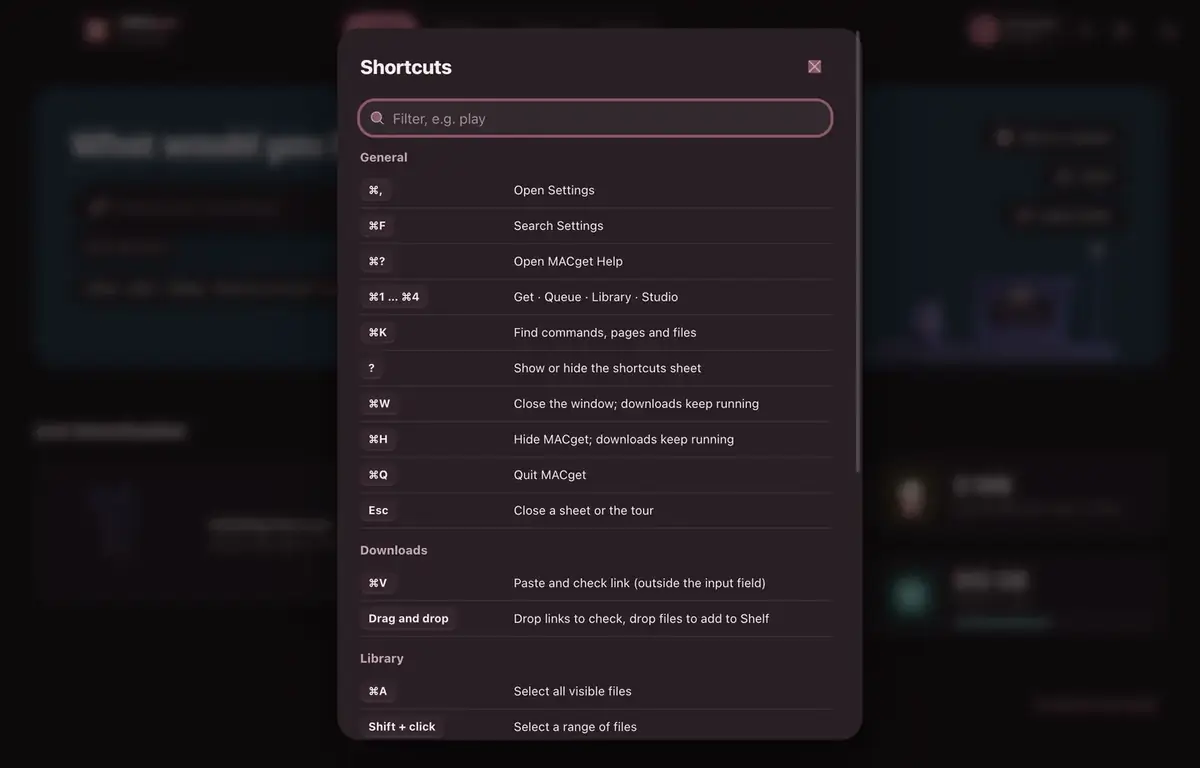
The shared keys sit in the same place in every Simpel app. Press ? anywhere for the full list with a filter.
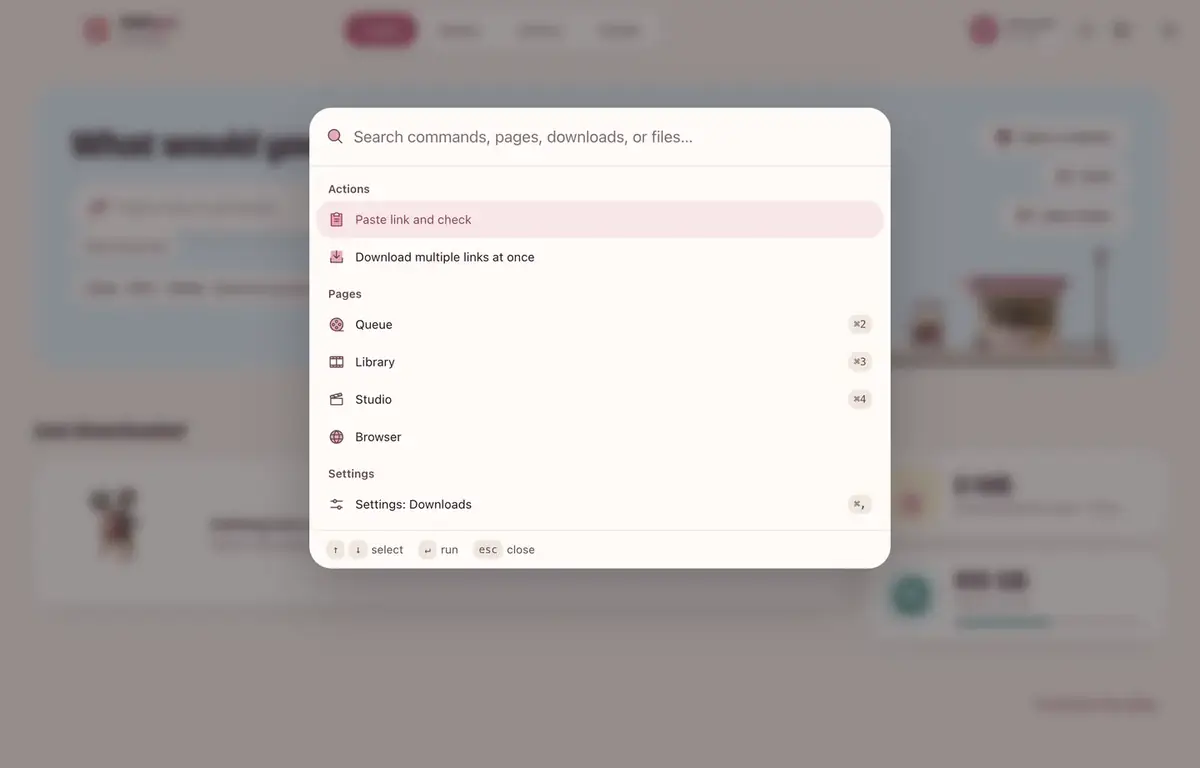
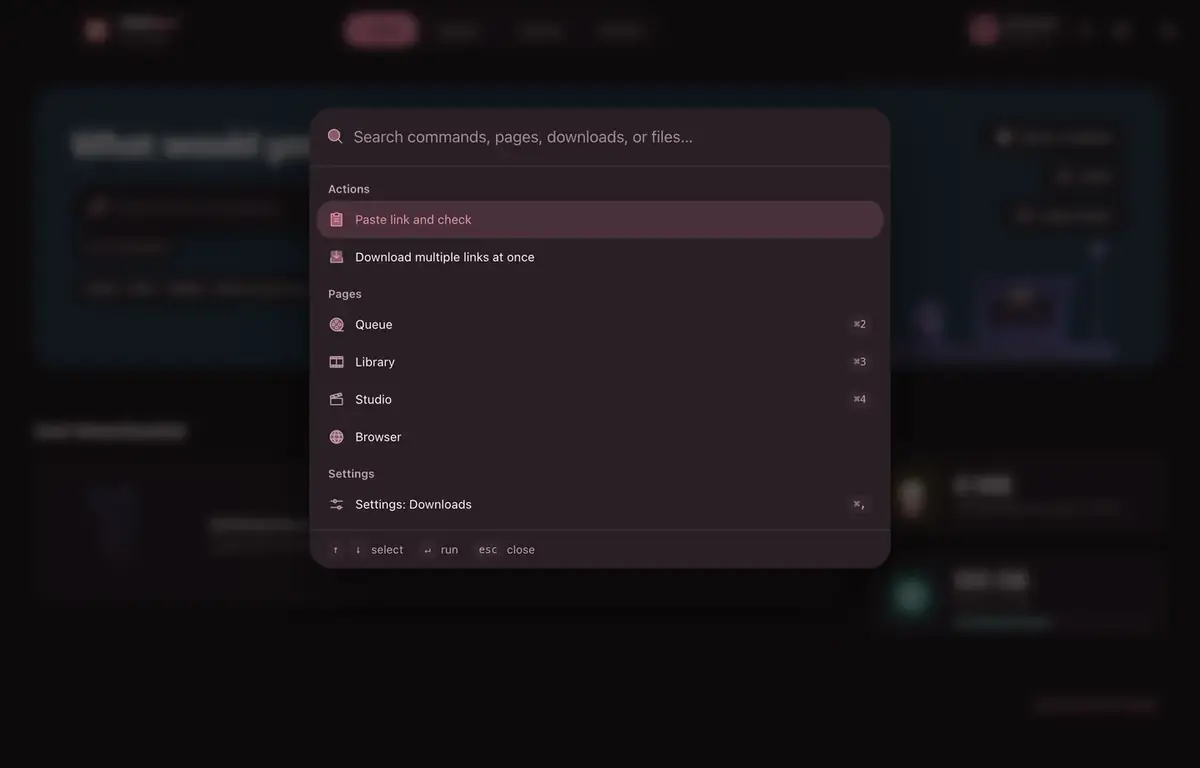
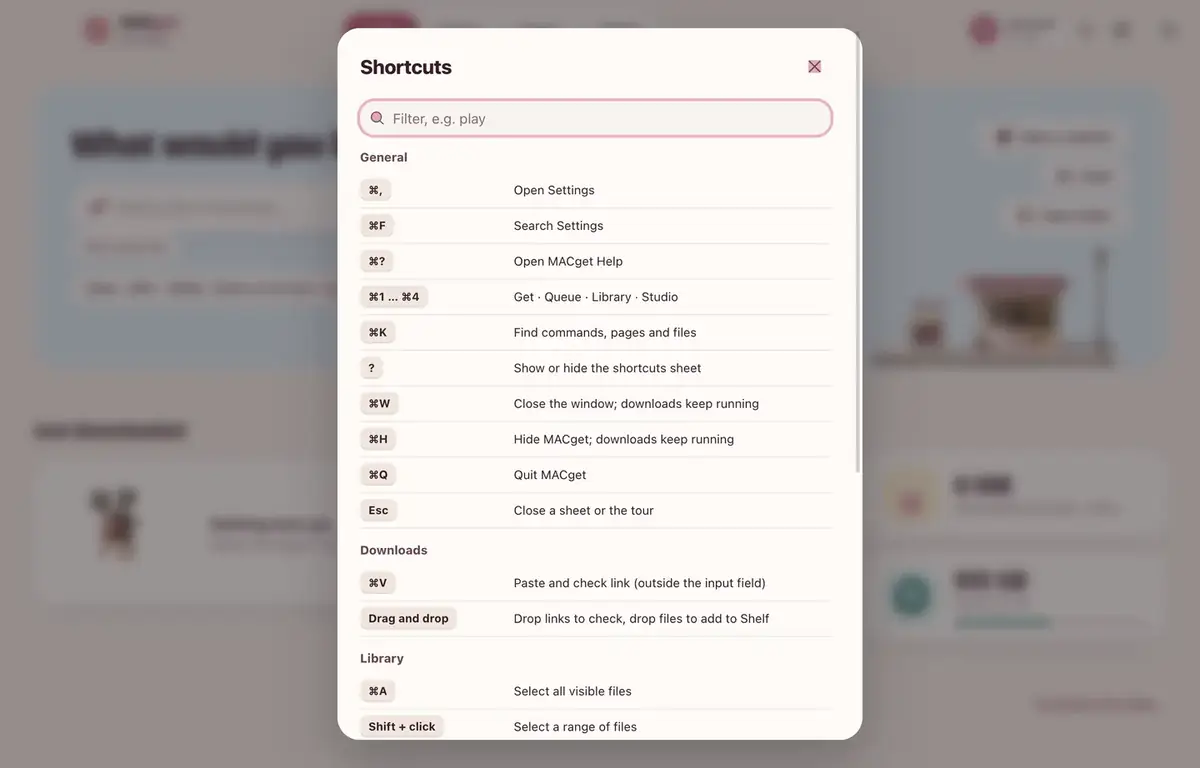
- ⌘K finds commands, pages, settings, Studio tools, downloads and files
- Typing without Vietnamese accents still finds a match
- A shortcuts sheet with a filter, and a Shortcuts page in Settings
- Every button has a name for VoiceOver, and the focus ring always shows
- Follows Increase Contrast, Reduce Transparency and Differentiate Without Colour
- Motion: Follow system, Full or Reduced; Reduced changes pages with one quick fade
| ⌘K | Find commands, pages and files |
| ⌘1 … ⌘4 | Lobby · Queue · Library · Studio |
| ⌘V | Paste and check a link |
| ? | Show or hide the shortcuts sheet |
| ⌘, | Open Settings |
| ⌘F | Search Settings |
| ⌘? | Open MACget Help |
| ⌘A | Select all visible files |
| Shift + click | Select a range of files |
| Space / K | Play or pause |
| ← → / J L | Back or forward 10 seconds |
| ↑ ↓ | Volume |
| M | Mute or unmute |
| F | Full screen (video) |
| ⌘W | Close the window; downloads keep running |
| ⌘H | Hide MACget; downloads keep running |
Sync and backup
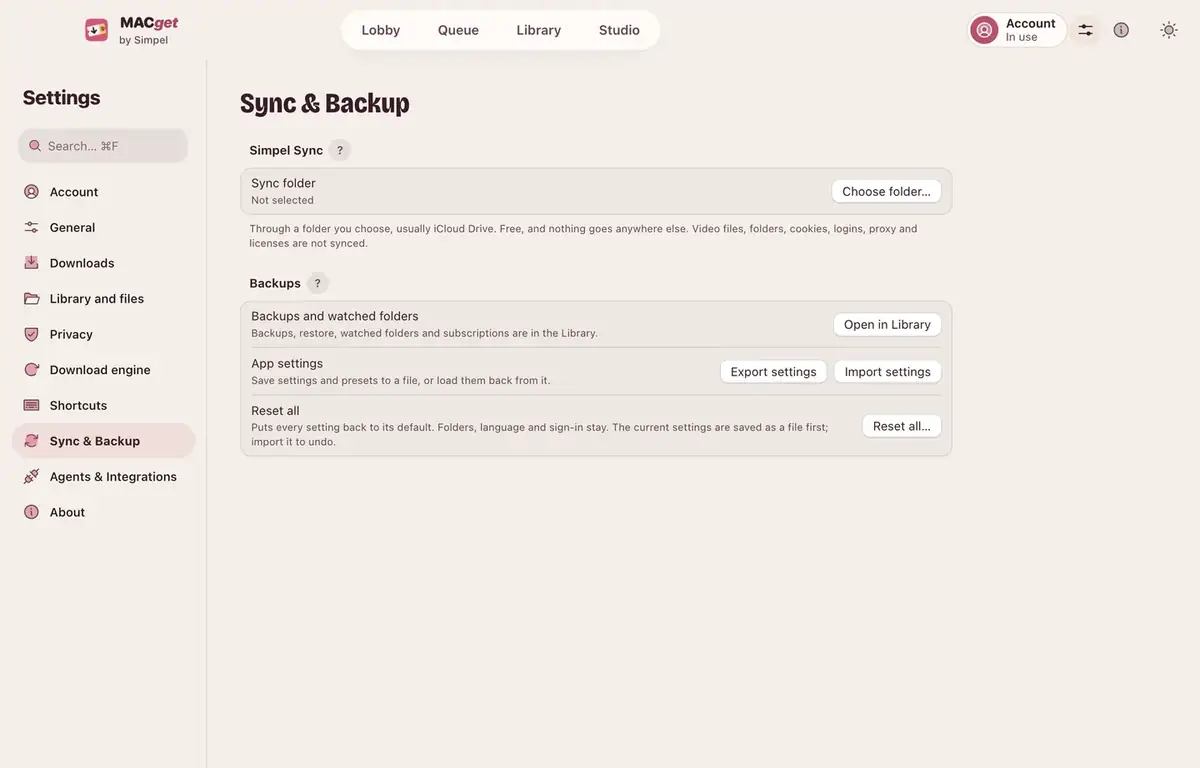
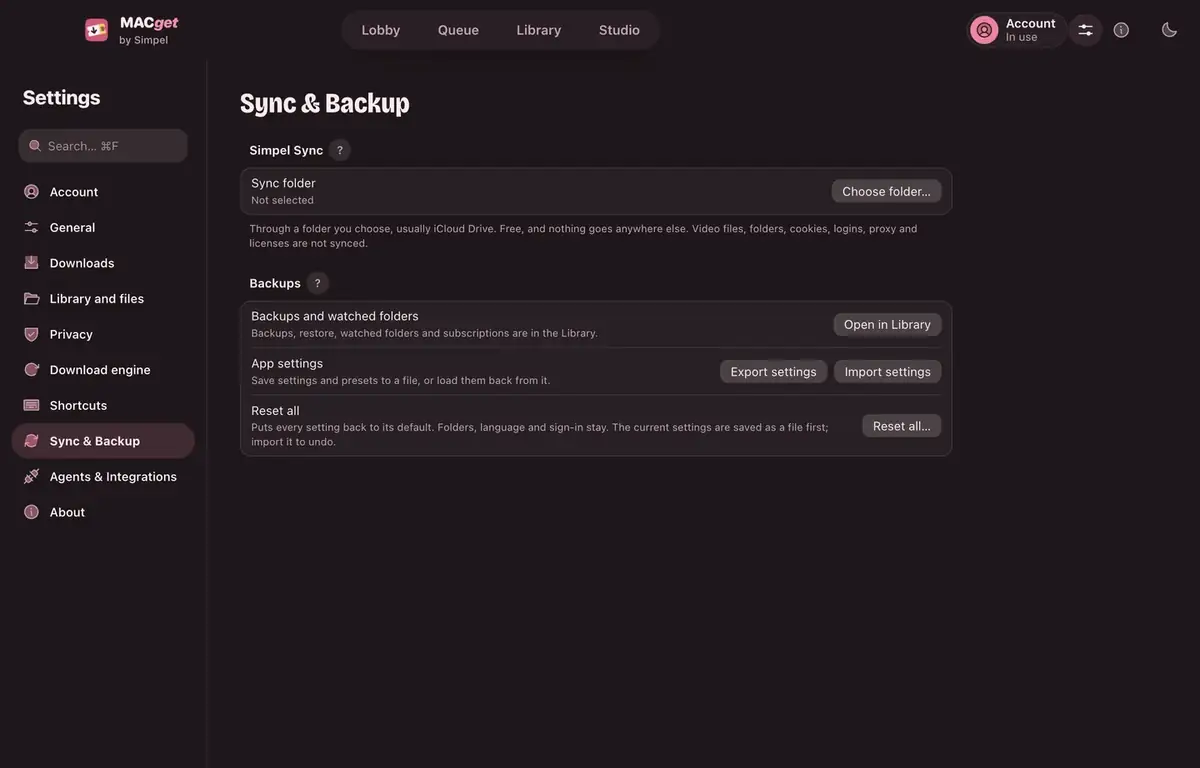
Your stars, notes and settings follow you between Macs through a folder you choose, usually iCloud Drive. Free, no account needed.
- Simpel Sync
- Stars, likes, tags, notes and where you stopped in each file. Files match by content; videos are not copied.
- Also syncs
- Default options, presets, followed channels, download history and the Lobby look.
- Never syncs
- Folders, cookies, sign-ins, proxy and licences.
- Conflicts
- A note edited on two Macs keeps both versions; you can undo the last sync.
- Automatic backup
- Every day, the last 7 kept, plus a safety copy before every restore or data upgrade.
- Full backup
- With media, subtitles, browser bookmarks and history if you want, SHA-256 checked; restore shows a preview first.
- Settings file
- Export and import settings and presets; a broken file is reported and changes nothing.
- Reset all
- Saves your current settings as a file first, so you can go back.
- Support bundle
- A zip with personal paths, tokens and cookies masked.
Agents, account and privacy
An AI agent can run every feature through MACget’s local tools, with no clicking on your screen. Anything sensitive asks you first.
agent   macget_download   link · Audio · M4A
MACget  First time for this agent: Allow or Deny?
        (process and signature shown)
you     Allow
job     Queue › Downloading 42%
log 10:42 settings change ok- Every feature has a local tool: downloads, queue, browser, Studio, library, playlists, player, viewer, Shelf, backups and settings
- An agent asks once before changing settings, saving to its own folder or opening files
- See allowed agents, revoke one or all, and read the agent log; links and content are not recorded
- Deleting files always needs your confirmation
- Sign in with an email code or a licence key; the Mac pairs itself, and a Mac can be removed from inside the app
- A one-time purchase keeps working offline for up to 90 days, and a wrong Mac clock does not stop it
- A free trial on each Mac, once per app, after signing in with email
- Without a licence you can still export all your data and install fixes
- The download engine, your data and sync never depend on the licence
- First launch sends only this Mac’s public key and the product code, never your email or name
- Updates are signed and checked, download in the background and install when you quit
- The app code is sealed: change one byte and it will not open
First steps and help
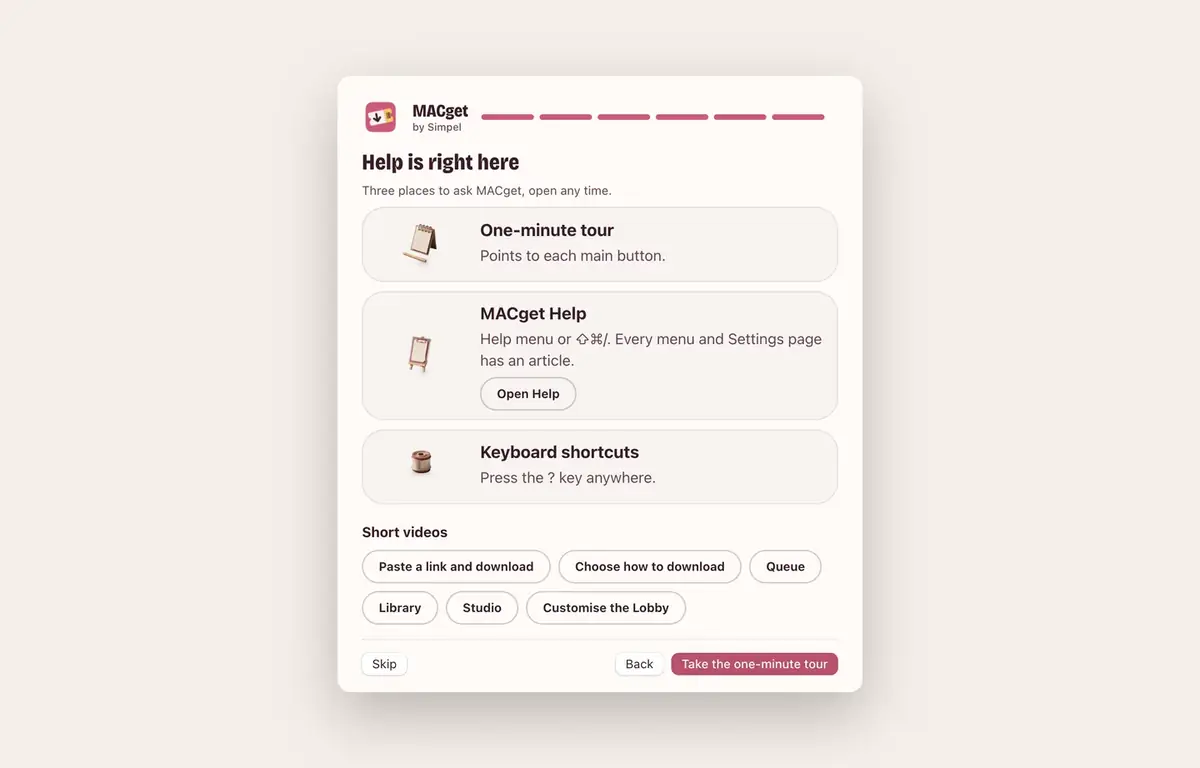
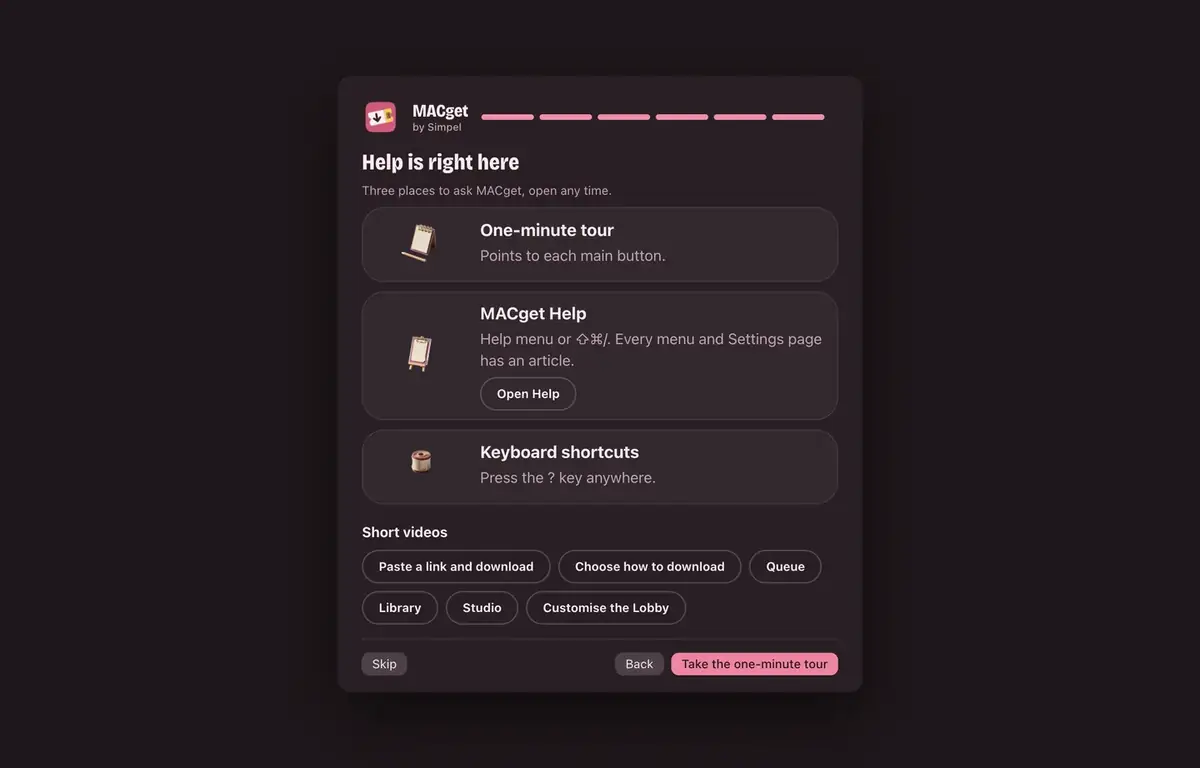
A short welcome, a guided walk through the main buttons, and an article for every part of the app.
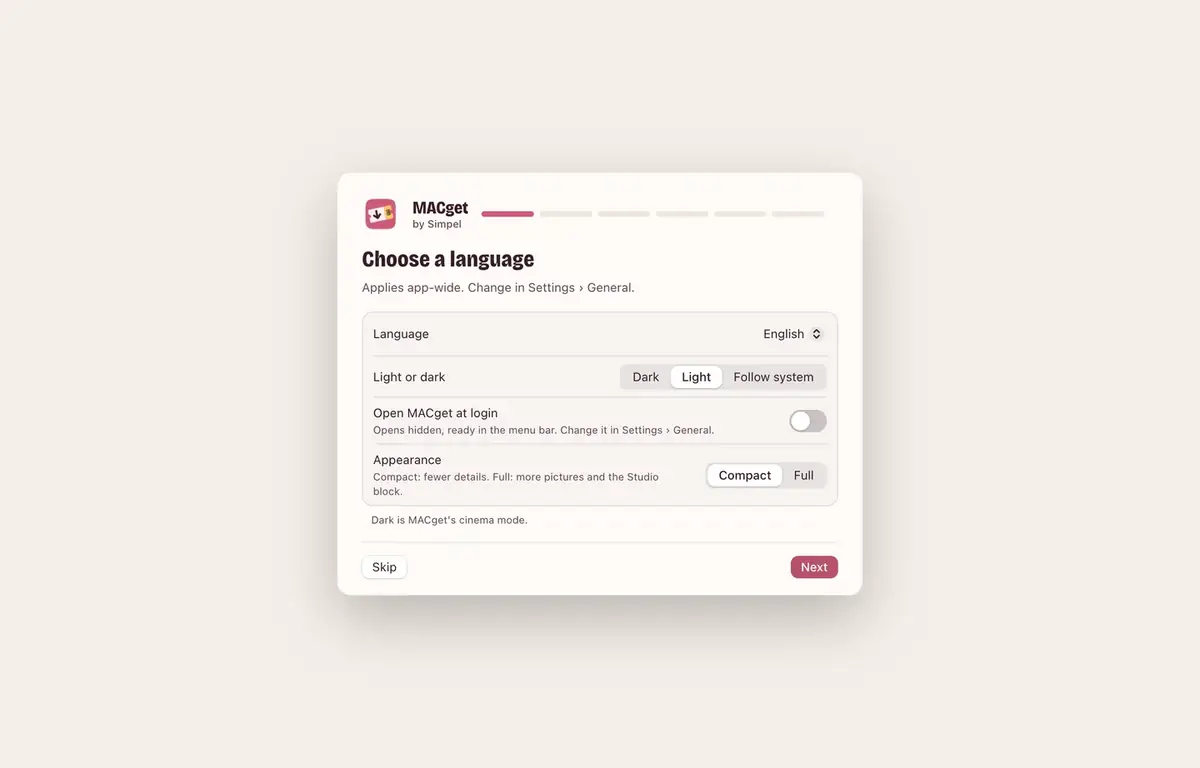
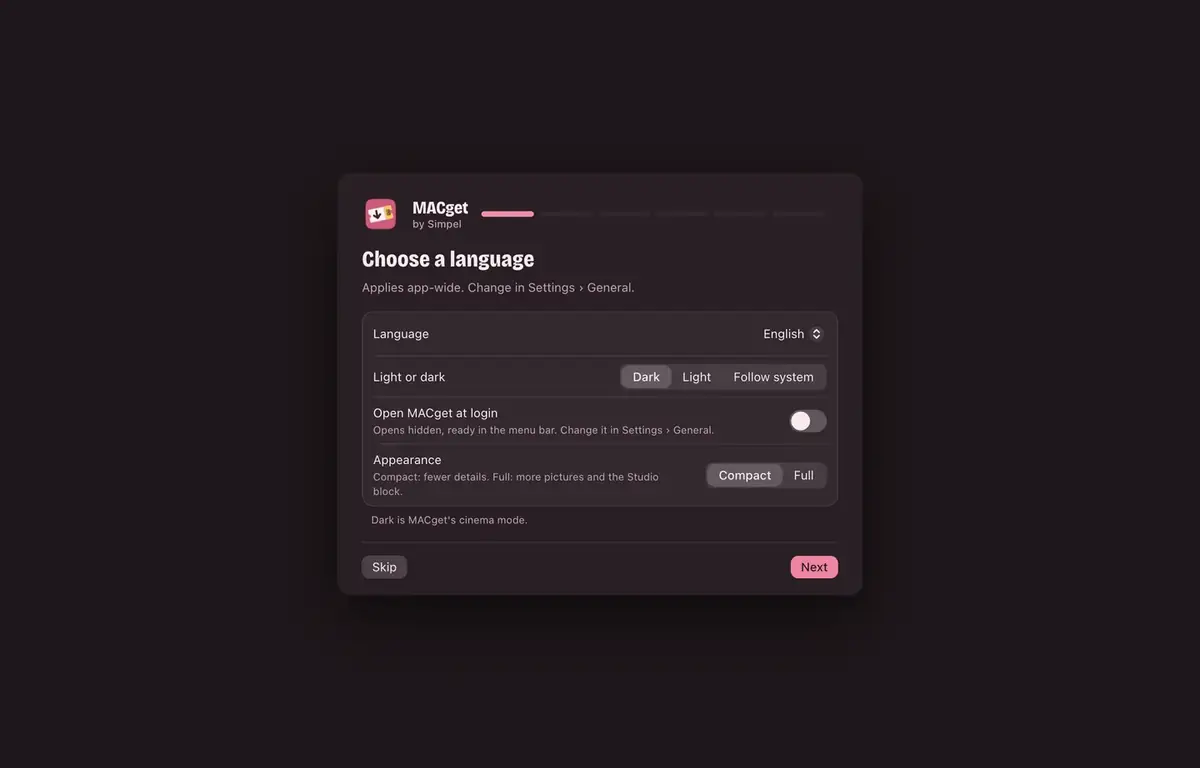
Choose a language and a look
English, Vietnamese, Korean, Chinese or Japanese; light, dark or follow the system; Compact or Full.
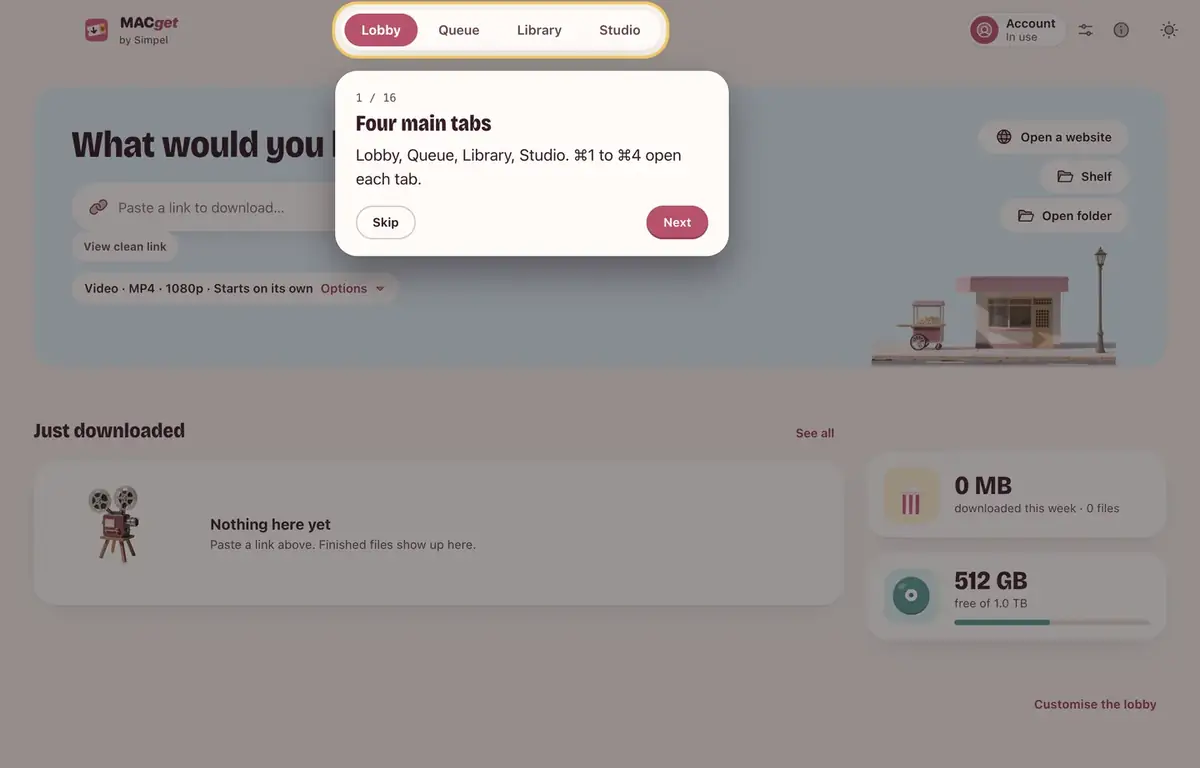
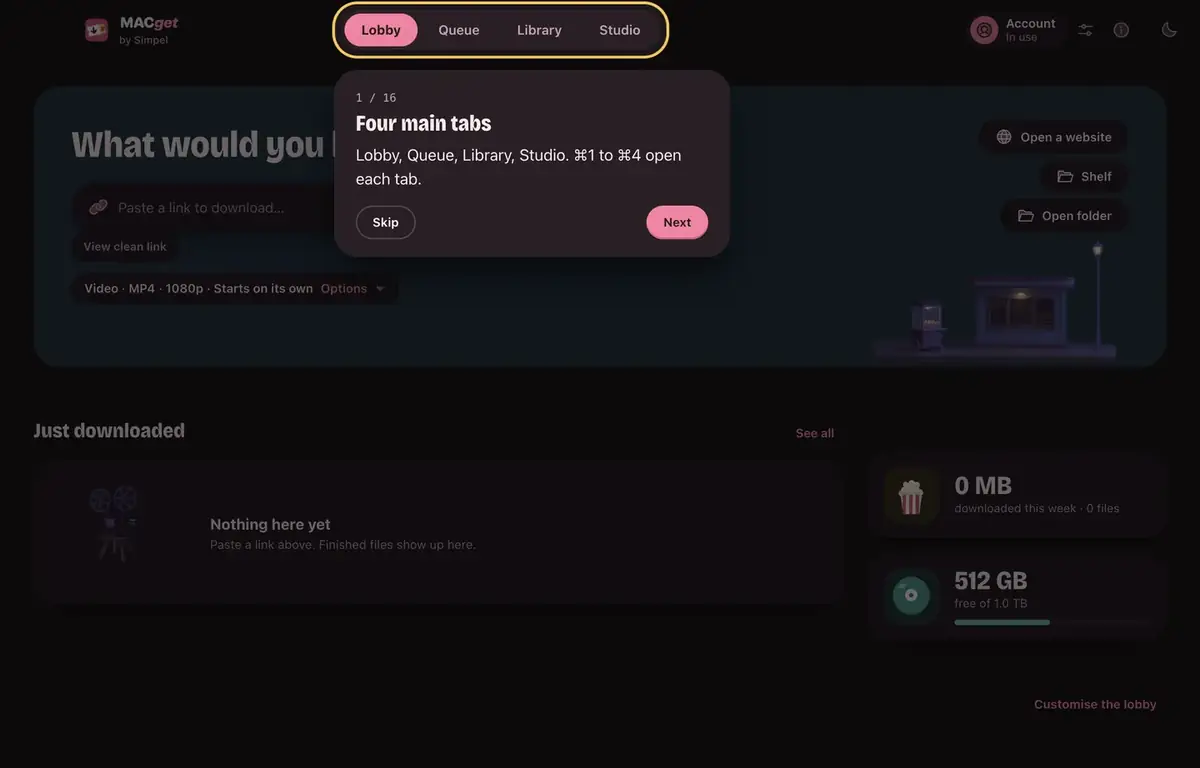
A one-minute guide
Points at each main button in turn; skip at any step, and pick up where you left off next time.
Six short videos
A pointer shows each step: paste a link, choose how to download, Queue, Library, Studio and customising the Lobby. Subtitles in your language.
MACget Help
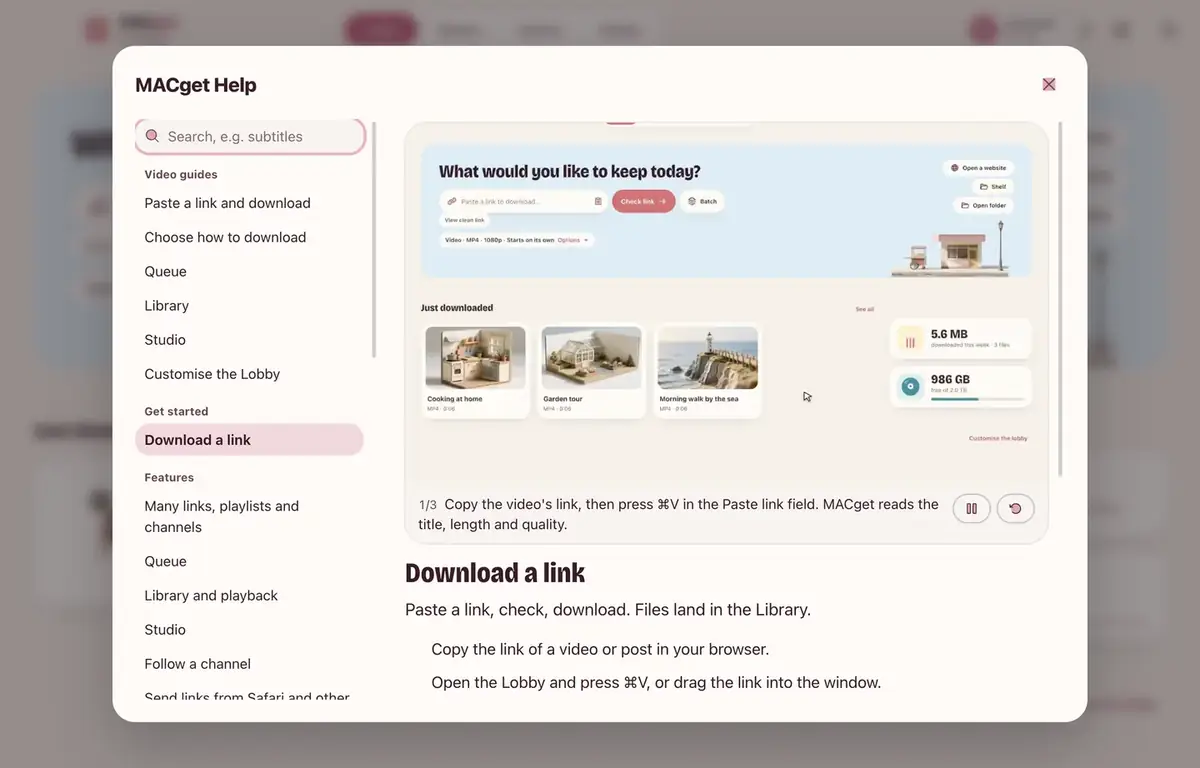
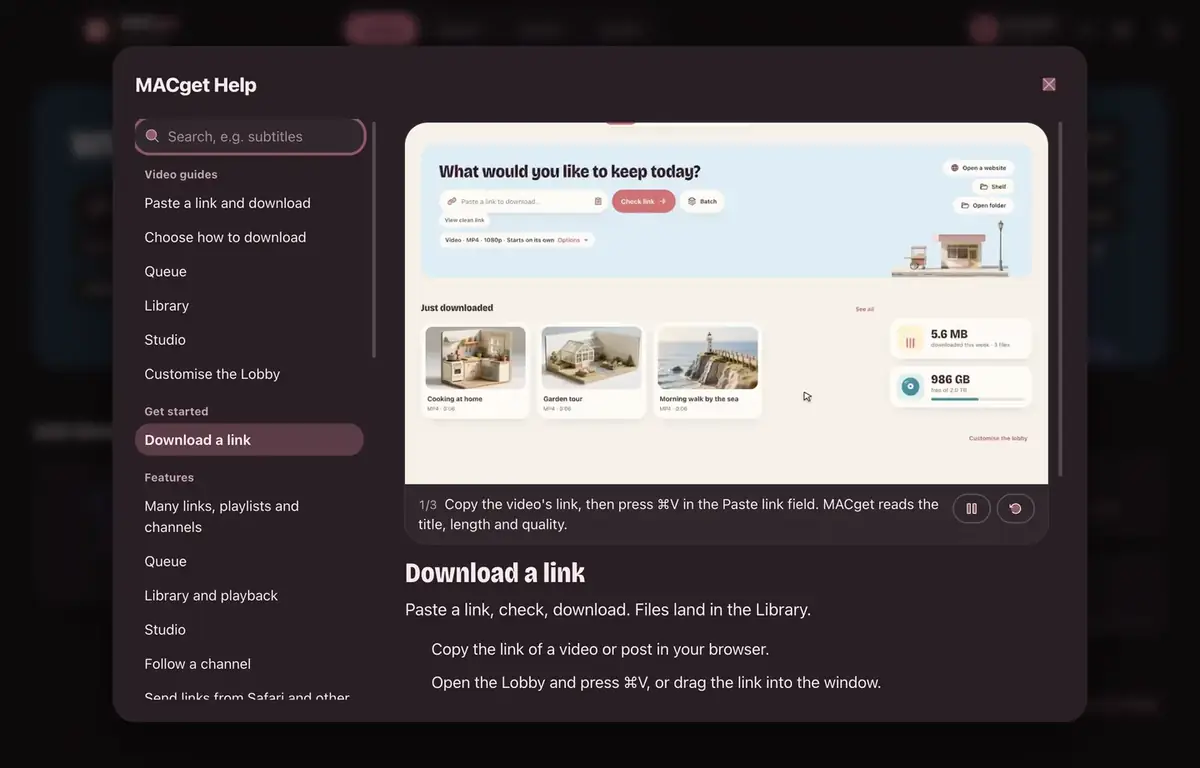
A short illustrated article for every feature, menu and Settings page, with a button that opens the right place. Search works without accents.
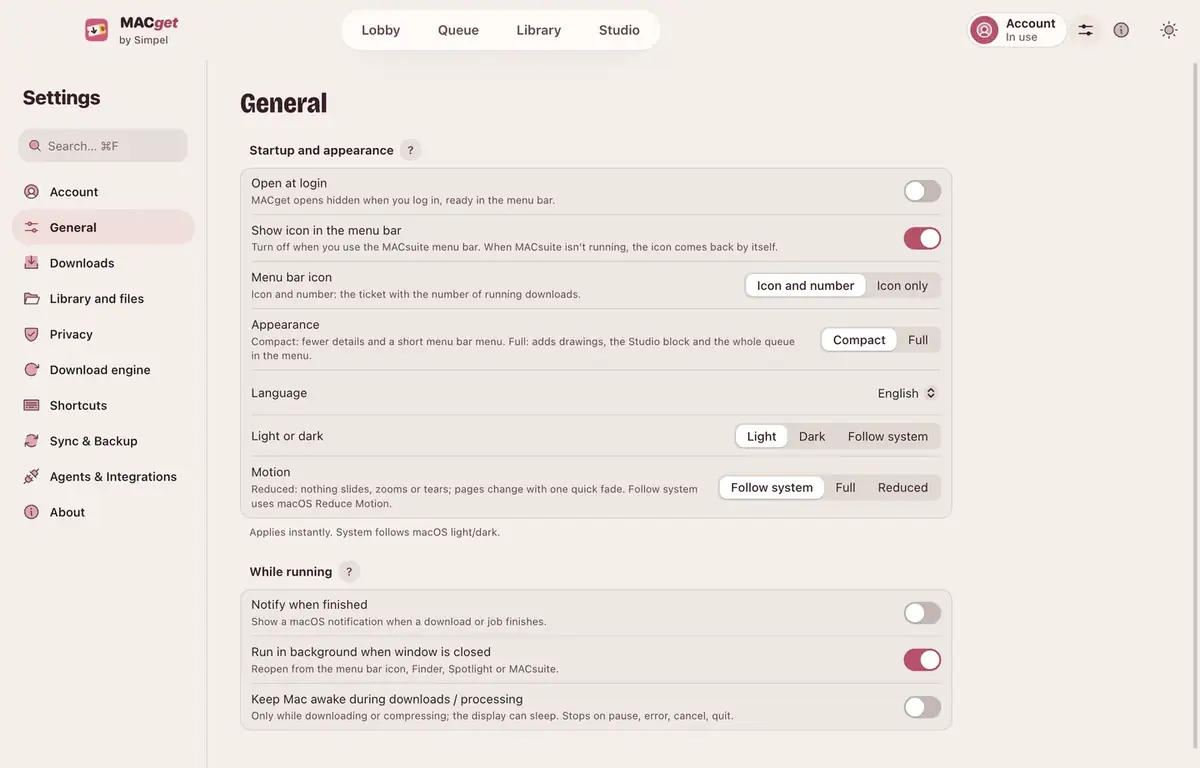
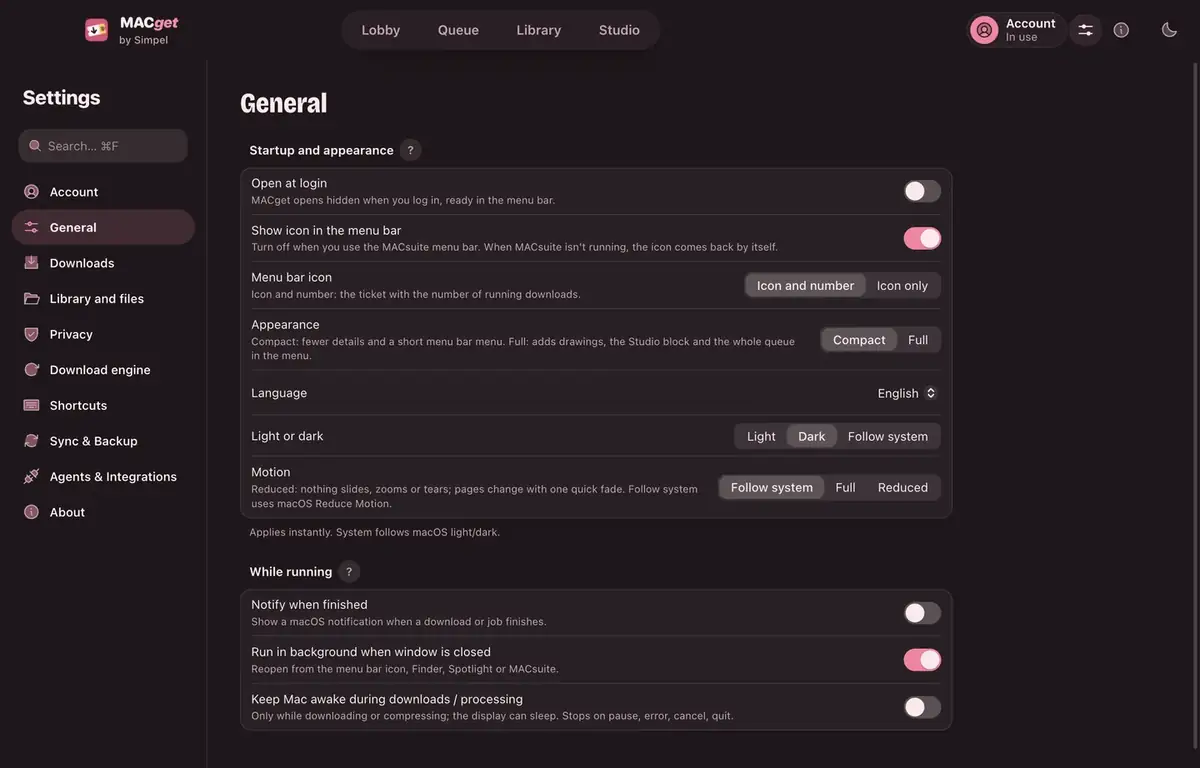
Settings that explain themselves
Every row says what it does; a (?) beside each group; search with ⌘F. One-time tips sit in a bar at the bottom, never over your content.
Try it on your own notes
Every feature here is in MACget today, except the ones marked coming soon.