








Everything MACfan does
147 features in 18 groups, with screens from the app itself. Everything shown is sample content.
Your Mac's heat at a glance
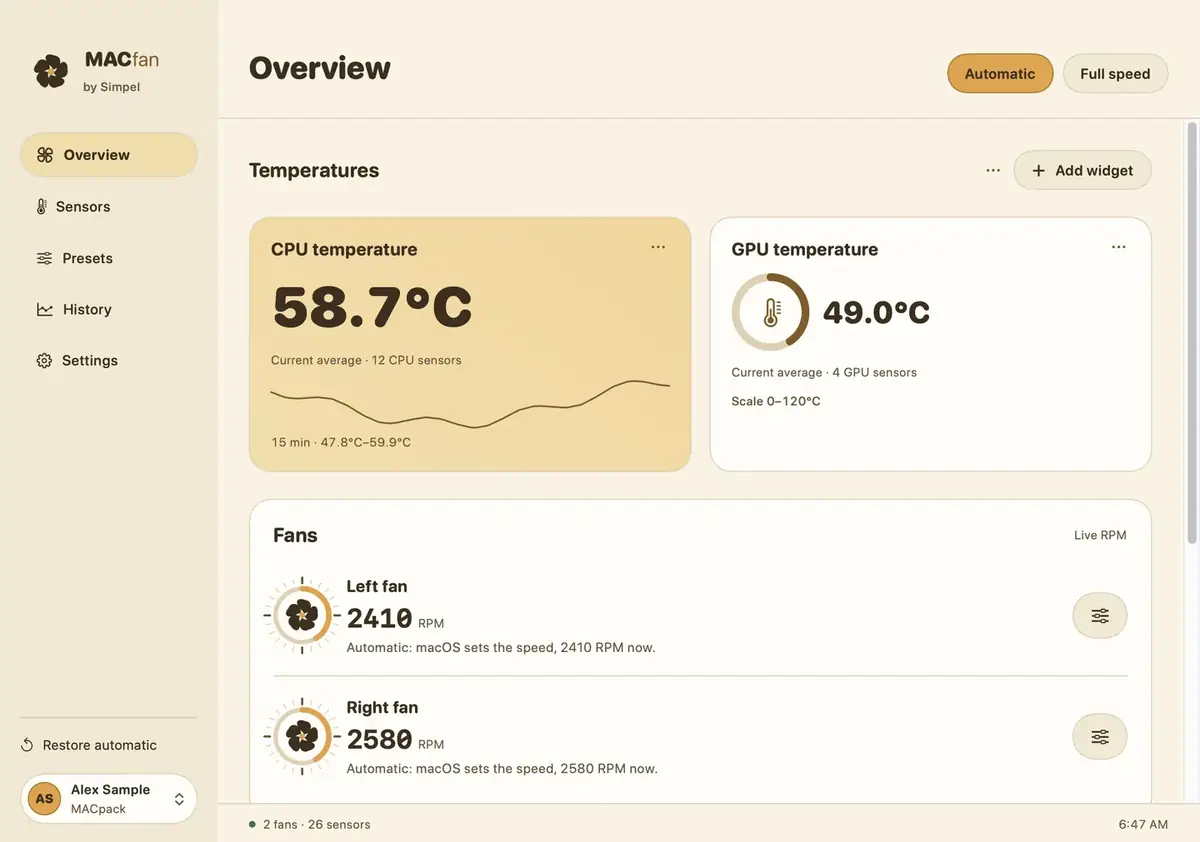
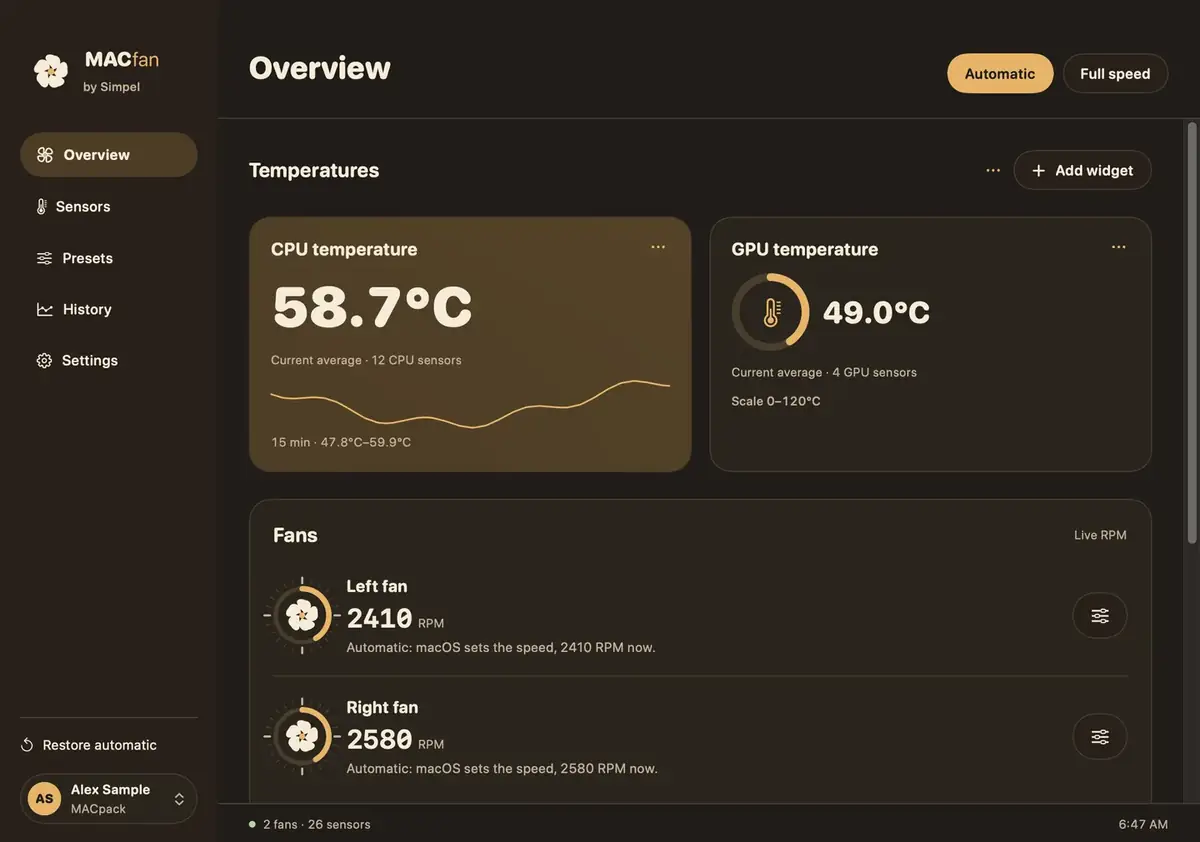
The Overview is a dashboard you arrange yourself: temperatures on top, both fans below.
Up to 12 widgets
CPU, GPU, AirPort, battery or any sensor your Mac exposes. CPU trend, GPU dial, AirPort and battery come first.
Value, trend or dial
Show each reading as a big number, a 15-minute trend line or a dial with its scale.
More kinds of modules
A fan with its live rotor, thermal pressure, fan control and a saved preset with an Apply button.
Small, medium or large
Size, move or remove each module from its menu, or drag it. Move earlier and Move later work from the keyboard.
Every widget names its sensor
You see which sensors make up a reading, like the average of 12 CPU sensors. A missing one stays visible as unavailable.
A true CPU temperature
The default is the current average of the CPU sensors mapped for Apple M1 to M5, or the CPU sensor on Intel, not a peak.
A tile that warms with the heat (coming soon)
The main temperature tile tints from honey to terracotta as the Mac gets hotter, and stays flat with Increase Contrast.
The inside of your MacBook Pro
In the Full layout, a line drawing shows the fans, chip, SSD and battery with a heat map and airflow. Compact hides it and is lighter.
Every sensor, live
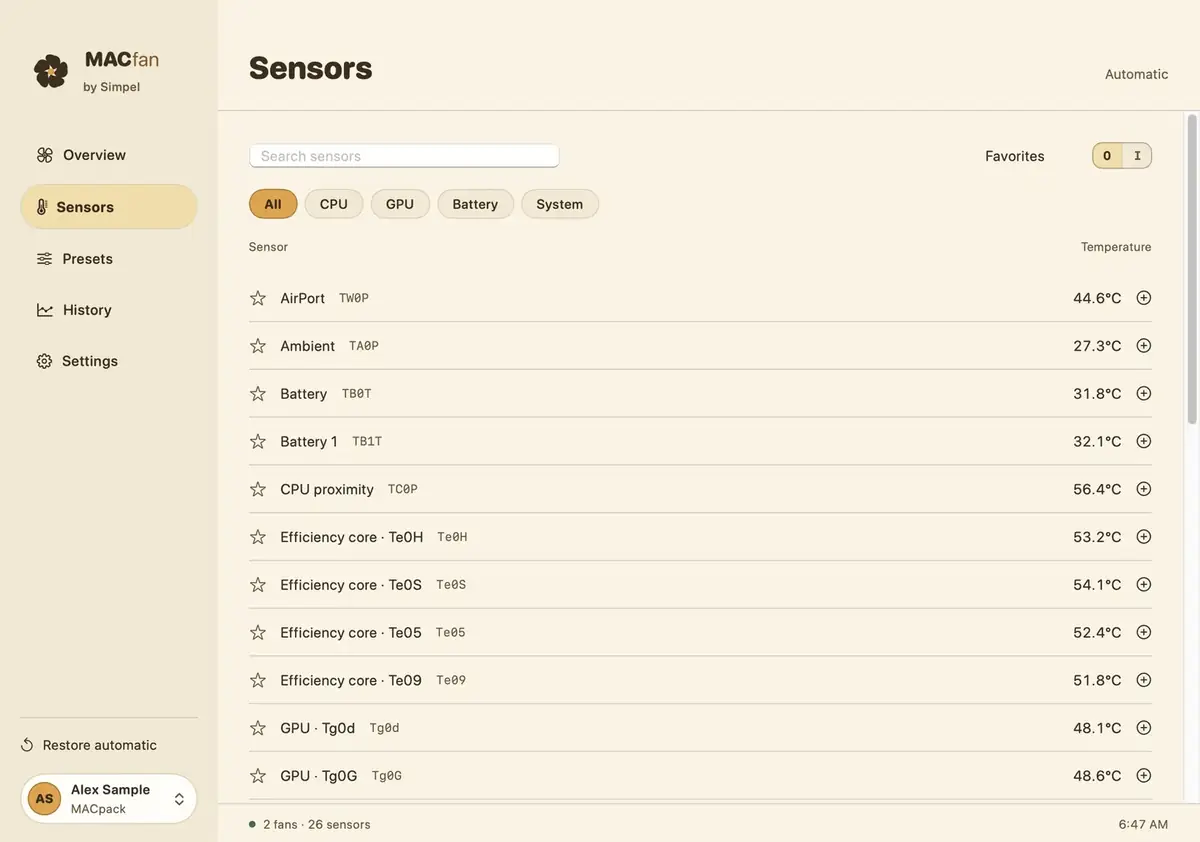
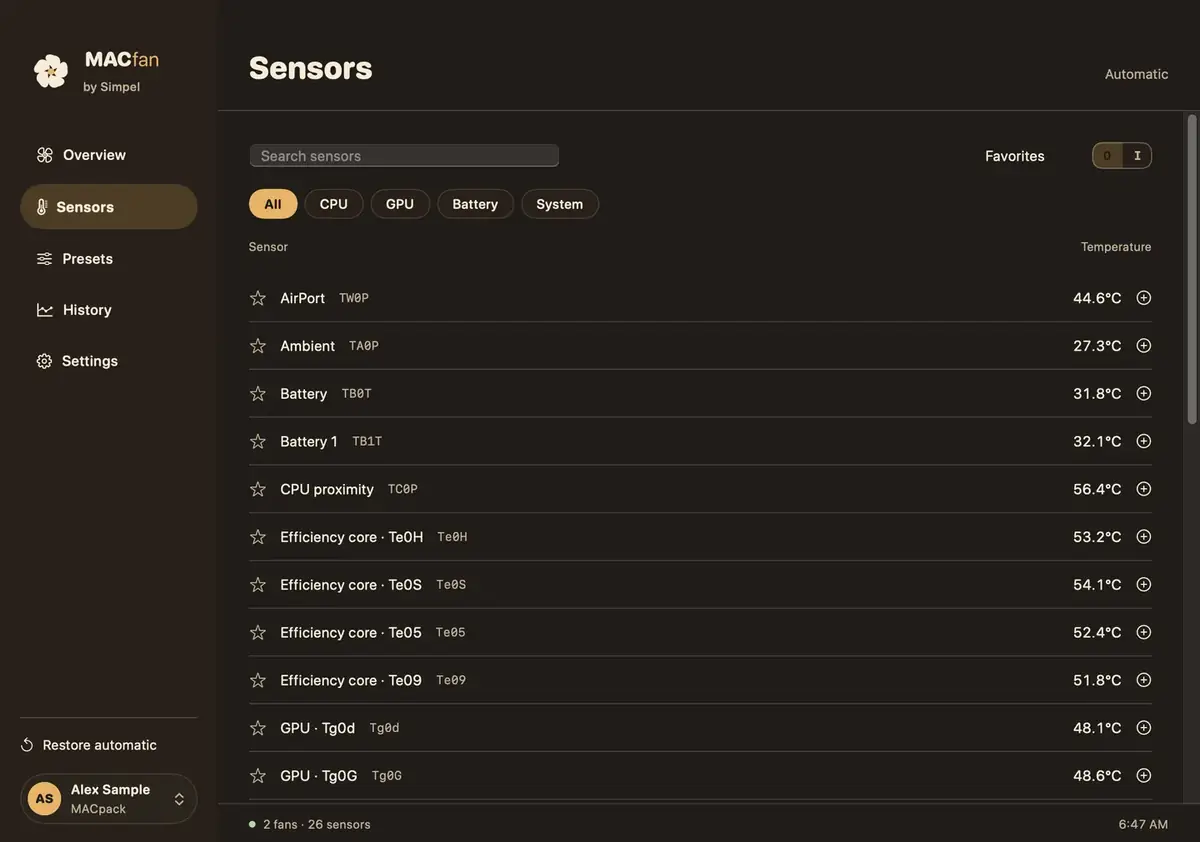
The Sensors page lists every temperature your Mac reports, with its hardware key.
- Search sensors by name
- Filter by CPU, GPU, battery or system
- Star favourites and show only them
- Add any sensor to the Overview with one click
- Unknown sensors keep their raw hardware name
- Celsius or Fahrenheit, with decimals in the details
- Fan speeds shown to the nearest 10 RPM, so they do not flicker
- Watching sensors needs no helper and no admin password
Set each fan its own way
Left and right fan each get their own mode. Changing one never touches the other.
- Automatic
- macOS sets the speed. One click, ⌥⌘0, or Restore automatic in the sidebar brings every fan back
- Fixed RPM
- A dial with 100 RPM steps, from the fan's minimum to its maximum
- Temperature curve
- Speed follows a sensor you pick, along points you set
- Boost
- Stays on Automatic until a sensor reaches your limit (50 to 95 °C), then runs at least your speed, reaching full speed 15 °C above; 5 °C below the limit it hands back
- Full speed
- Every fan at maximum in one click, from the window, the menu bar or the Cooling menu
- Why, in plain words
- Each fan says why it does what it does: macOS in control, held by a preset, waiting for the helper, stopped because the Mac is cool, handed back after a safety stop
- Fan health
- Real speed against target, how fast each fan usually reaches it, kept across launches; slow or unreadable fans are marked
- Rotors that turn
- Each rotor turns at its fan's real speed and stops when the fan stops; with Reduce Motion nothing moves
Curves that stay calm
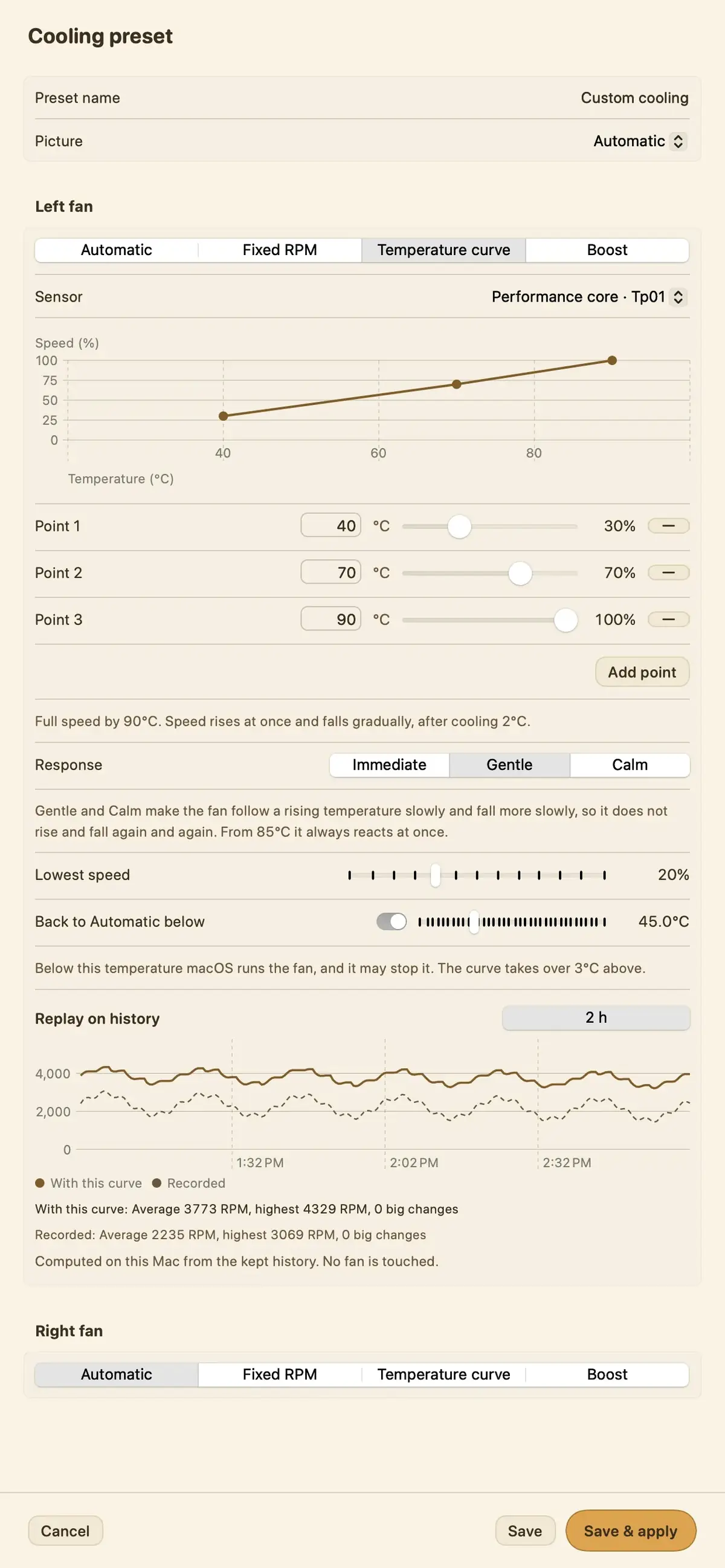
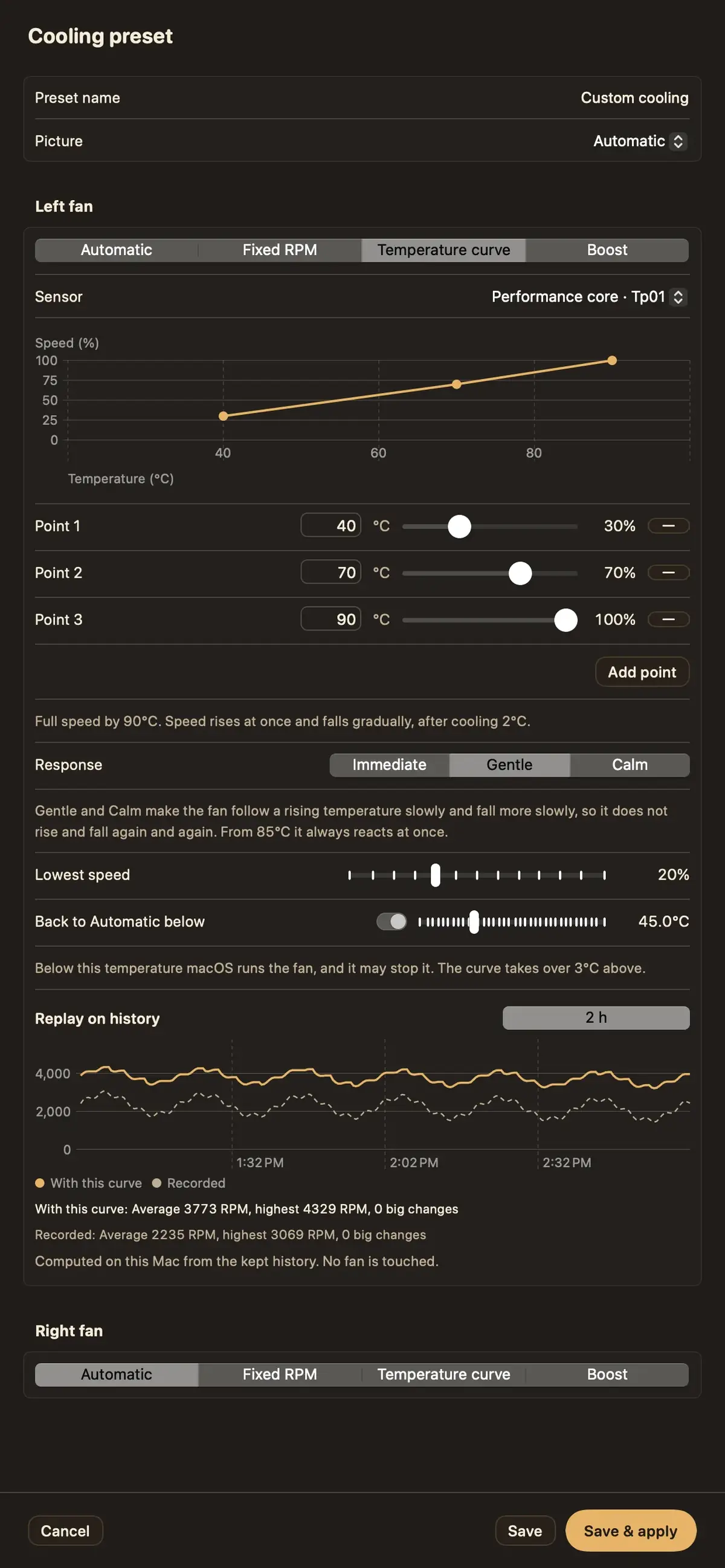
Draw how fast a fan should spin at each temperature, then test it on your own history before you save.
- Points
- Add or remove points; type a temperature, drag a slider or drag the point on the graph
- Sensor
- Any sensor, per fan
- Full speed by 90 °C
- Every curve reaches full speed by 90 °C at the latest
- Response
- Immediate, Gentle or Calm: speed rises at once and falls slowly, so the fan does not rev up and down; from 85 °C it always reacts at once
- Lowest speed
- A floor the curve never goes under
- Back to Automatic below
- Below a temperature you choose, macOS runs the fan and may stop it; the curve takes over 3 °C above
- Replay on history
- Runs the last 2, 12 or 24 hours through the curve and shows the speed it would have set next to the real one, with averages; no fan is touched
- Save or Save & apply
- Keep the curve for later, or start it now
Presets you can see
A preset keeps the mode of every fan. Each one is a card with its own picture.
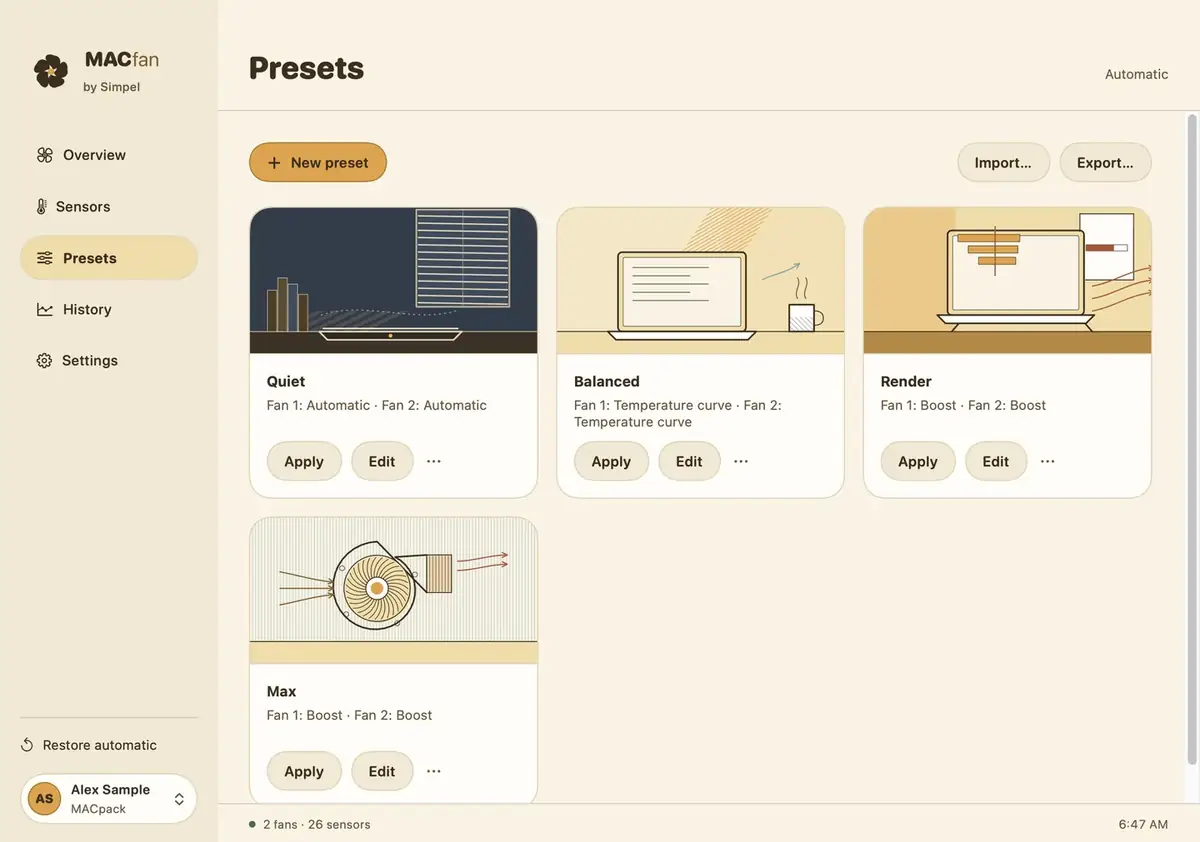
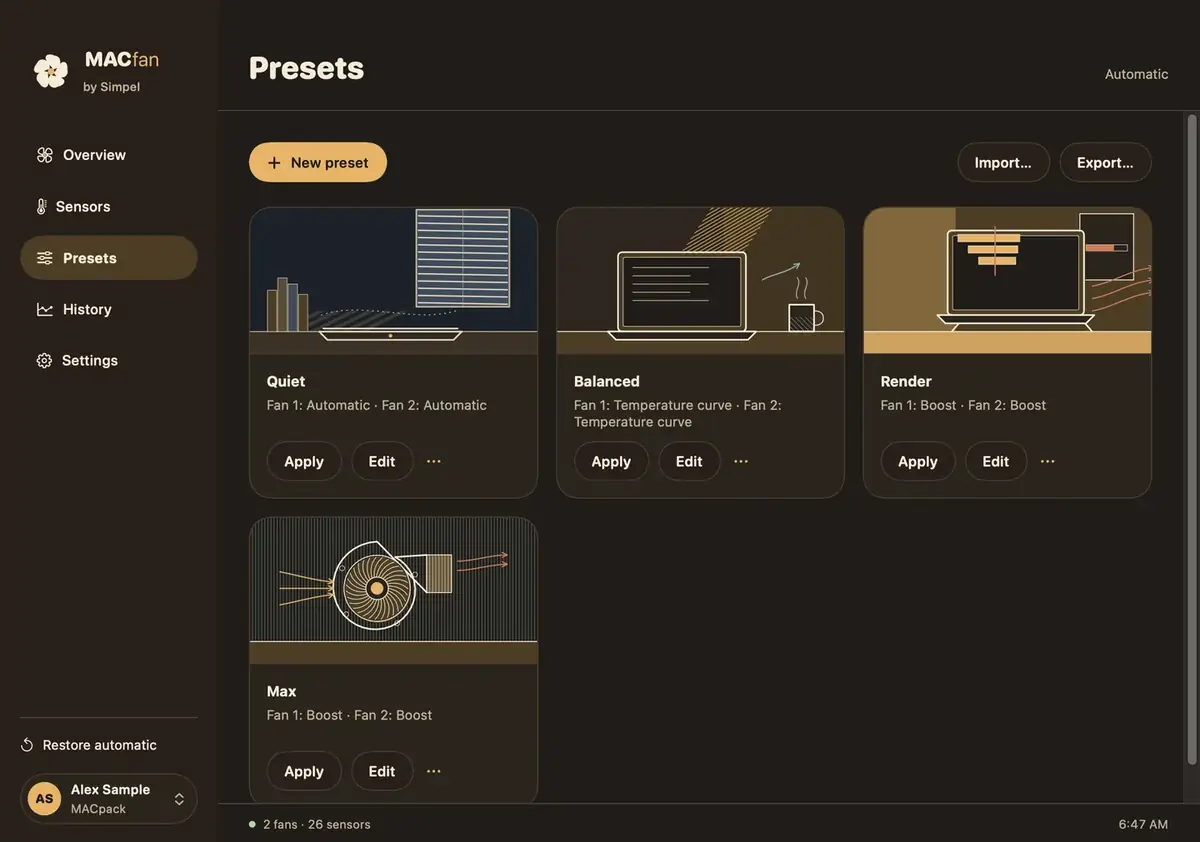
Templates: Quiet, Balanced, Render and Max
Four pictures
Night desk, afternoon desk, workshop or full wind, picked from how hard the preset cools, or chosen by you.
Apply from anywhere
The Presets page, the menu bar panel, the Cooling menu or a preset module on the Overview.
Edit, rename, duplicate
Every fan in one sheet; delete asks first.
Import and export
Share presets as a file; duplicates get fresh ids, nothing is overwritten.
Never start by themselves
MACfan always starts in Automatic; a saved preset runs only when you, a rule or an agent you allowed picks it.
Quiet and Strong
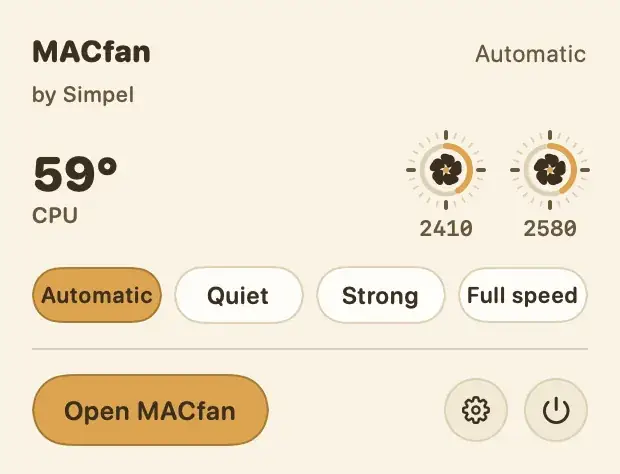
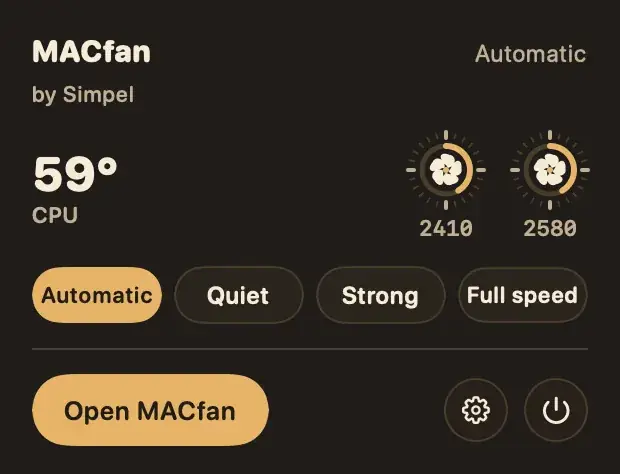
Two ready curves on the CPU in the menu bar panel, next to Automatic and Full speed.
Lives in the menu bar
The CPU temperature sits in the menu bar. Click it for a panel with both fans and one-click modes.
- Pick the sensor it shows, or the hottest one
- Icon with number, or icon only
- Add fan speed, CPU use, memory use and network speed, each off until you turn it on
- Refresh every 1, 2 or 5 seconds
- Compact panel: CPU, both fans, Automatic, Quiet, Strong and Full speed
- Full panel adds GPU, SSD, battery, Keep awake and your presets as one-click keys
- A 15-minute trend of the menu bar sensor inside the panel
- Keep awake for 15 minutes, 1, 2 or 4 hours, or until you turn it off; it ends when you quit
- Close the window and MACfan keeps running; the Dock icon shows only while a window is open
- Comes back the way you left it after a restart or an update
See what happened
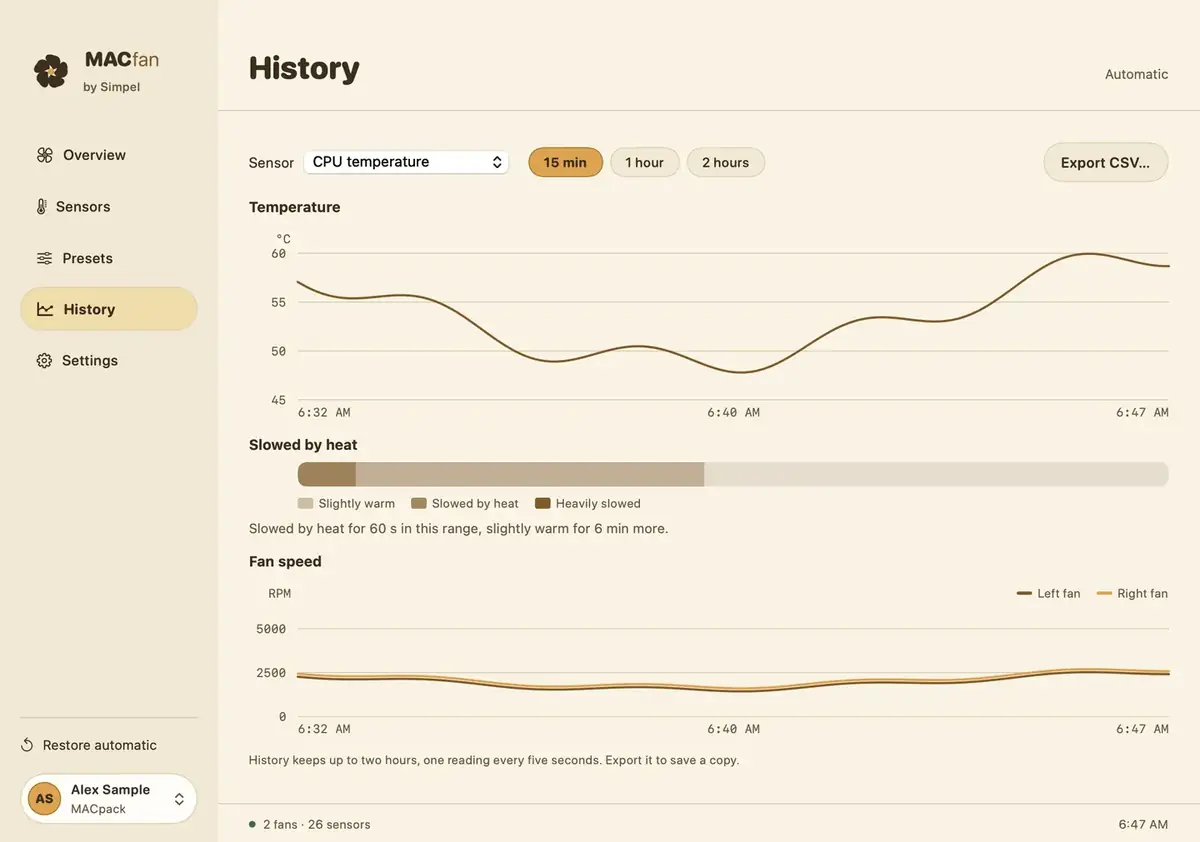
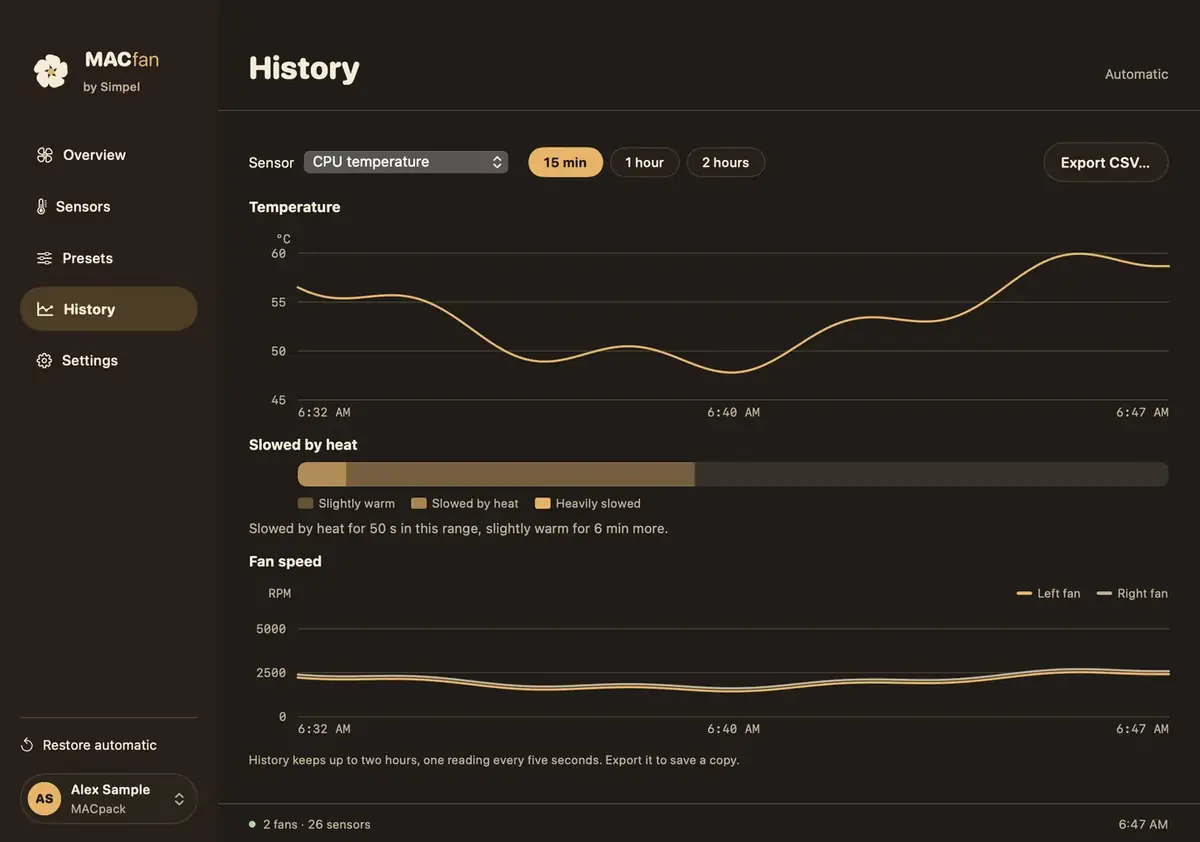
Temperature and fan speed over time, with the moments heat slowed your Mac shaded.
- Ranges
- 15 minutes, 1 hour or 2 hours, for any sensor
- Fan speed
- Left and right fan in two colours, under the temperature
- Slowed by heat
- A strip with three shades, slightly warm, slowed and heavily slowed, and a one-line summary
- Kept
- One reading every 5 seconds; 2 hours of every sensor, or 12 or 24 hours of the sensors in use
- Survives
- History stays after you quit, restart or update
- Export
- CSV of every sensor, or only the ones in use
Alerts when it gets hot
A macOS notification when a sensor passes the limit you set.
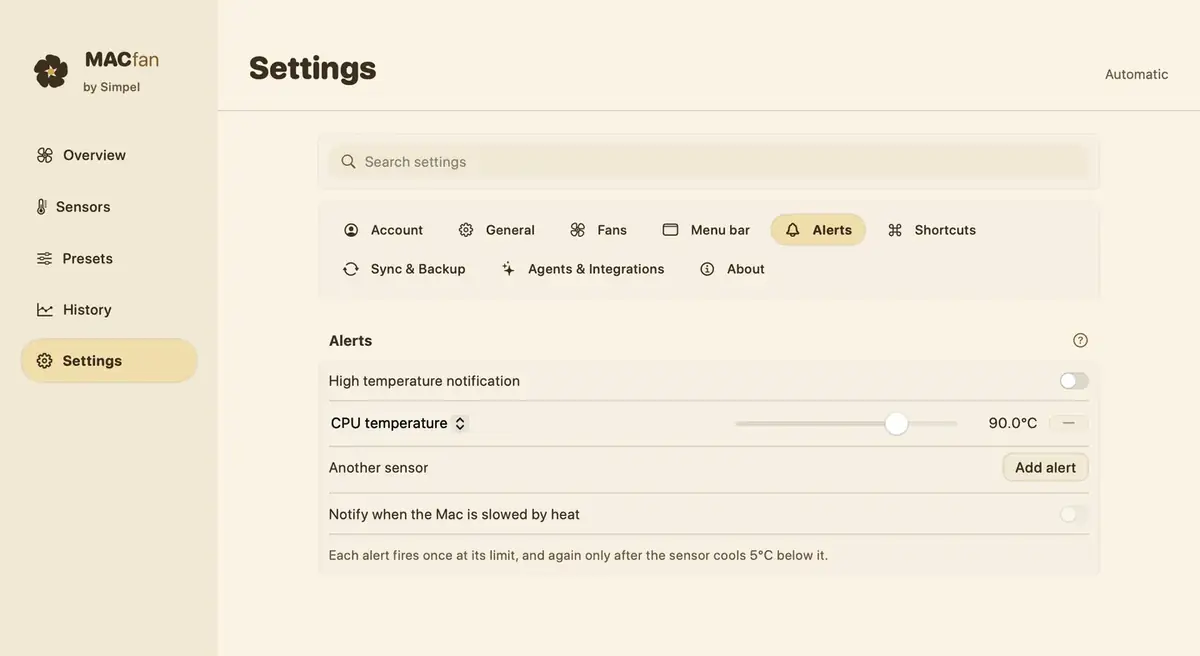
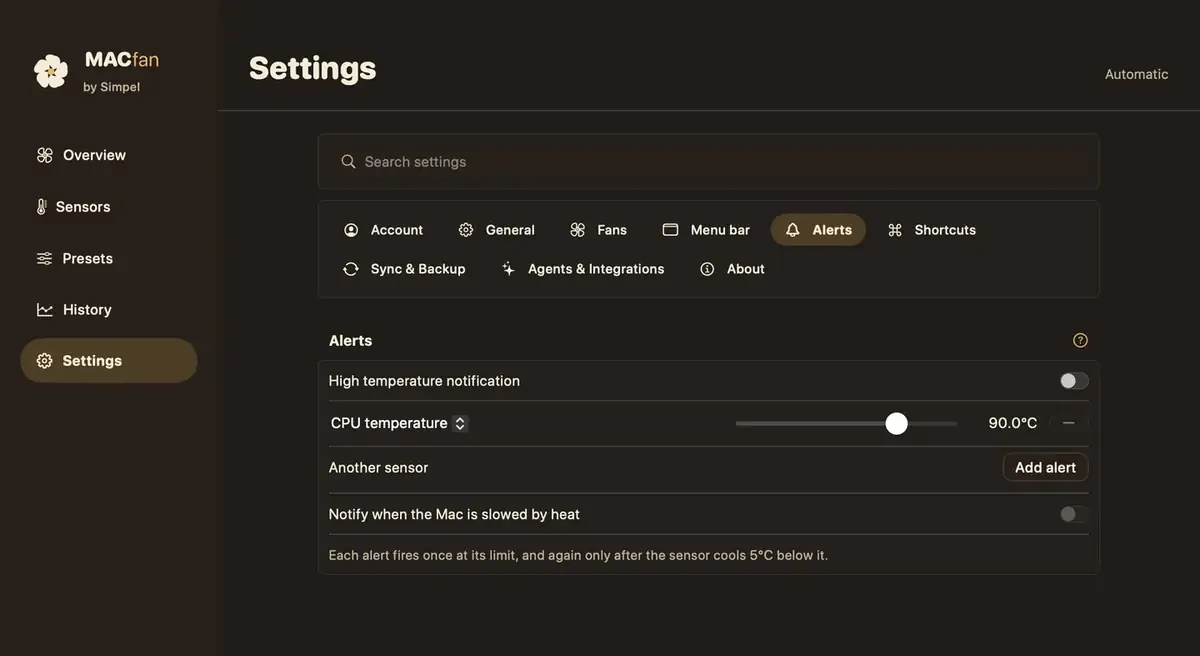
- Up to eight alerts, each with its own sensor and limit
- Each fires once, and again only after the sensor cools 5 °C
- A warm GPU never holds back the CPU alert
- Optional notice when macOS starts slowing the Mac for heat
- Alerts keep working while agents read the sensors
Presets that switch by themselves
Rules change the preset when you plug in, unplug or reach quiet hours. Off until you turn it on.
Turn it on
Settings › Fans › Switch presets automatically.
Add a rule
On charger, on battery, or quiet hours with a start and end time. Up to eight rules.
Pick the preset
The first rule that matches wins. Presets switch when a rule starts or ends.
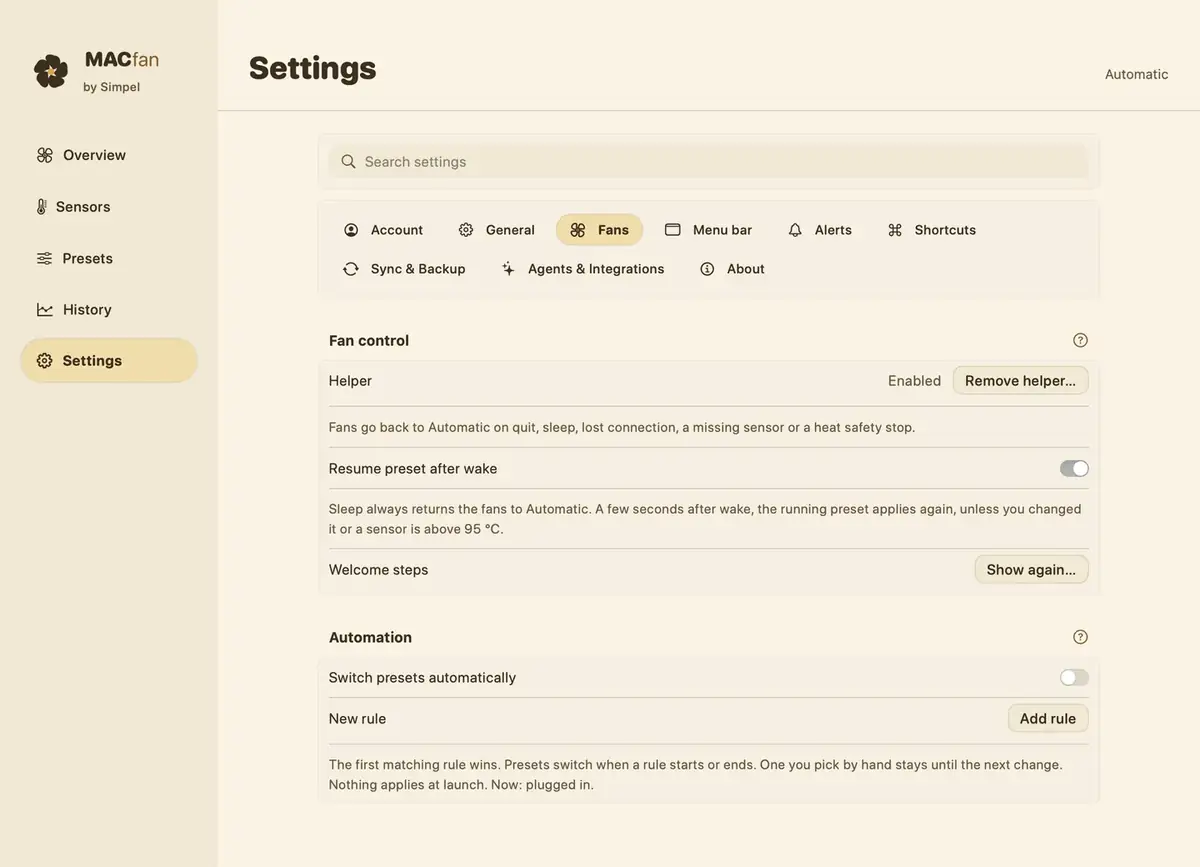
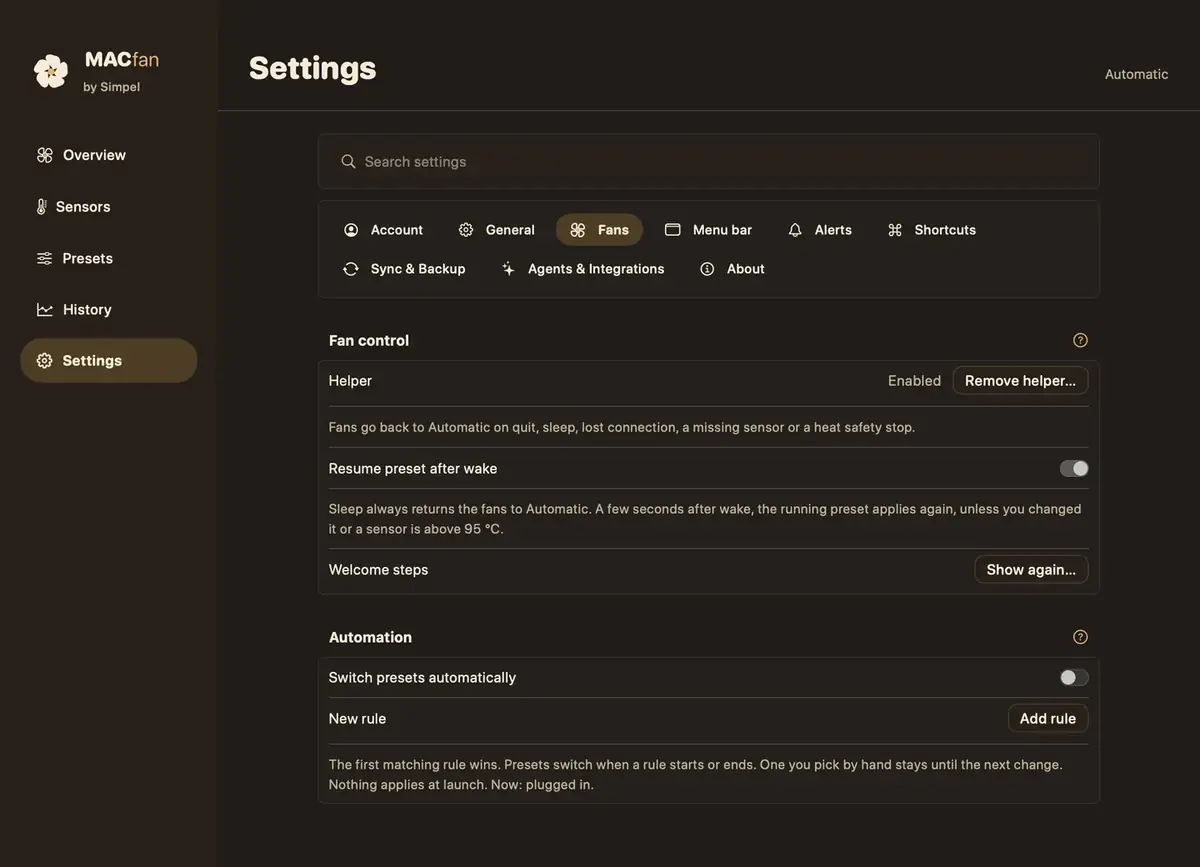
- A preset you pick by hand stays until the next change
- Nothing is applied just because MACfan started
- Sleep always returns the fans to Automatic
- A few seconds after wake, the running preset applies again, unless you changed it or a sensor is above 95 °C
- Resume after wake has its own switch
MACfan always hands the fans back
Manual control runs through a signed helper with hard limits. When anything goes wrong, macOS gets the fans back.
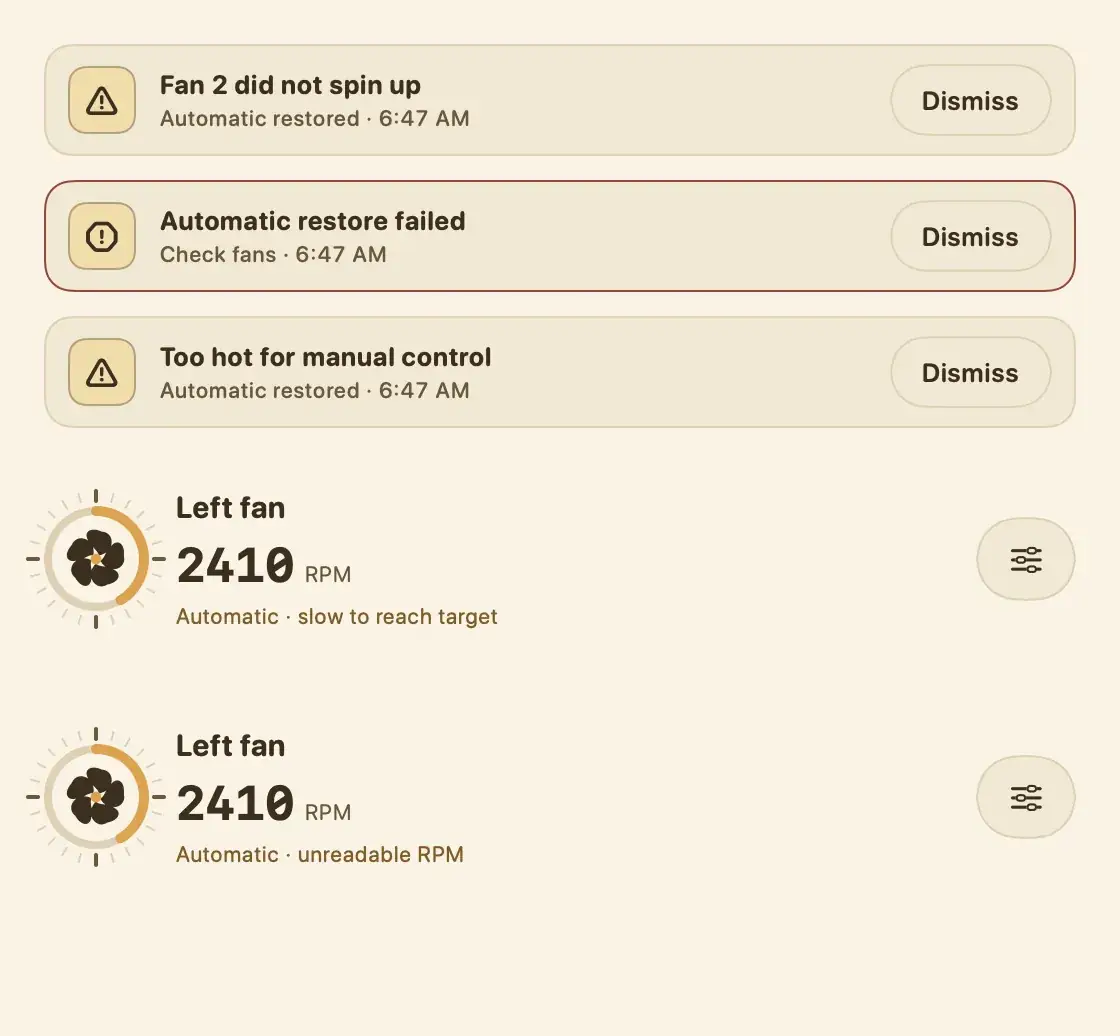
Too hot for manual
If any sensor passes 100 °C, every fan returns to Automatic.
Quit, freeze or lost link
If MACfan quits, hangs or loses the helper, the fans return within seconds.
A fan that stalls
A fan below its safe speed on manual goes back to Automatic, and a missing sensor does the same.
Never below the minimum
No preset, curve or agent can set a fan under its own minimum.
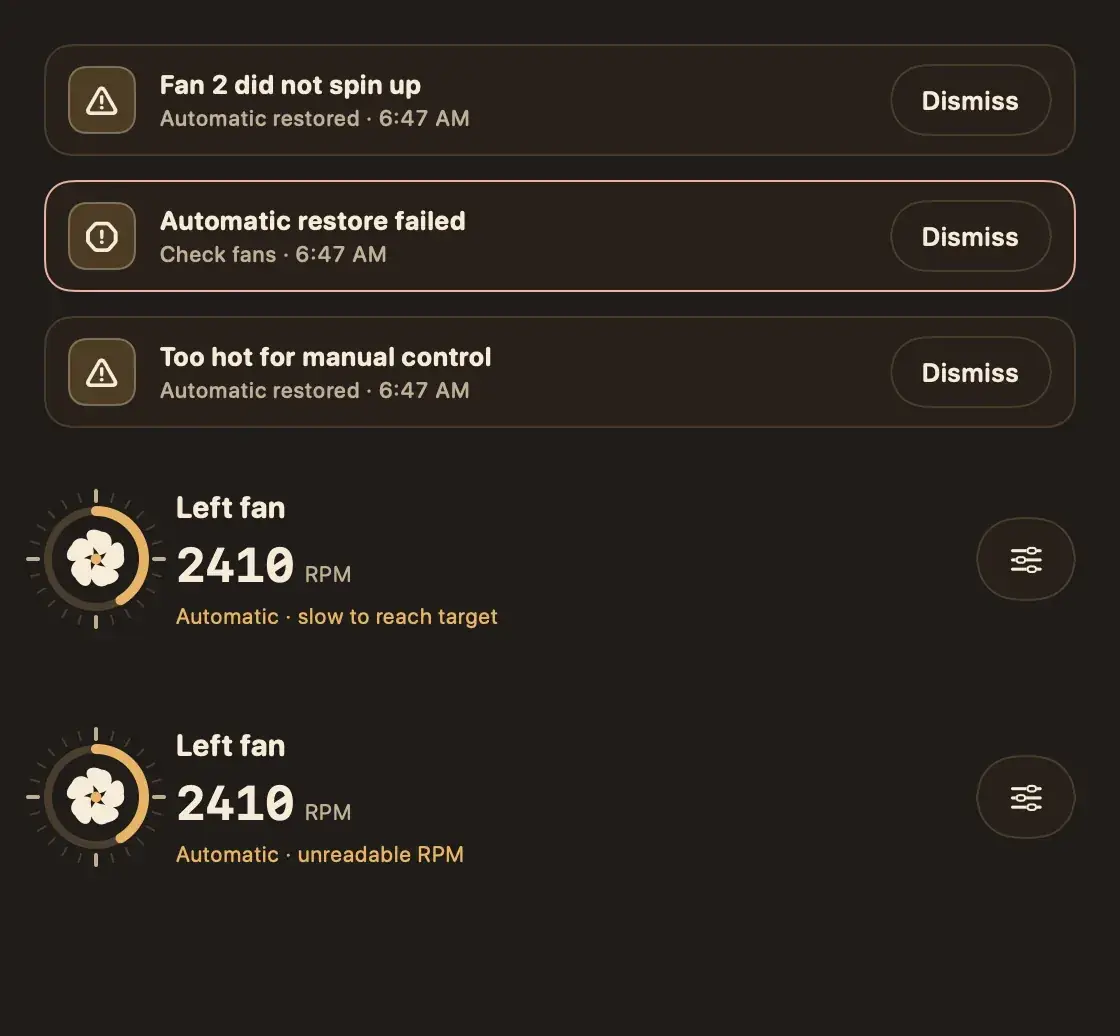
Clear notices
A fan that did not spin up, a restore that failed, too hot for manual: each says what happened and when.
Recovery after a crash
A recovery log frees any fan left on manual, even after a restart, and a damaged file never costs you your presets.
Only the signed app
The helper takes orders only from the signed MACfan app and steps aside before an update replaces it.
macOS stays in charge
MACfan never turns off the Mac's own heat protection, and warns you when another fan controller is running.
A first run that explains itself
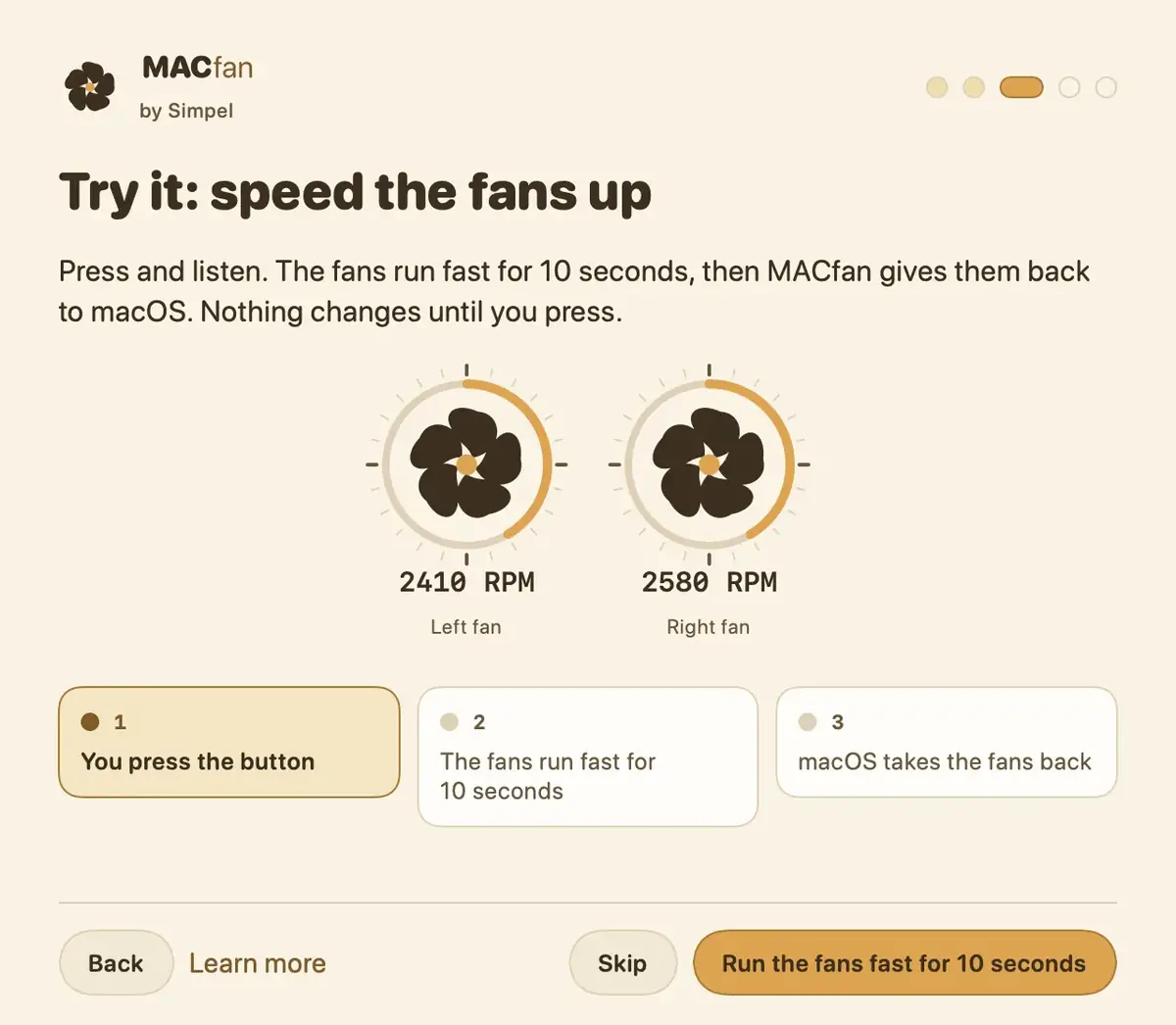
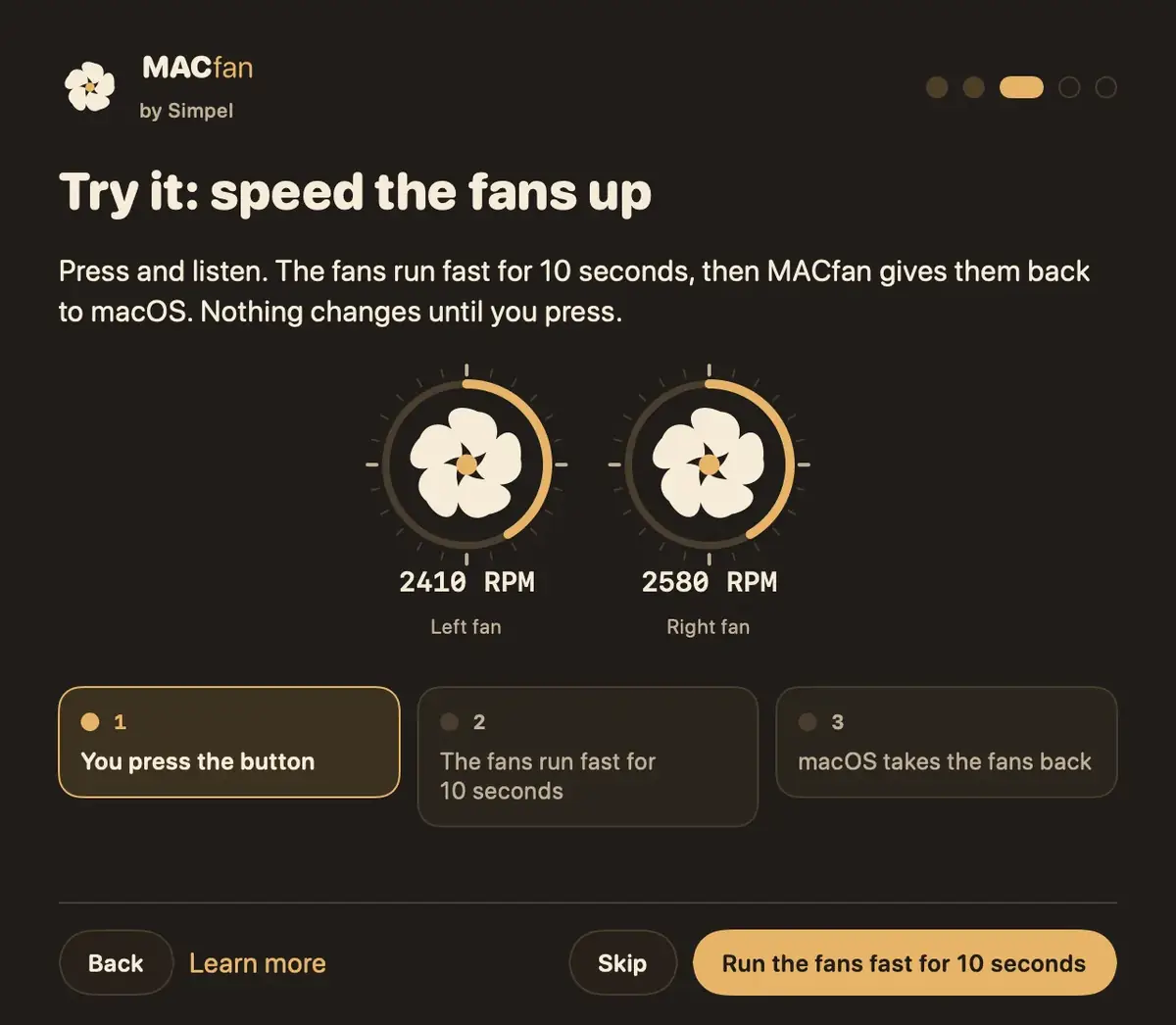
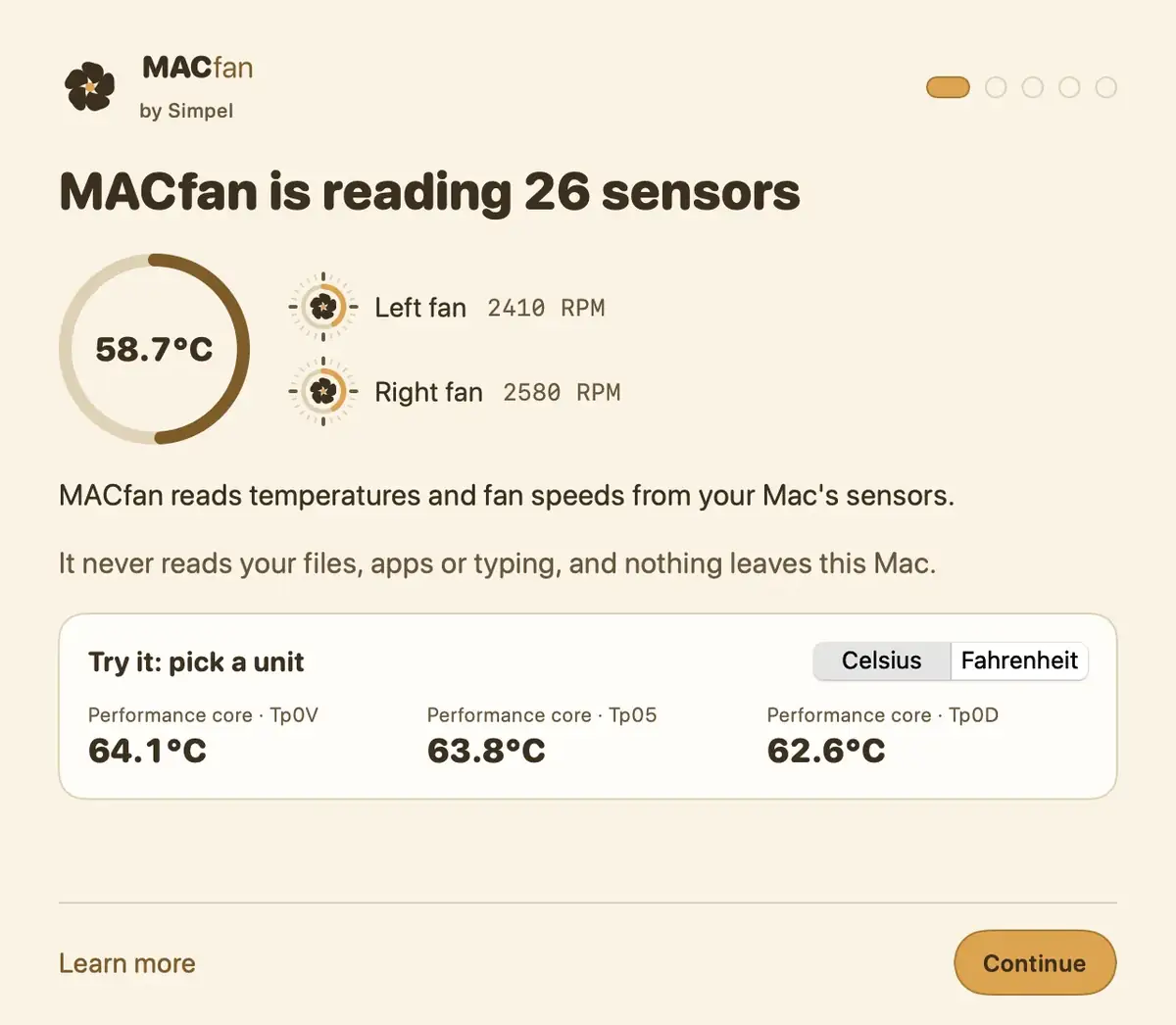
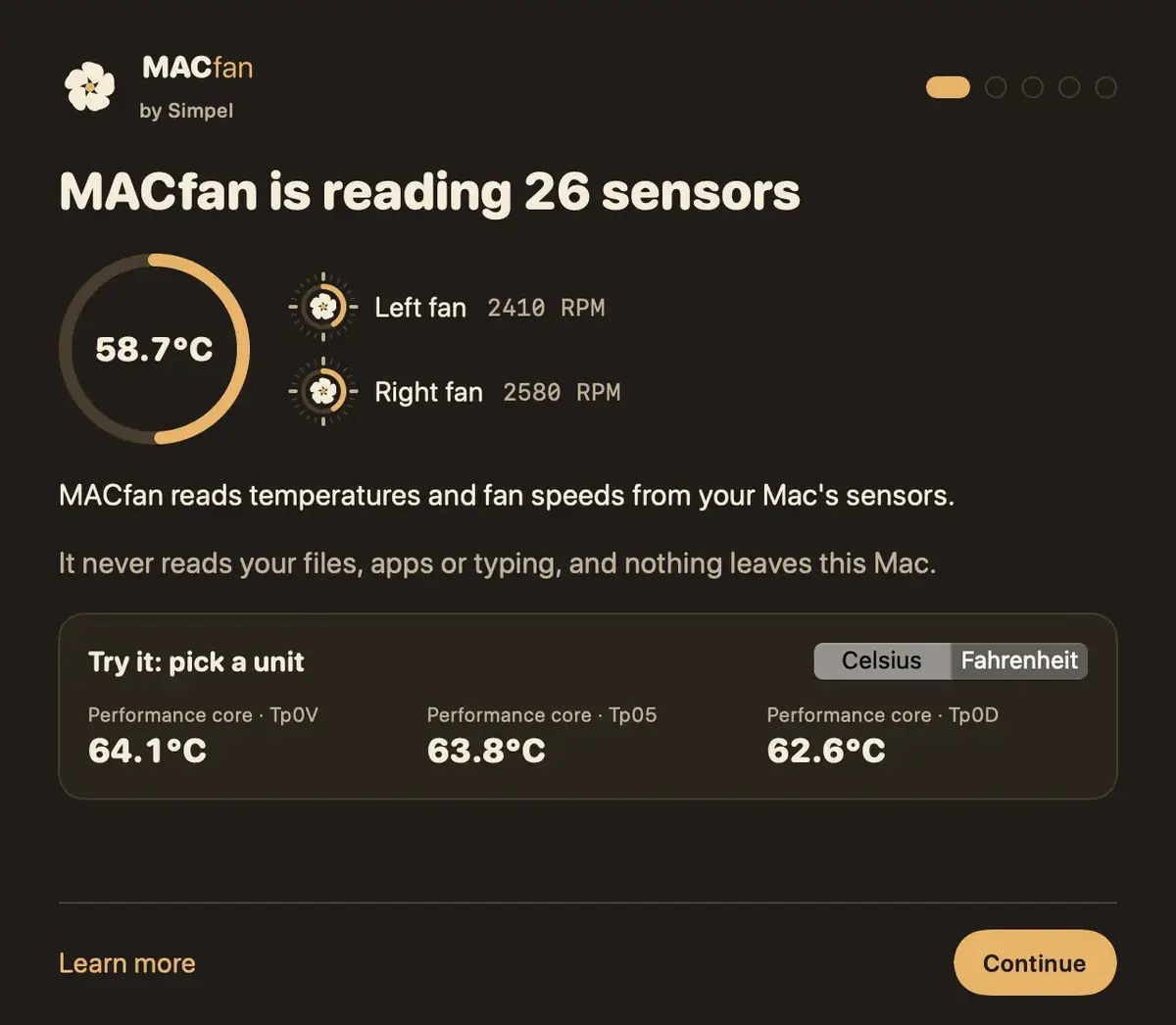
Five short pages, each with one main button. Nothing changes until you press it.
What MACfan reads
Temperatures and fan speeds, never your files, apps or typing. Try it: pick °C or °F.
Allow fan control
Approve the helper in macOS, or stay monitoring only. The page moves on once macOS says yes.
Hear the fans
A real 10-second test that runs only when you press it, then hands the fans back.
The menu bar sensor
Choose what the menu bar shows, and whether MACfan opens at login.
Where help lives
Help, the shortcuts list and the guided walk through the window.
- Learn more on any page opens Help and comes back to the same step
- Show the welcome steps again from Settings or the Help menu
- Shown once; existing setups are left alone
Help that teaches
Short lessons, a page for every menu and setting, and a guided walk through the window.
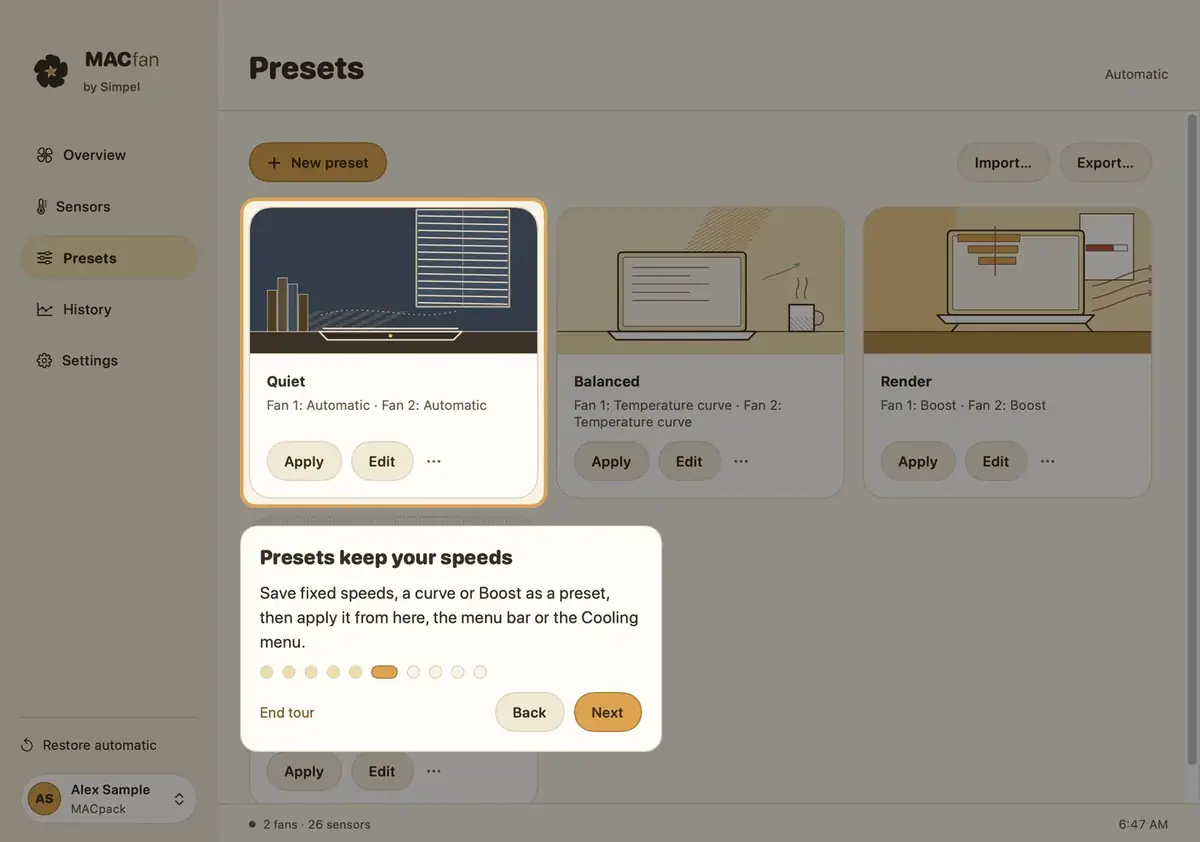
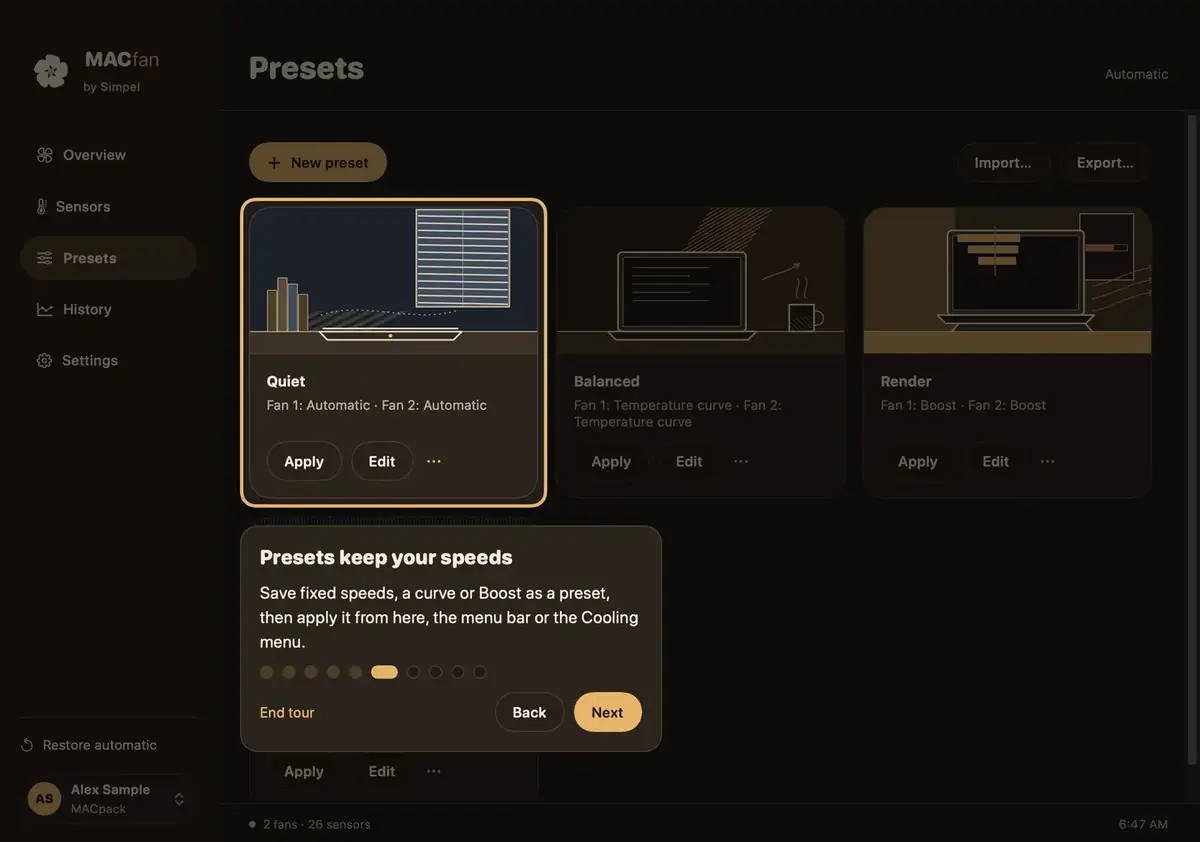
- Nine lessons with drawings: safety, presets, Boost, curves, automation, history, sync, licence, command line and AI
- Every lesson has a Try it button that opens the right place
- A page for each menu, the menu bar panel and each Settings group, with an Open this button
- A question mark on every Settings group, a tooltip on every row
- Search that ignores accents
- A ten-stop guided walk through Overview, Presets, History, the menus and Settings
- Short tips the first time a new feature appears
- Report a problem and What's new in the Help menu
| ⌘1–⌘5 | Overview, Sensors, Presets, History, Settings |
| ⌥⌘0 | Automatic |
| ⌘F | Search settings |
| ⌘, | Settings |
| ⌘? | MACfan Help |
| ⌘/ | Keyboard shortcuts, with a filter |
| ⌘W | Close the window, keep the menu bar |
| ⌘Q | Quit; the fans go back to macOS |
| Esc | Close a sheet or the guided walk |
Settings, tab by tab
The same tab order as every Simpel app, with ⌘F search across every row and Reset all settings, which saves a backup first.
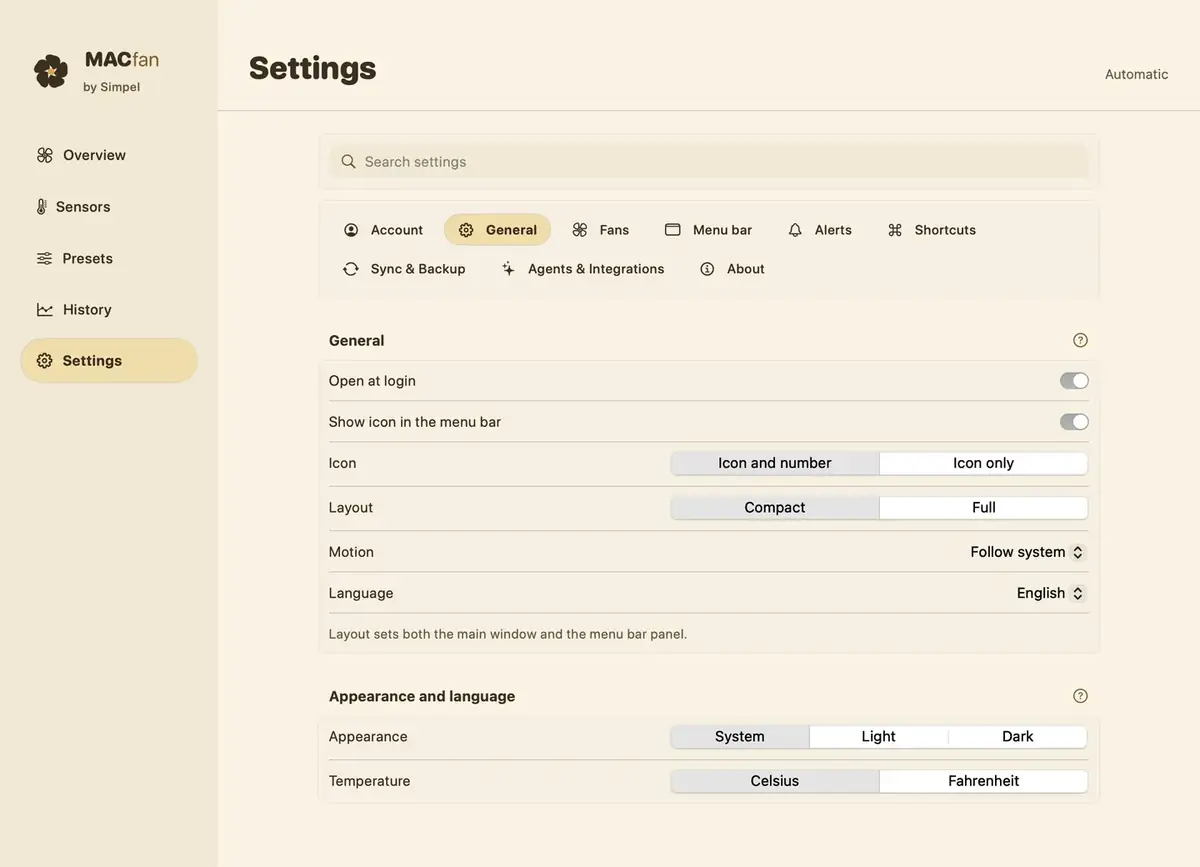
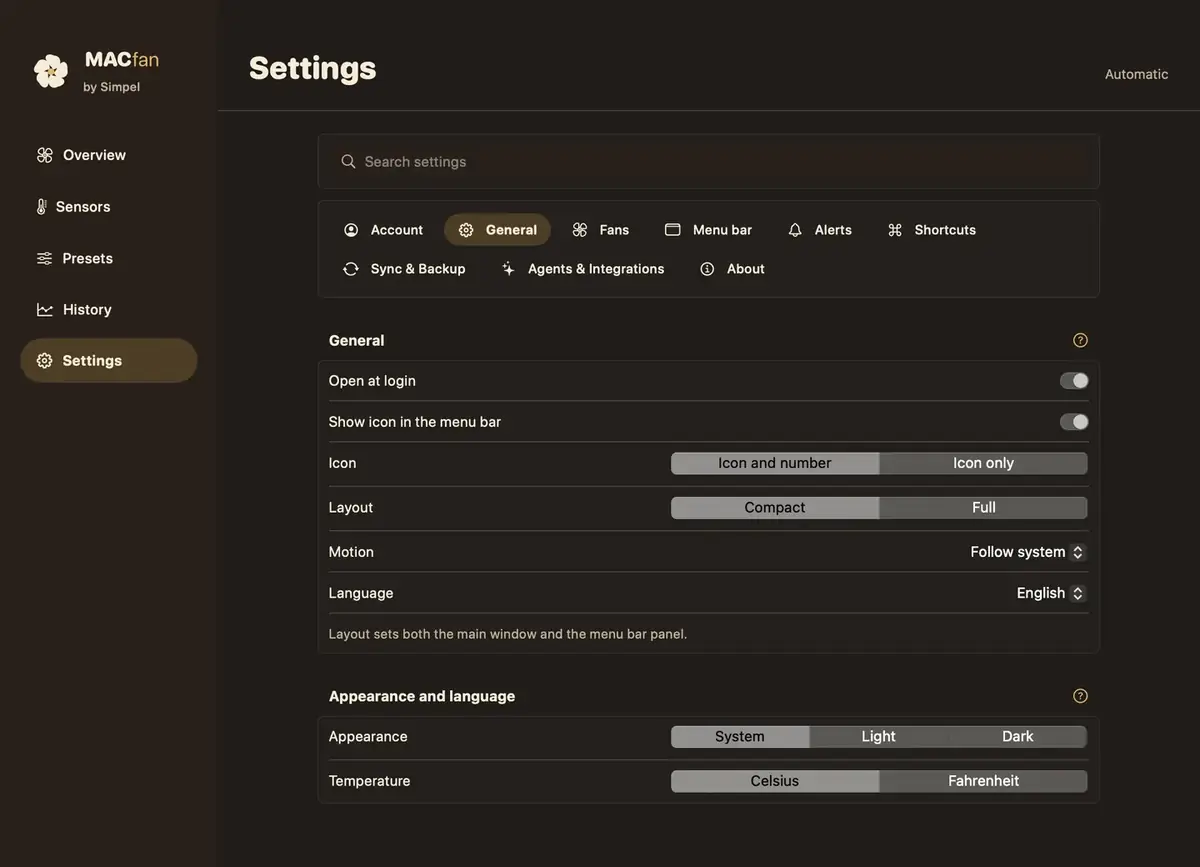
General
Open at login, menu bar icon, Compact or Full layout, motion, language, appearance and °C or °F.
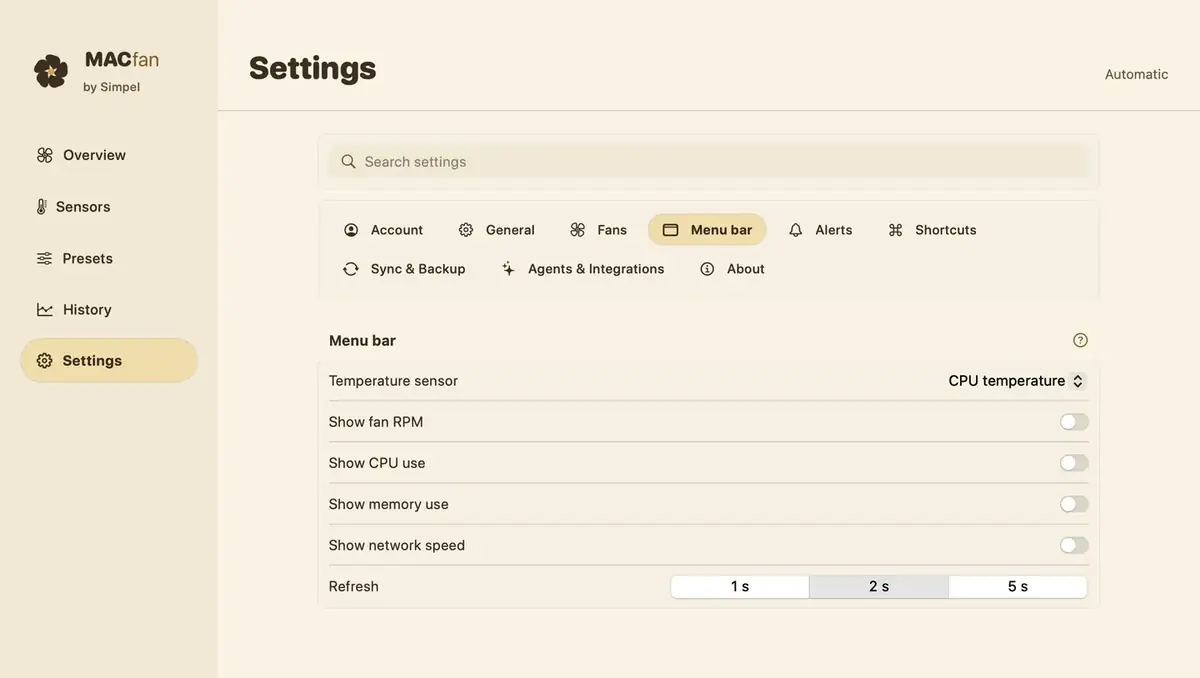
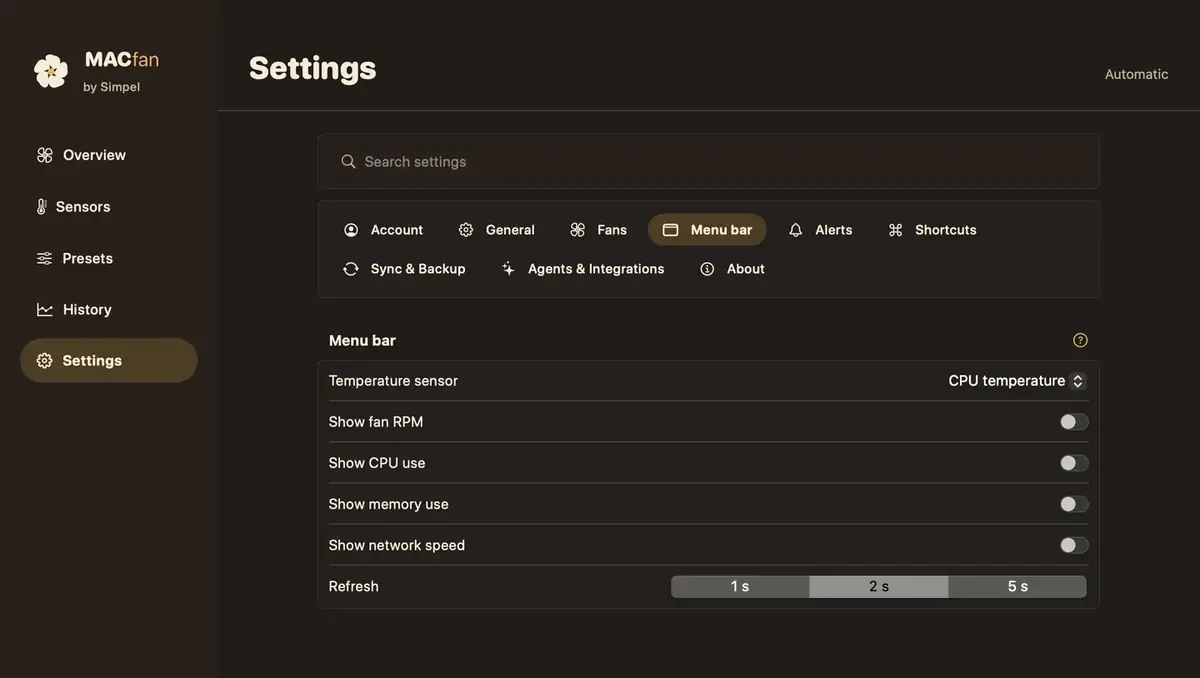
Menu bar
The sensor, fan speed, CPU, memory and network meters, and how often they refresh.
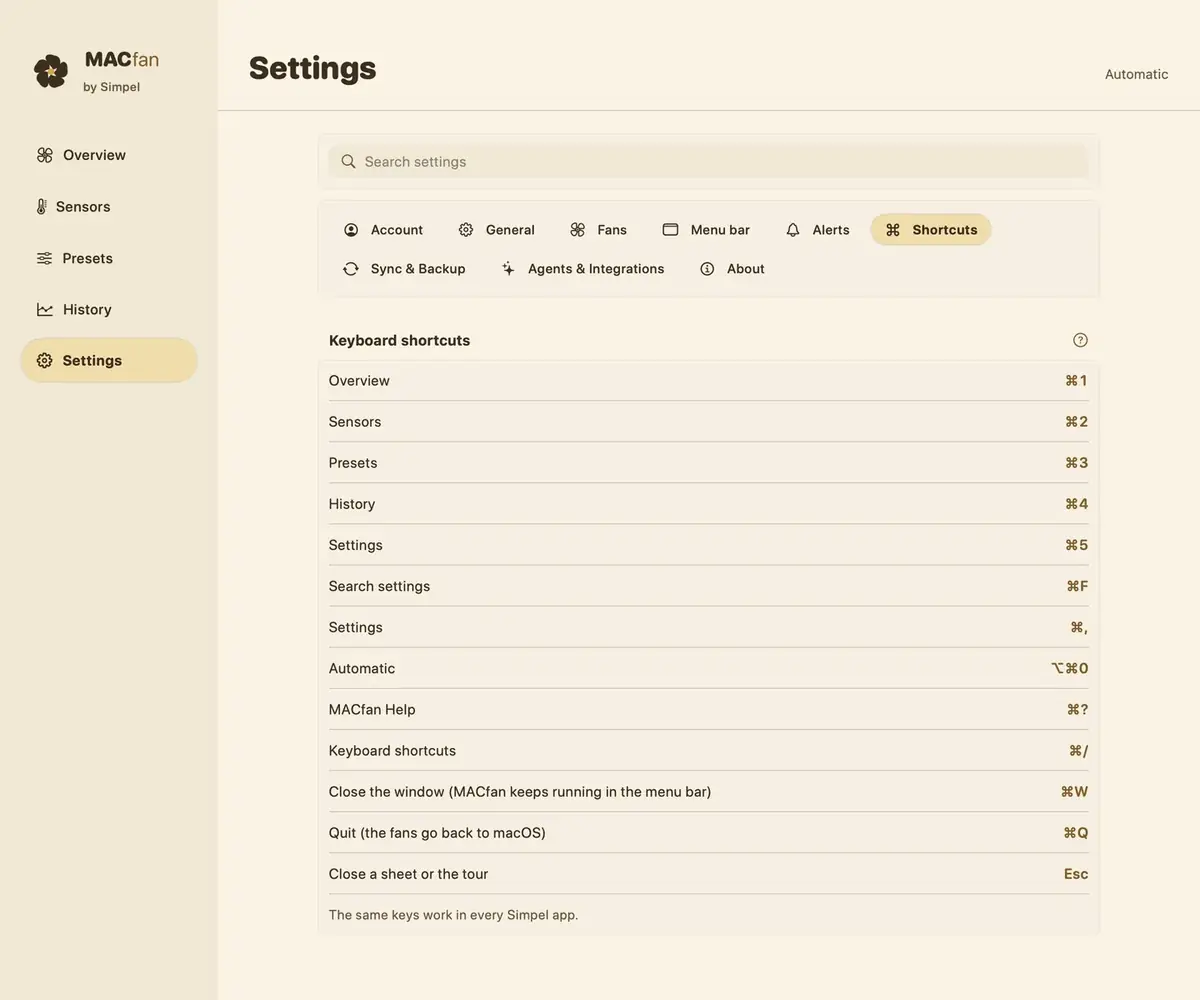
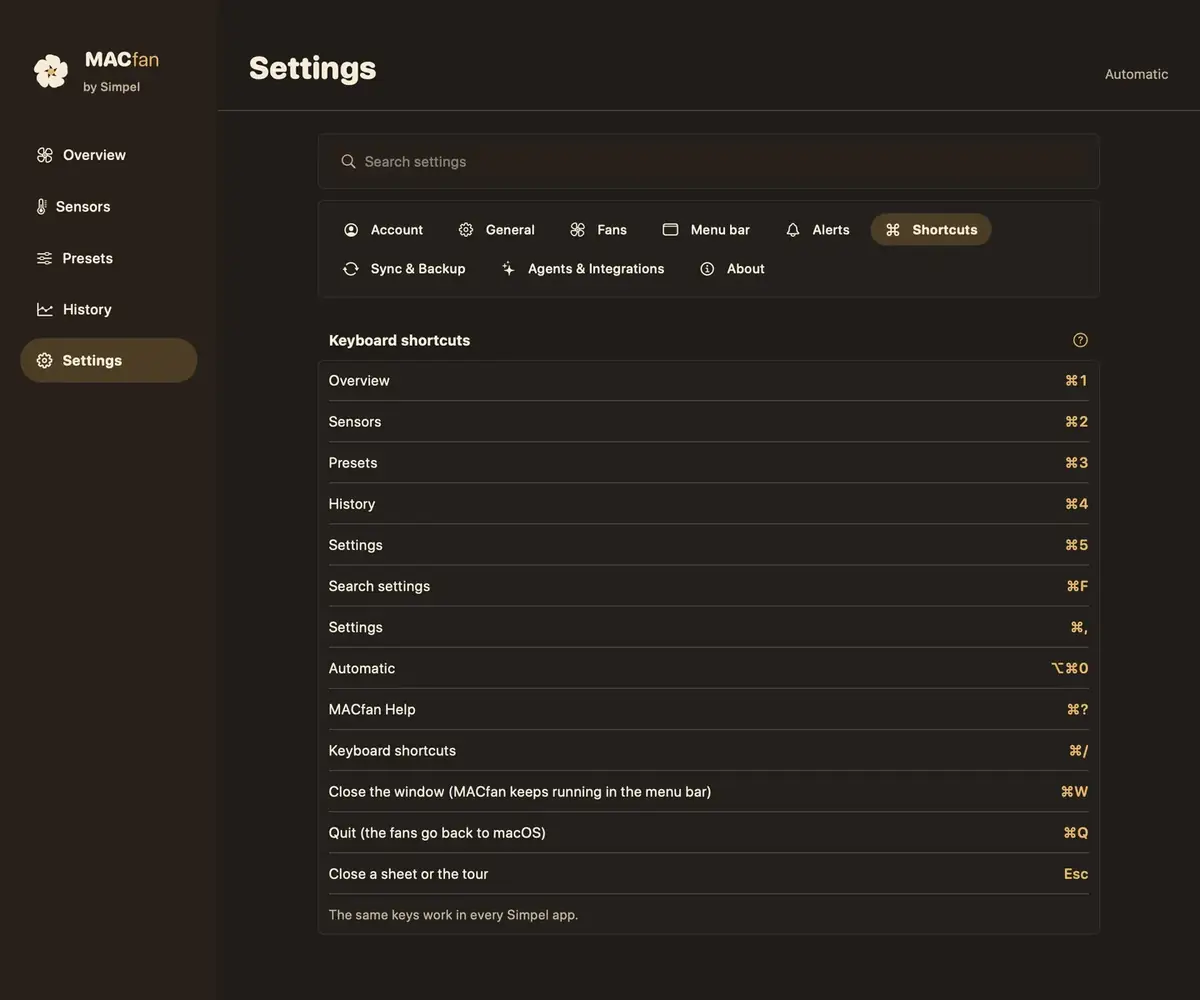
Shortcuts
Every key in one list. The same keys work in every Simpel app.
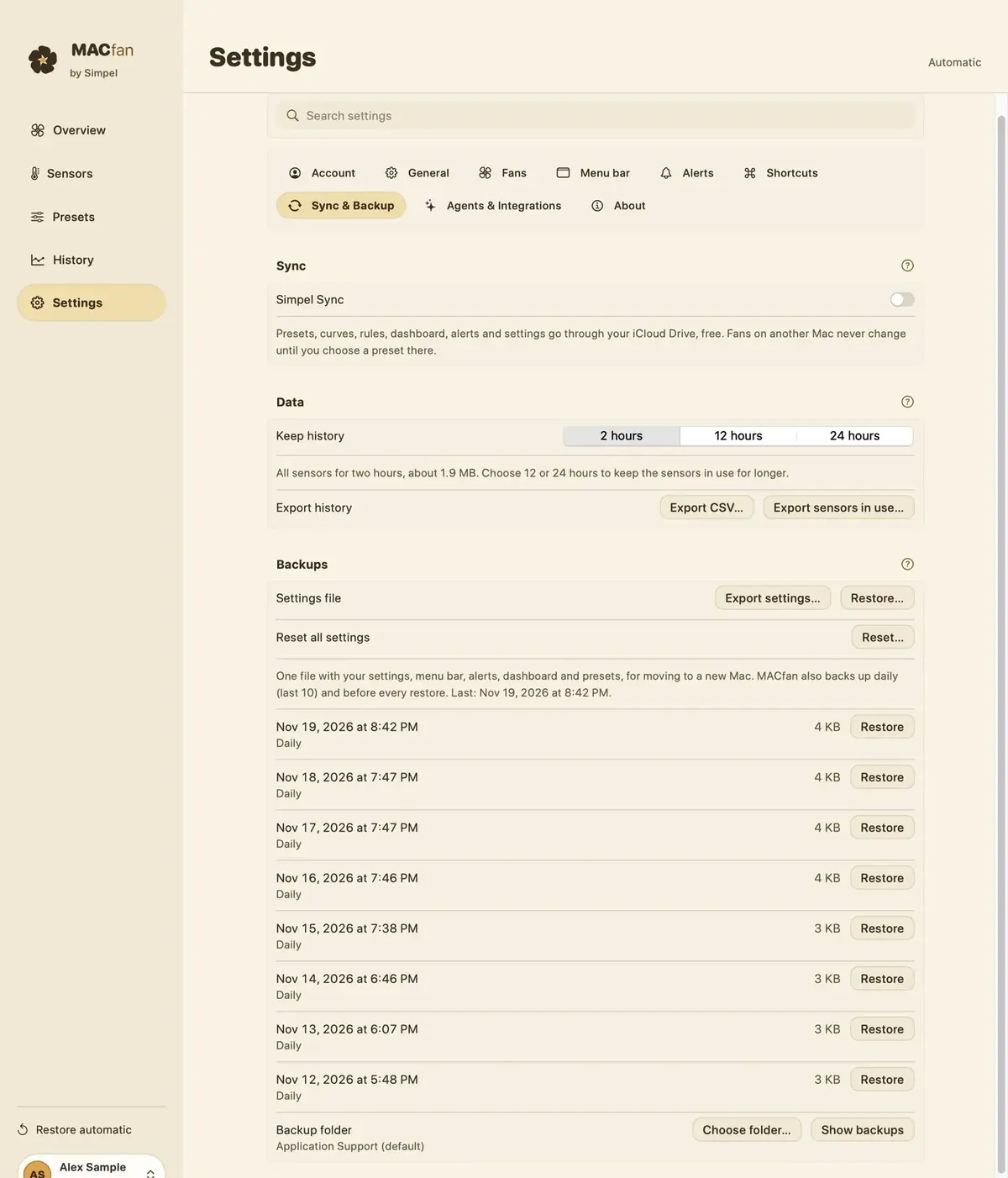
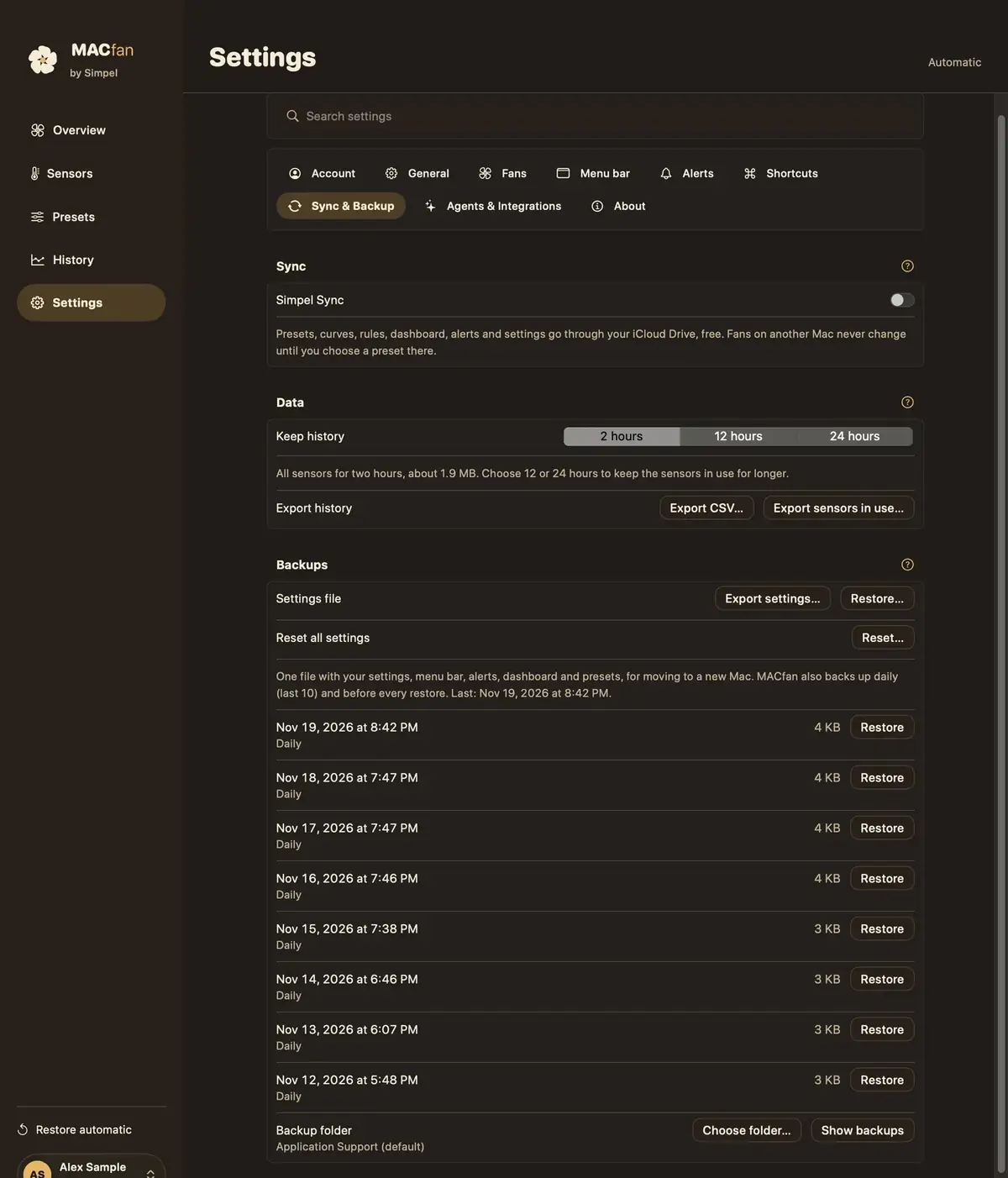
Sync & Backup
Simpel Sync, how long history is kept, exports, the settings file and the list of backups.
Your settings move with you
Files you can keep, move to a new Mac and restore. Export all data is always there, even without a licence.
| Bring in | Take out | |
|---|---|---|
| Presets | Preset files, merged in one step | All presets to one file |
| Settings file | Restore on a new Mac; sensors it lacks are matched to the closest ones | Settings, menu bar, alerts, dashboard and presets in one file |
| Backups | Any of the last ten from a list | Every day, and before every restore, import or reset |
| Backup folder | Pick a folder on another drive | Falls back to the default while that drive is unplugged |
| History | Kept on this Mac for 2, 12 or 24 hours | CSV of every sensor or only those in use |
| Simpel Sync | Presets, curves, rules, dashboard, alerts and settings from your other Macs | The same, through your own iCloud Drive, free; two changes to one preset are both kept |
- Syncing never changes your fans: you apply a preset on a Mac when you want it
- Sync is off until you turn it on
- Restore checks the file first and backs up what you have
- Telemetry stays on this Mac unless you export it
The macfan command
Control MACfan from Terminal or from Shortcuts with Run Shell Script. Settings › Agents & Integrations copies the one-line install.
macfan status            # temperatures, fans, mode
macfan sensors --json    # every sensor as JSON
macfan presets           # saved presets
macfan apply Balanced    # apply a preset by name
macfan fixed 0 4000      # fan 0 at 4000 RPM
macfan full-speed
macfan automatic # back to macOS- status, fans, sensors, presets, apply, automatic, full-speed and fixed
- call runs any native MACfan command with JSON arguments
- --json for scripts, --launch to start MACfan first
- Clear exit codes: 0 done, 1 refused, 2 wrong usage, 3 not running
- Same checks as the app; it asks for your OK once before it changes the fans
AI assistants, with your OK
Every feature has an MCP tool backed by the same actions as the window. No clicks or screen control.
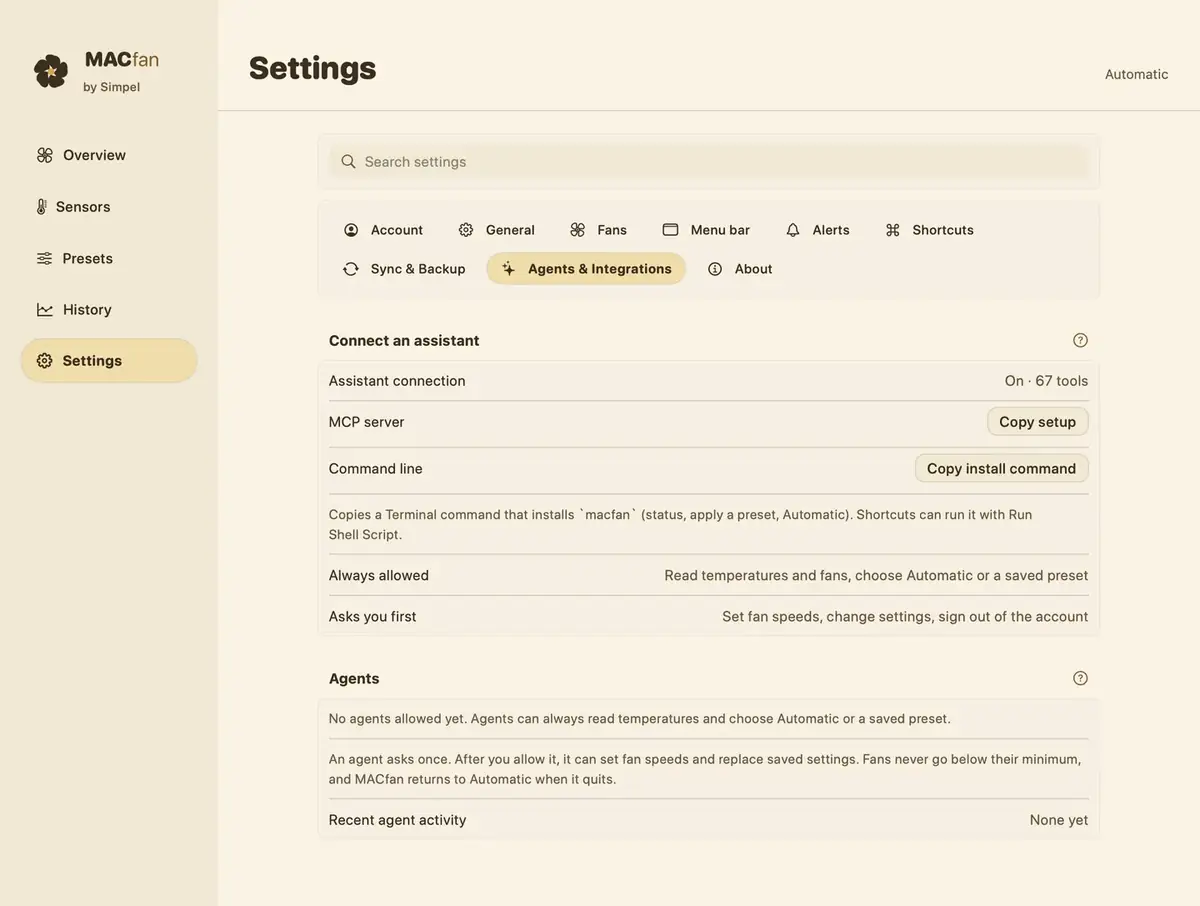
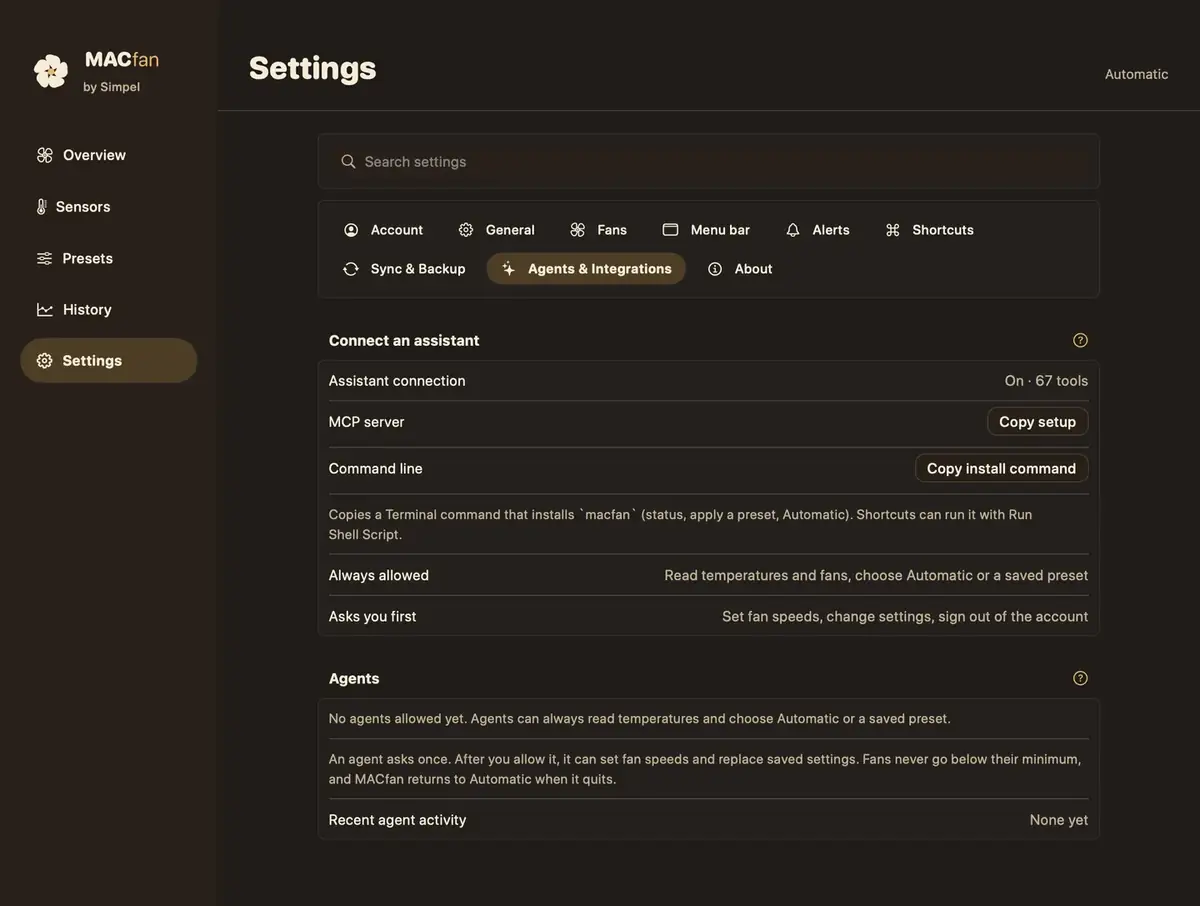
- Copy setup puts the MCP connection on your clipboard
- Always allowed: read temperatures and fans, choose Automatic or a saved preset
- Asks you first: set fan speeds, change settings, sign out
- An agent asks once with a notification that names it and the real program behind it
- Allow or Deny there or in the menu bar panel
- See and revoke allowed agents, one by one or all at once
- Recent agent activity in Settings, plus a local audit log
- Approvals are sealed so another program cannot approve itself
- Fans never go below their minimum, and MACfan returns to Automatic when it quits
- Works with the MACsuite panel
Sign in, try it, keep it
One Simpel account for every Simpel app.
- Sign in with a code sent to your email, or enter a licence key
- A free 14-day trial, once for each account and Mac
- Until you sign in, the fans stay on macOS Automatic
- Automatic, Full speed, heat safety, sync and your data never depend on the licence
- The account tab shows your plan, when updates end and the Macs on your licence
- Release this Mac or restore a purchase from the app
- Works offline for up to 14 days; when updates end, your version keeps working
- Signed updates download in the background and install when you quit; you can turn this off
- Your email, passkeys and account deletion are in your Simpel account online
Made for the Mac
A native app for macOS 14 or later, on Apple silicon and Intel.
- English, Vietnamese, Korean, Chinese and Japanese; dates and numbers follow the language
- Light, dark or follow the system
- Motion: follow the system, full or reduced
- Increase Contrast strengthens every edge and all secondary text
- Status marks differ in shape, not only in colour
- Every button is labelled for VoiceOver
- Reads only what you can see; behind other windows it reads only what the menu bar, alerts and presets need
- Never reads your files, apps or typing, and nothing about your sensors leaves this Mac
- Windows without a grey title bar; drag from any empty background
Try it on your own notes
Every feature here is in MACfan today, except the ones marked coming soon.