







Everything MACdrive does
210 features in 20 groups, with screens from the app itself. Everything shown is sample content.
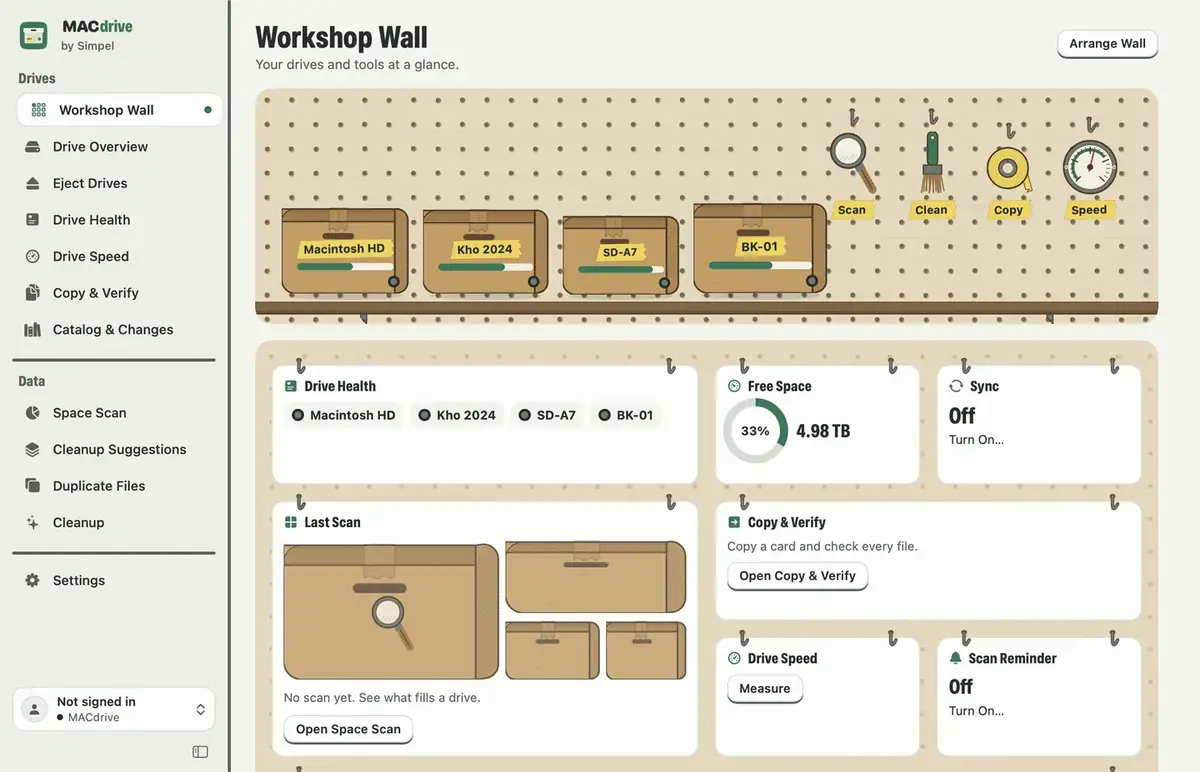
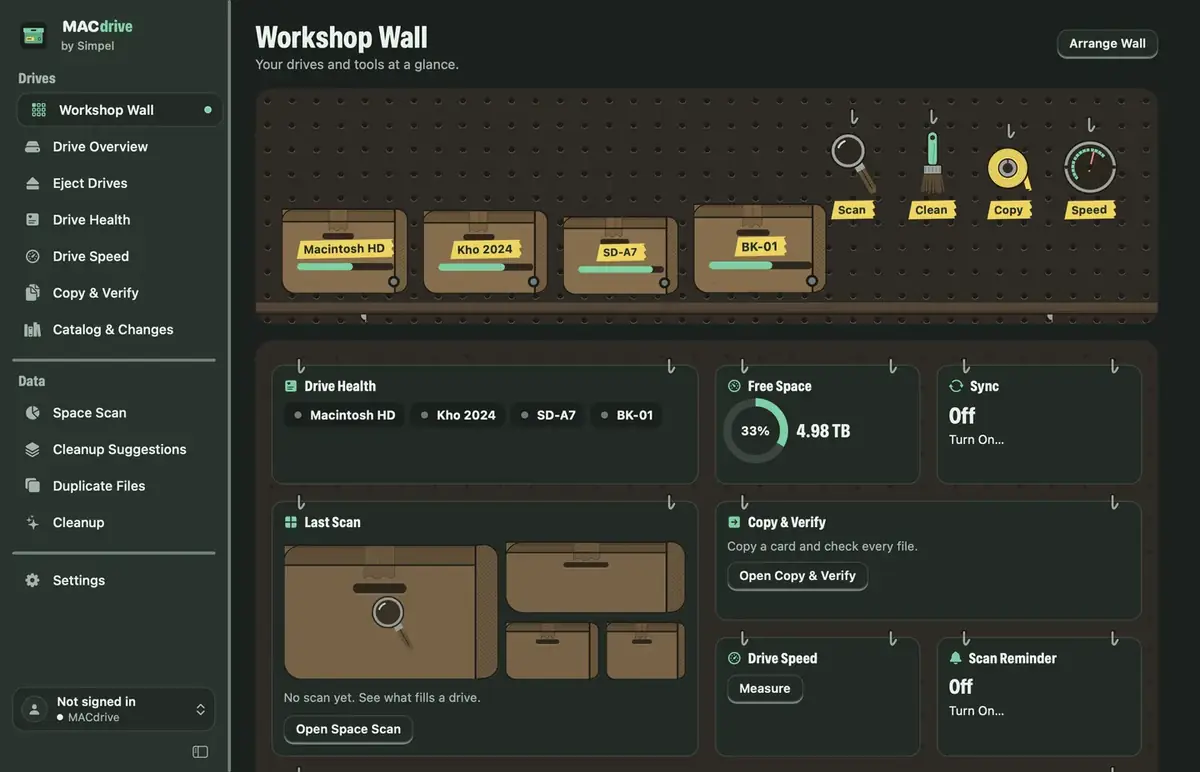
Workshop Wall: every drive on one shelf
Each drive is a labelled box with its free space and a health light. The cards you pick hang below.
Drive Health
Each drive as OK or Needs a look, with its temperature and when it was last checked.
Free Space
One bar per drive, so the full one stands out.
Quick actions
Space Scan, Cleanup, Copy & Verify and Eject All in one card.
Last Scan
What filled the place you scanned last, as crates sized by space.
Copy & Verify
The copies you started, with their progress.
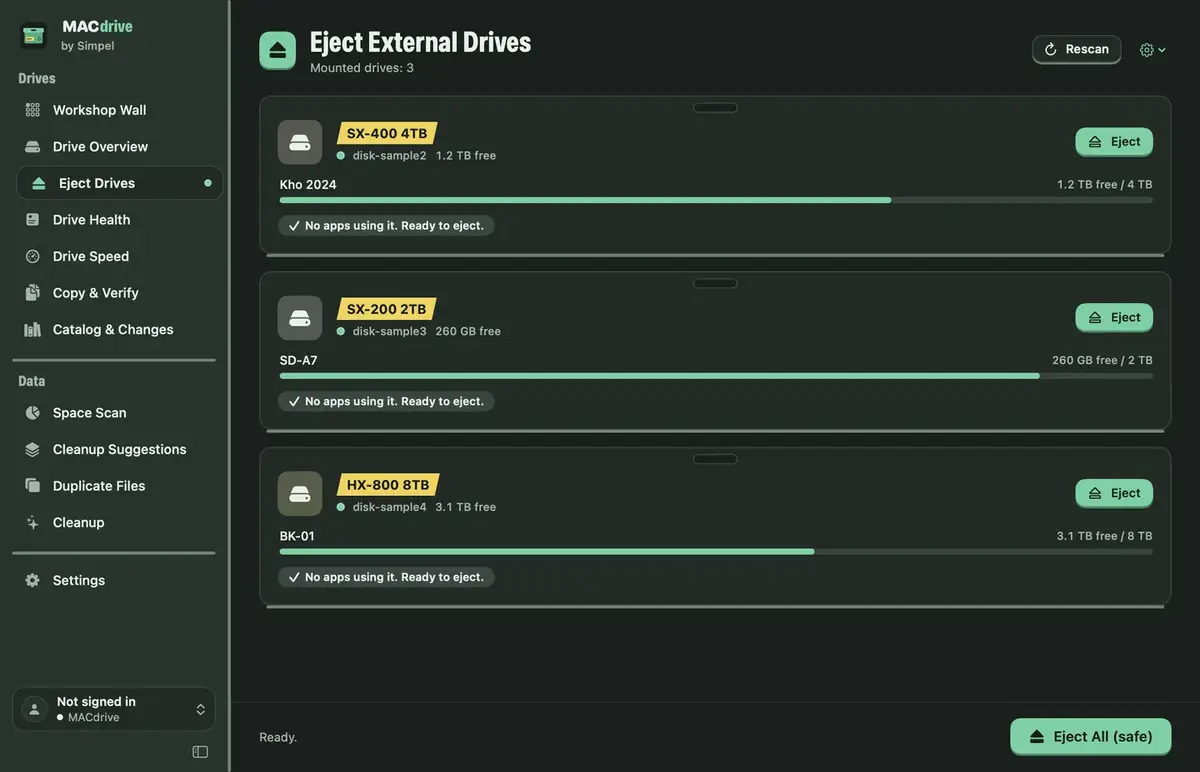
Eject Drives
Eject from the wall; the card shrinks to one line when nothing needs ejecting.
Drive Speed
Start a measurement from the wall.
Sync and Scan Reminder
On or off at a glance, and one click to turn them on.
Find in Catalog
Search drives that are not plugged in, right from the wall.
Drive workbench
Click a box to open that drive: free space, health, used space over time and its tools in one place.
Arrange Wall
Drag, resize, add or take down cards, pin a drive as its own box. Works with the keyboard and VoiceOver.
Simple or Full look
Simple: the drive shelf and a few cards on a plain wall. Full: the pegboard with hanging tools.
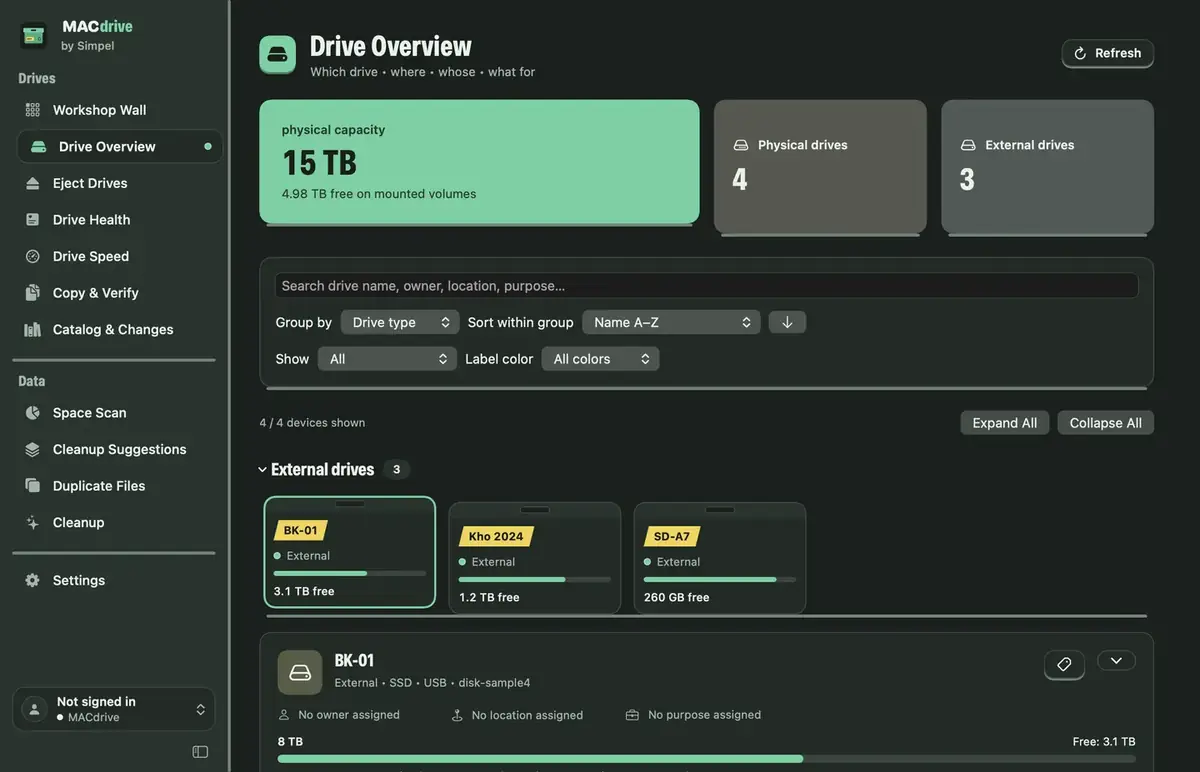
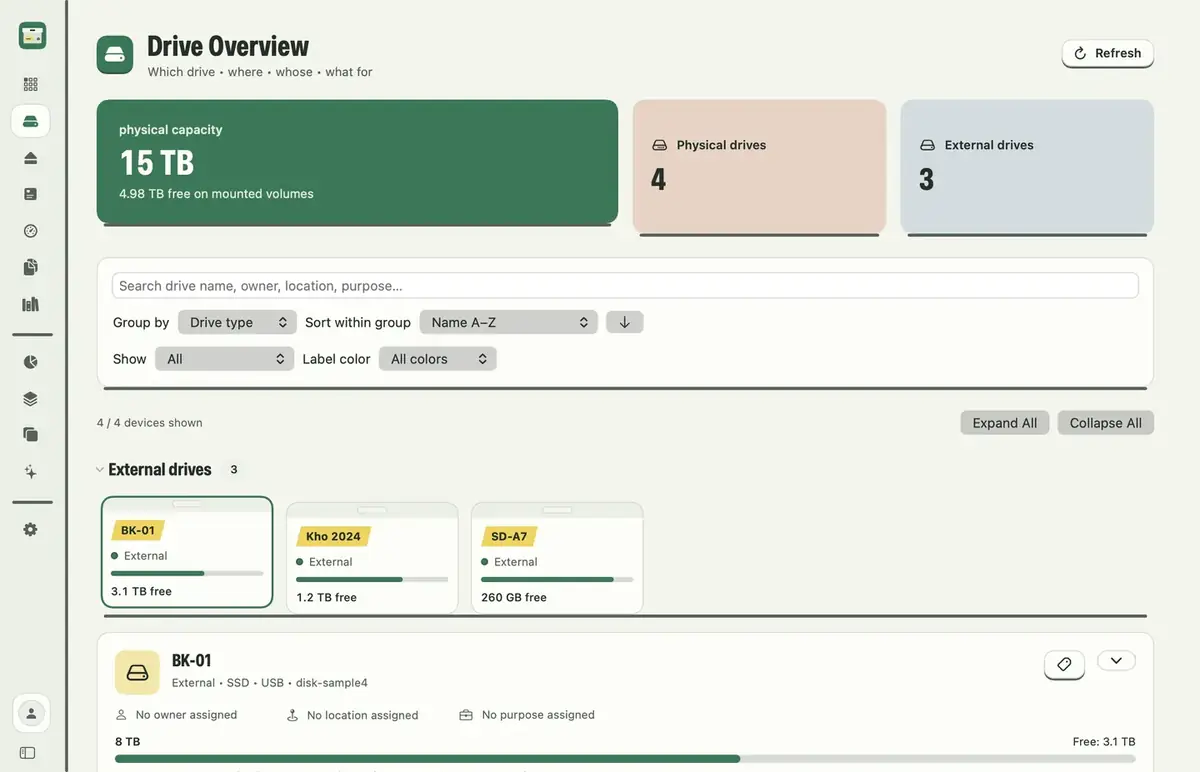
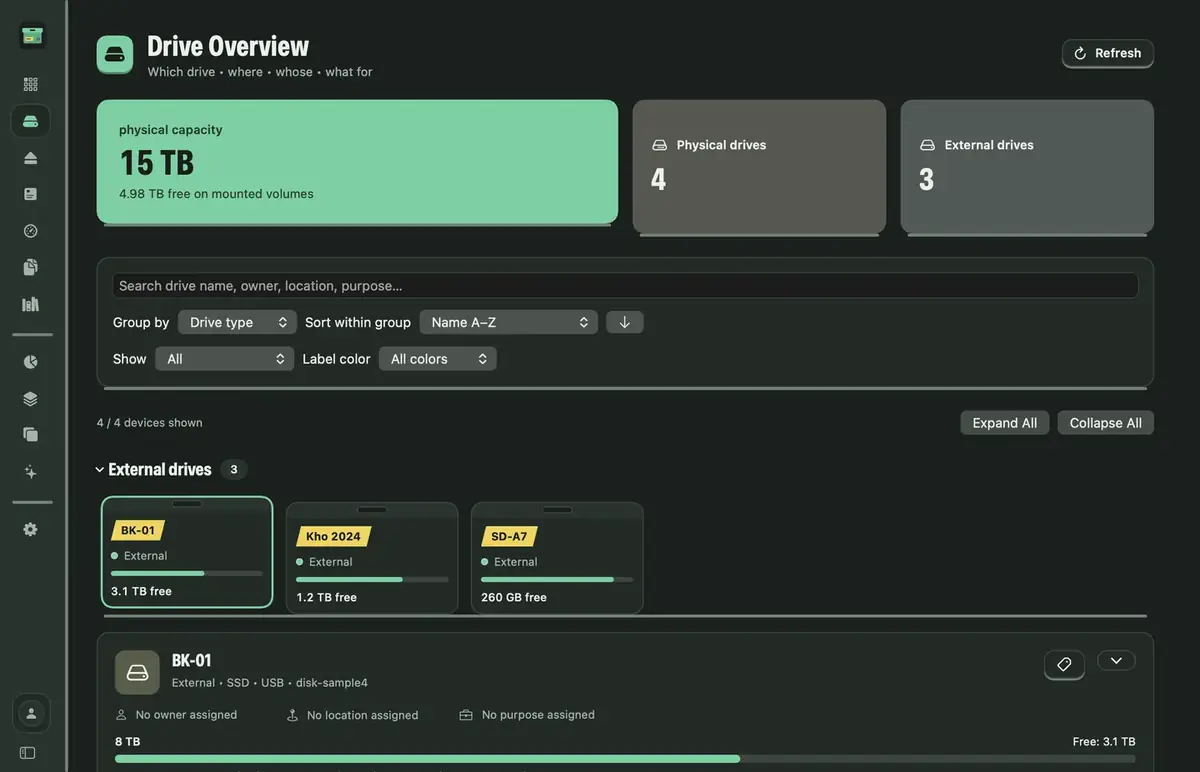
Drive Overview: which drive, where, whose
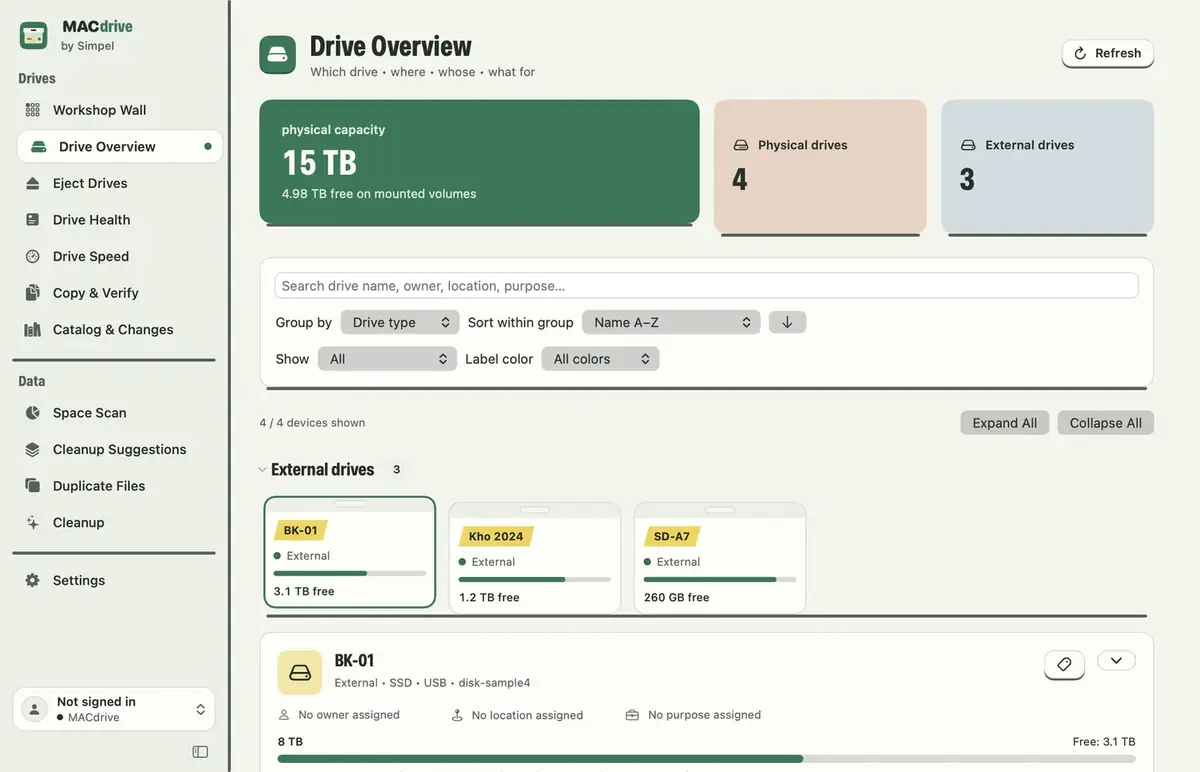
Physical drives, APFS containers and volumes in one list, with the labels you give them.
- At a glance
- Physical capacity, free space and how many drives are external. Shared APFS space counts once.
- Labels
- A colour, owner, location and purpose for each drive, kept on this Mac.
- Search
- Find a drive by name, owner, location or purpose.
- Group and sort
- Group by drive type, sort within groups, filter by label colour, expand or collapse all.
- Details
- Connection, file system, encryption, free space and whether macOS can write to the drive.
- No waiting
- The drives seen last time show at once, marked as updating, while macOS answers.
- Used space over time
- Recorded whenever the drive list is read: at launch, on mount, on refresh. No background polling.
- Hidden space
- Purgeable space and local Time Machine snapshots on the startup drive, with an optional clean-up you confirm.
- Compact sidebar
- Icons only, for more room (⌃⌘S).
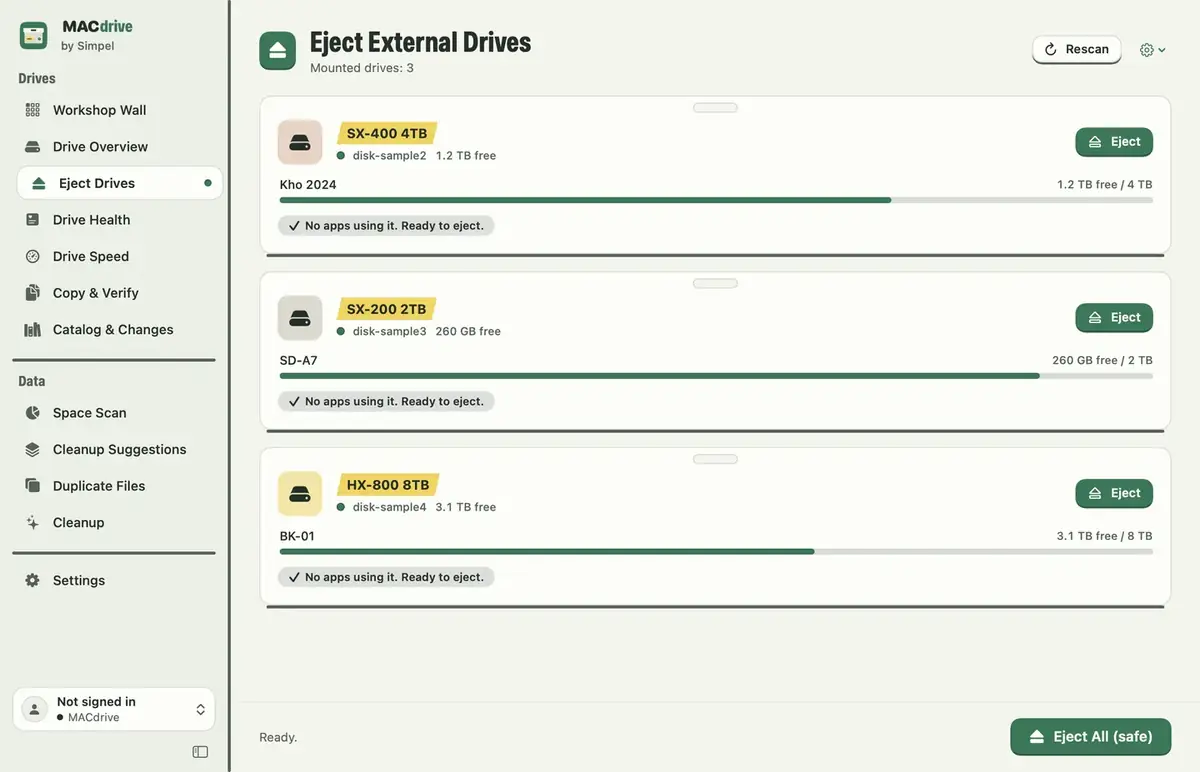
Eject safely, even when a drive is busy
MACdrive names what holds a drive and never forces it.
Click Eject
Next to a drive, or Eject All (safe) for every idle drive at once (⌘E).
See who holds it
The apps and processes using the drive, apps first, even when hundreds hold it.
Quit, then eject
Quit Safely an app after you confirm, or Force Quit a process only if you choose it. The exact process is checked again first.
Safe to unplug
The drive slides off the shelf and a Safe to unplug label appears.
- Eject from the menu bar too
- Unmount idle external drives before the Mac sleeps and mount them again on wake (off by default; sleep waits at most 20 seconds)
- A notification when an eject finishes in the background
- Eject waits while a copy is running
- Ejecting never depends on the licence
- The list fills at launch, without waiting for health readings
Drive Health in plain words
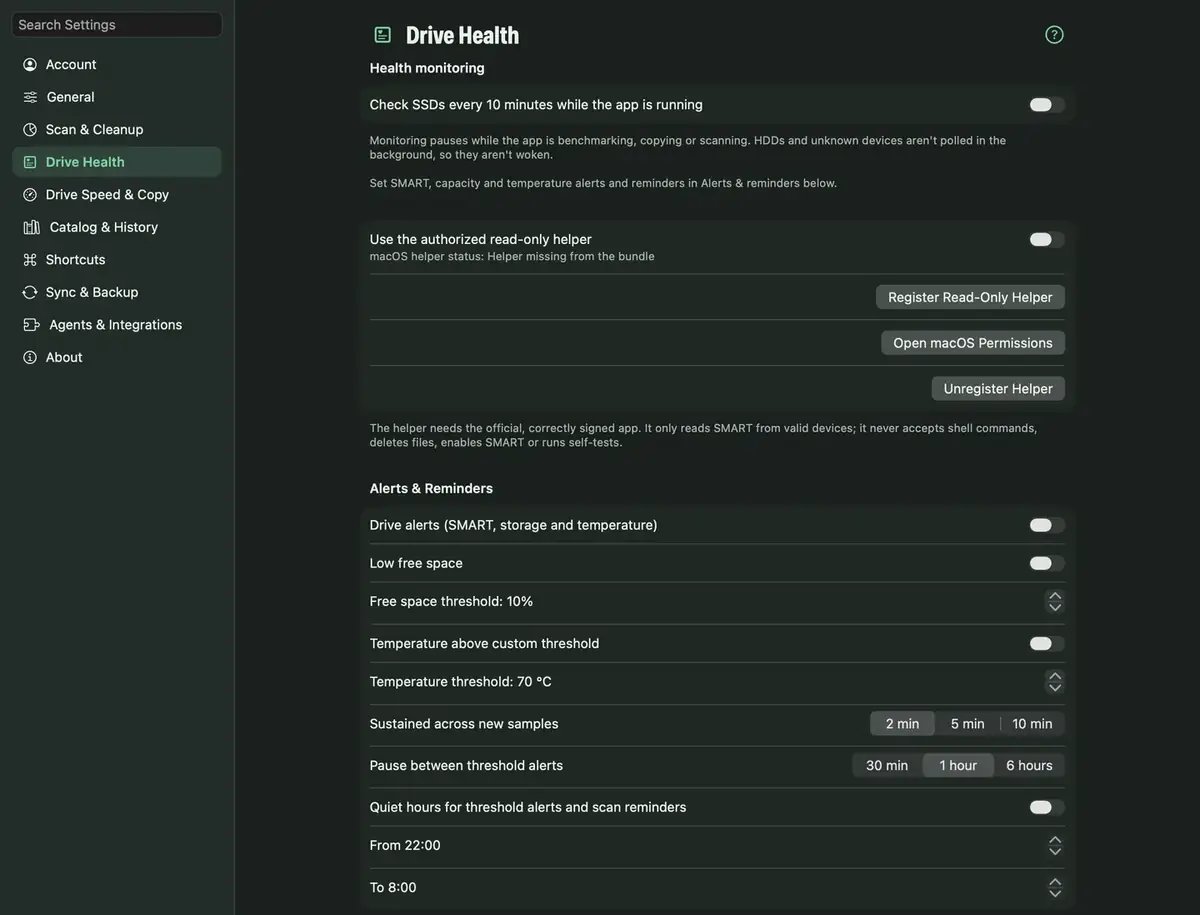
SMART, temperature and history for the exact physical drive. MACdrive only reads.
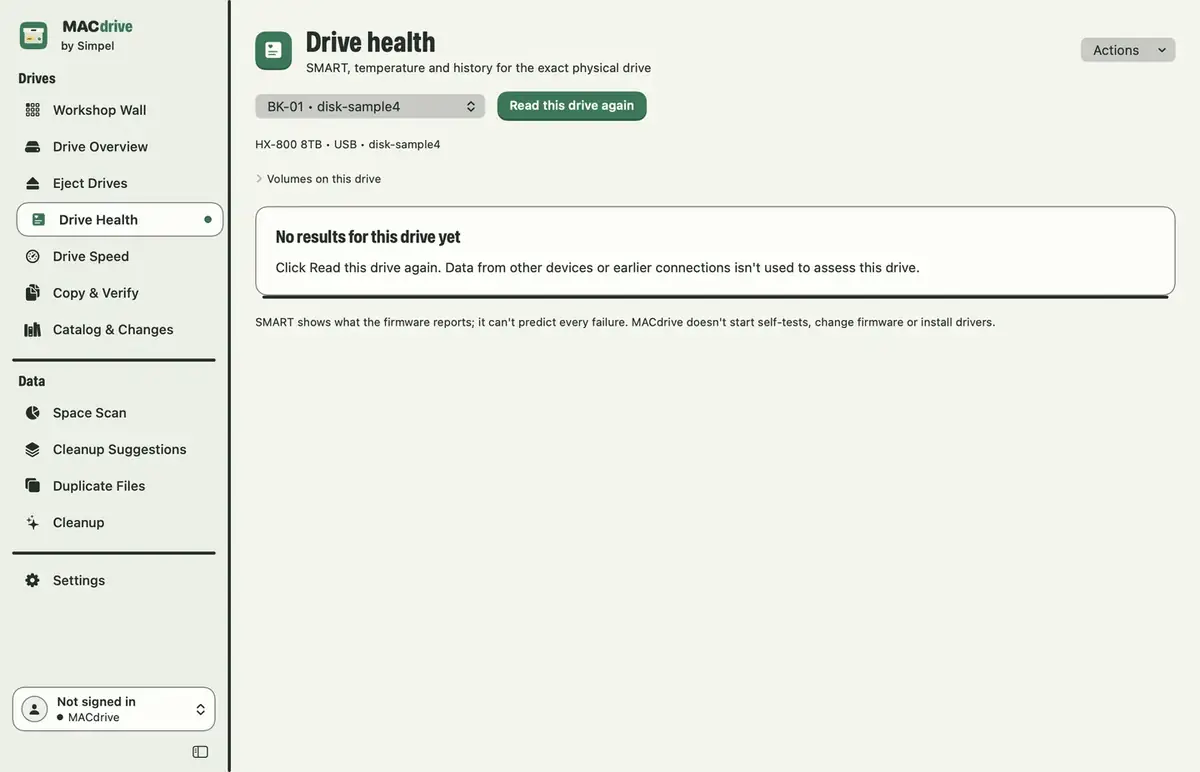
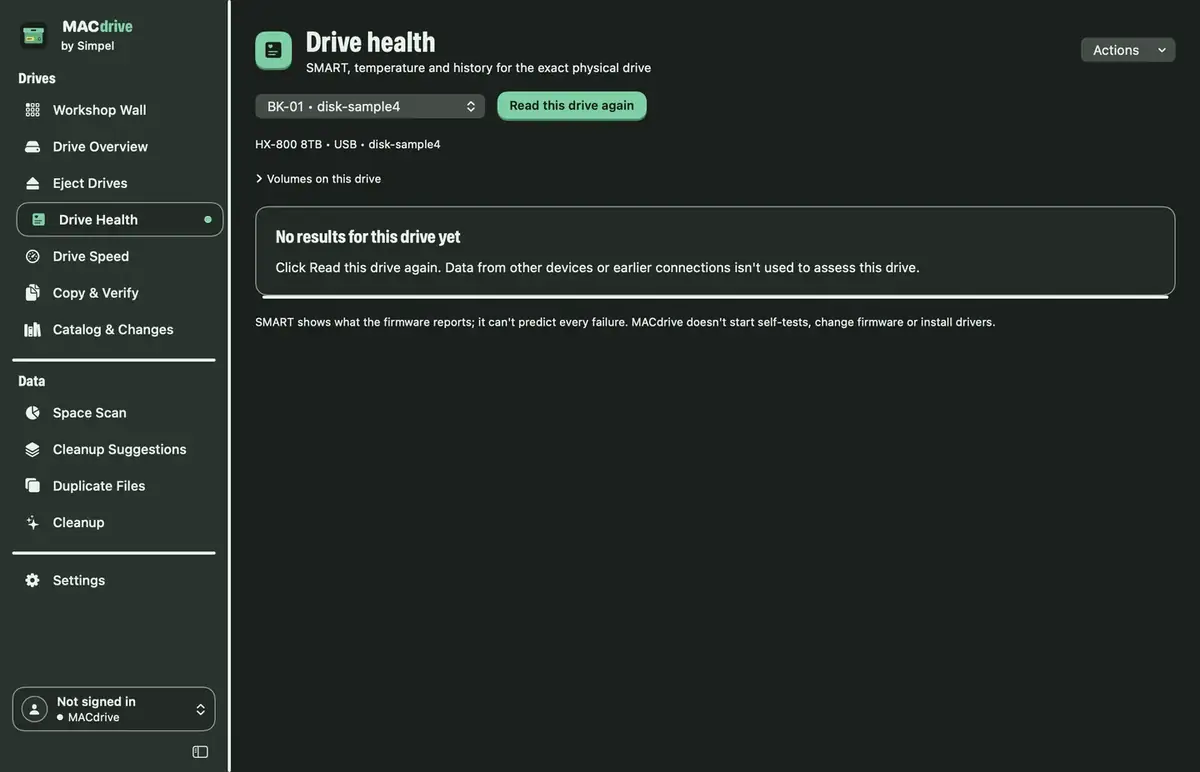
- NVMe, SATA and USB
- Reads SMART where the drive and its connection expose it, and says plainly when they don't.
- Every value explained
- Search the indicators; each has a plain explanation and a history chart.
- Trend on this drive
- Temperature range, endurance used, media errors and unsafe shutdowns over time, each with a status light. It is observed data, not a forecast.
- Error and self-test logs
- Read when the drive keeps them. Uncorrectable errors or a failed self-test raise a warning; cable errors are labelled as cable errors.
- NVMe details
- Controller, firmware, temperature sensors and limits, read and write counts, busy time and thermal throttling.
- Fair comparisons
- Only readings of the same drive, source and firmware are compared; a counter that resets starts over.
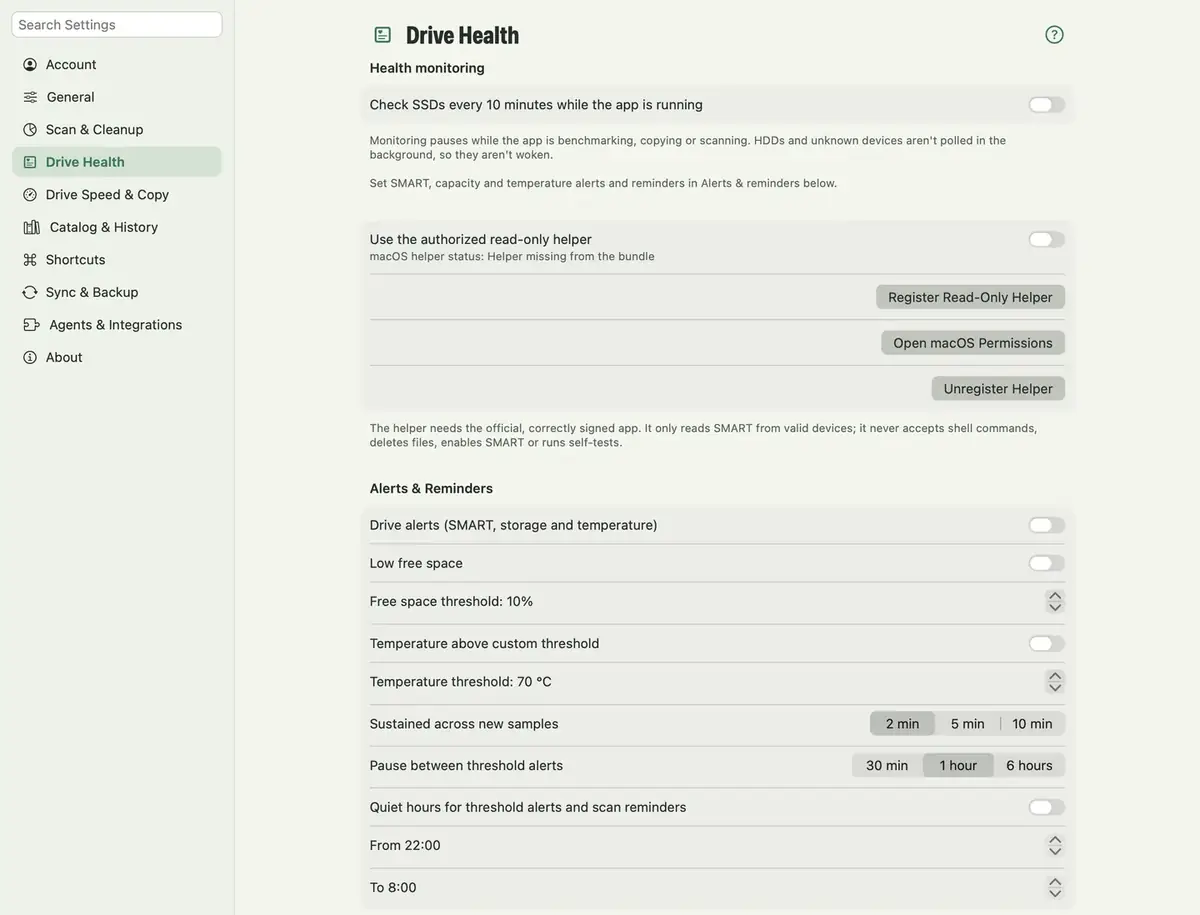
- Read-only helper
- An optional signed helper reads SMART from valid devices only. It never runs commands, deletes files or starts self-tests.
- Report
- Export a text report for the selected drive, without serial numbers or full paths.
- Honest limits
- No invented health percentage. MACdrive never changes firmware or installs drivers.
Alerts and reminders
MACdrive tells you when a drive needs a look, and stays quiet otherwise.
- Check SSDs every 10 minutes while the app runs; hard drives are not woken
- Monitoring pauses during speed tests, copies and scans
- Alerts for SMART warnings, low free space and high temperature
- Your own limits for free space (percent) and temperature
- An alert fires only when a value stays out of range for 2, 5 or 10 minutes
- A pause of 30 minutes, 1 hour or 6 hours between repeats, kept across restarts
- Quiet hours for alerts and scan reminders
- Reminders to scan your drives
- A dot on the menu bar icon when a drive has health warnings
- Drive cards and bars turn orange at your low-space limit
- Health readings and low-space alerts never depend on the licence
Space Scan: see what fills a drive
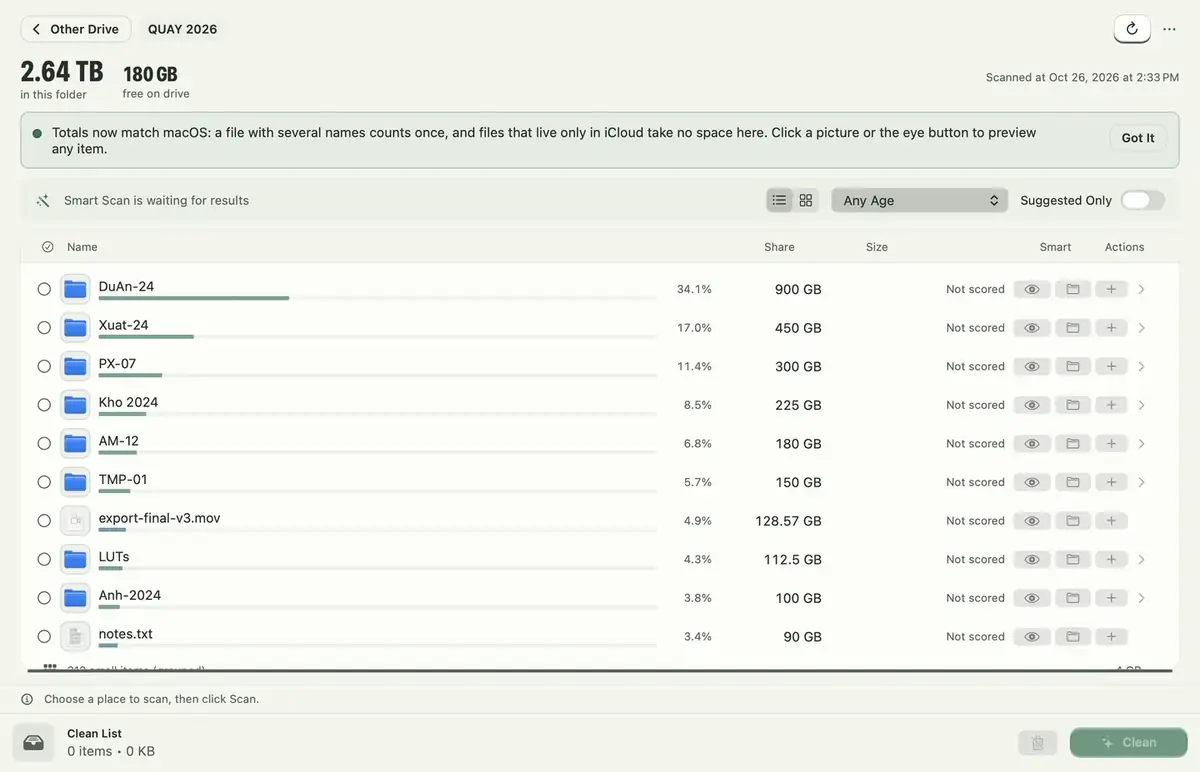
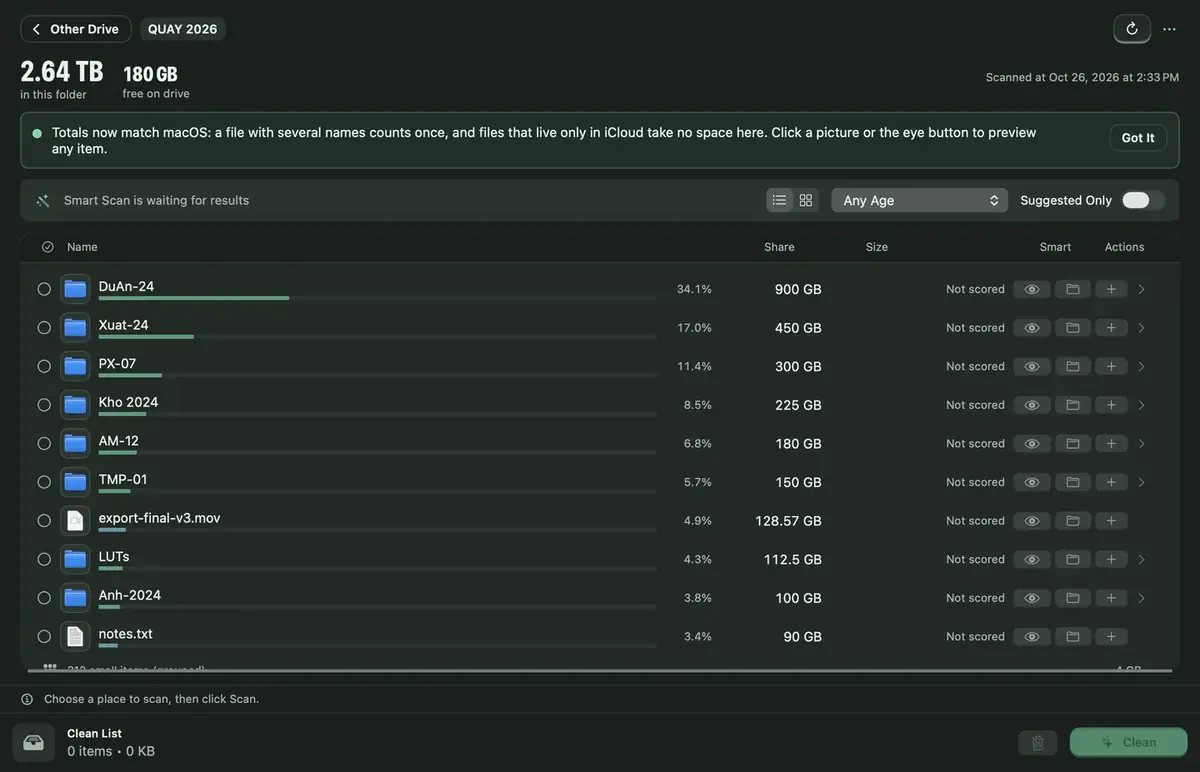
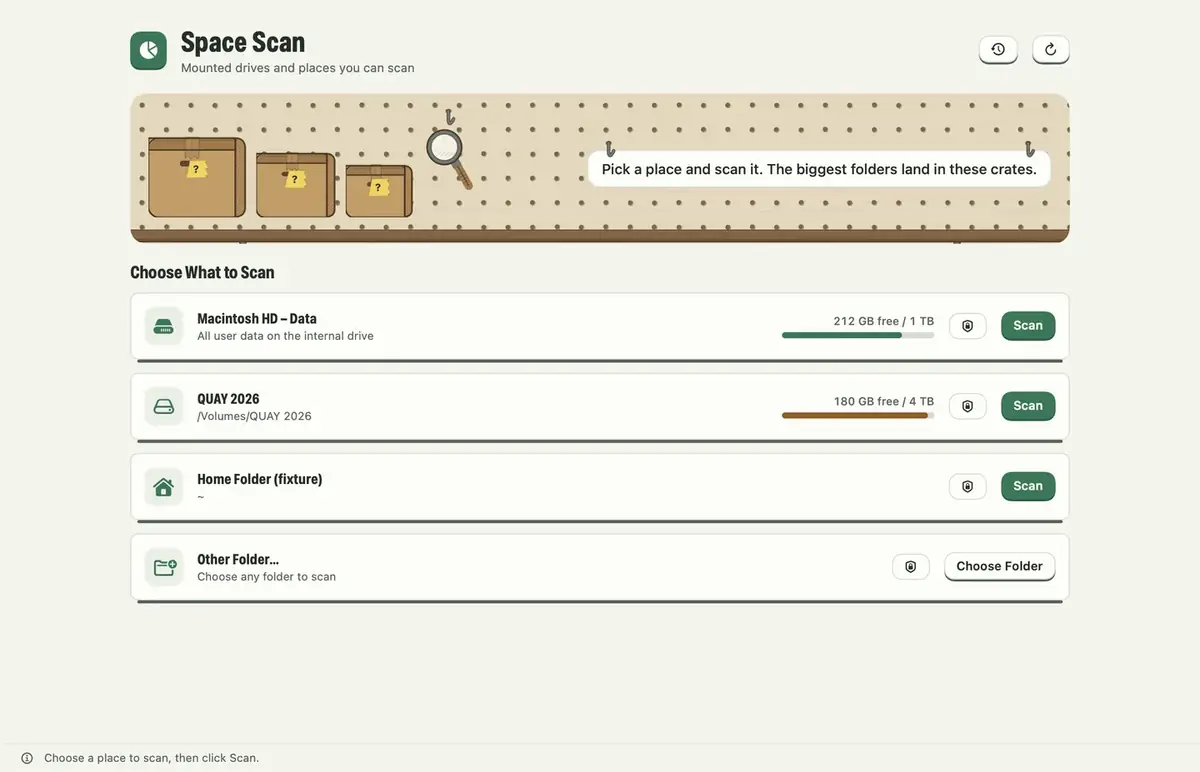
Pick a drive or folder. The biggest folders come first, as a list or a size map.
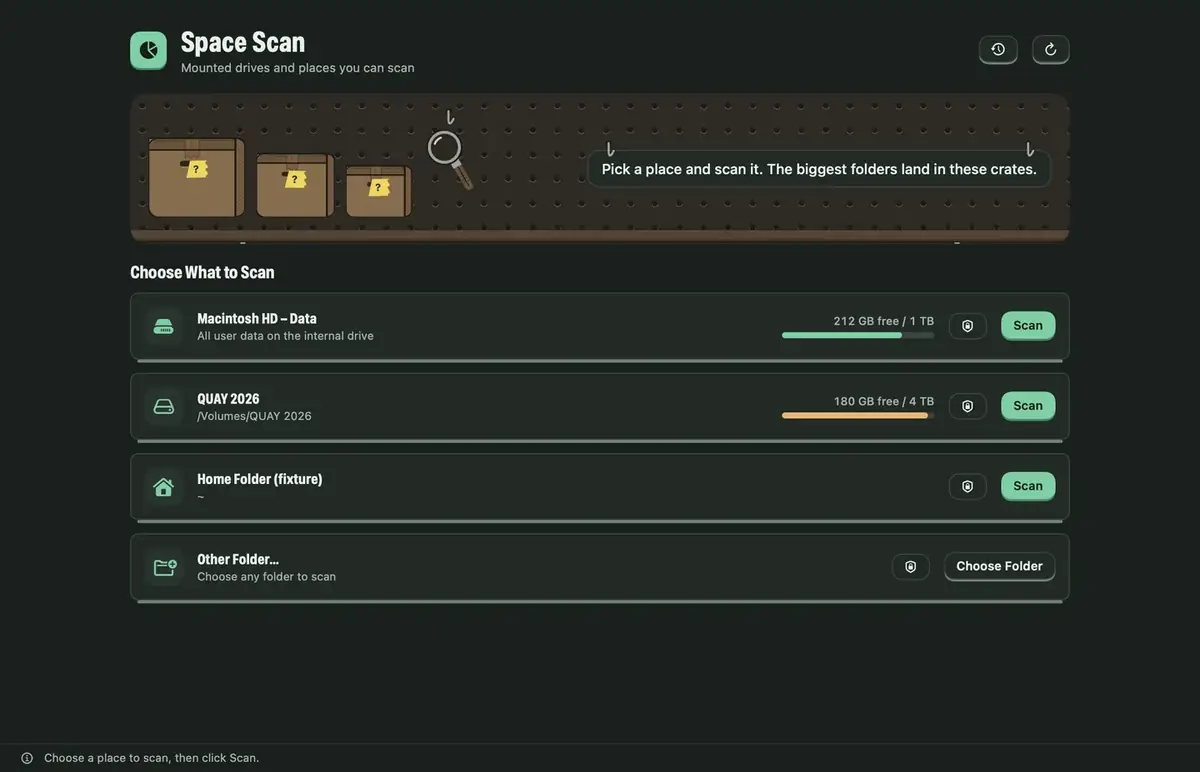
Choose a place 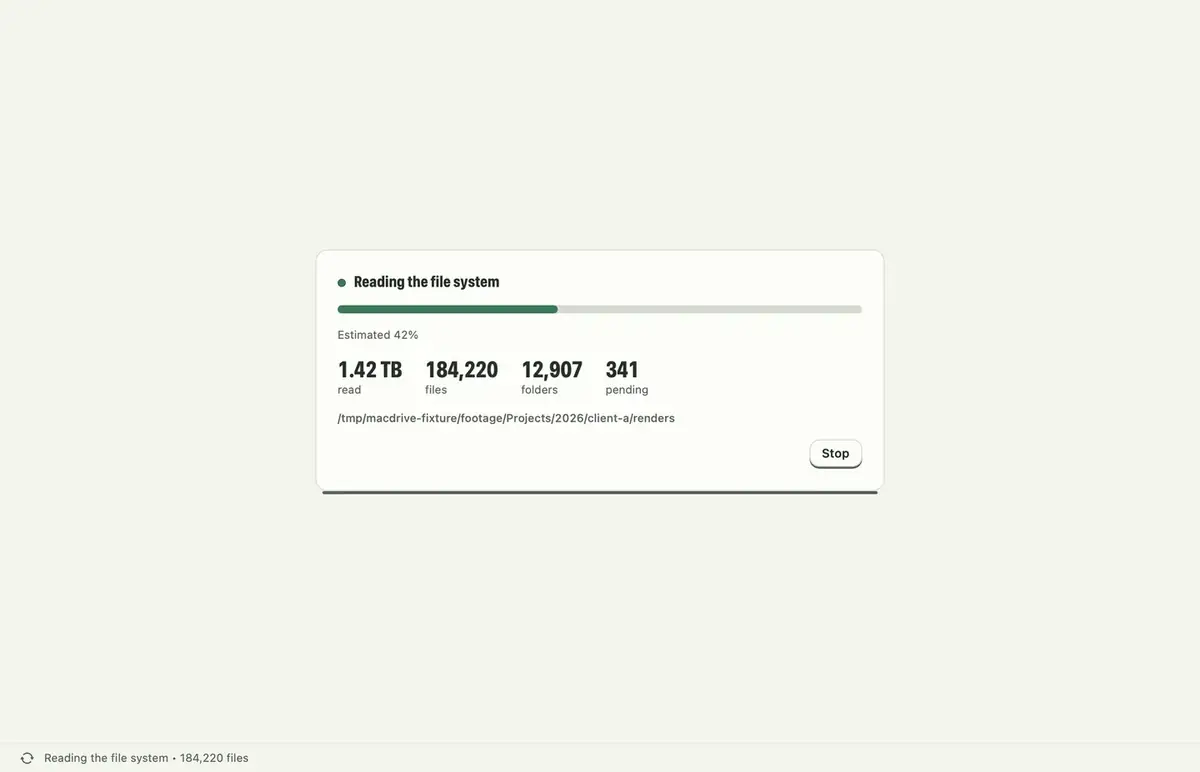
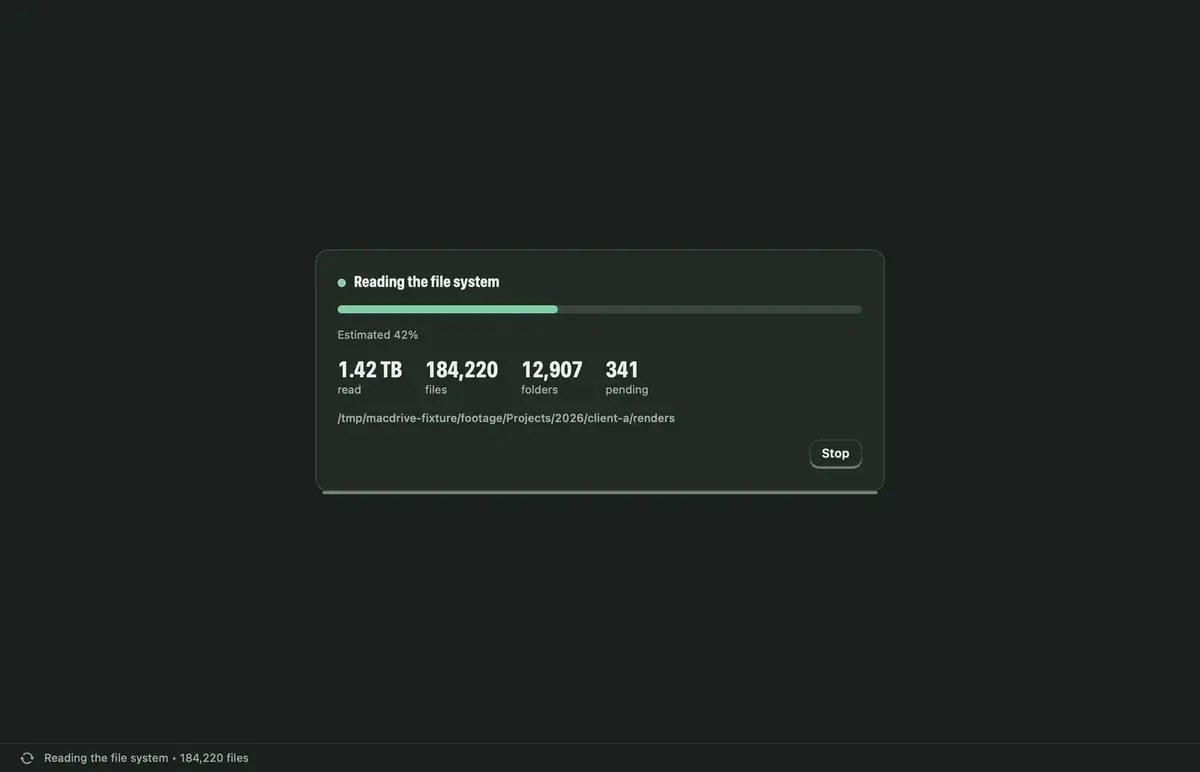
Reading Biggest first 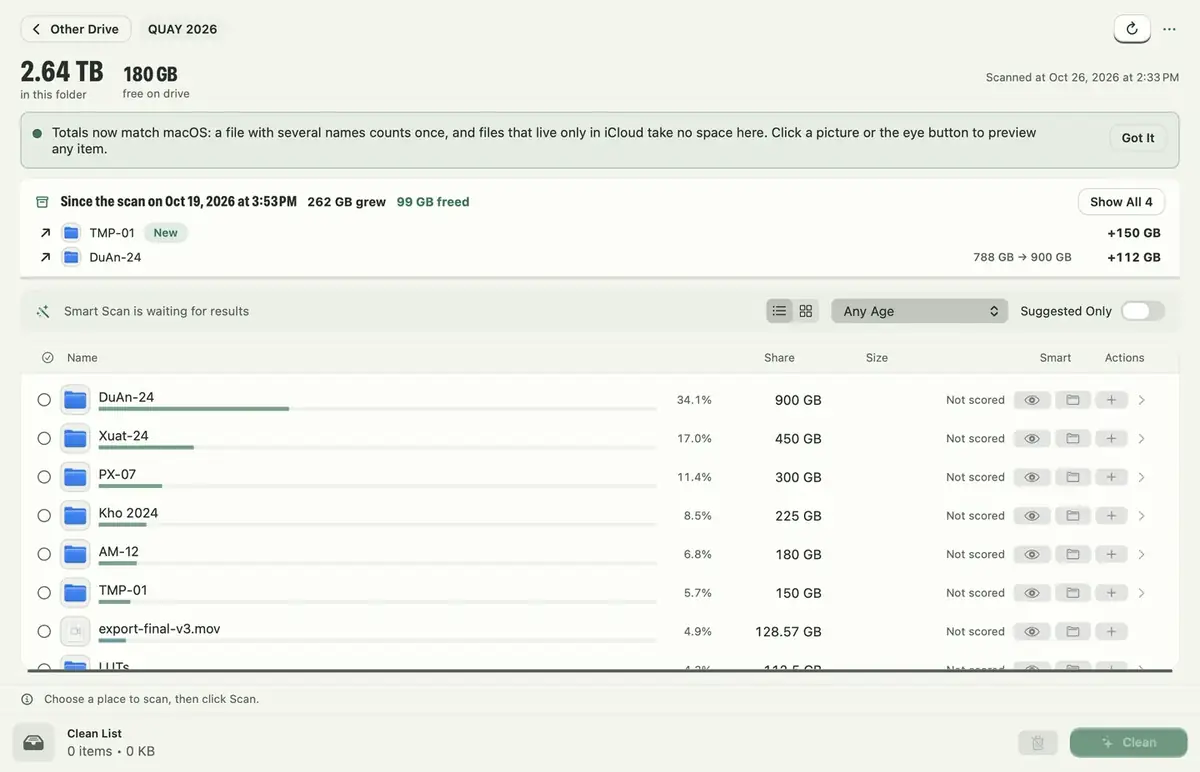
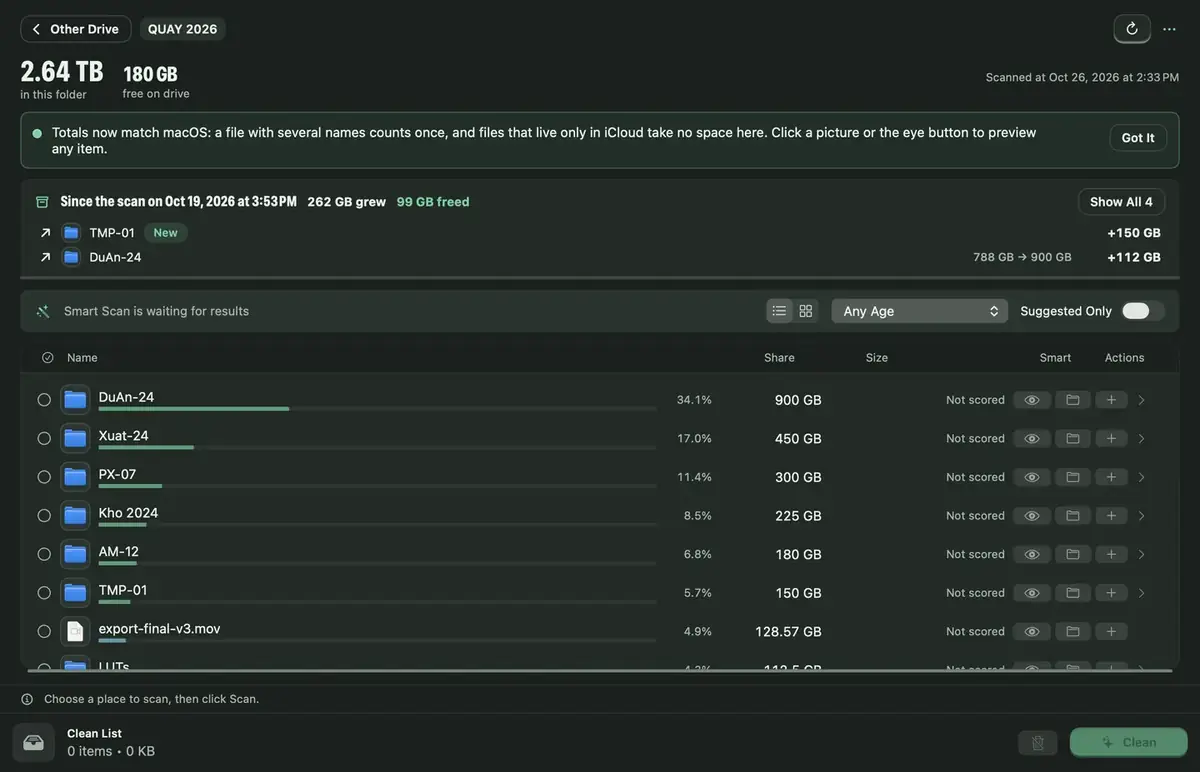
What grew
- Scan any mounted drive, the Mac's data volume, your home folder or a folder you choose
- Live progress: size read, files, folders and what is left
- A list with share bars, or a size map where small tiles keep their true size
- Age filter: unchanged for 1, 2 or 5 years
- What grew and what was freed since the last scan of the same place
- Totals match macOS: a file with several names counts once, iCloud-only files count as zero and are never downloaded
- A picture of each file, Quick Look and Show in Finder on every row
- Results keep loading as you scroll
- Saved results reopen after a restart, without scanning again
- An optional read-only admin scan for protected places, with the macOS password prompt
- Scans never follow links or cross into another drive
- Long scans keep the Mac from sleeping on its own; the display can still turn off
From scan to Trash, in one reviewed step
Nothing is cleaned until you review the list and click Clean.
Smart Scan scores
Each row gets a cleanup score and a deletion risk from its age, last use, type and size, with the reason.
Fill the Clean List
Select rows or drag them to the Clean List. It shows the exact count and size.
Review
Every item in one sheet, with its picture, folder, size and date, and the space left afterwards.
Clean
Items go to the Trash. Each is checked again first: same path, same file, same drive.
Put back
The recovery list puts cleaned items back where they were, without overwriting anything.
- Optional on-device AI for unclear items: metadata only, and it can only make advice more careful
- Suggested Only shows just the rows worth a look
- A folder that holds something to keep is never suggested
- Projects, source code, archives, databases, RAW photos, media, fonts and models are protected
- Your home, Library, system folders, drive roots and the Trash itself are never cleaned
- Cache folders stay; only what is inside them moves
- Items that fail stay selected, with the reason and a link to Full Disk Access
- Clean with ⇧⌘⌫
Clean Mac: caches, logs and leftovers
The known cleanup areas of your account, each with a score and a plain reason.
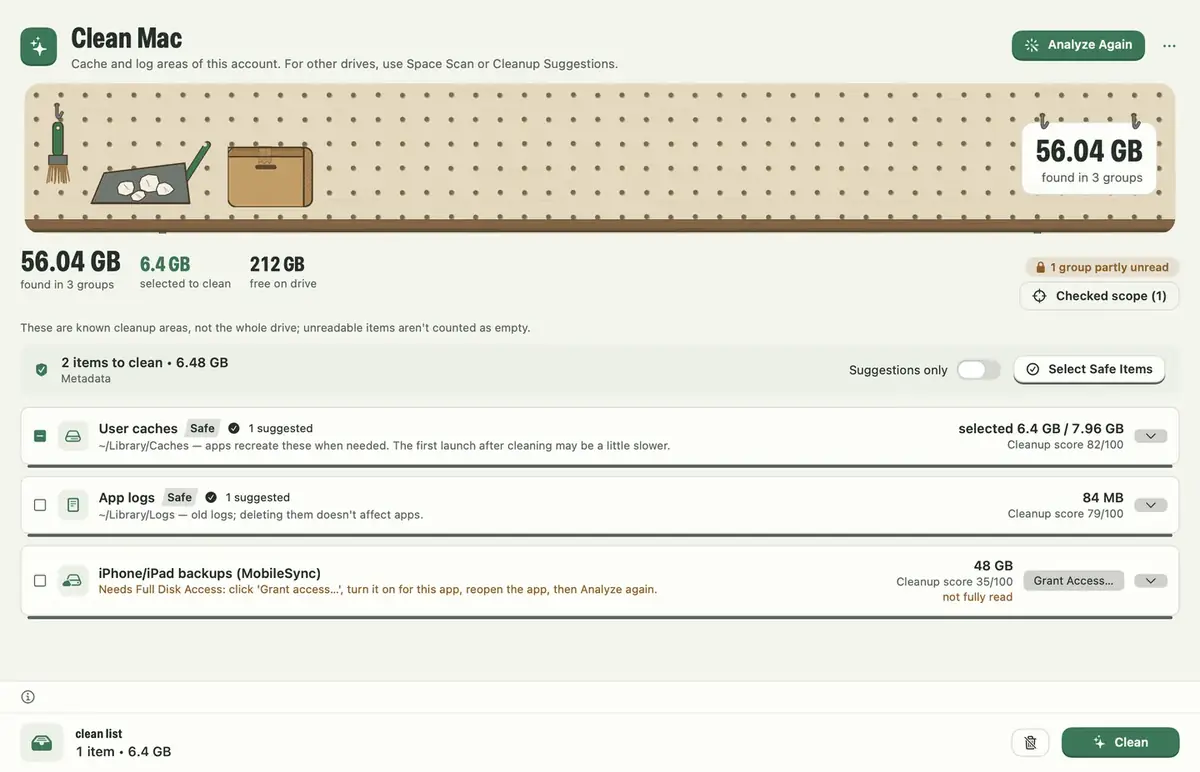
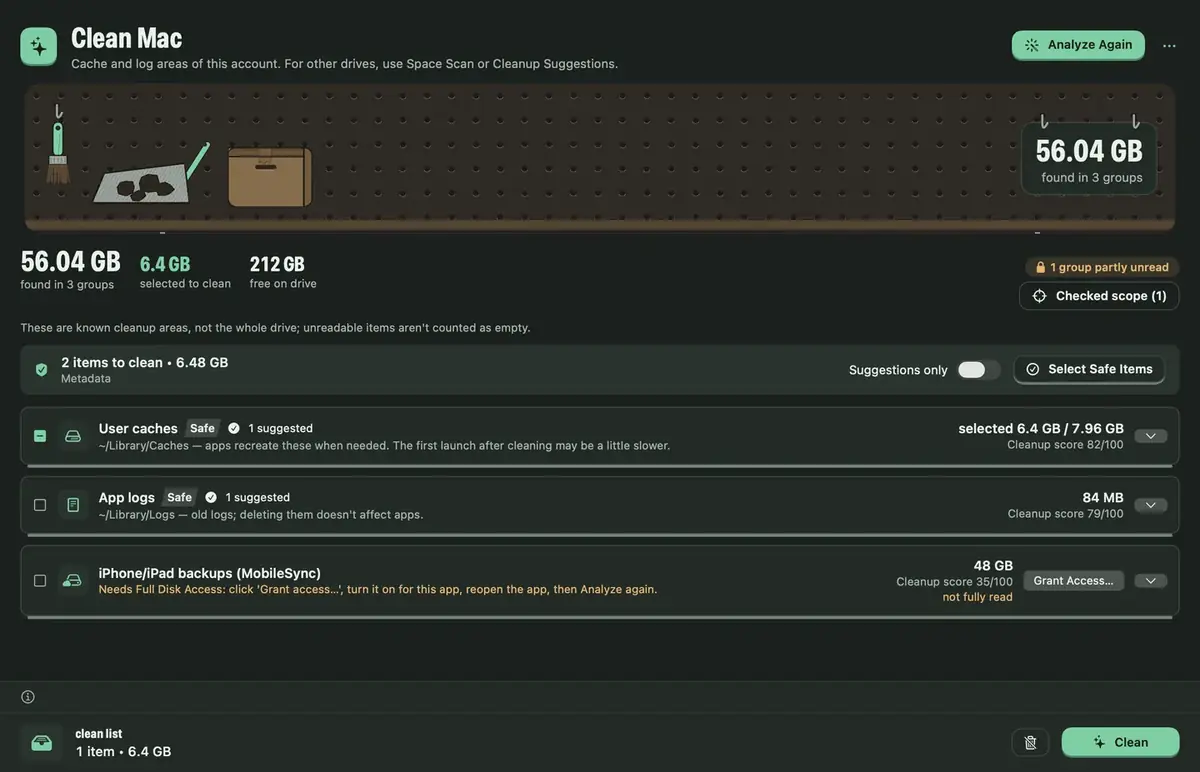
User caches
Apps recreate them when needed; the first launch after cleaning may be a little slower.
App logs
Old logs; removing them doesn't affect apps.
Developer caches
Build caches and device support files that developer tools rebuild.
Old installers and downloads
Disk images and large files in Downloads you no longer use.
iPhone and iPad backups
Shown with their size; reading them needs Full Disk Access.
Trash
How much the Trash holds right now.
Safe badge and score
Each group shows Safe, a cleanup score out of 100 and how much is selected.
Select Safe Items
One click picks only old, low-risk items that pass strict limits.
Checked scope
See which places were read and which were only partly readable; unreadable items never count as empty.
Permanent delete, only if you ask
Off by default. When you turn it on, it applies only to low-risk items here; everything else goes to the Trash.
Cleanup Suggestions on any drive
A review list of installers, duplicate files and known caches, on the folders you add.
- Add a folder or drive as scope, or remove it
- Installers you can clean once they are installed
- Duplicate files confirmed by content (SHA-256), never selected for you
- Large items in Downloads untouched for more than 90 days
- Known caches and logs come from rules, not guesses
- Who it likely belongs to, an app or your own data, and how sure MACdrive is
- Backups, projects, plugin licences and audio caches are protected
- Search by name or path and filter by group
- Each item is checked again before it moves; Restore brings items back
- Cloud-only files are skipped, so nothing is downloaded
Duplicate Files: keep one, trash the rest
Finds identical files on a drive or folder and marks the extra copies for you to check.
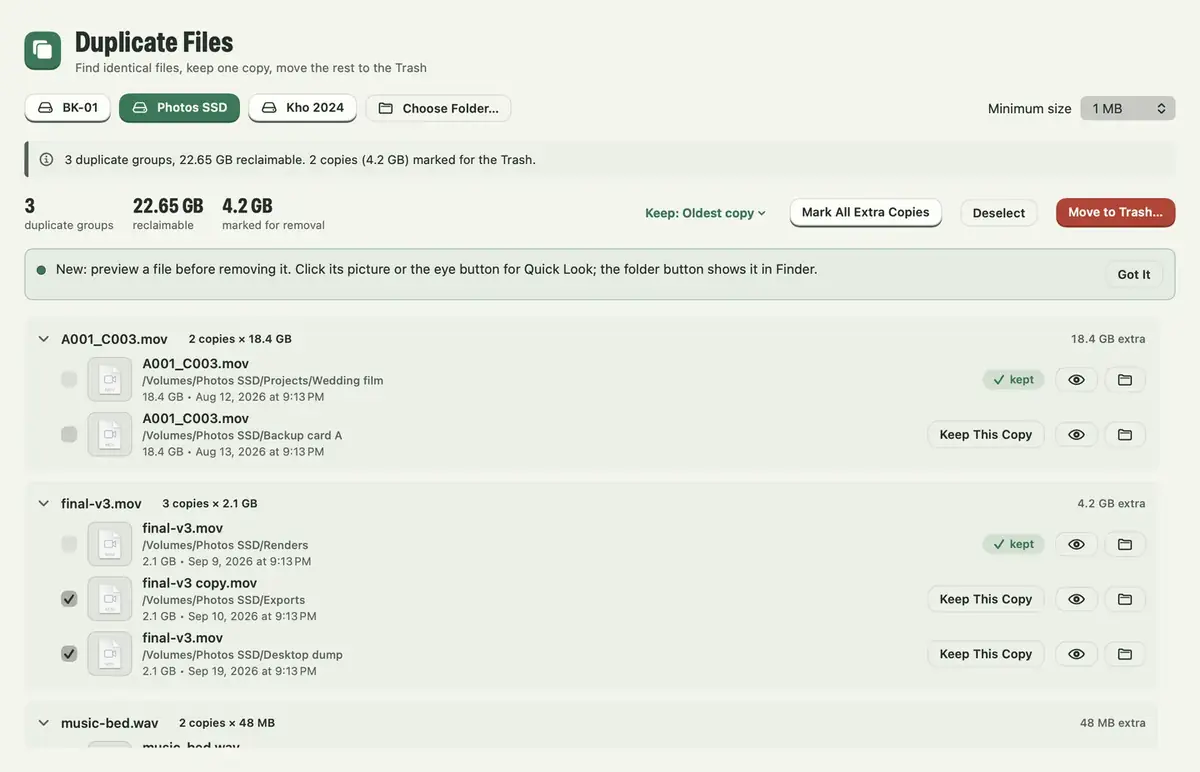
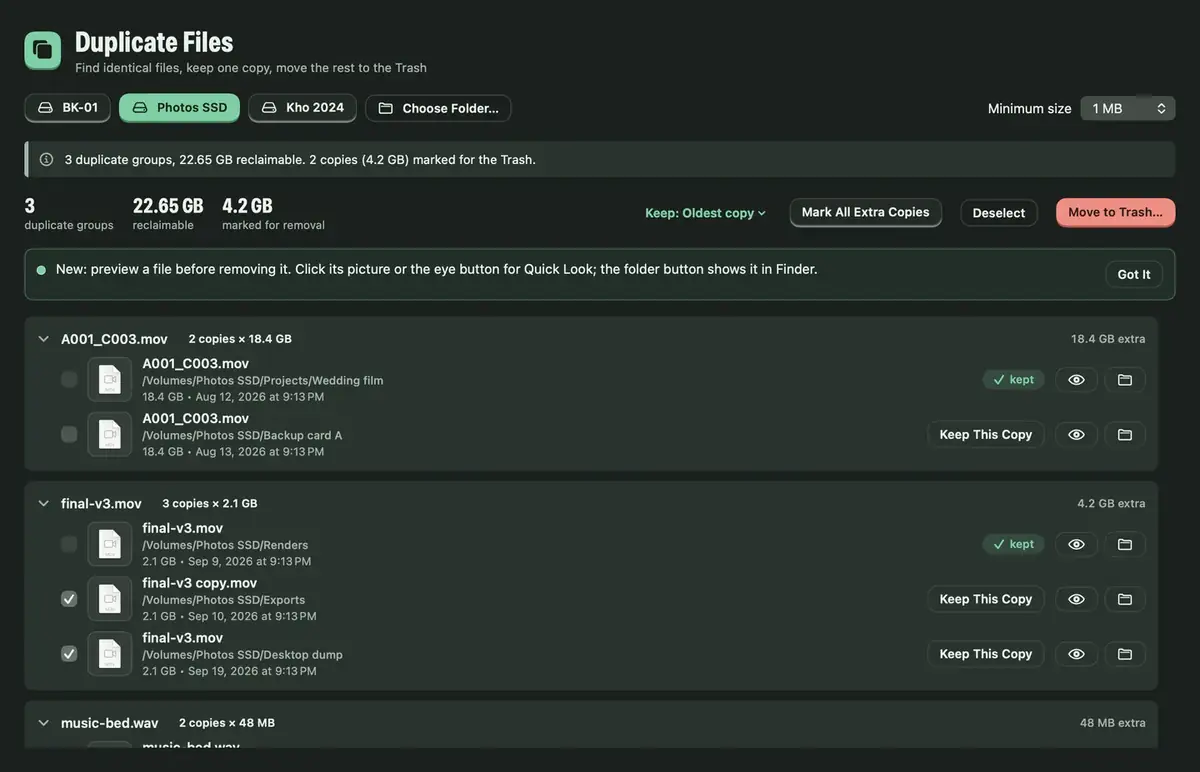
- Compares size, then a sample, then the full SHA-256 content
- Keep rule: oldest, newest, tidiest (avoids Downloads, Desktop, caches and names like copy or (1)), or the copy inside a folder you pick
- Mark All Extra Copies, or Keep This Copy on any file
- A minimum size, so small files stay out of the way
- Shows the space you really get back; clones and hard links don't count
- Quick Look on every copy; the arrow keys step through them
- Searching an unchanged drive again is fast
- Each file is read again before it goes to the Trash
- Skips iCloud-only files, hard links and library packages
- The keep rule is remembered between launches
Copy & Verify: prove the copy is on the disk
A one-way copy that checks every file, for camera cards and archives.
Choose source and destination
Each job gets its own folder in the destination; nothing there is overwritten.
Copy and hash
Each file is hashed with SHA-256; it is finished only when both sides match.
Read back from the disk
With the memory cache off and after the drive has flushed, so the check reads the disk, not memory.
Keep the receipt
Next to the copy: a page you can read, a JSON file for scripts and an ASC MHL manifest with xxHash64.
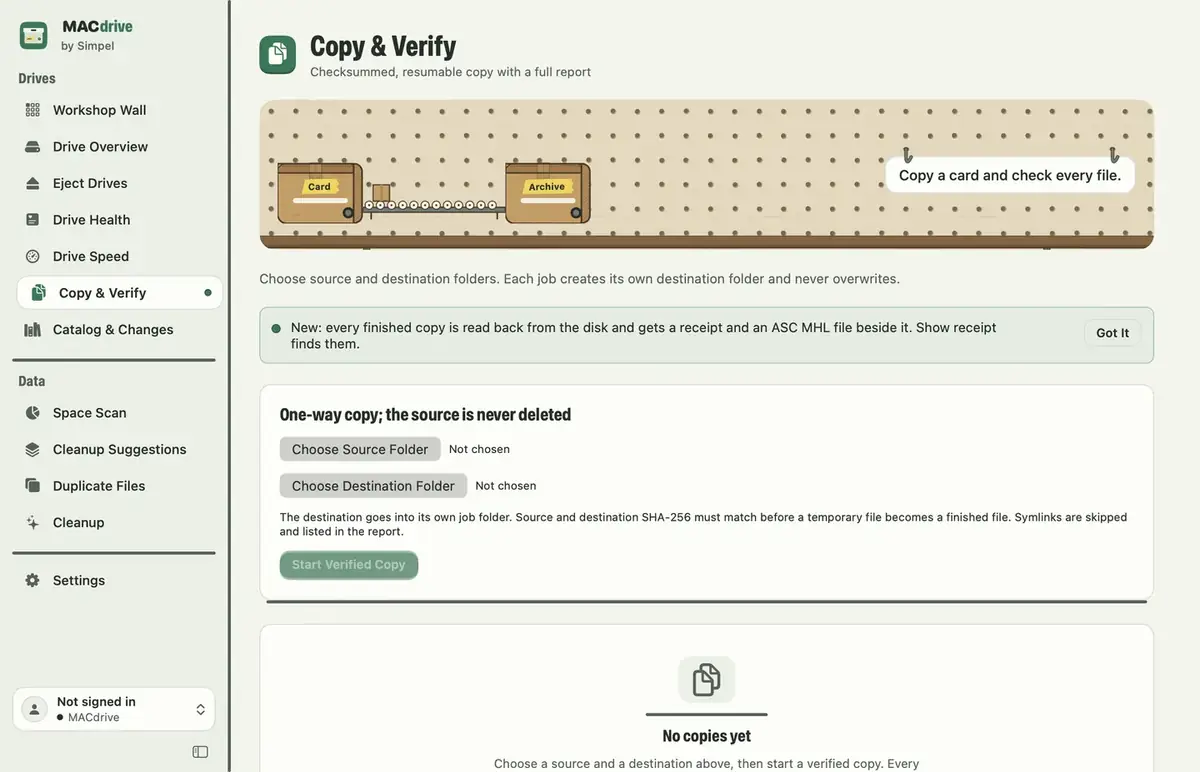
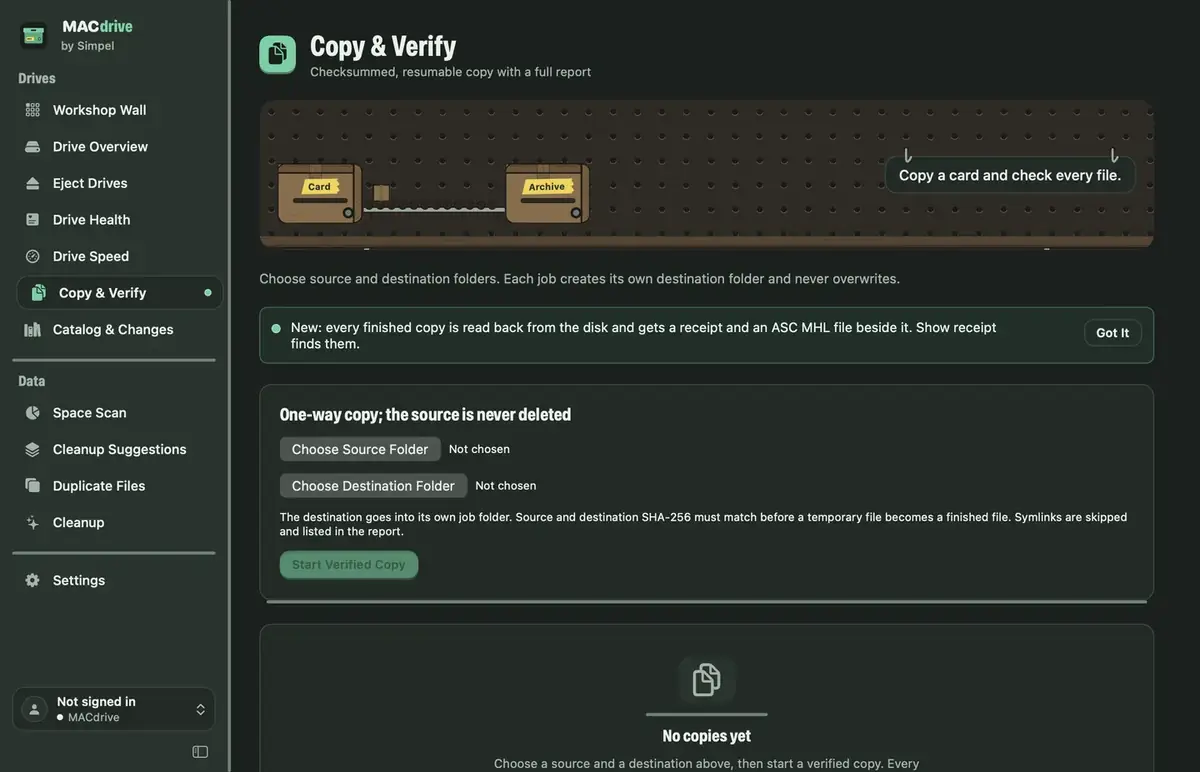
- The source is never changed or deleted
- Stopped or unplugged? Resume from the verified part
- Links are skipped and listed in the report
- Progress in the menu bar and on the Workshop Wall
- The Mac stays awake until the copy finishes
- Show Receipt opens the receipt
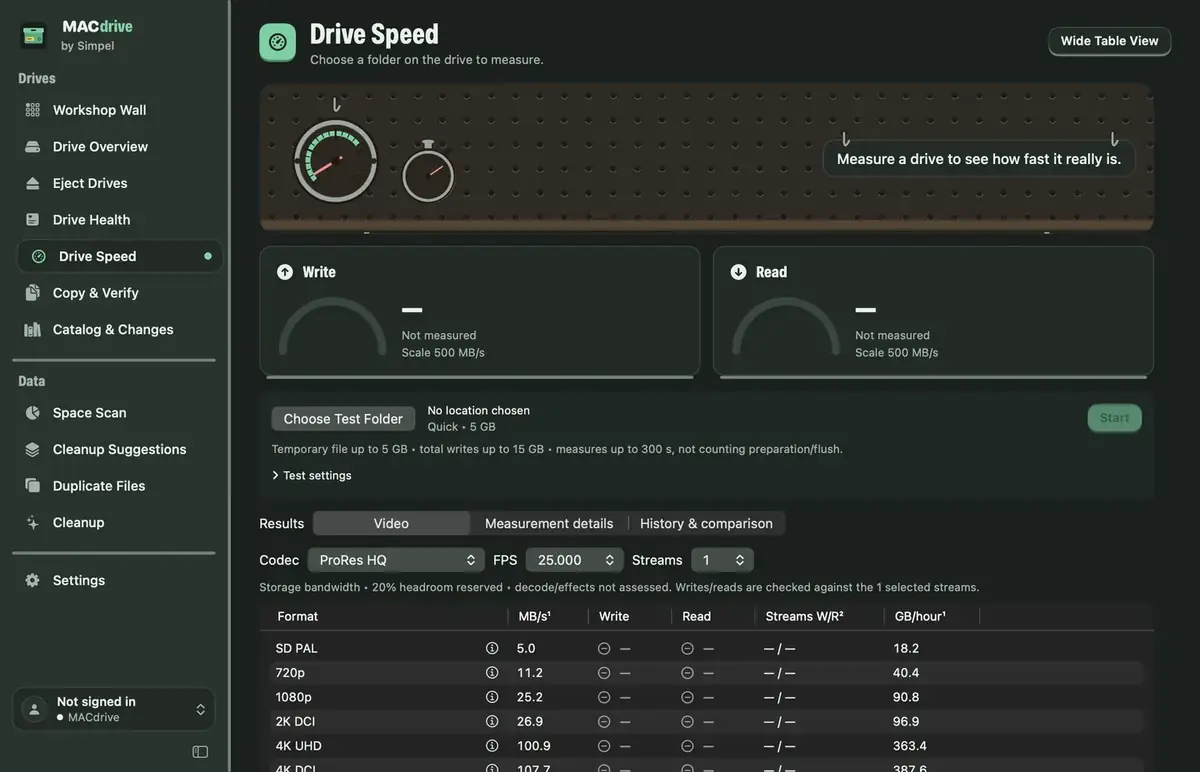
Drive Speed: how fast it really is
Measures with real files in a folder you pick, then shows which video formats the drive can carry.
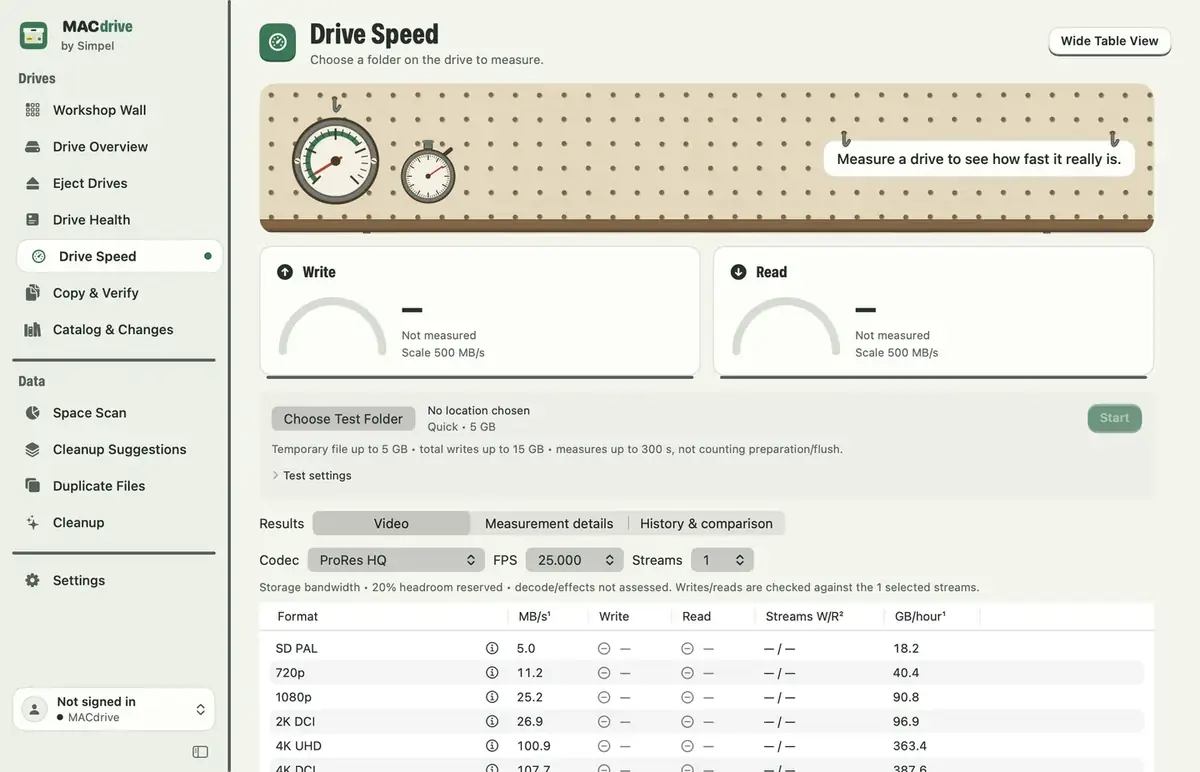
- Quick
- Write and read 1 to 5 GB, three passes.
- Sustained write
- A long write that shows when the drive slows down.
- Sustained read
- Reads a prepared file for the time you choose.
- Multiple video streams
- 1 to 16 streams read at once, like a multicam edit.
- Random I/O
- 4 KiB or 64 KiB blocks: read, write or 70/30 mixed, 1 to 32 at a time.
- Read existing file only
- Reads a file that is already there and writes nothing.
- Video table
- ProRes, H.264, H.265 and camera RAW at your frame rate and stream count, with 20% headroom and GB per hour.
- Limits you can see
- Test file size, total writes and time are shown before you start; test files are removed afterwards.
- History and comparison
- Compare runs side by side in a wide table, and export PNG, PDF or CSV.
Catalog: find files on unplugged drives
Catalog a drive once, then search its file names later, even while it sits on a shelf.
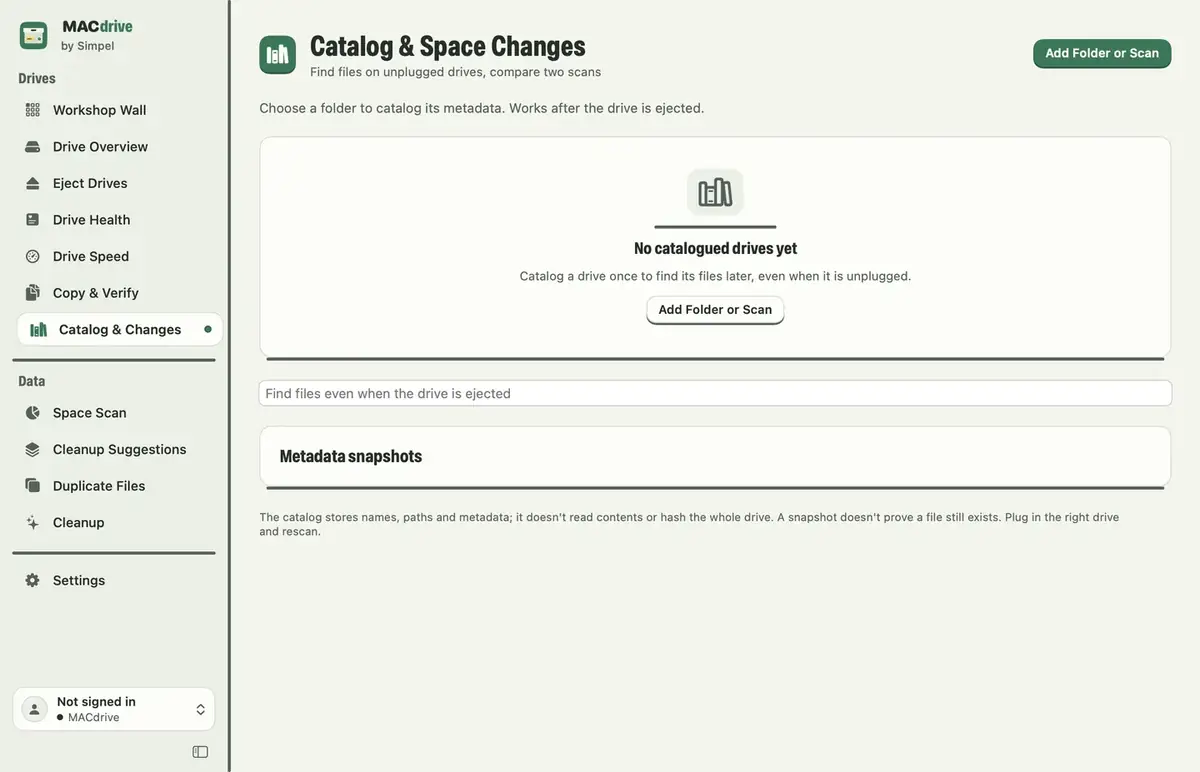
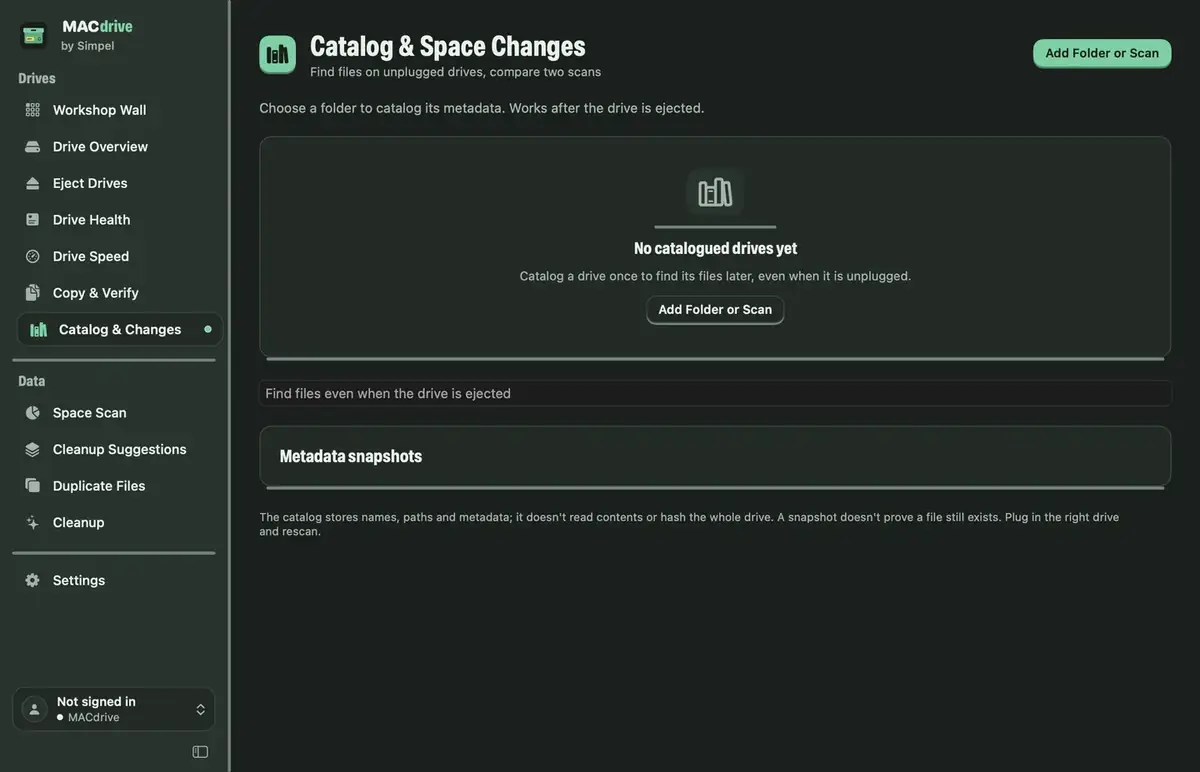
- Stores names, paths and sizes only, never file contents
- Search every catalogued drive at once
- Snapshots over time; a partial scan keeps the earlier entries
- Compare two scans: what grew and what shrank, file by file and folder by folder
- Works on any folder, or straight from a finished scan
- Catalogs travel to your other Macs with Simpel Sync
- A snapshot doesn't prove a file still exists, and MACdrive says so
In the menu bar
Your drives, their health and your copies, without opening the window.
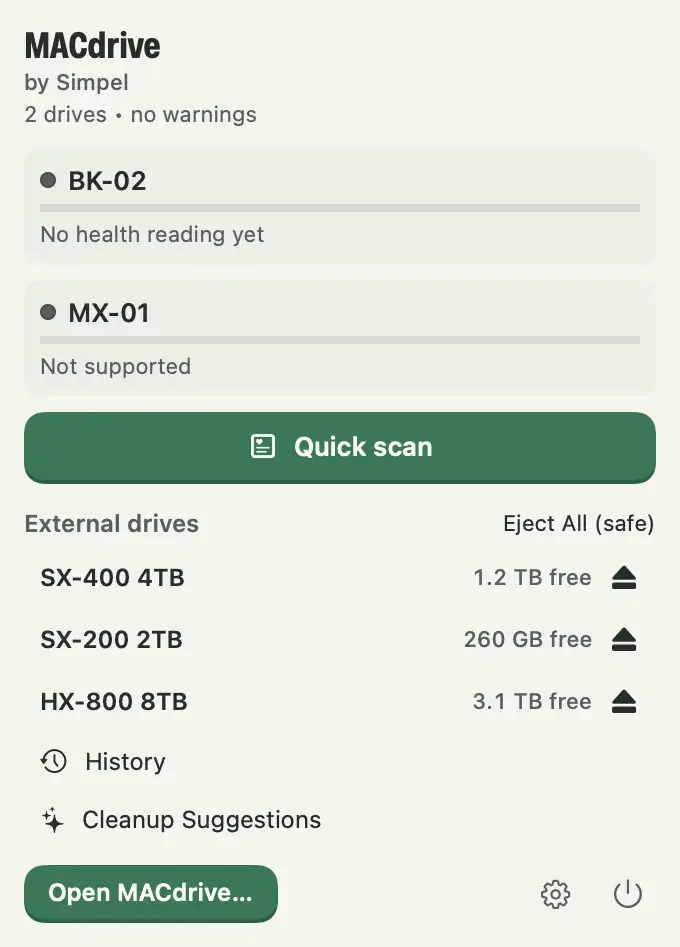
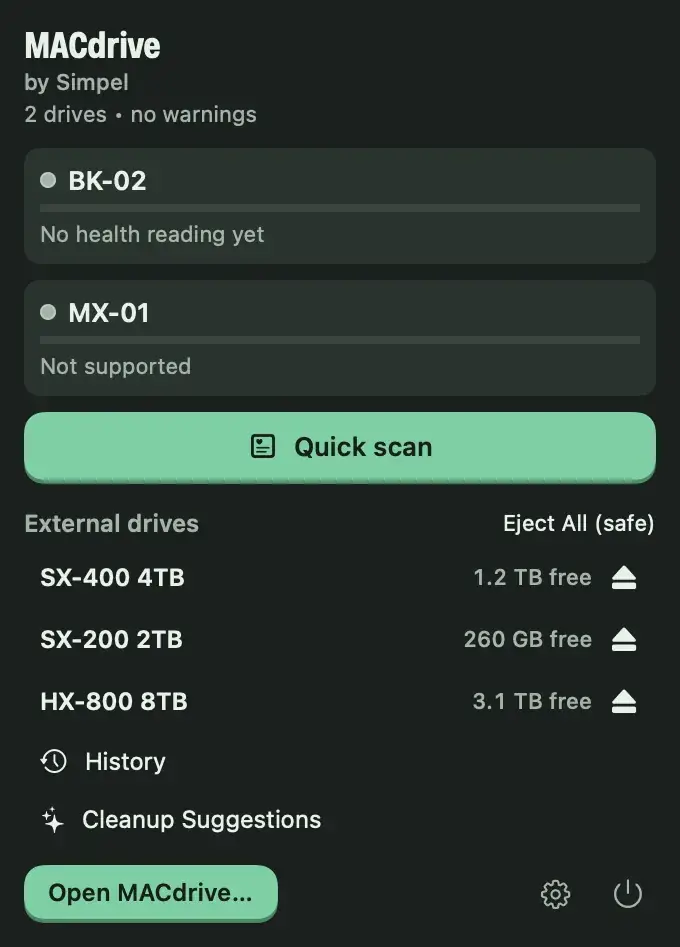
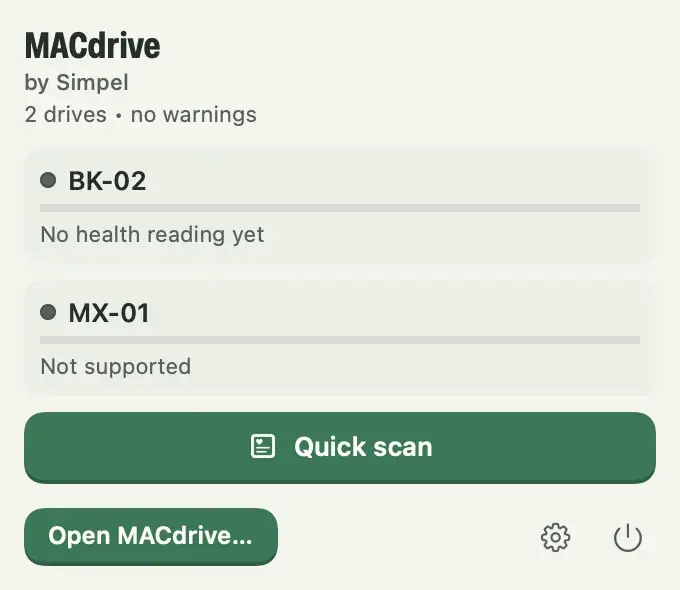
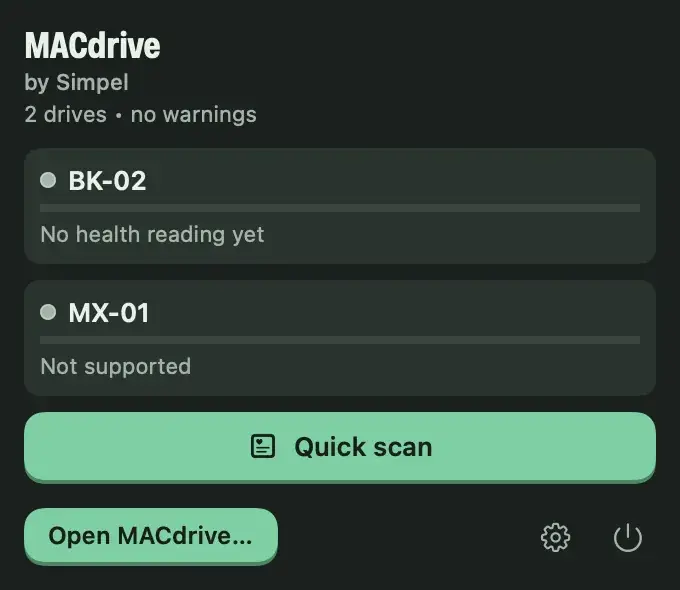
- Simple panel
- Drives with a health light, Quick scan, Open MACdrive, Settings and Quit.
- Full panel
- Adds external drives with free space and eject, Eject All, history and Cleanup Suggestions.
- Quick scan
- Reads drive health in one click and shows its progress while it reads.
- Copy progress
- A running copy shows here, and eject waits for it.
- Warning dot
- The icon shows a dot when a drive has health warnings.
- Out of the Dock
- MACdrive shows in the Dock only while one of its windows is open.
- Hide the icon
- Turn it off in Settings; open MACdrive from Finder or Spotlight to bring it back. MACsuite can show MACdrive in its own menu.
Settings that read like macOS
One setting per row, a short explanation under each group and a (?) button to its help page.
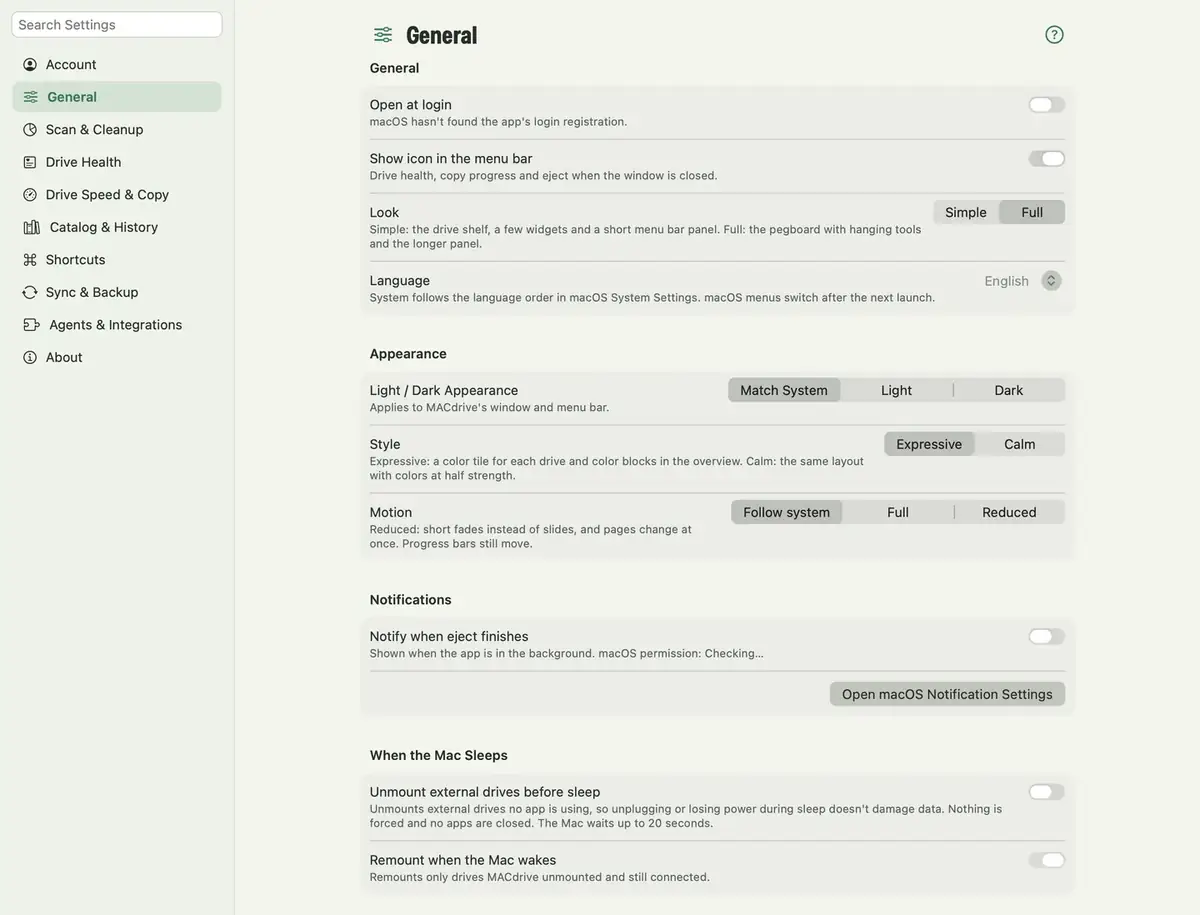
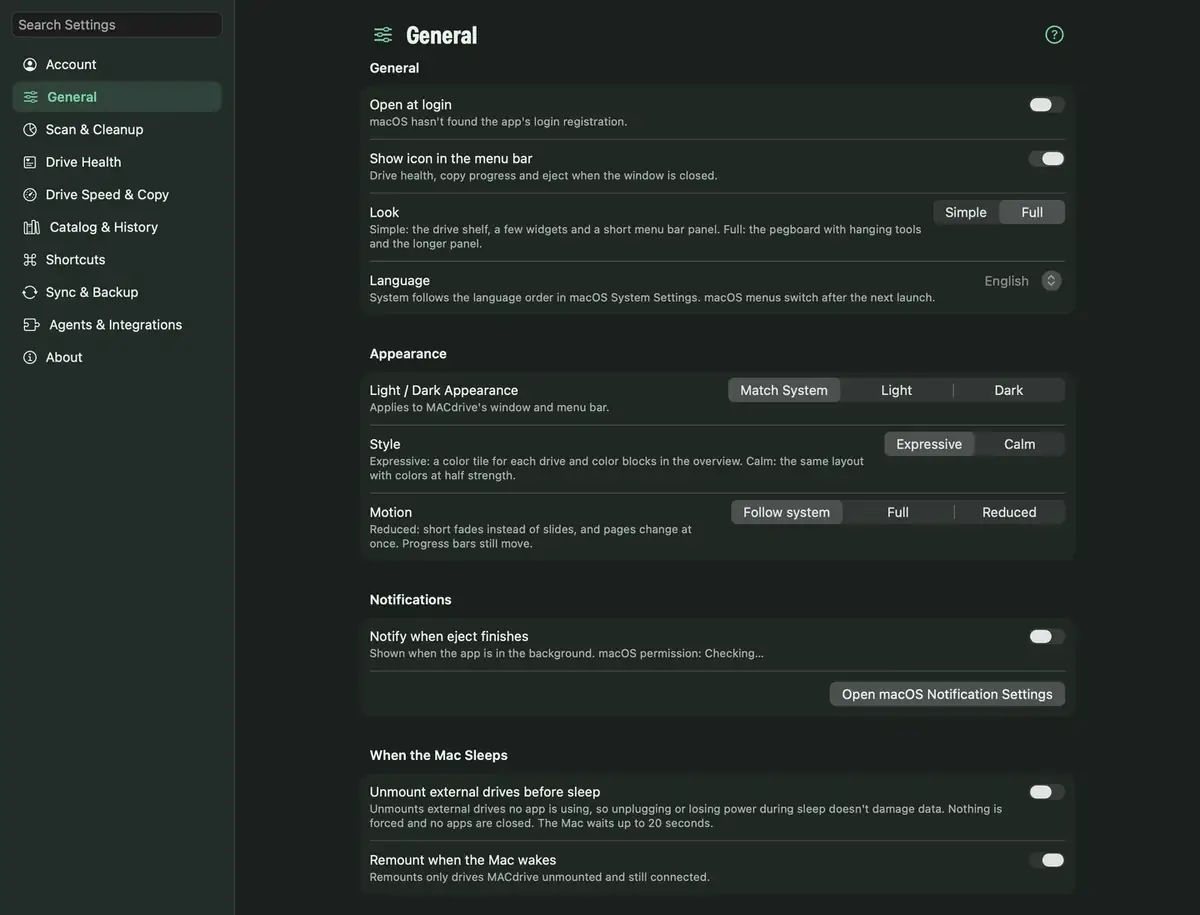
- Search Settings with ⌘F
- Open at login and Show icon in the menu bar
- Look: Simple or Full
- Language: English, Tiếng Việt, 한국어, 简体中文, 日本語, or follow the Mac
- Light, Dark or match the system
- Style: Expressive or Calm colours
- Motion: follow system, Full or Reduced
- Increase Contrast makes borders and secondary text darker
- Sizes, dates and numbers follow MACdrive's language
- Retention limits for speed results, health history and saved scans
- Every store MACdrive keeps on this Mac, with its size and a database check
- Move old scan logs to the Trash, keeping the newest three
Your data, in and out
Back up, move and sync what MACdrive knows about your drives.
| Bring in | Take out | |
|---|---|---|
| Settings file | Import shows every change before it applies | Export to a file you can open on another Mac |
| Full backup | Restore from a .macdrivebackup file; a safety copy is saved first | Back up now, or automatically every day or week to a folder you choose |
| Simpel Sync | Settings, drive labels, health history and catalogs from your other Macs | The same, through your own iCloud Drive or a folder you choose |
| Saved scans | A restored scan is added only if it is newer than the one you have | Carried inside every backup |
| Speed results | — | PNG, PDF or CSV |
| Health report | — | A text report without serial numbers or full paths |
| Copy receipt | — | A readable page, JSON and ASC MHL |
- Automatic backups keep the newest ten and never touch other files in the folder
- If the backup drive is unplugged, the backup waits in MACdrive's own folder and the report says so
- Reset All Settings saves a backup first; drives, scans and history stay
- Sync is free and keeps working after your update period ends
- Your licence, keys and copy jobs never leave this Mac
- Without a licence you can still open Help and export your data
Keyboard first
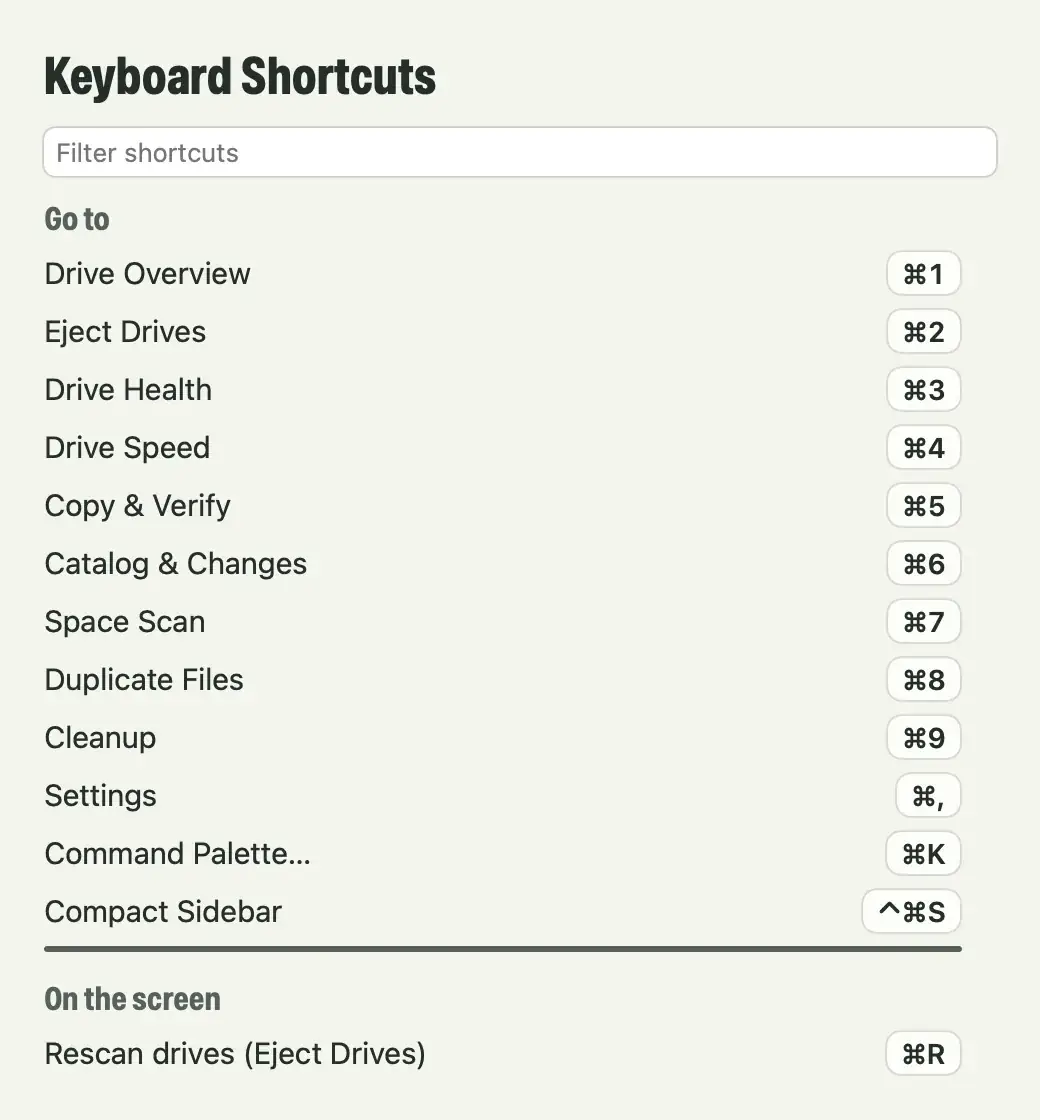
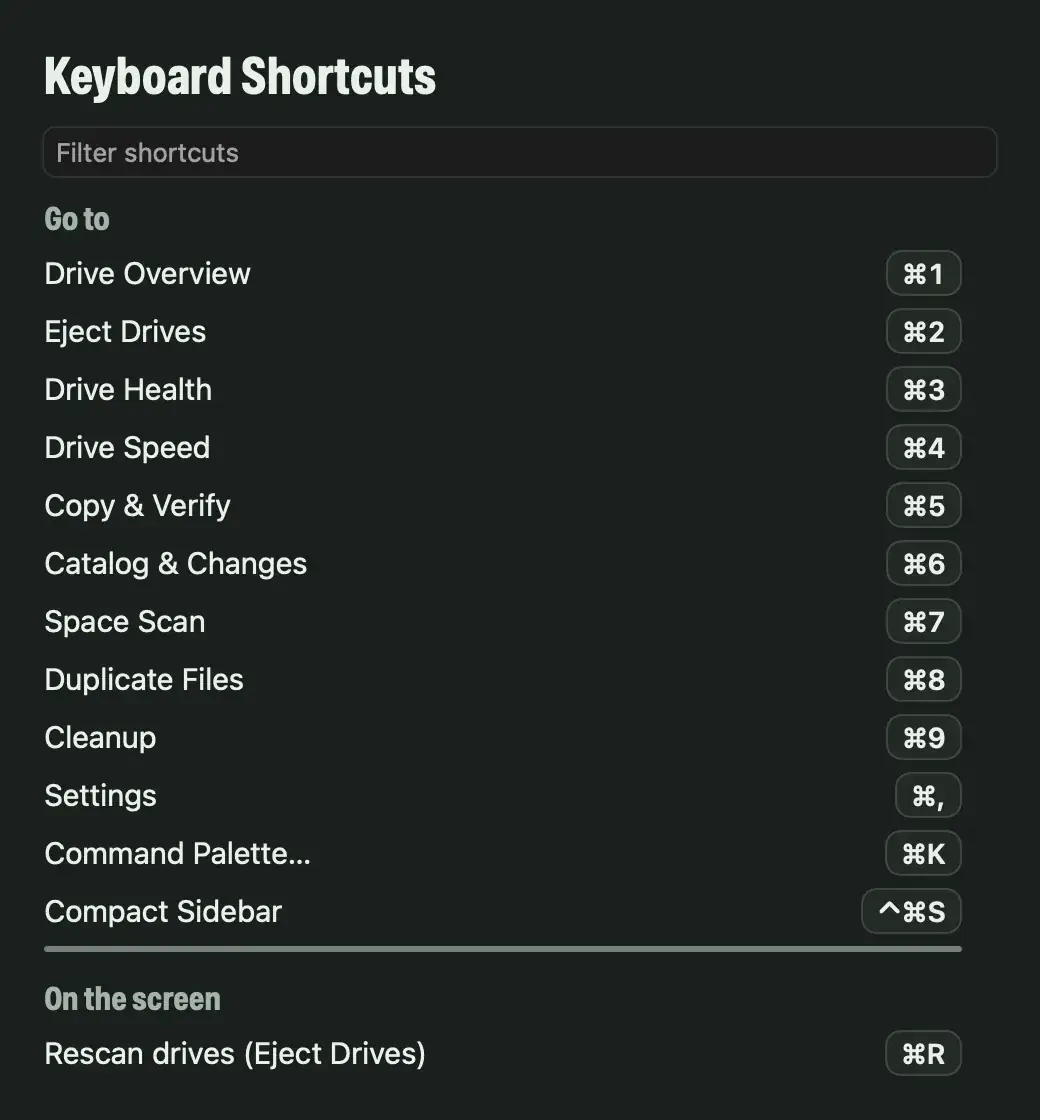
Every screen has a shortcut, and ⌘K finds any screen or command.
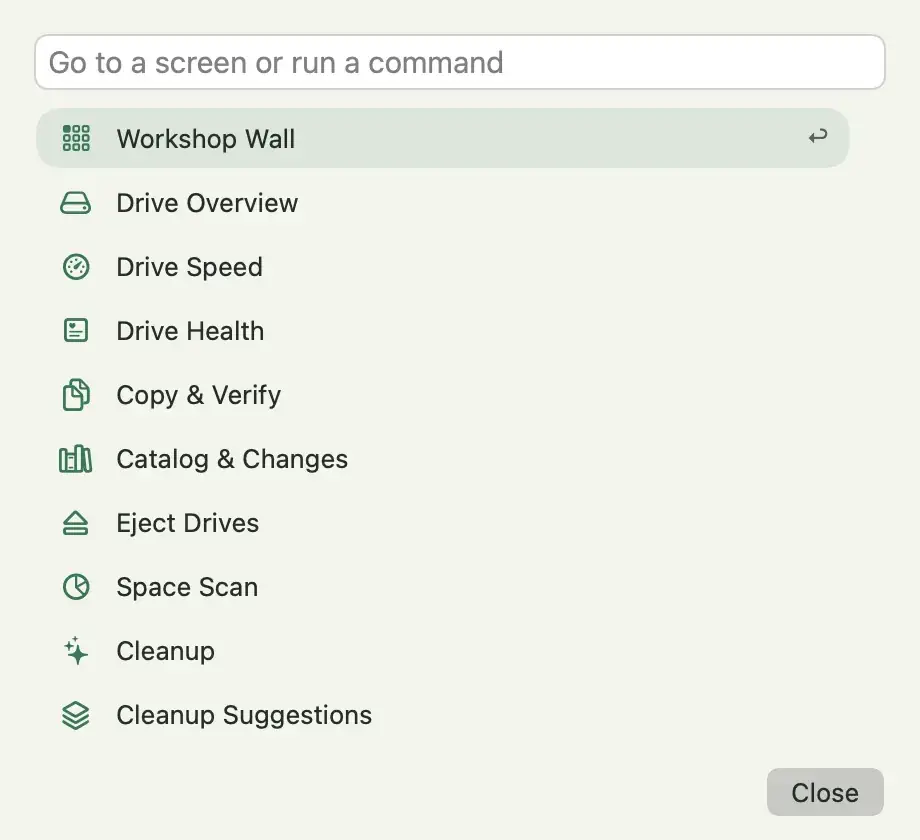
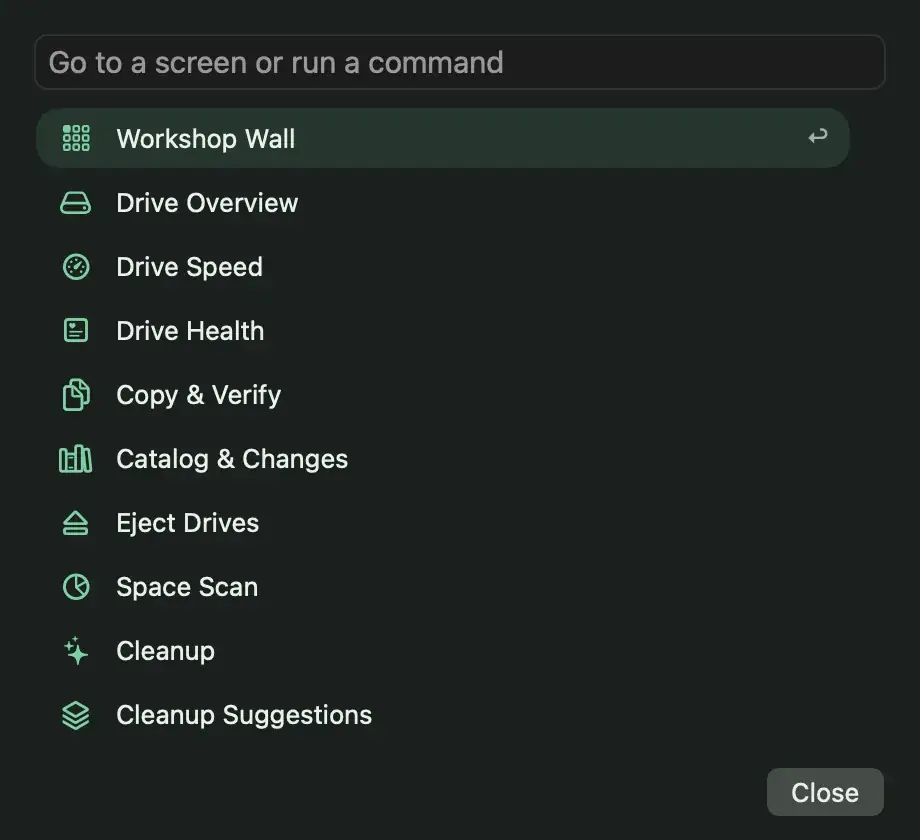
- Command palette to go to a screen or run a command
- A Keyboard Shortcuts sheet with a filter
- Arrange the wall from the keyboard: Tab picks a card, the arrows move it, Option-arrows resize it, Delete takes it down
- VoiceOver can do the same on the wall
- The arrow keys step through duplicate copies in Quick Look
| ⌘1 | Drive Overview |
| ⌘2 | Eject Drives |
| ⌘3 | Drive Health |
| ⌘4 | Drive Speed |
| ⌘5 | Copy & Verify |
| ⌘6 | Catalog & Changes |
| ⌘7 | Space Scan |
| ⌘8 | Duplicate Files |
| ⌘9 | Cleanup |
| ⌘, | Settings |
| ⌘K | Command palette |
| ⌃⌘S | Compact sidebar |
| ⌘R | Rescan drives |
| ⌘E | Eject All (safe) |
| ⇧⌘⌫ | Clean the Clean List |
| ⌘F | Search Settings |
| ⌘? | Search Help |
| ⌘/ | Keyboard Shortcuts |
Help that shows you
Short lessons, videos and a welcome guide, all in your language.
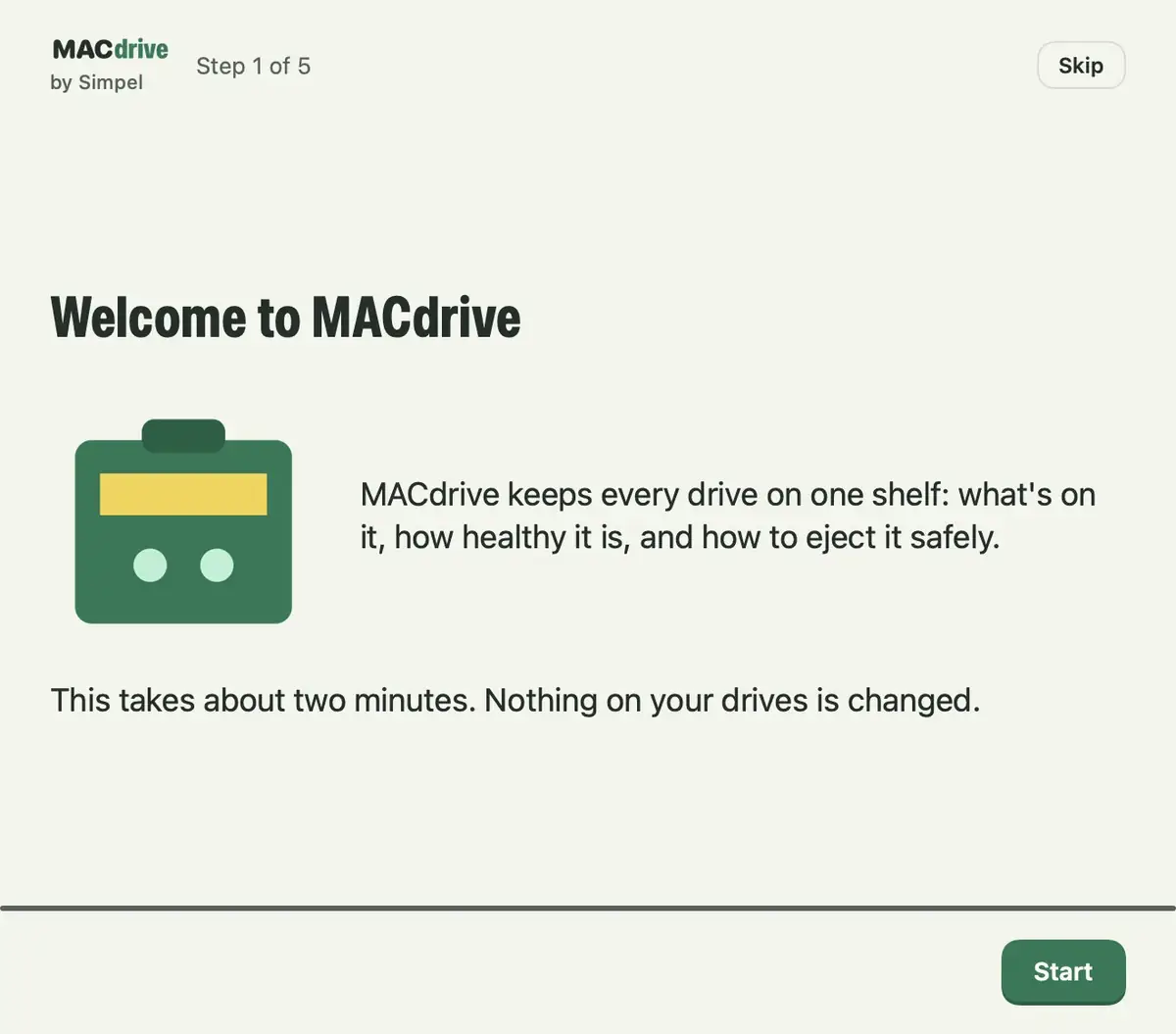
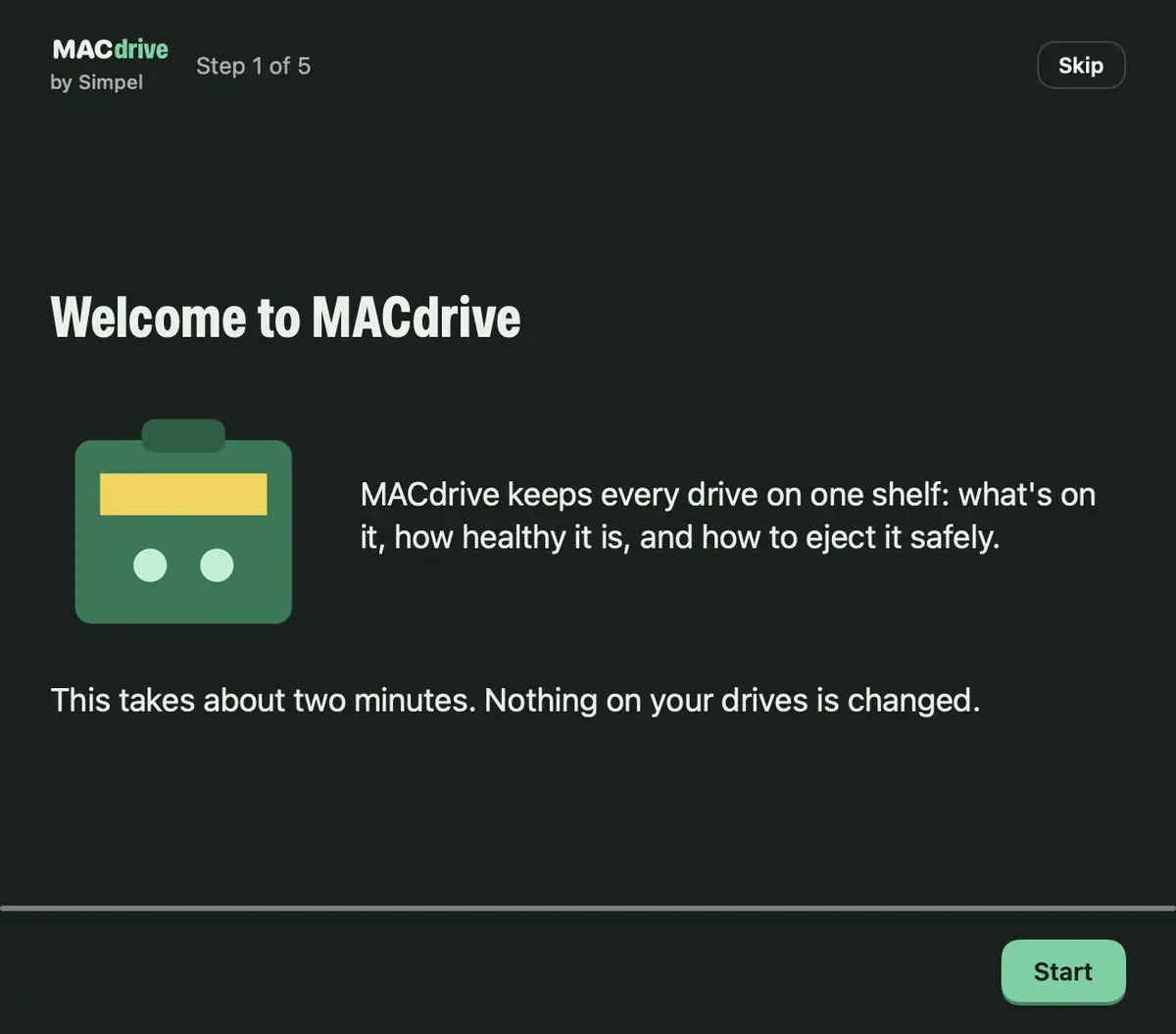
Welcome guide
Five short pages the first time MACdrive opens, and any time from Help. Skip picks up where you left off.
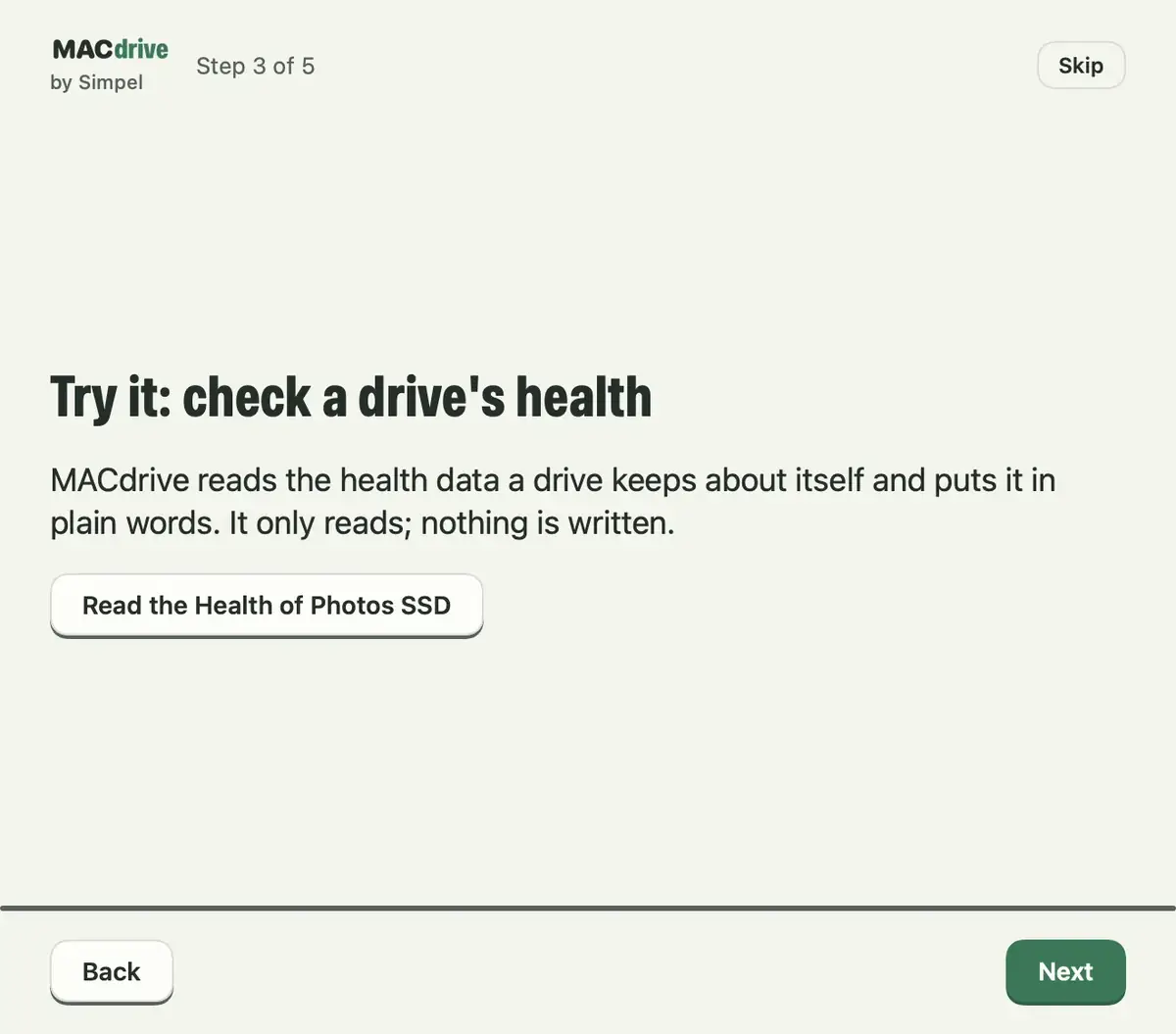
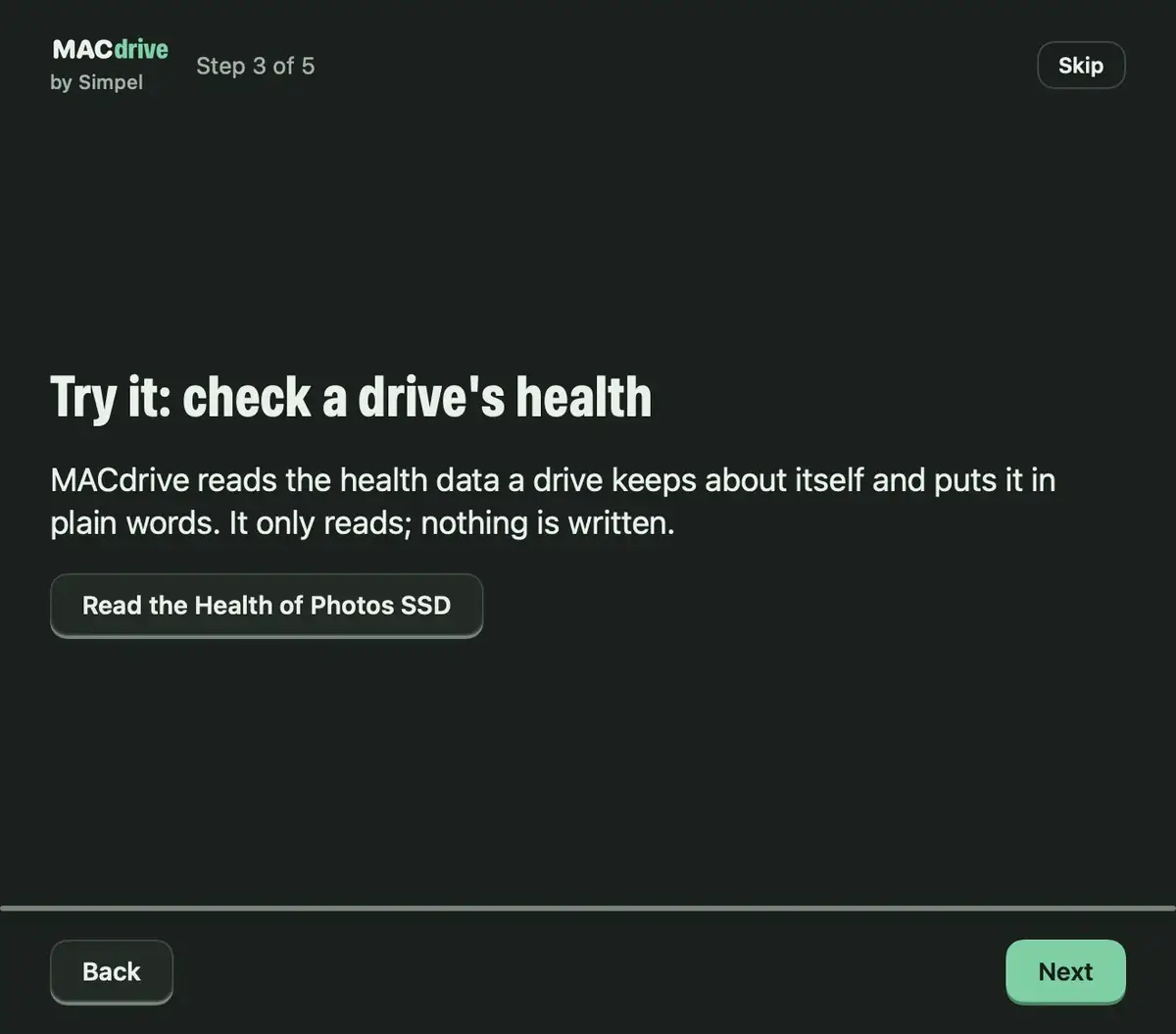
Try it safely
A read-only health check you can run in the guide, and a plain note on what Full Disk Access lets MACdrive read.
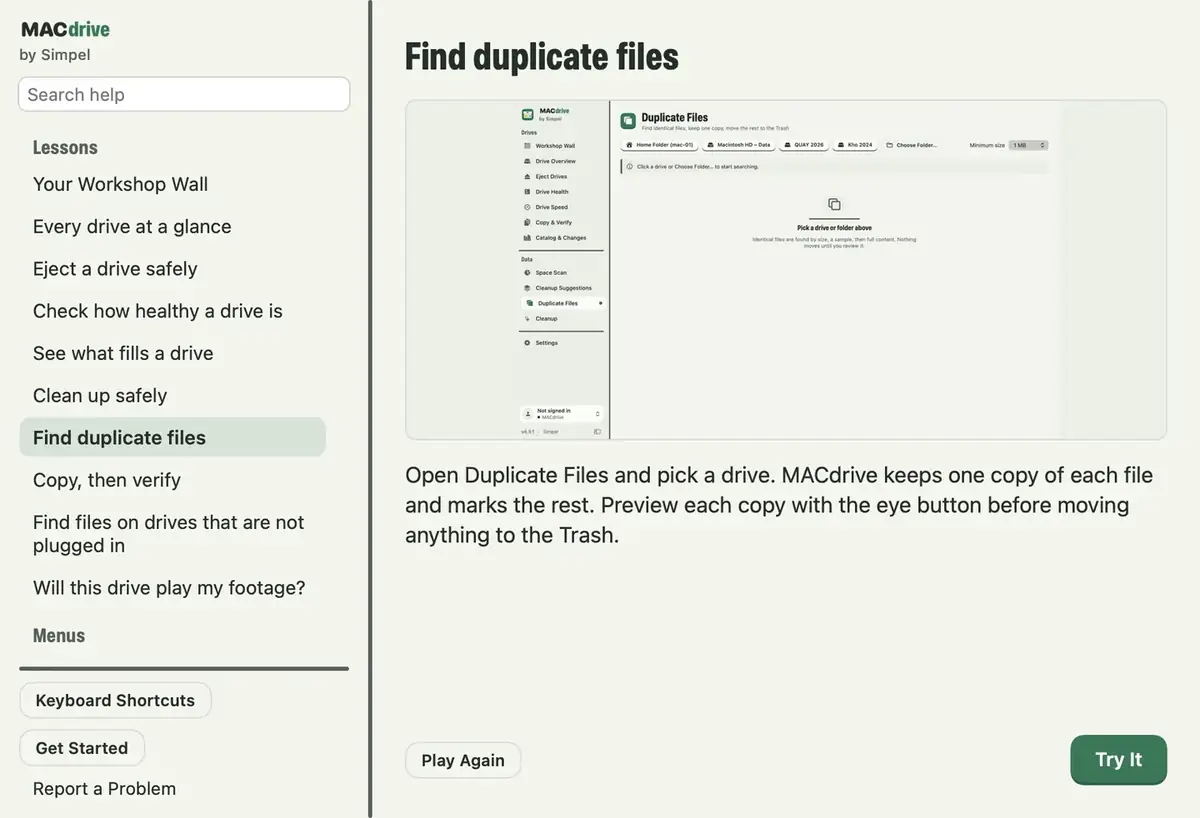
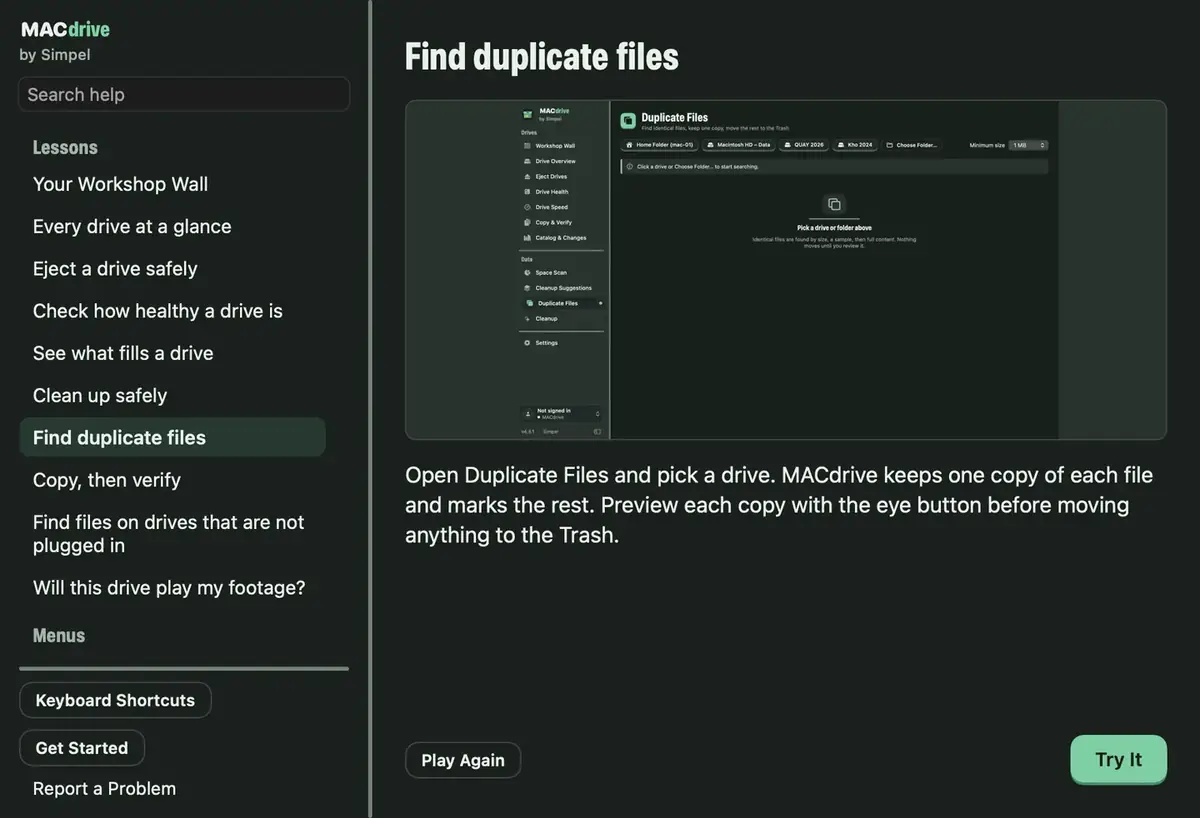
Ten lessons
Pictures, search and a Try It button that opens the right screen. Every menu and Settings page is explained, with Report a Problem and What's New.
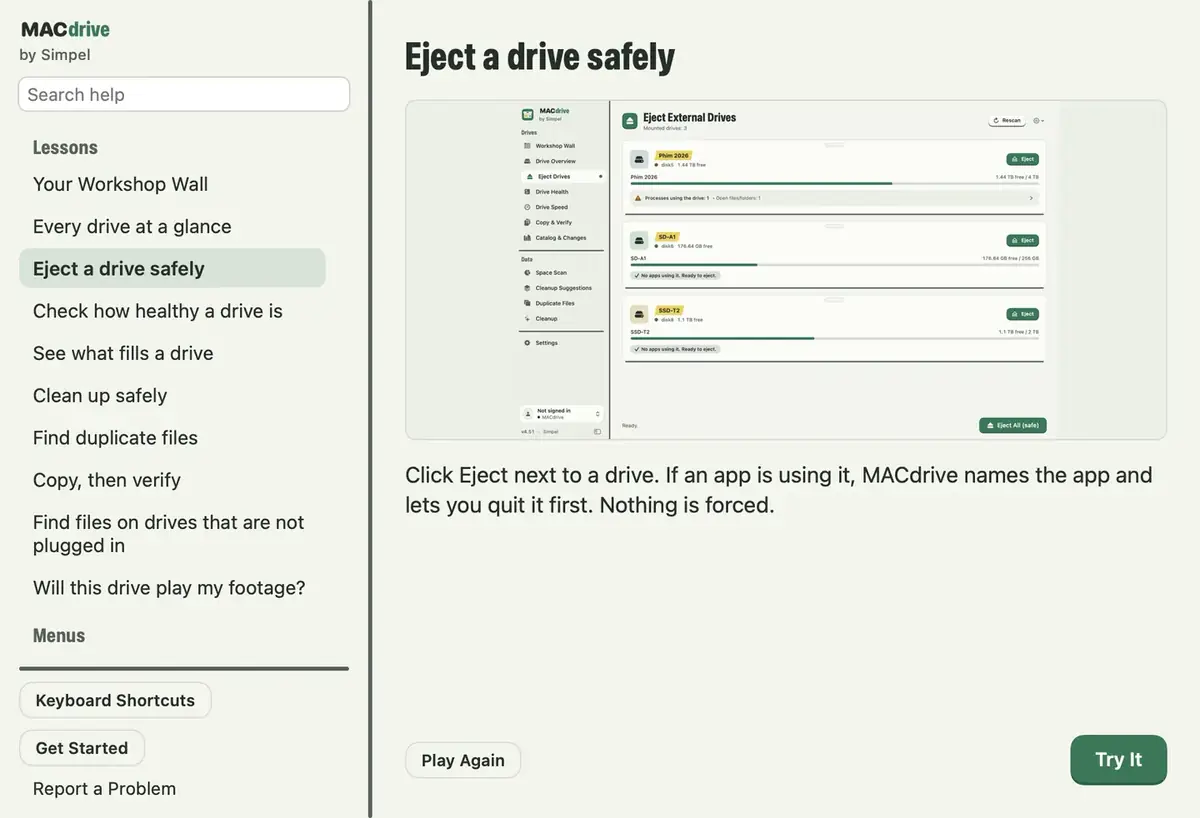
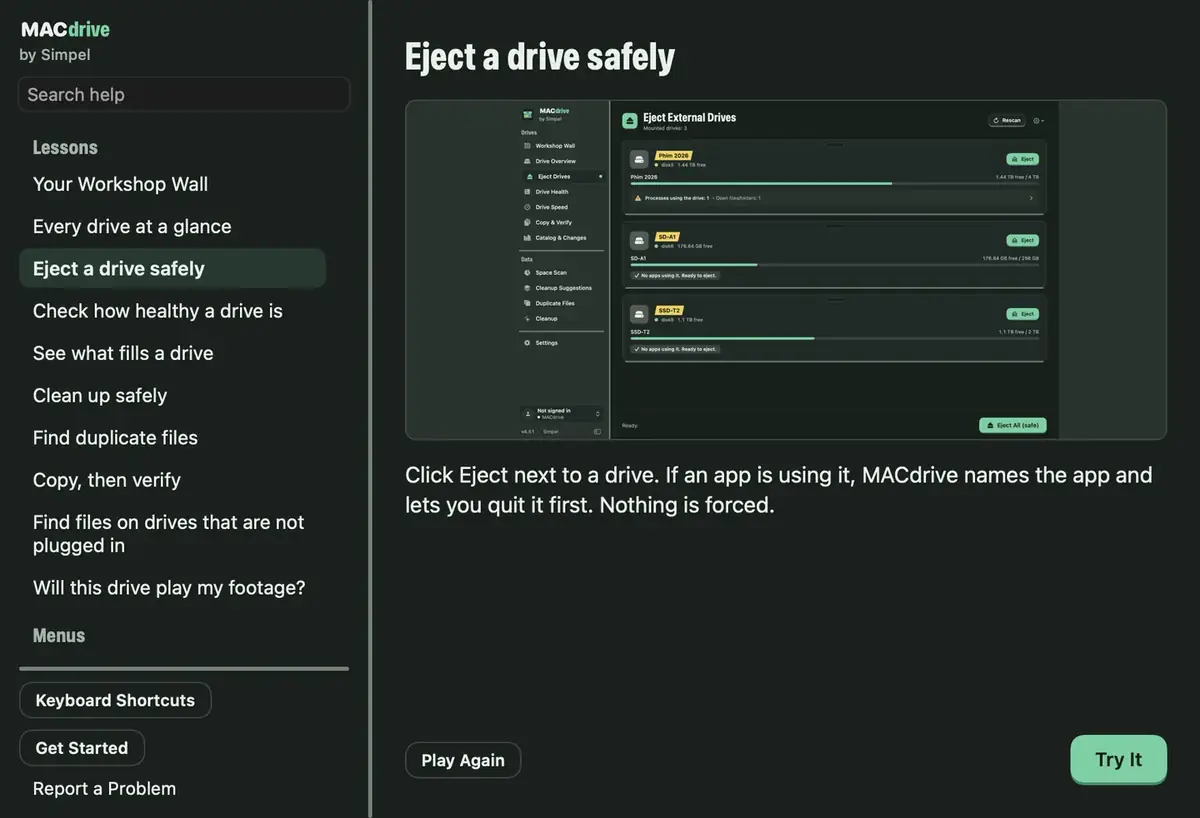
Guide videos
Ten short videos in your language, from the Workshop Wall to Drive Speed, in light and dark.
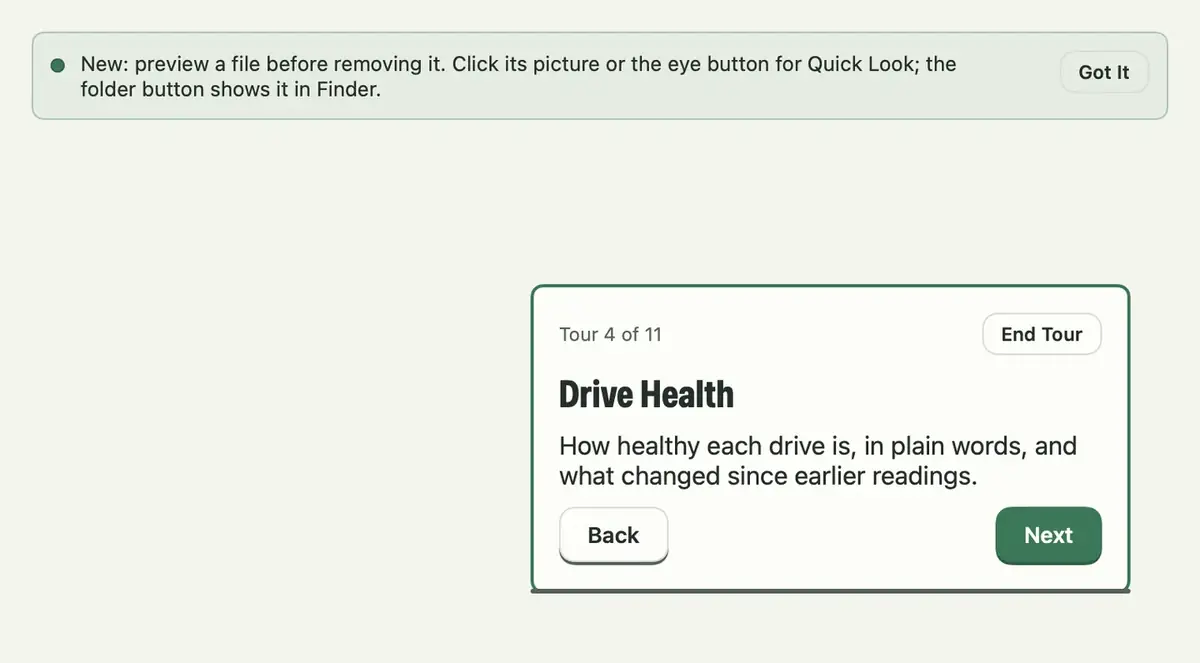
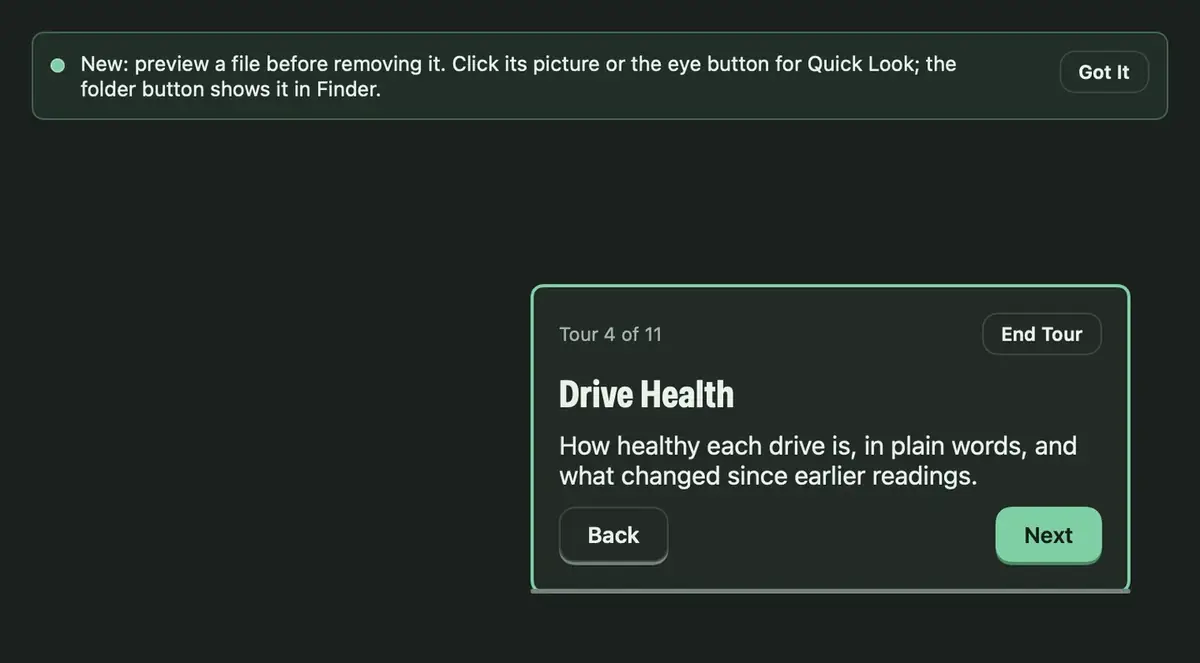
A guided walk and tips
Stops at the main screens, the menu bar icon and the menus. One-time tips point out what is new where it appears.
Agents and assistants
Every feature works through MACdrive's local agent connection, with the same checks as the window.
› drives_refresh
  4 drives, 3 external
› health_read  BK-01
  OK · 38 °C · read 2 min ago
› scan_start  QUAY 2026
  scanning · 184,220 files
› action_prepare  eject BK-01
waiting for you to confirm in MACdrive- A built-in MCP server, and Agent Gate for the other Simpel apps
- An agent outside Simpel asks once, with MACdrive's own notification, before it can change settings, licences or backups
- Revoke an agent any time; it stays revoked
- Allowed agents are sealed with a key kept in your Keychain
- Cleaning and deleting stay in MACdrive's window; ejecting needs its own confirmation
- Agents can't hide the menu bar icon; only you can
- MACsuite can show your drives, eject one you confirm and change settings with the same checks
- Free-text replies follow MACdrive's language
Account, licence and updates
Your account and your Macs in one place in Settings.
- Account page: profile, plan and status, Macs, updates and renewal, your other Simpel apps, receipts and security
- Your account at the foot of the sidebar, with a quick menu
- Register This Mac, Release This Mac (it asks first; your data stays) and Release Another Mac
- Restore Purchases and Manage Account
- Every status in plain words, with a colour and the one button that helps
- Updates come from Simpel's own download service and install in the background
- Fixes on your version line keep arriving, even when this Mac is signed out
- If a version is newer than your licence covers, MACdrive offers the one you own; your data stays
- Licence checks never interrupt a scan, copy or eject that is already running
- A Mac nobody has signed in on sends only a public key and the product name, so it can get fixes