








Everything MACvol does
164 features in 18 groups, with screens from the app itself. Everything shown is sample content.
The Counter: your sound at a glance
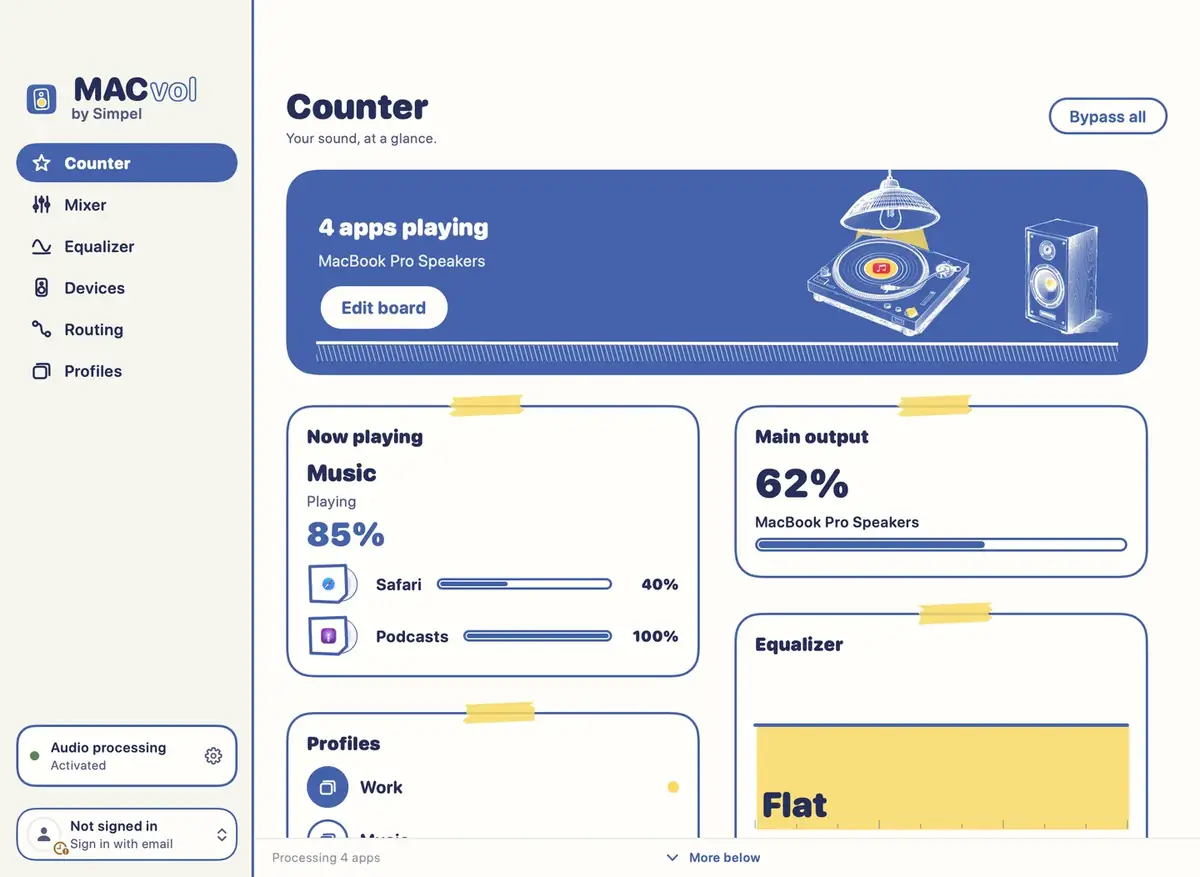
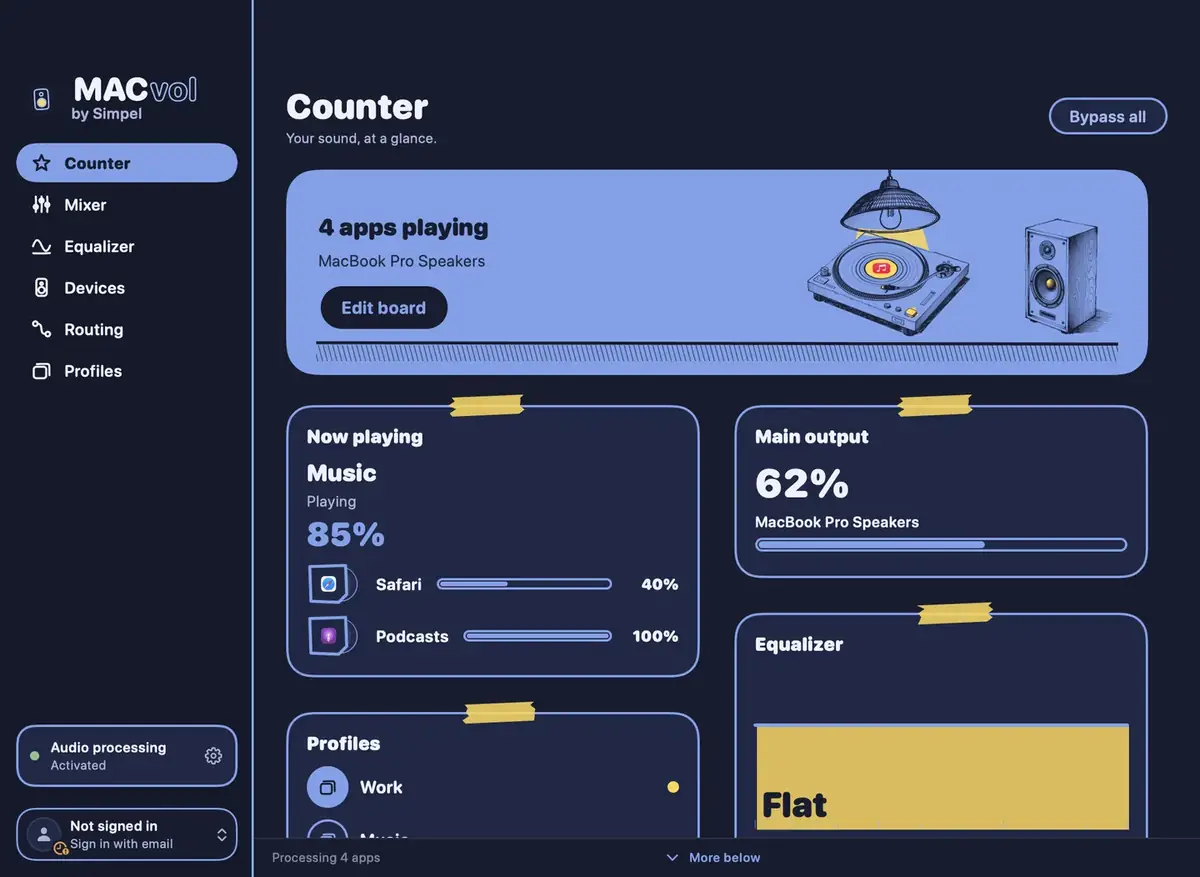
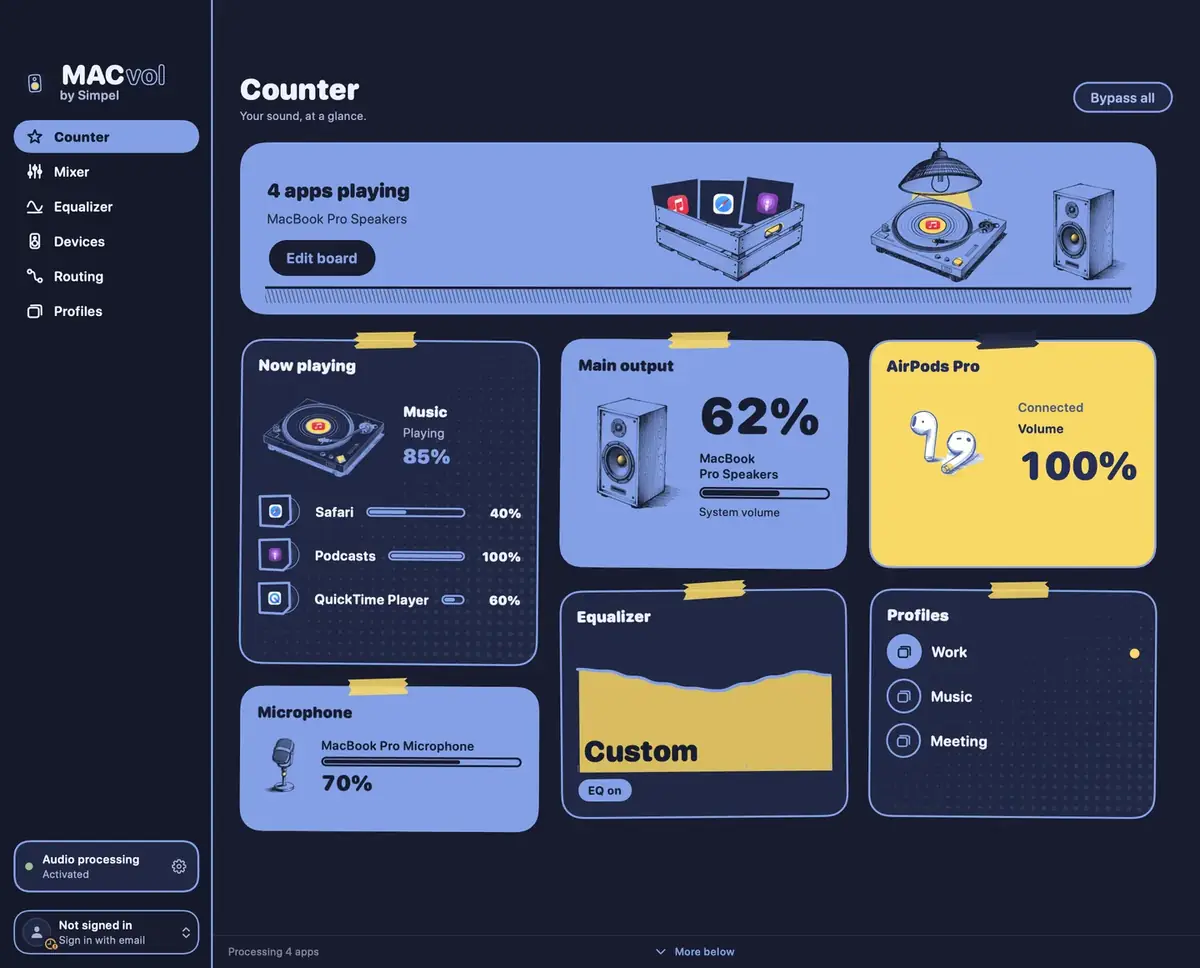
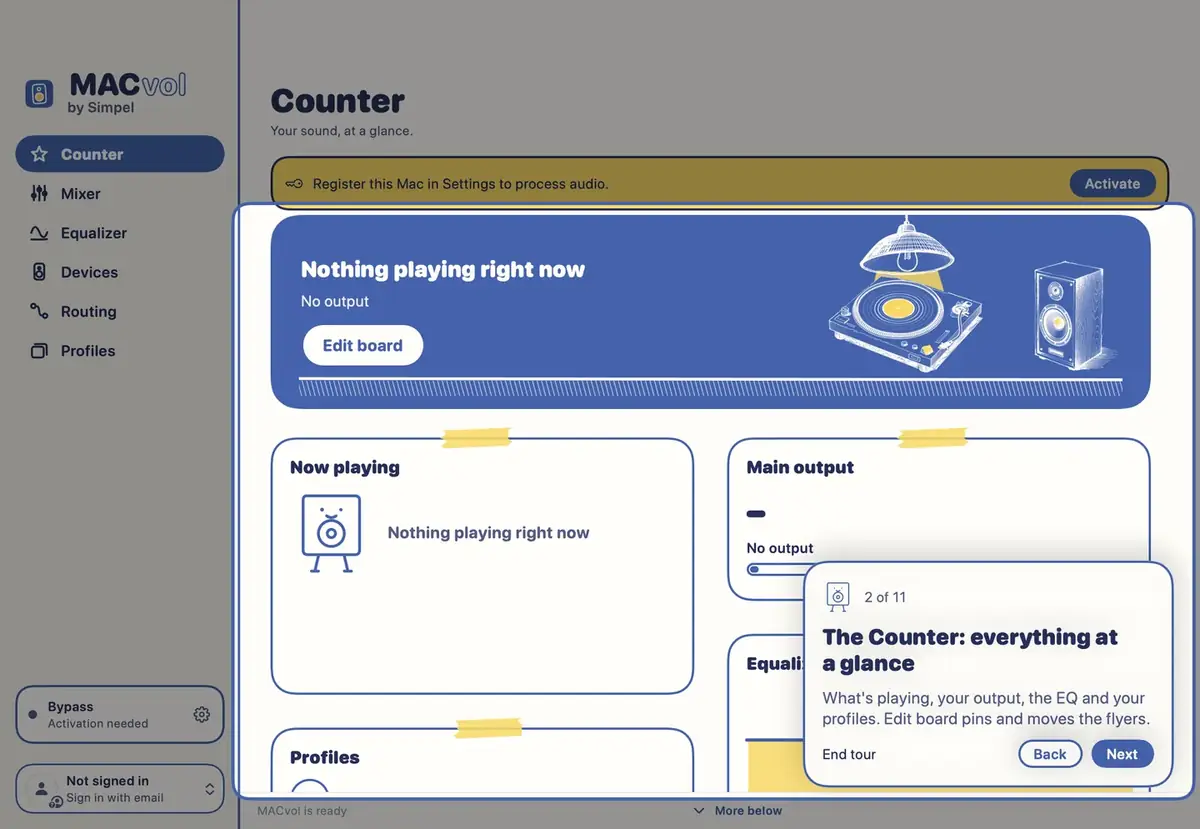
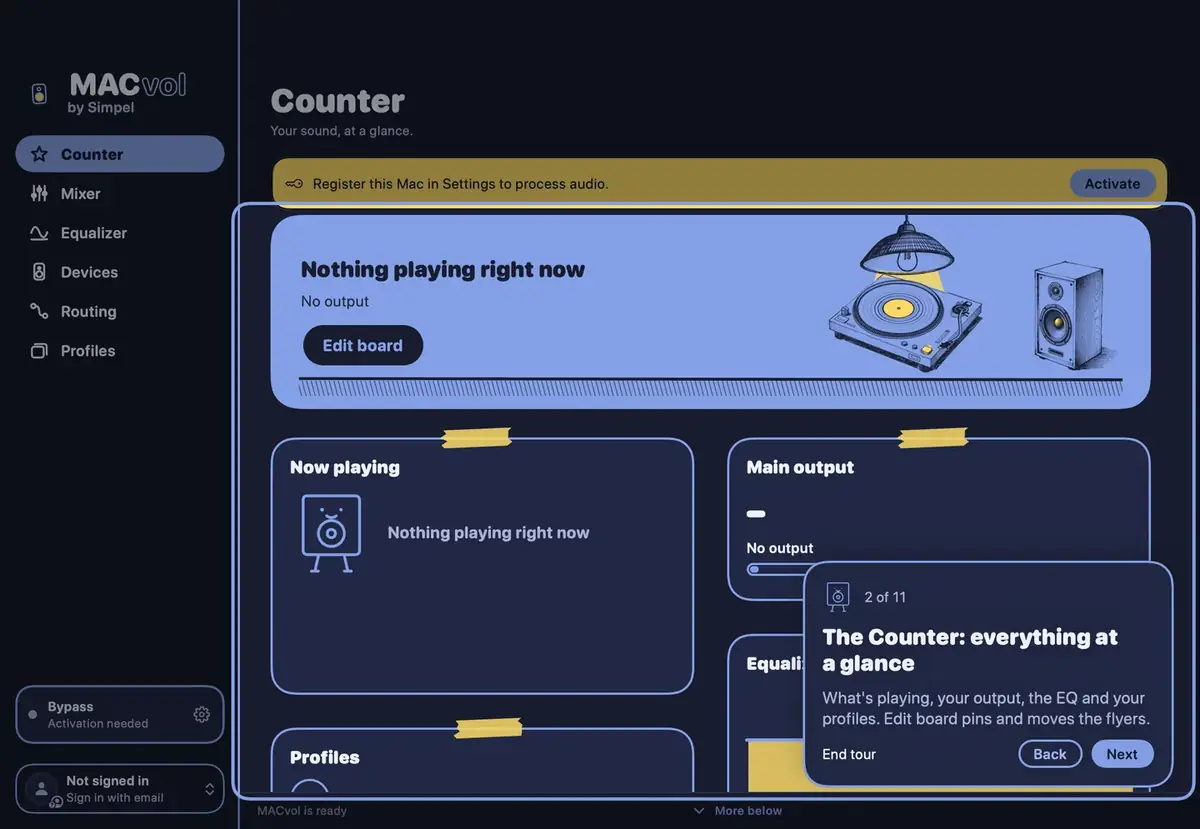
MACvol opens on a home screen of pinned flyers: what plays now, your output, the EQ, your profiles and more.
Compact 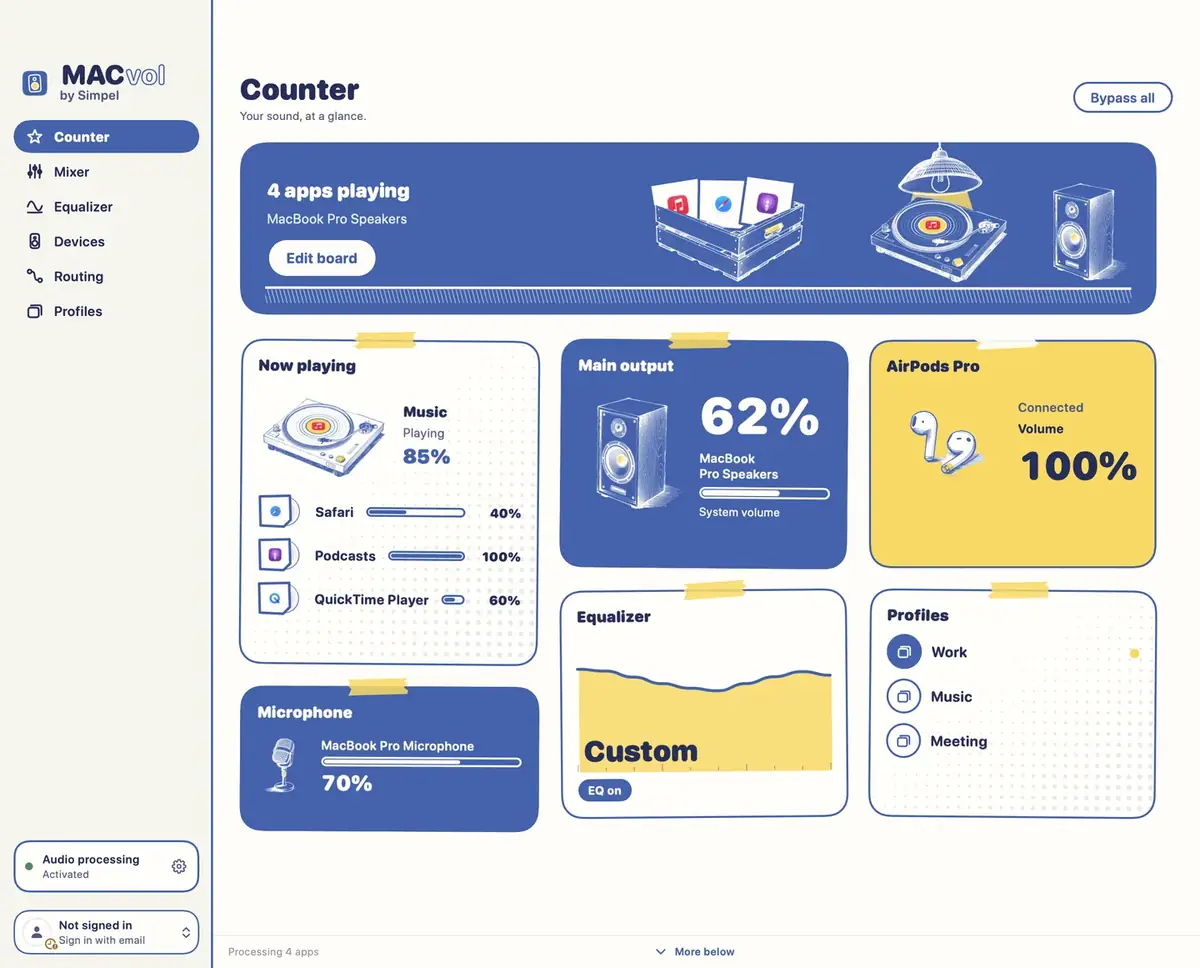
Full 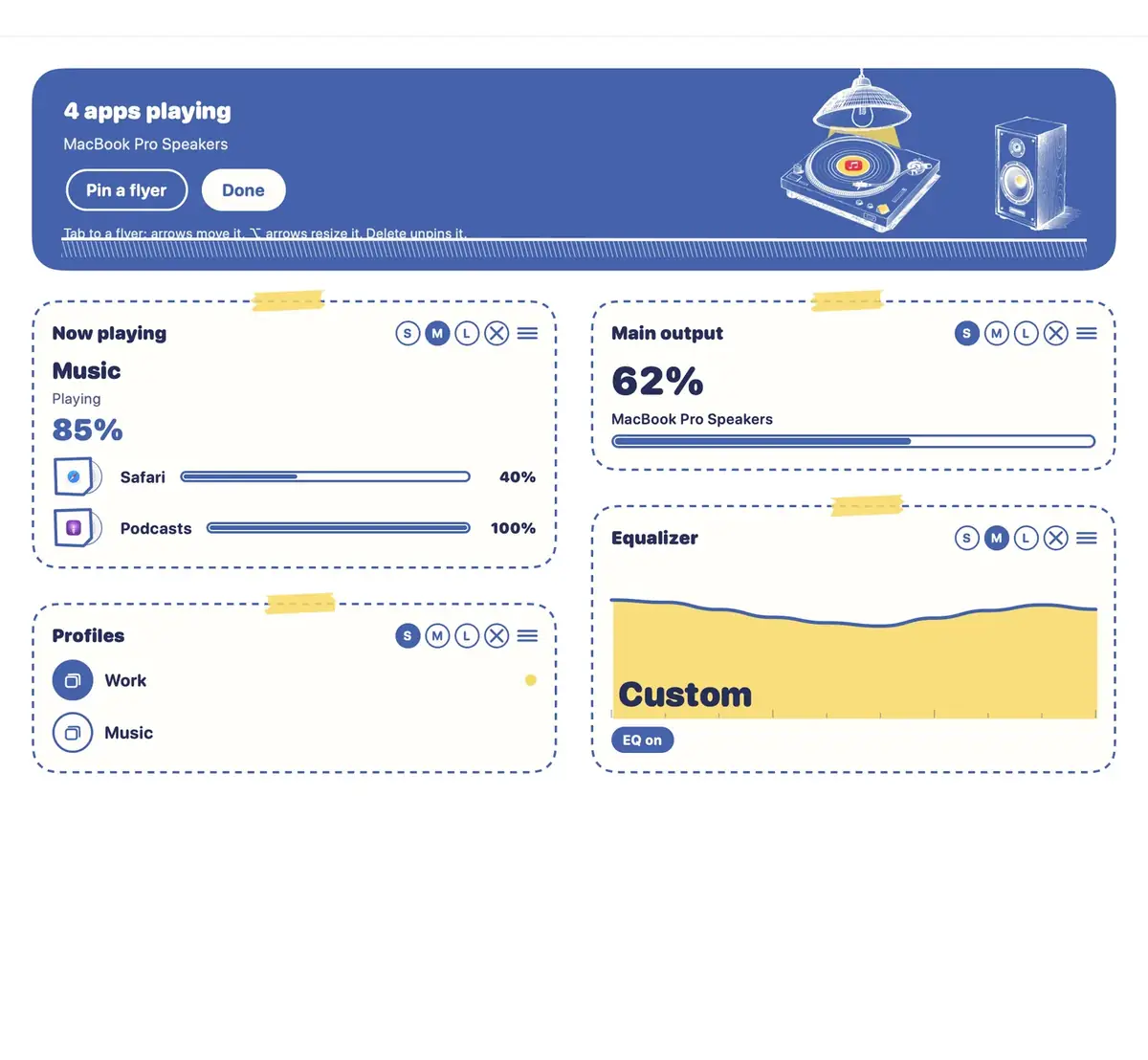
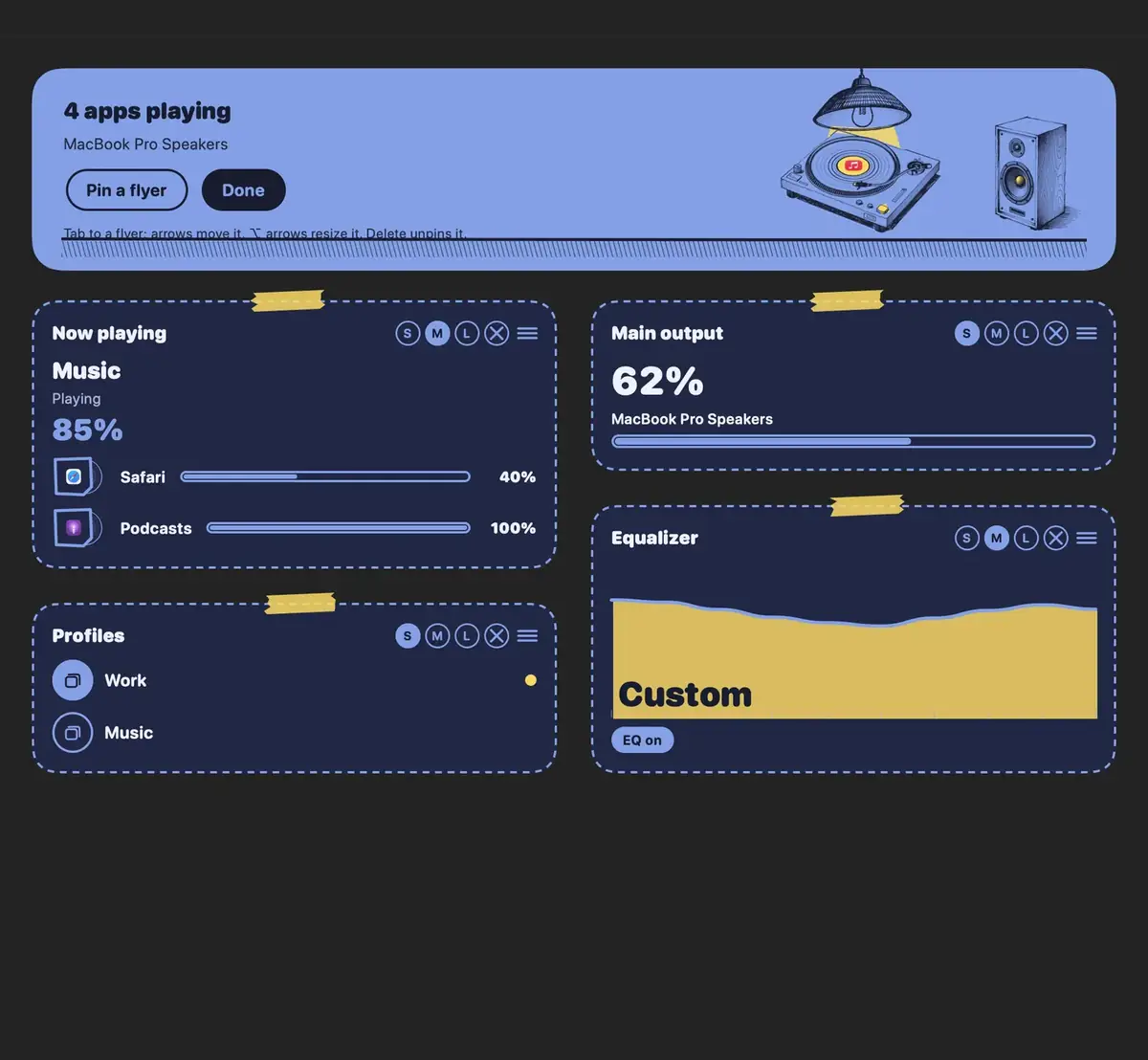
Edit board
- Two looks: Compact (one picture, four plain flyers) or Full (six illustrated flyers)
- Flyers for Now playing, Main output, a device, Equalizer, Profiles, Microphone and any app
- Pin, unpin and drag flyers; sizes S, M and L; up to 24 on a board
- Move and resize flyers with the keyboard and VoiceOver too
- Each look keeps its own arrangement, synced to your other Macs
- Hand-drawn pen-and-ink pictures, in light and dark
A volume for every app
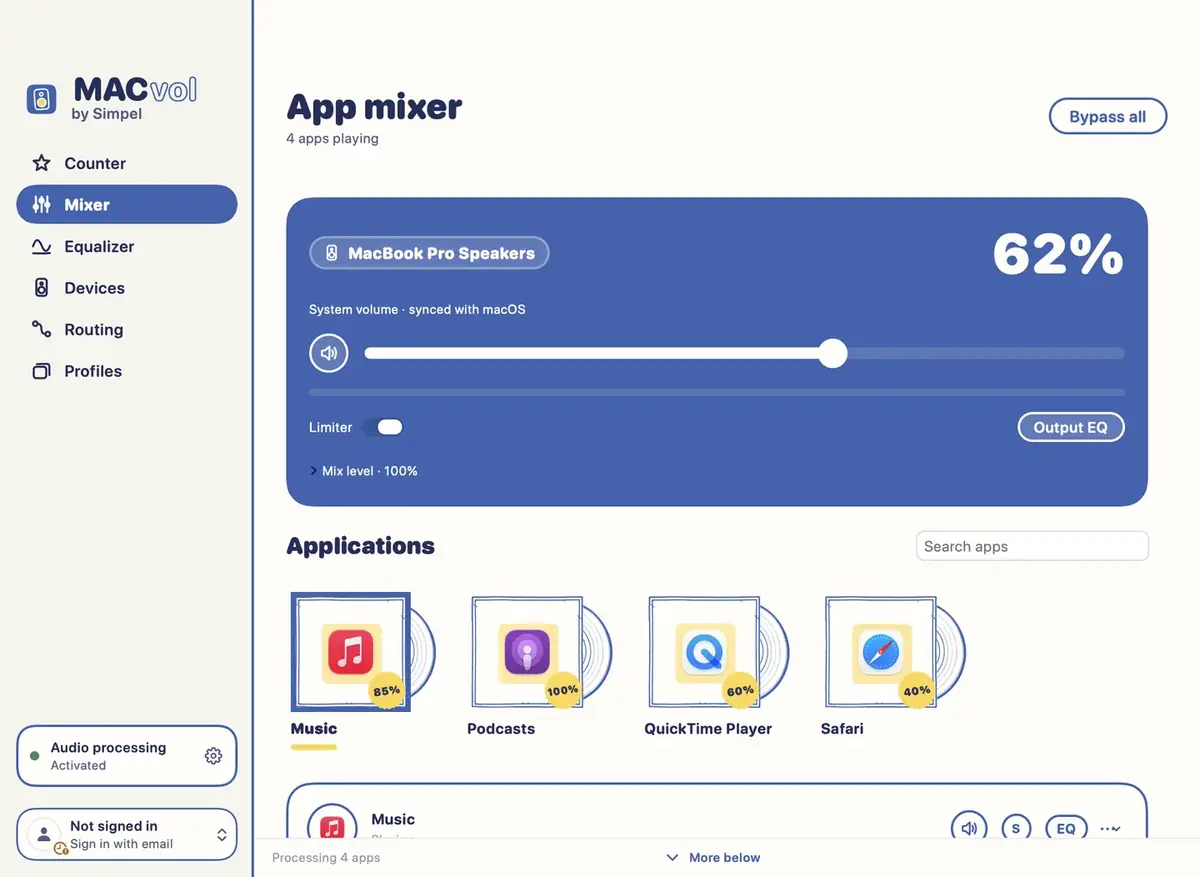
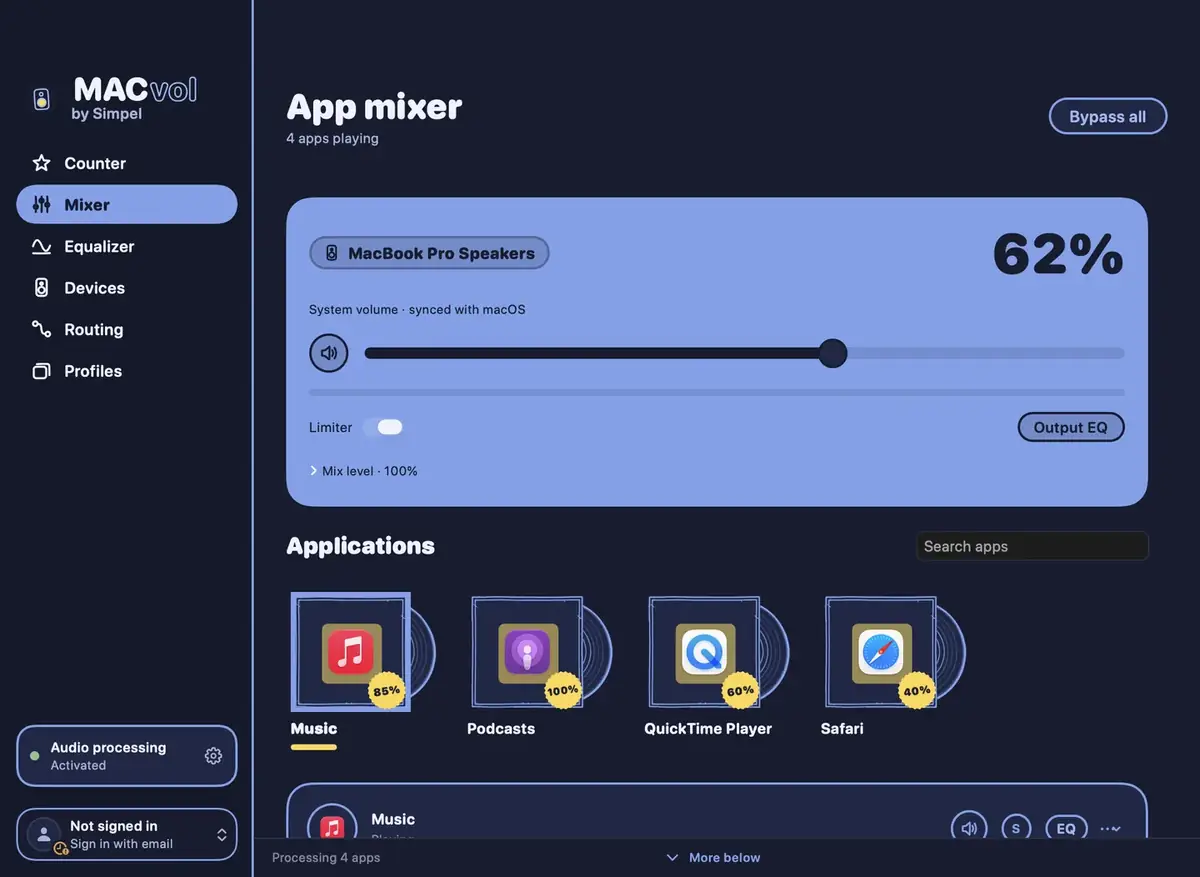
The Mixer lists every app that plays sound. Turn one down without touching the rest.
Up to 400 %
Each app goes from silent to four times louder (+12 dB) for quiet videos and calls.
Mute and Solo
Mute one app, or Solo it so only that app plays. Clear Solo brings the others back.
Priority
Star an app and the others get quieter while it plays, by the amount you set.
Balance and mono
Move an app left or right, or mix it into both ears.
Pin, hide, order
Pinned apps stay listed when quiet. Hidden apps keep their settings. Move one to the top of its group.
Rows that stay put
A notification sound never reorders the list under your pointer.
Back to 100 %
Click an app's volume figure to reset it. Reset app settings clears its EQ and output too.
Leave one app alone
Bypass for one app keeps its normal macOS sound while MACvol handles the rest.
Live level (coming soon)
Each app's volume bar glows with its real level while the panel is open.
One click away in the menu bar
Click the MACvol stamp at the top right of the screen. Every change applies at once.
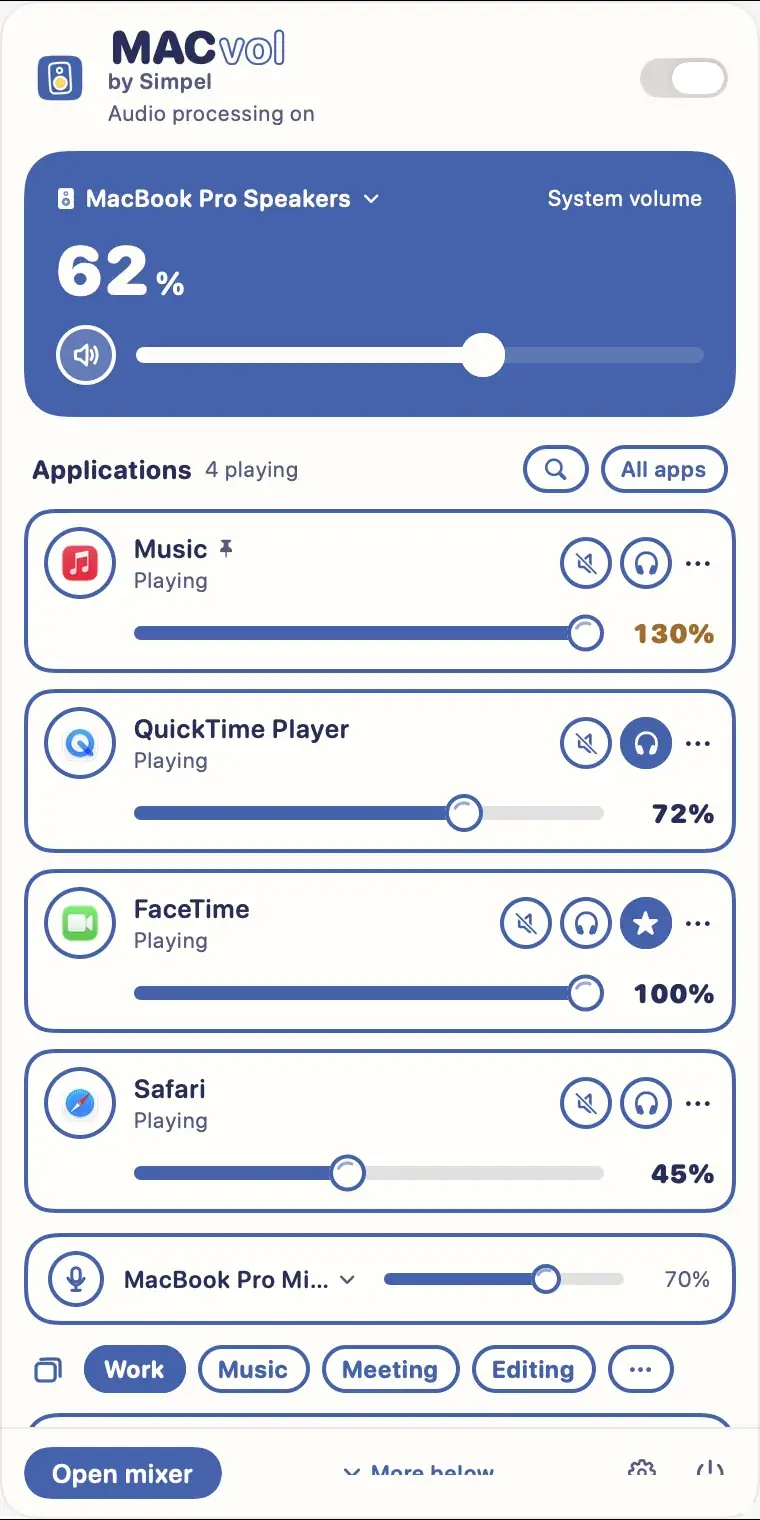
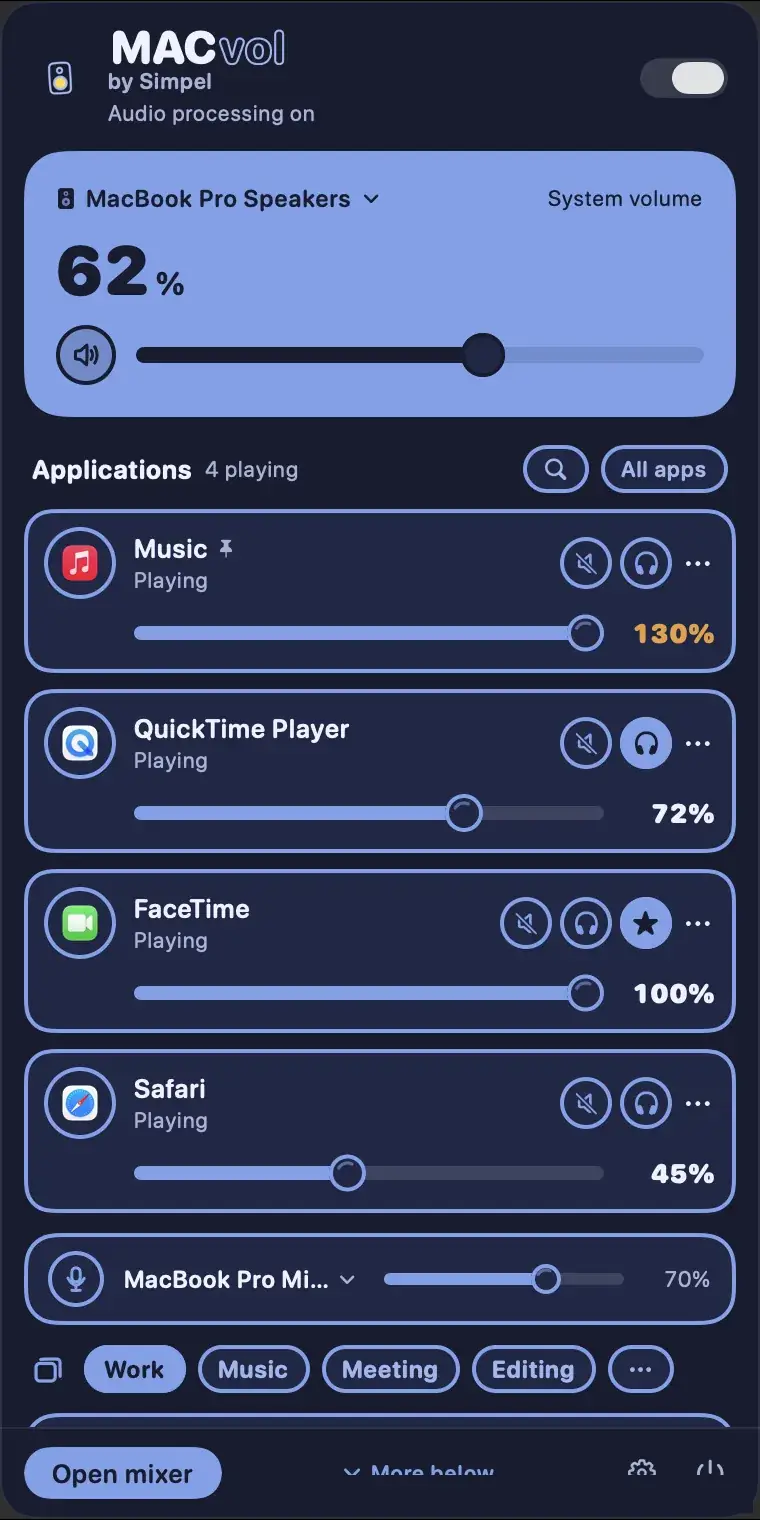
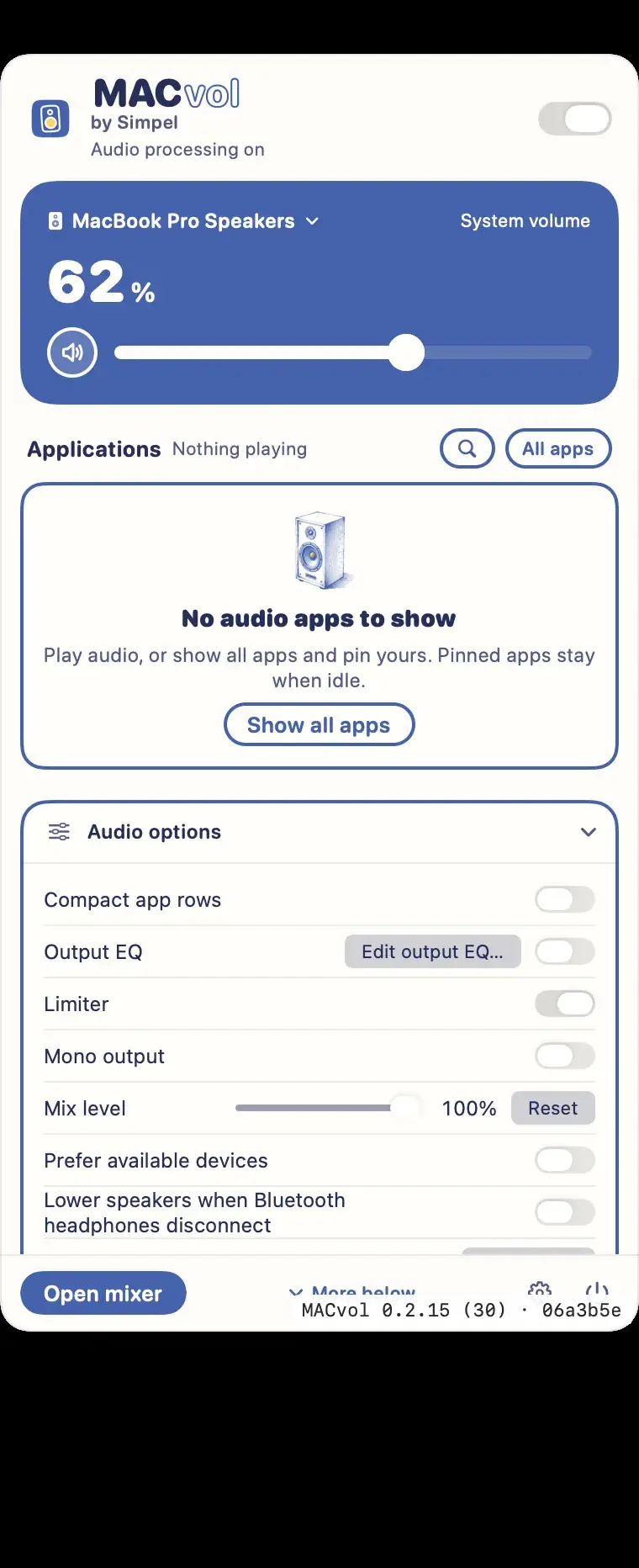
- On/off switch
- Off gives every app its normal macOS sound.
- Output and volume
- Pick the speaker or headphones, set the big volume, mute with the round stamp.
- App rows
- Slider, mute, Solo, Priority star and ⋯ for more, for each playing app.
- All apps and search
- Show idle apps too. A search field appears past six apps; Esc clears it.
- Microphone line
- Mute the mic, pick which one is used, set its level, see the apps using it.
- Profile chips
- One click switches to a saved setup.
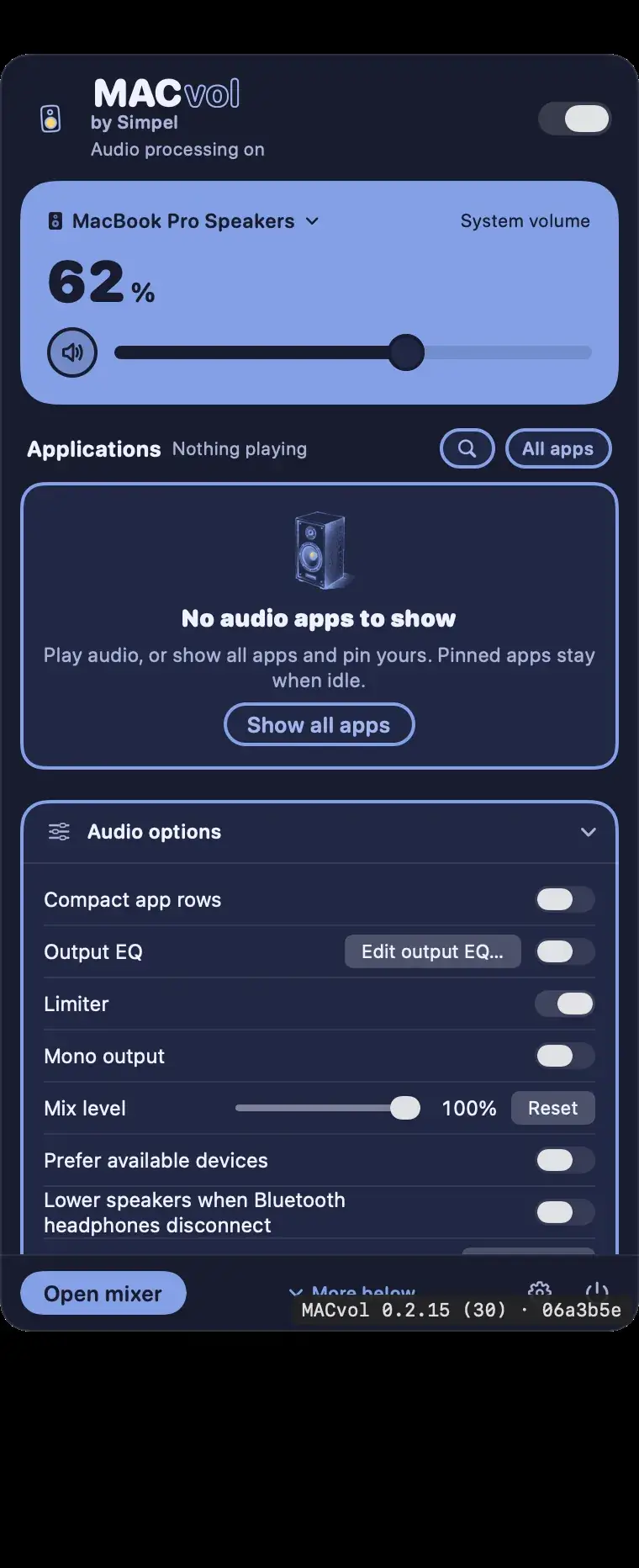
- Audio options
- Compact rows, output EQ, limiter, mono, mix level, preferred devices, headphone safety, retry and ducking.
- Footer
- Open the big window, open Settings or quit; apps return to normal sound.
Everything in an app's ⋯ menu
The ⋯ at the end of each app row holds the rest of its controls. Edits made while processing is off are saved and labelled.
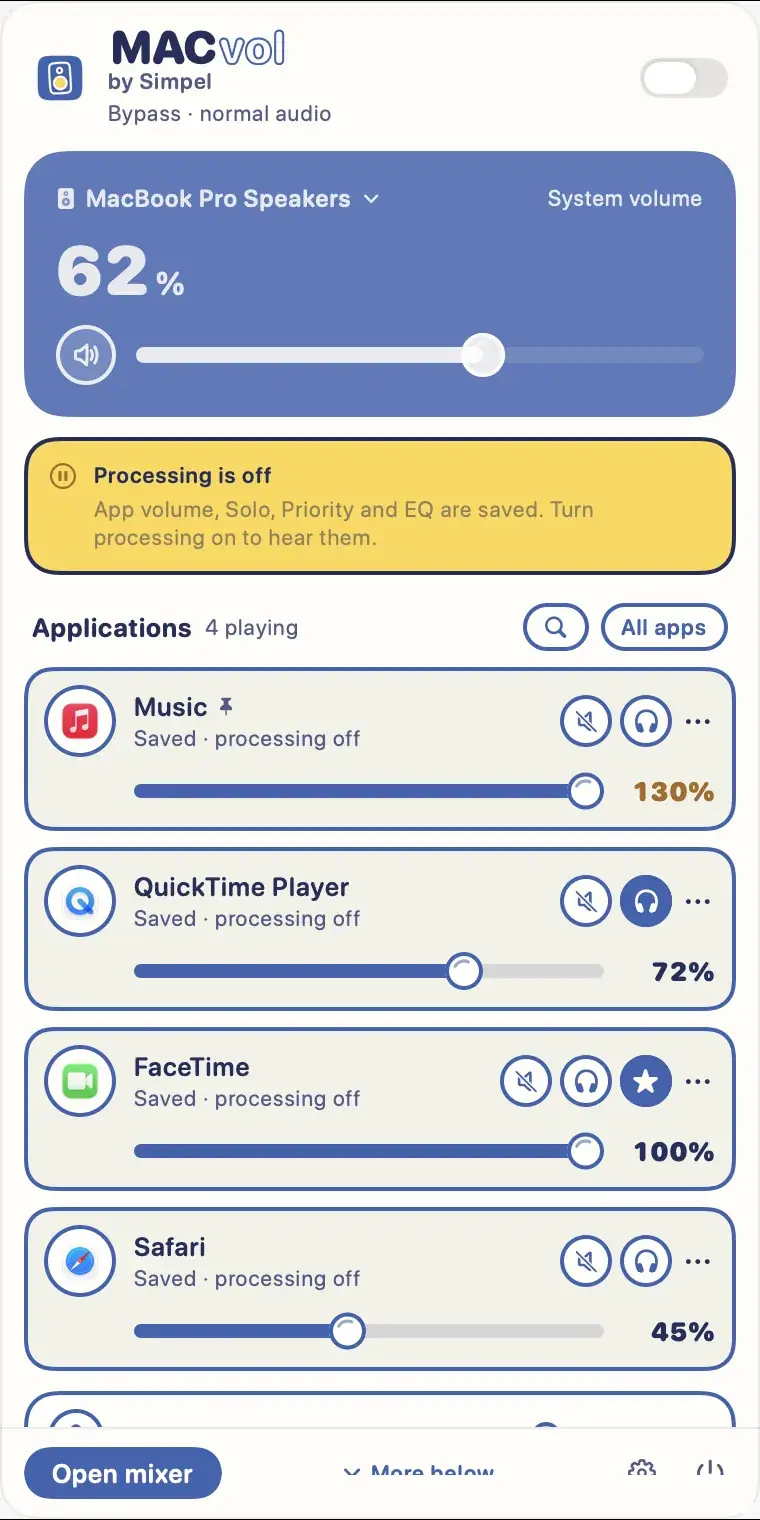
- Move to first in group
- Pin, so the app stays in the panel when quiet
- Hide from the panel, settings still apply
- Mono for this app
- Bypass this one app
- Process during calls, for a call app you want louder
- Turn the app's own EQ on, or open it in the Equalizer
- Send the app to another speaker, or follow the default output
- Balance and Boost
- Reset app settings to 100 %, no EQ, default output
- Retry an app that lost its sound
An equalizer for each app and output
Raise bass, bring voices forward or soften treble, for one app or for everything on a speaker.
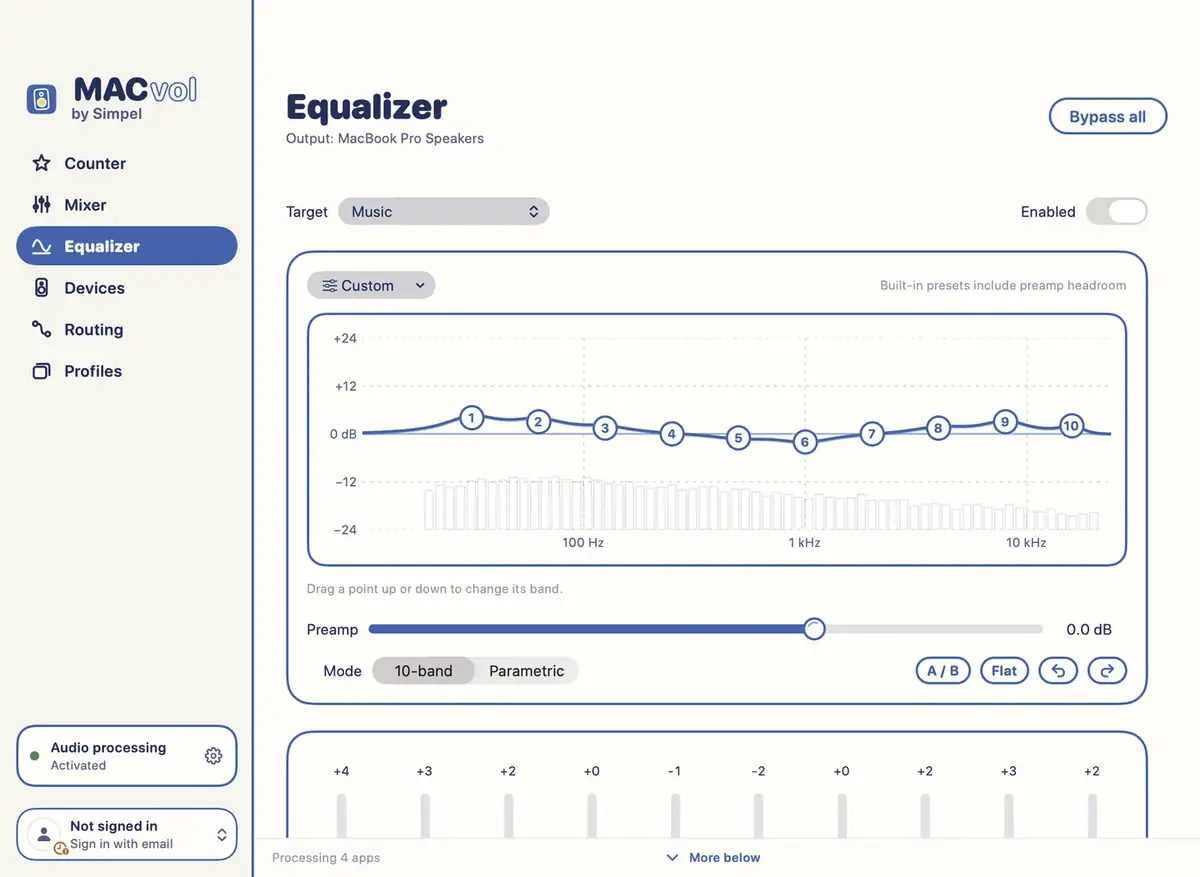
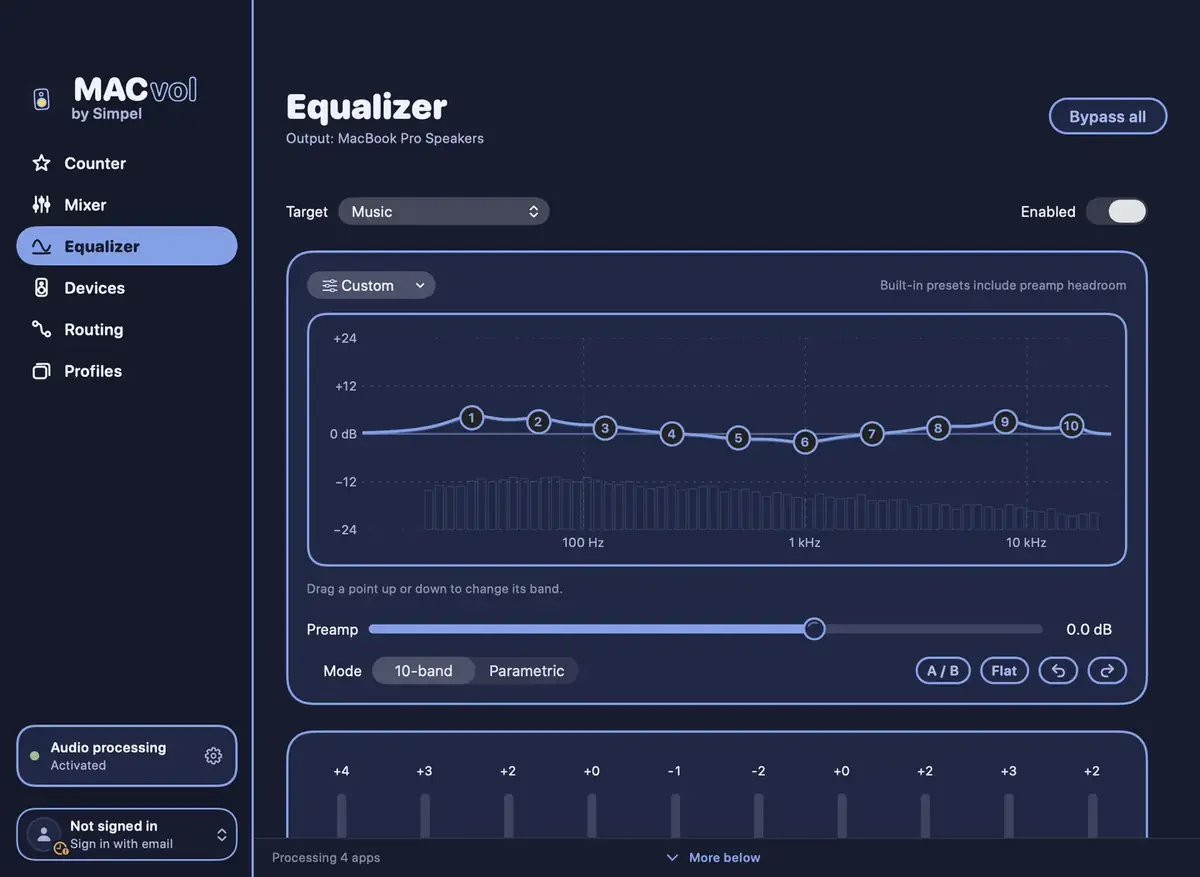
Templates: Flat · Bass Boost · Bass Reduce · Treble Boost · Treble Reduce · Vocal Boost · Acoustic · Classical · Dance · Deep · Electronic · Hip-Hop · Jazz · Latin · Lounge · Piano · Pop · R&B · Rock · Soft Rock · Techno · Soft · Loudness · Cinema · Podcast · Spoken Word · Small Speakers
10-band or parametric
Drag points on a graph, or switch to parametric with up to 32 bands of your own.
27 built-in presets
Grouped as Tone, Music, and Voice and listening. Each leaves headroom so nothing clips.
Your own presets
Save the current curve under a name; the same name replaces it. Up to 512.
Preamp
From −24 to +12 dB, snapping to 0 dB with a light tick.
A/B, undo, redo
Compare two curves, step back and forward, or press Flat to start over.
Live spectrum
The real sound shows behind the curve, on a grid whose dB and Hz labels line up.
Pick the target
The output, one device, or any app. Output EQ sits on top of app EQs.
Smooth changes
Switching presets glides the curve and ramps the sound, with no clicks.
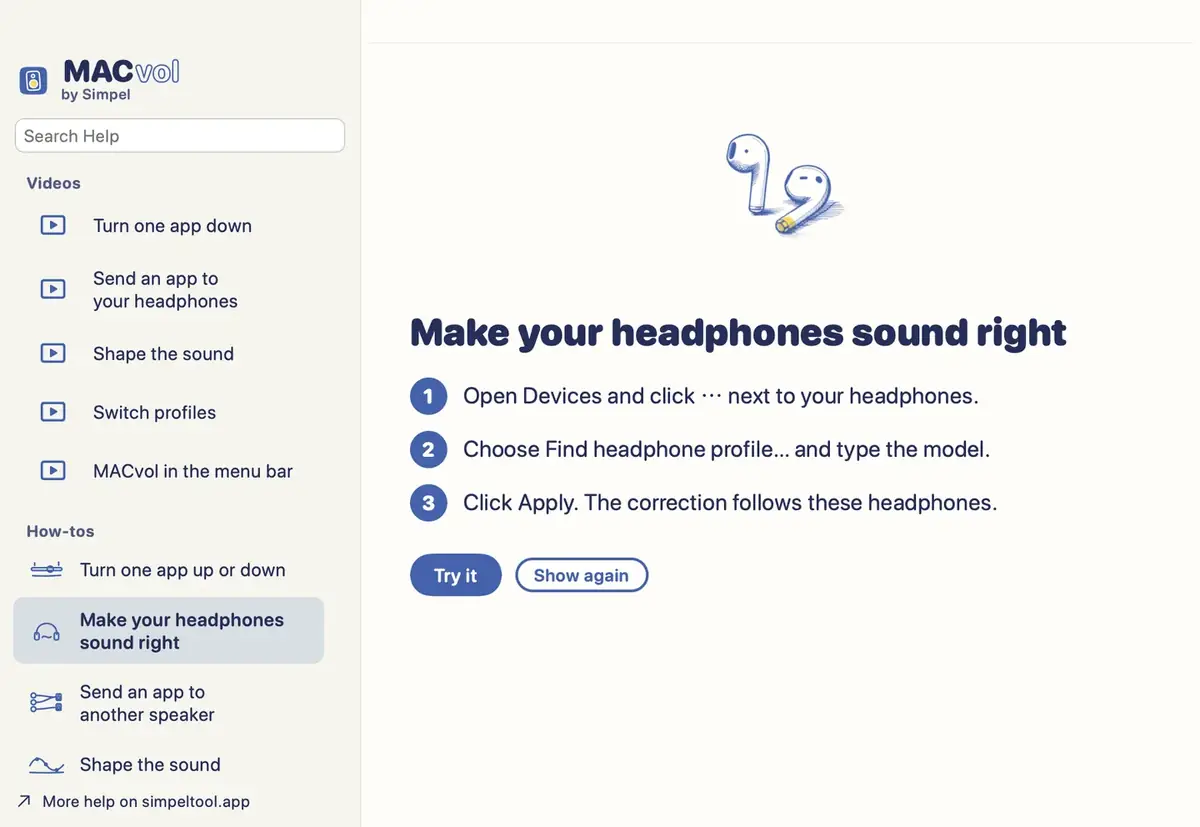
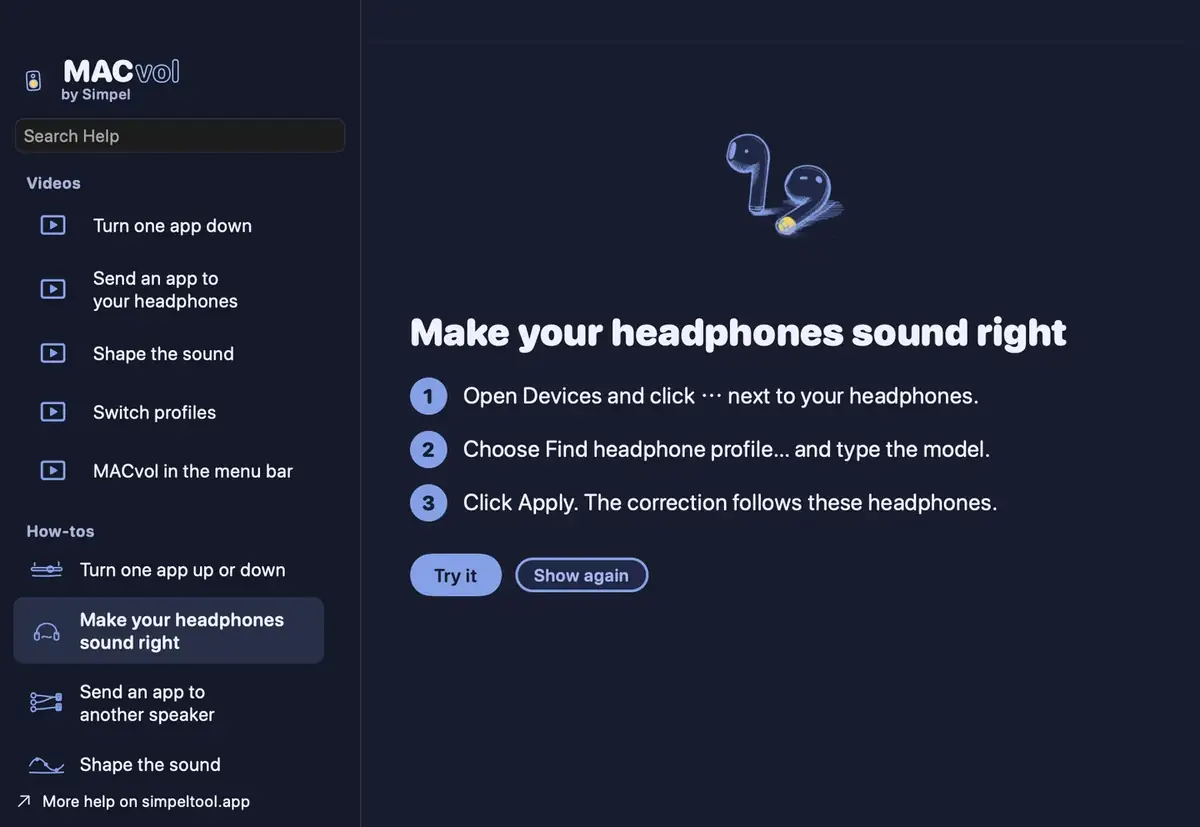
Make your headphones sound right
A built-in library of measured headphone corrections, searched on this Mac with no download.
Open Devices
Click ⋯ next to your headphones.
Find the model
Choose Find headphone profile… and type the name.
Apply
The correction follows these headphones from now on.
- Close to 8,850 headphone profiles in the app
- Results in well under a second, fully offline
- Its own slot: your EQ and presets stay as they are
- Turn Headphone correction on or off per device
- Follows the headphones by name on your other Macs
Speakers, headphones and microphones
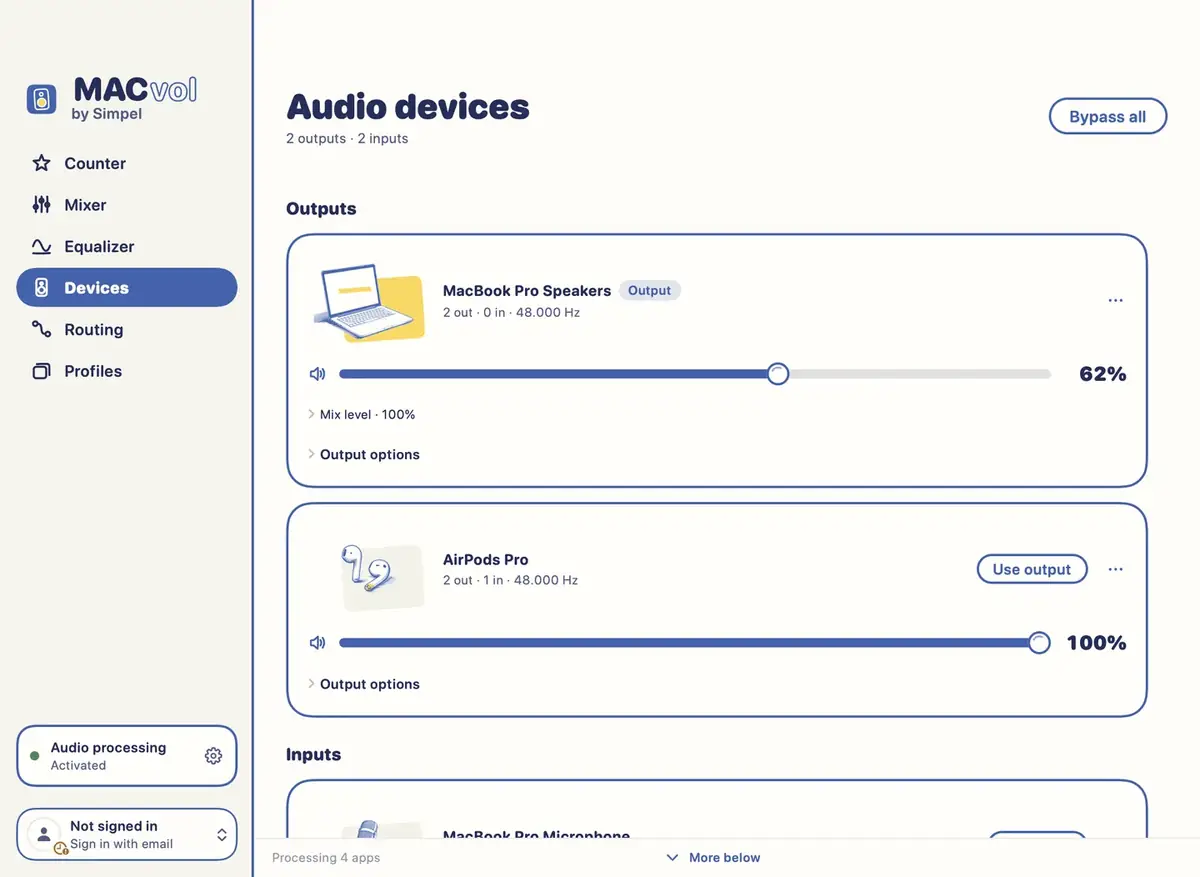
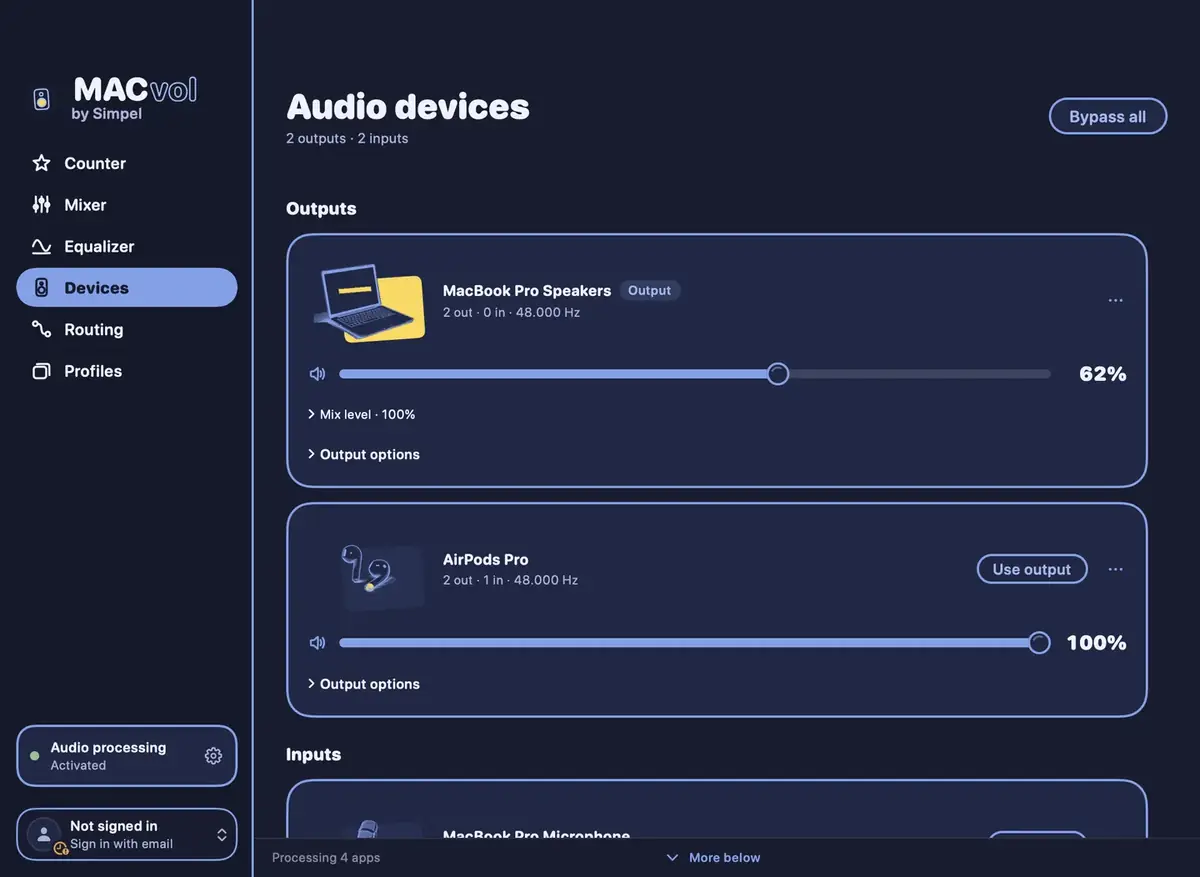
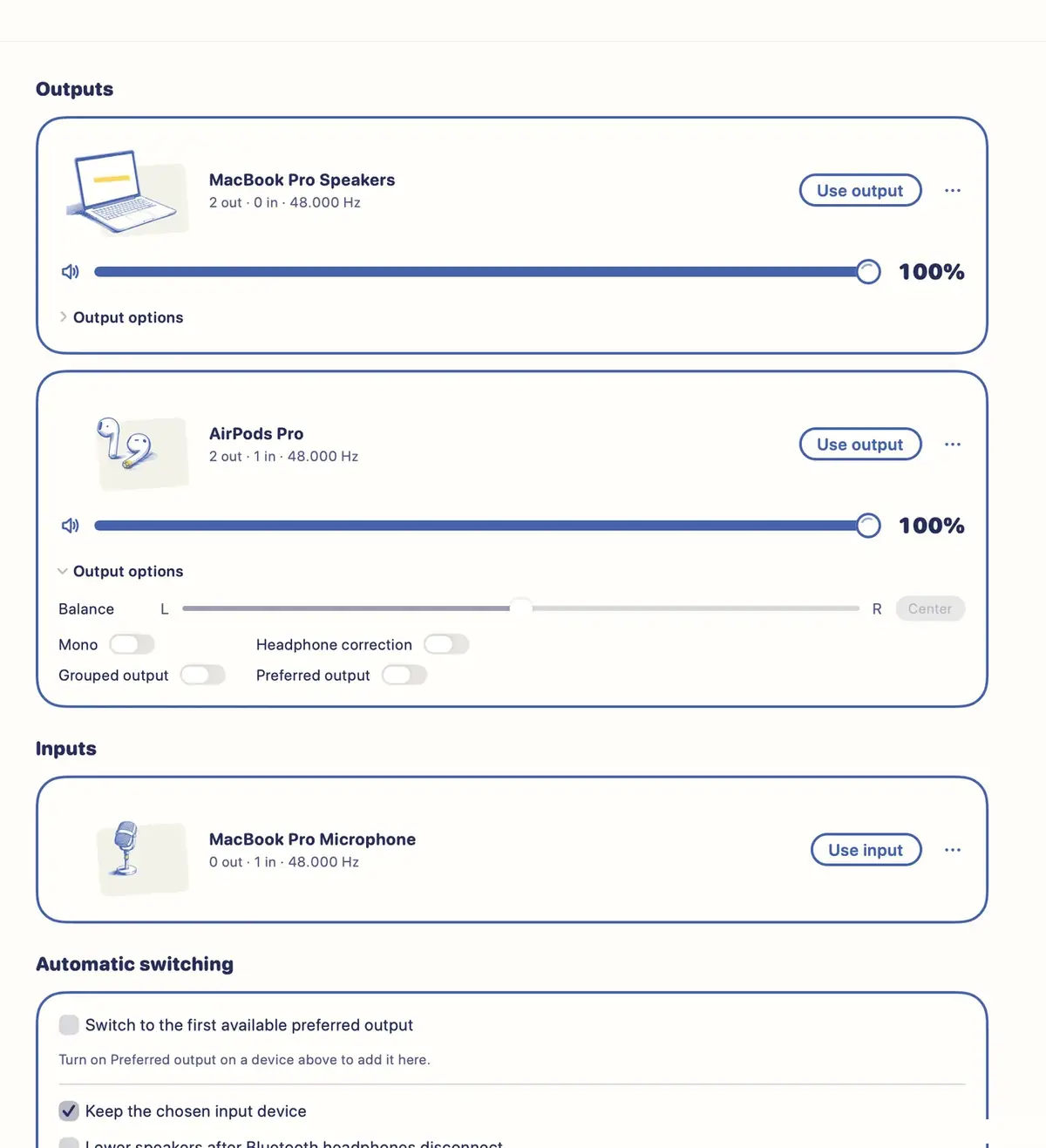
Every output and input in one list, with its own volume and options.
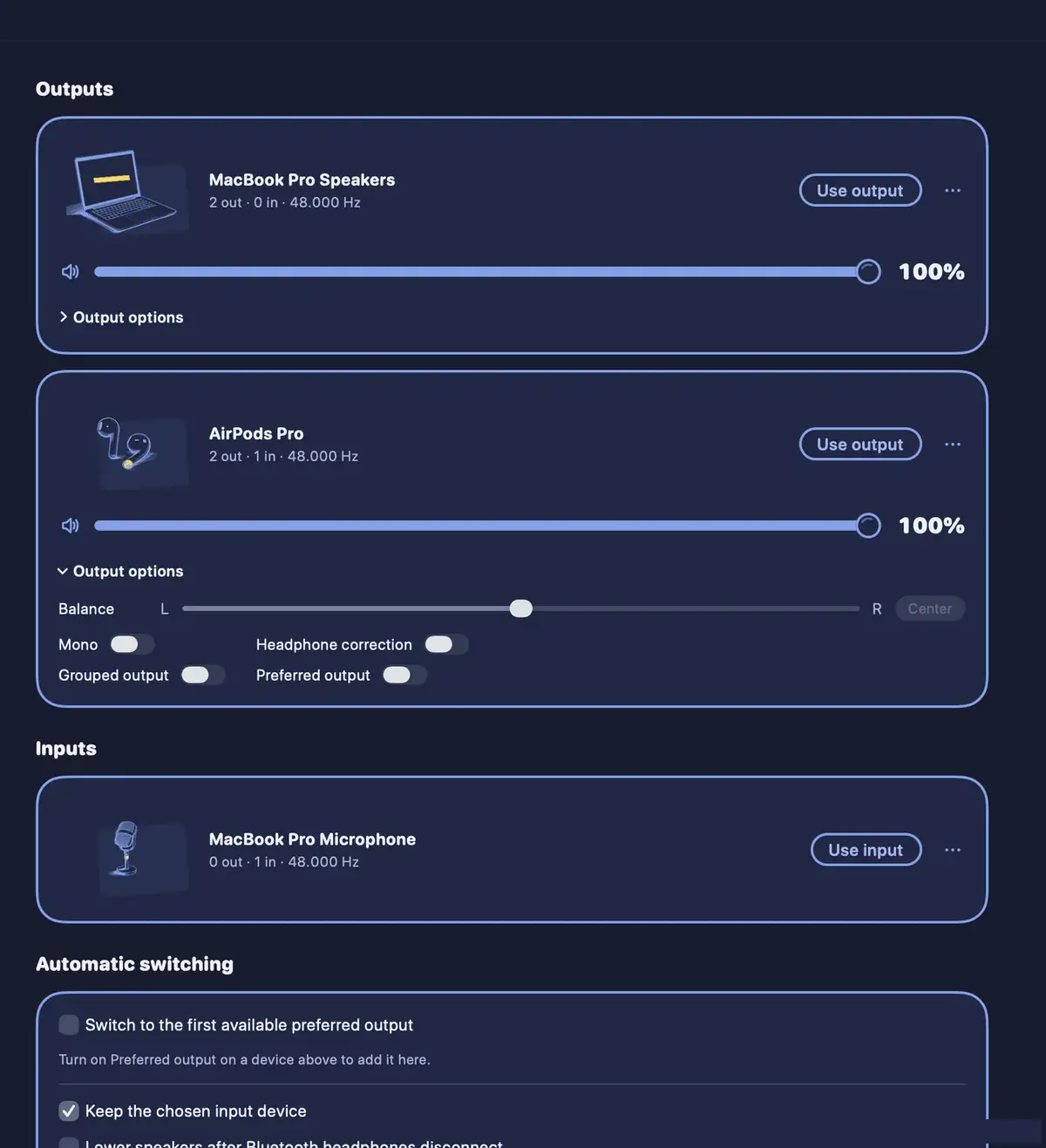
- Use output, use input
- One click makes a device the Mac's default.
- System volume
- Follows macOS, even when changed elsewhere.
- Mix level
- MACvol's own level on top, up to 400 %.
- Balance, mono, limiter
- Per output; the limiter stops boosted apps from distorting.
- Grouped output
- Play on up to eight outputs at once.
- Output priority
- With Prefer available devices, the highest one takes over when it connects.
- Keep the chosen input
- A new headset does not steal the microphone.
- Headphone safety
- Lowers the speakers when Bluetooth headphones disconnect.
- Devices not connected
- Settings for a missing device are listed; Move to… gives them to another one.
Send each app to its own speaker
Routing draws a patch bay: apps on the left, devices on the right, one cable per app.
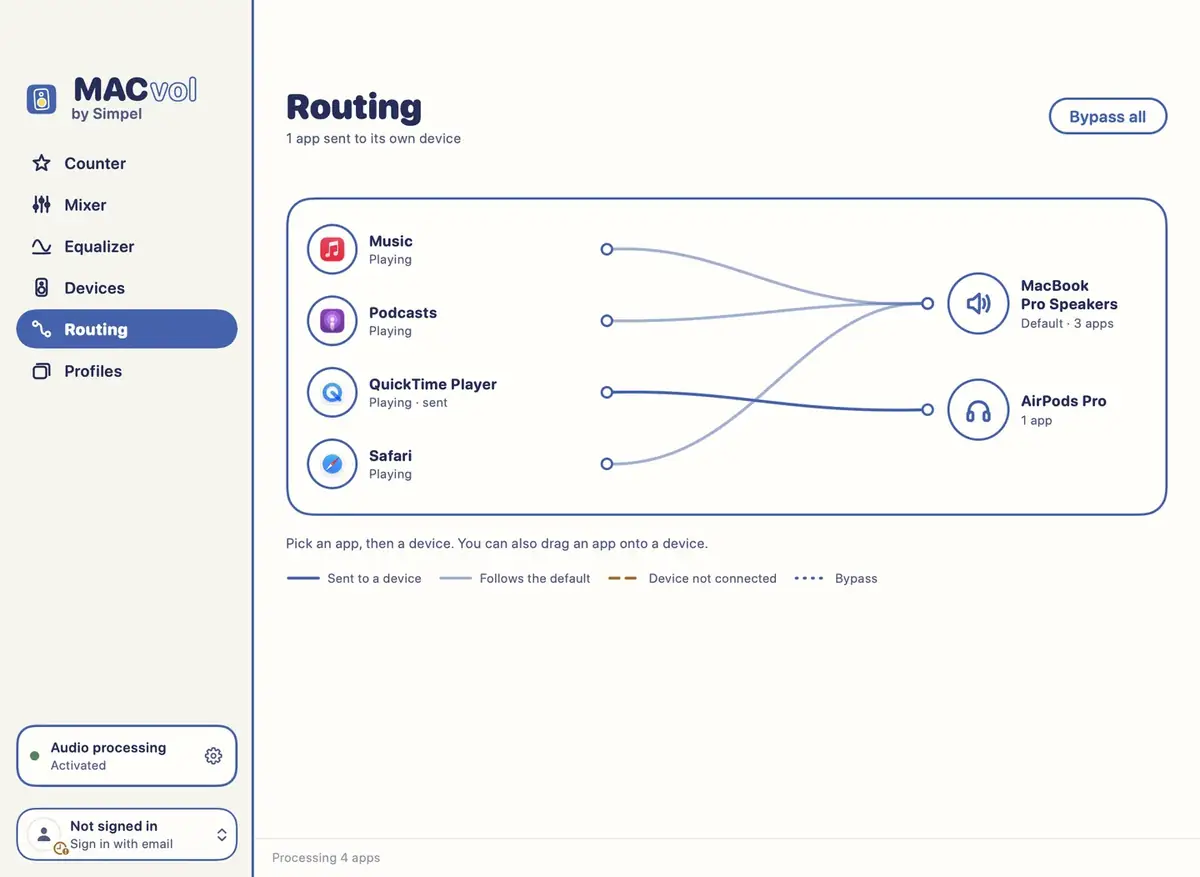
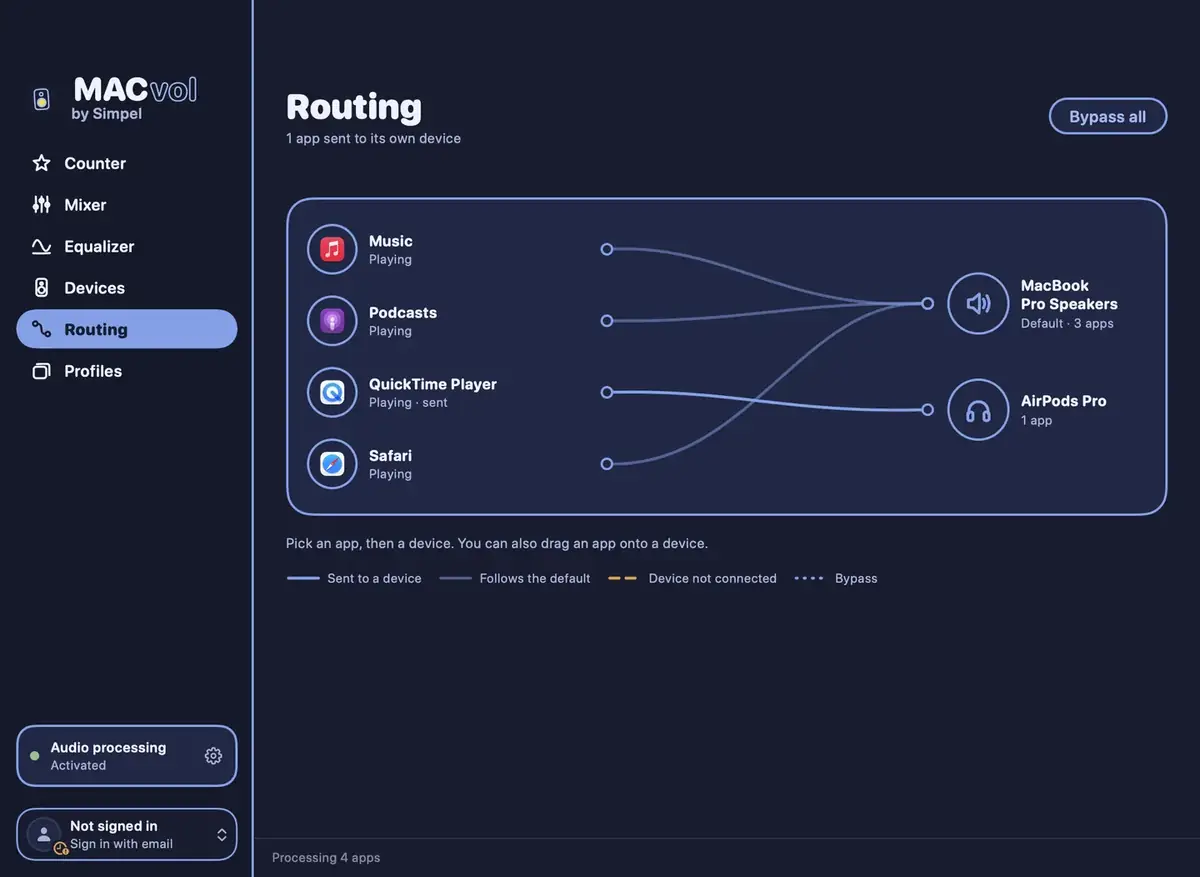
- Pick an app, then a device; or drag the app onto the device
- Music on headphones while a call stays on the speakers
- Follow the default output puts an app back with the rest
- Cable styles show sent, following the default, device not connected and bypassed
- An app waiting for its device plays again as soon as it connects
- Also from any app's ⋯ menu, under Output routing
Profiles that switch by themselves
A profile keeps app volumes, EQ, outputs and ducking for one situation, like work, music or a meeting.
Save the current setup
Type a name; using an existing name updates it.
Pick a trigger
When an output connects, or when an app comes to the front.
Let it run
When the trigger ends, everything goes back the way it was.
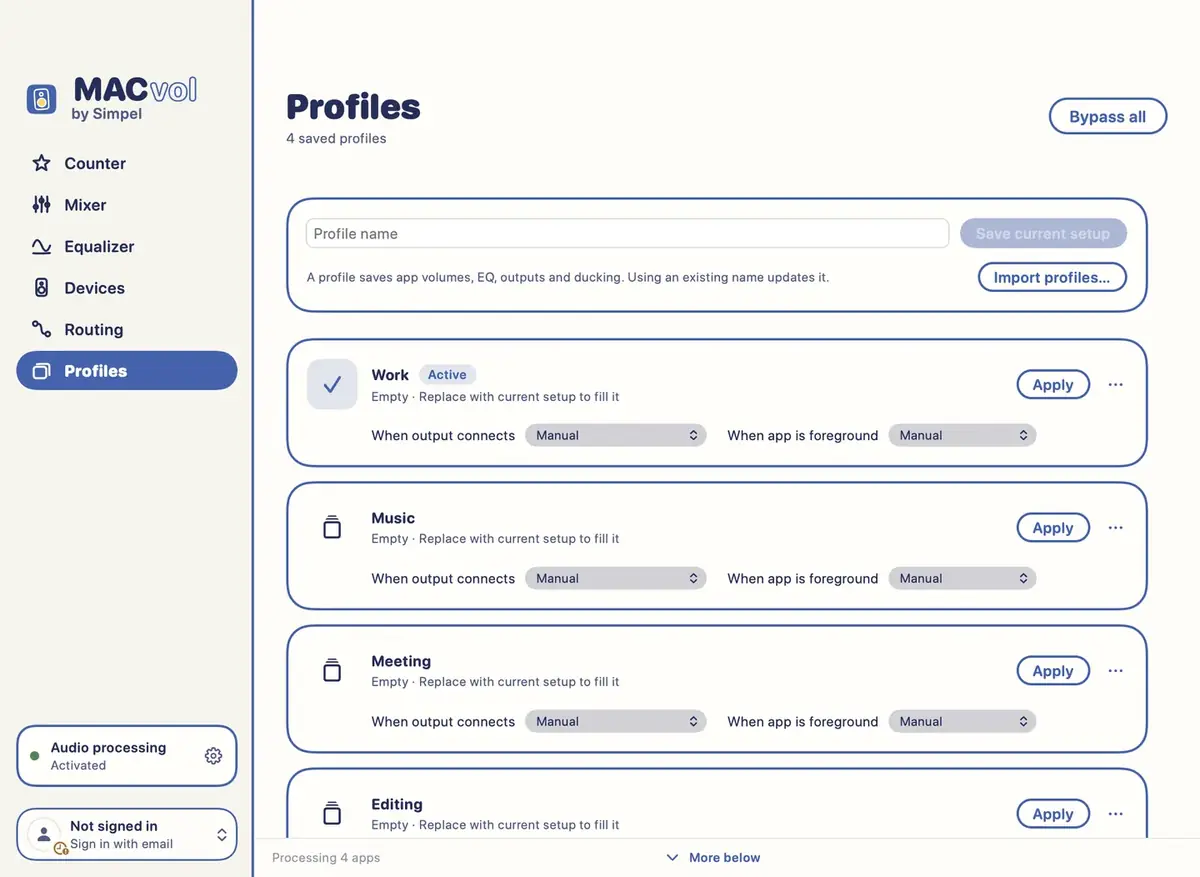
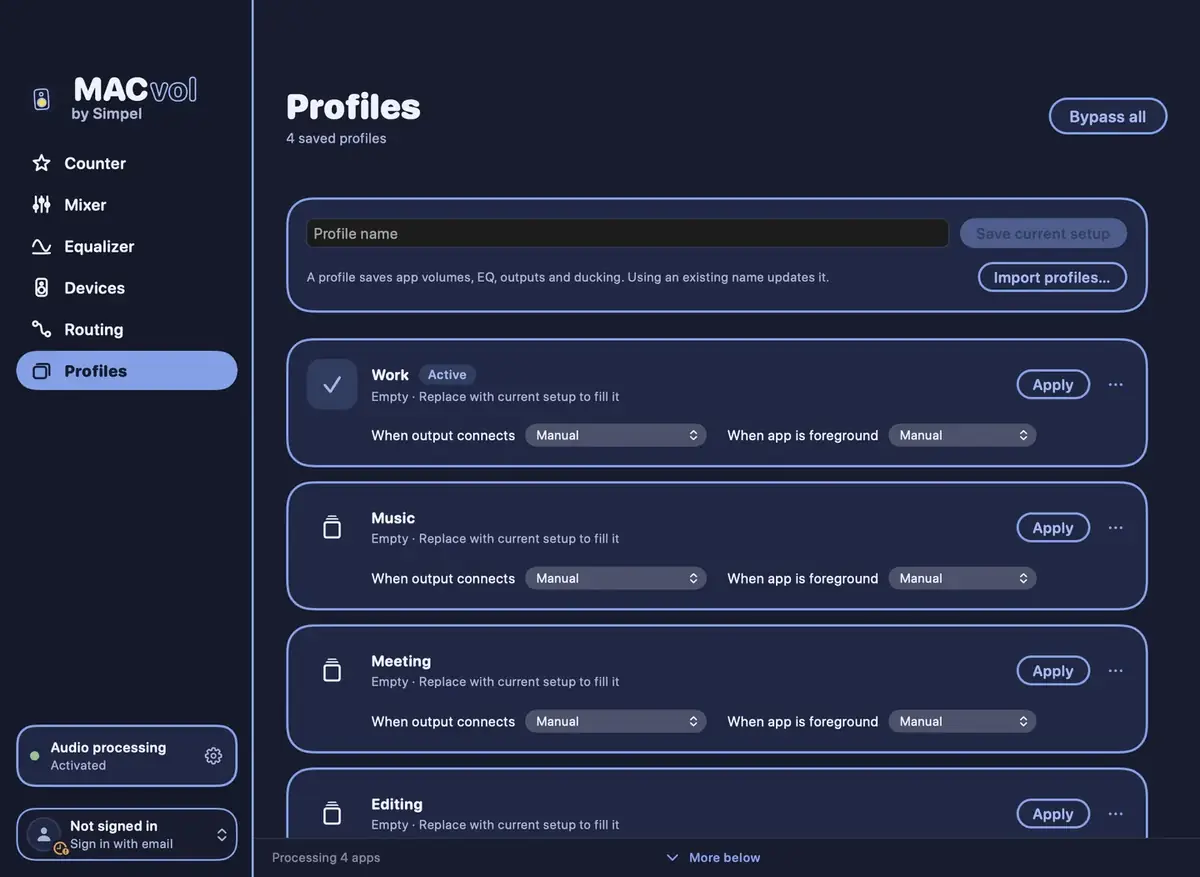
- Apply any profile by hand with one click
- Profile chips in the menu bar panel
- Rename, delete, and undo a delete with ⌘Z
- Export a profile as a file, import profiles from one
- A profile started by a device follows that device when it changes
- Opening the panel never applies a profile on its own
Calls and the microphone
MACvol knows when you are on a call, keeps the call clean and keeps music out of the way.
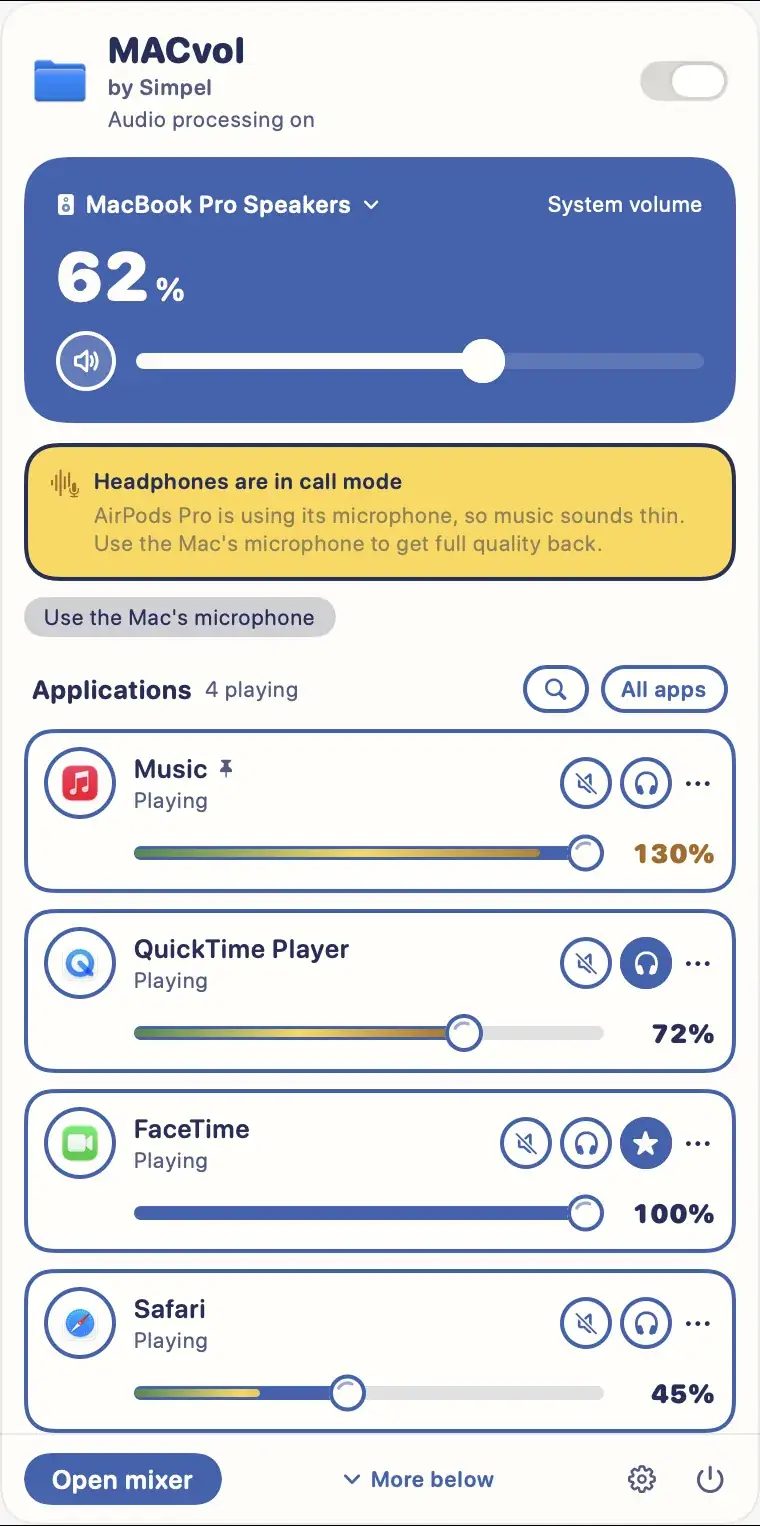
Call apps keep their sound
An app that plays while using the mic keeps its own echo cancellation. On by default.
Or process it anyway
Process during calls, per app, when a quiet caller needs a boost.
Music pauses for calls
Music players pause when a call starts and resume after. Only what MACvol paused resumes.
Bluetooth call mode (coming soon)
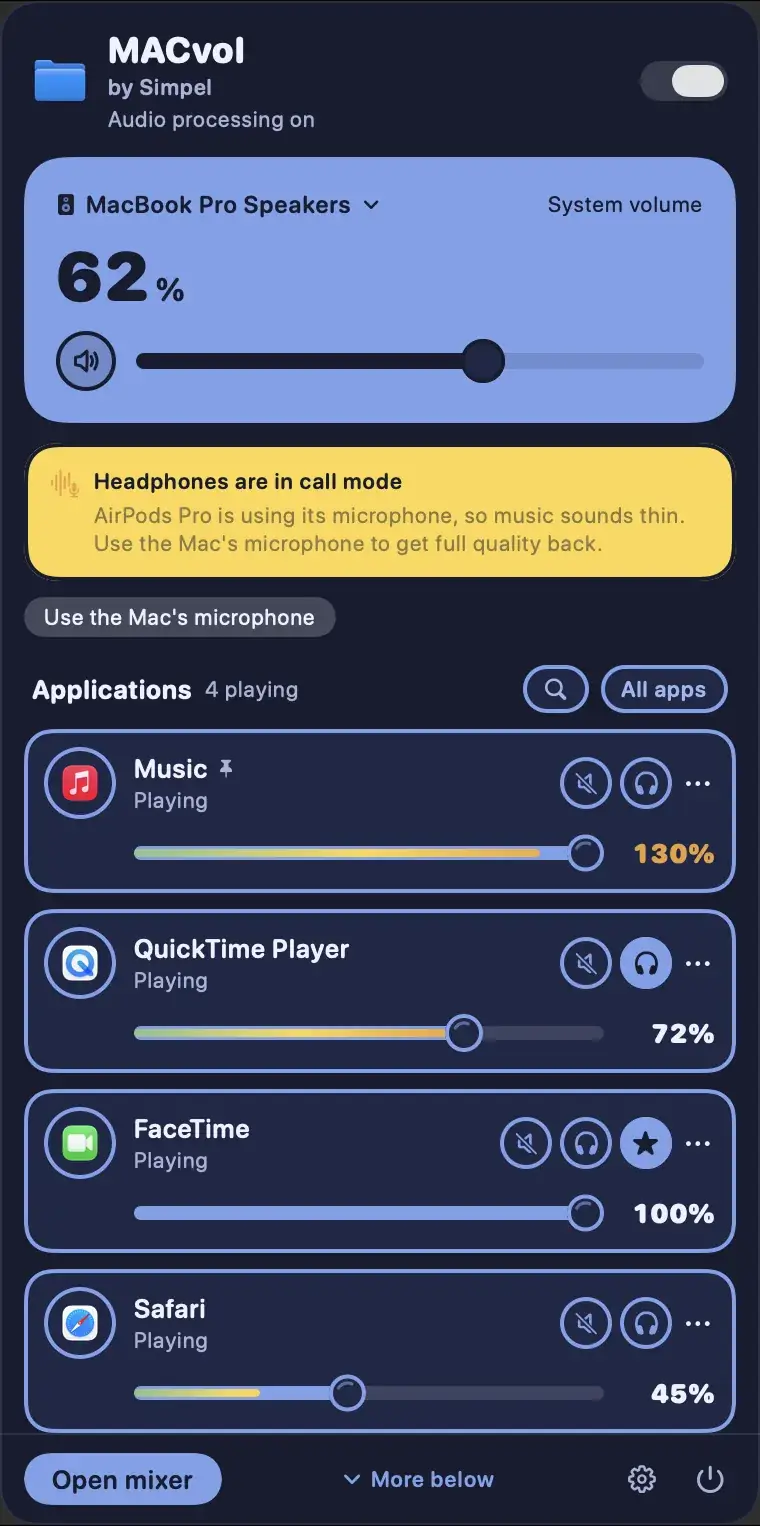
When headphones drop into call mode and music sounds thin, the panel says so and offers the Mac's microphone in one tap.
Mic in the panel
Mute it, pick it and set its level, with the apps using it listed.
Mic mute shortcut
Mutes the default mic in hardware; the overlay shows its name. Off until you turn it on.
Ducking for Priority
Set how much quieter others get (down to −48 dB), the threshold, attack and release.
Keys, shortcuts and the volume display
Control MACvol from anywhere on your Mac, and see the level on screen as you change it.
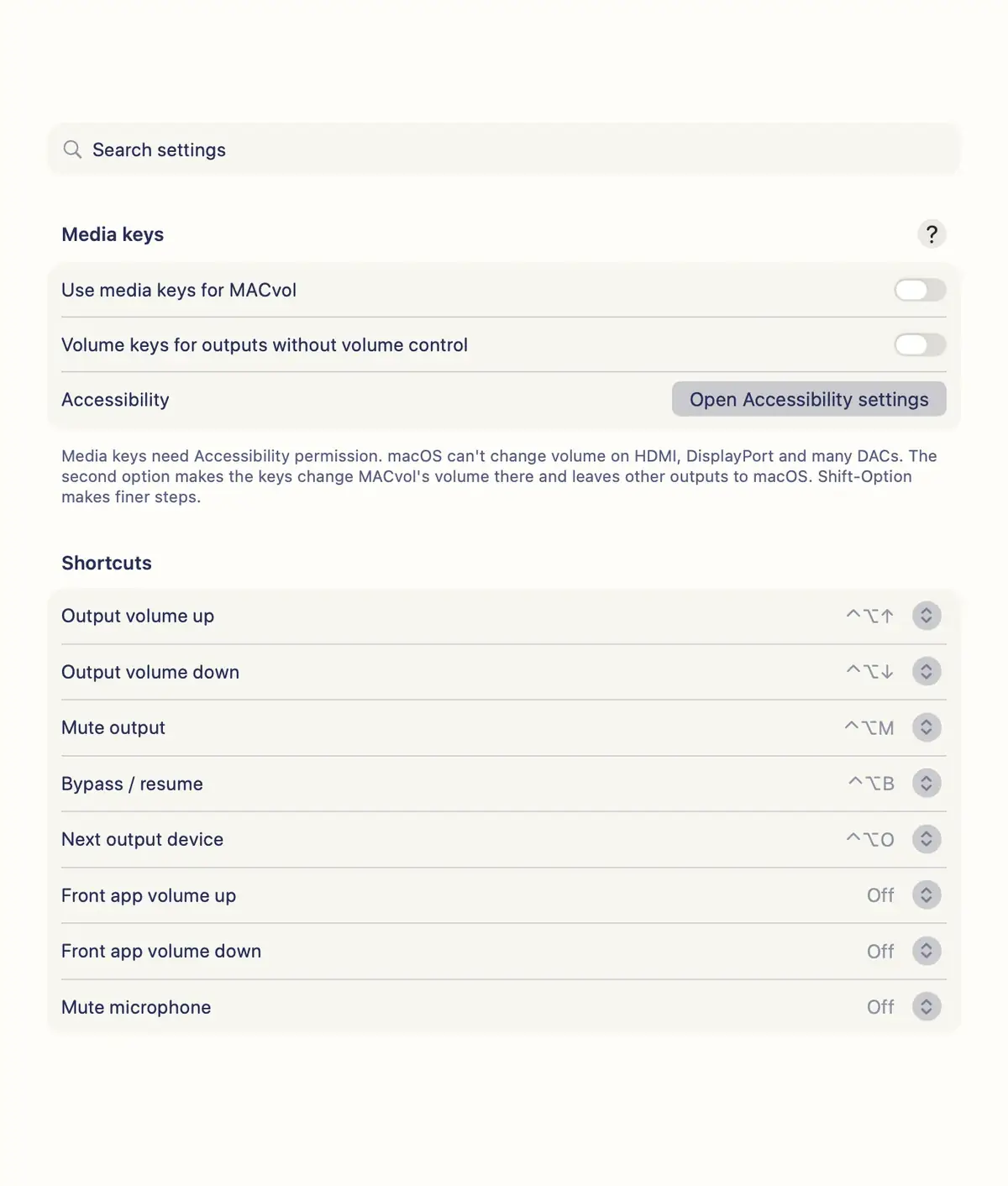
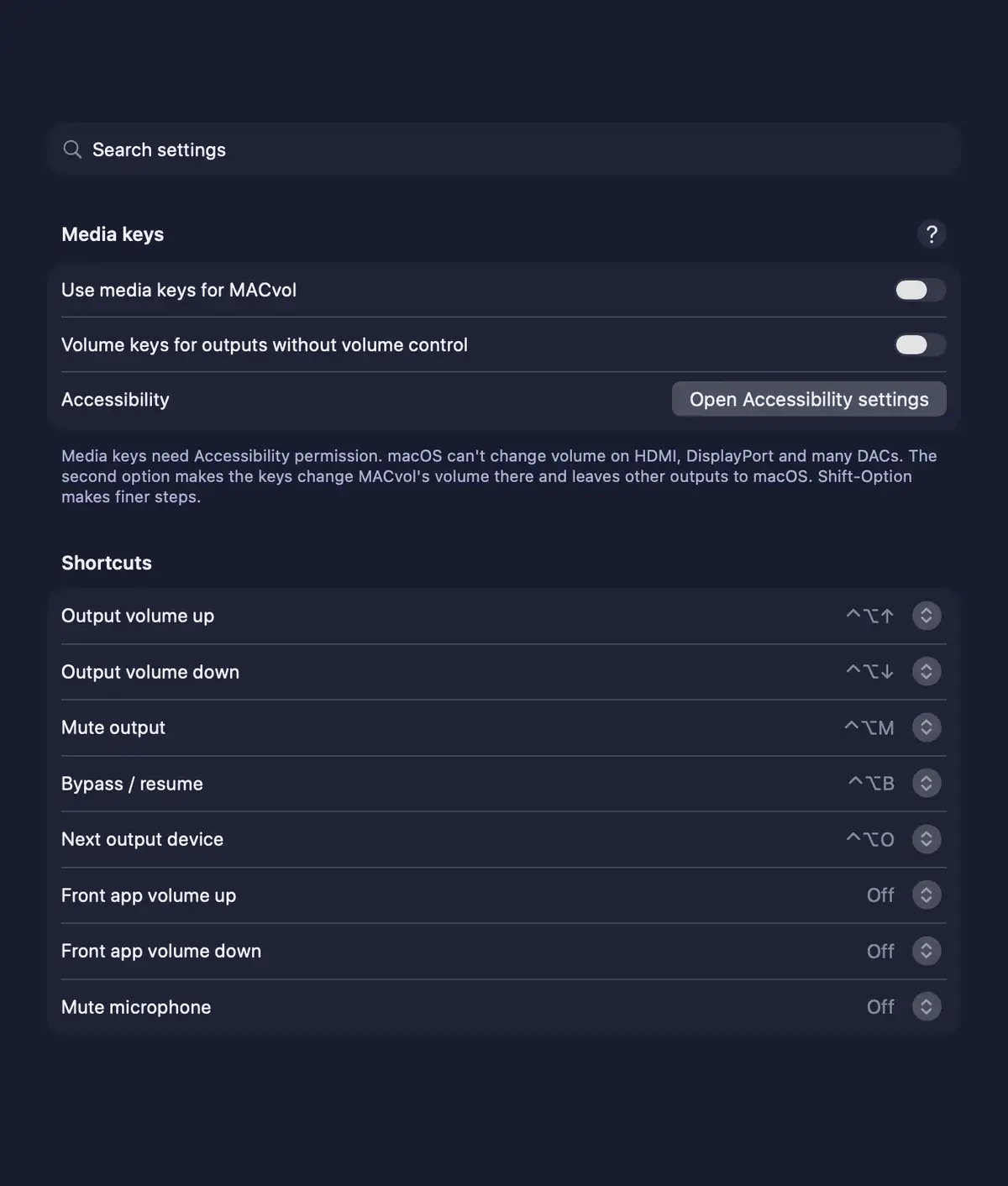
- Eight global shortcuts; pick any key combination or Off
- Use the media keys for MACvol's volume on every output
- Volume keys for HDMI, DisplayPort and DACs that macOS can't control
- Shift-Option with the keys for finer steps
- Scroll on the menu bar icon to change the volume in 32 steps
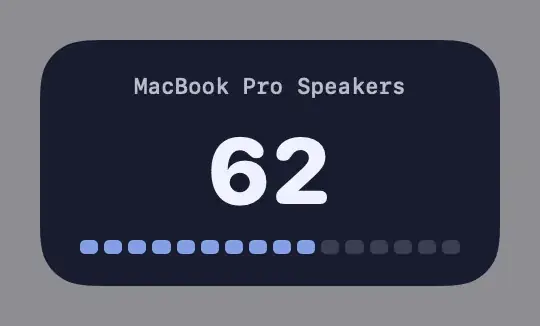
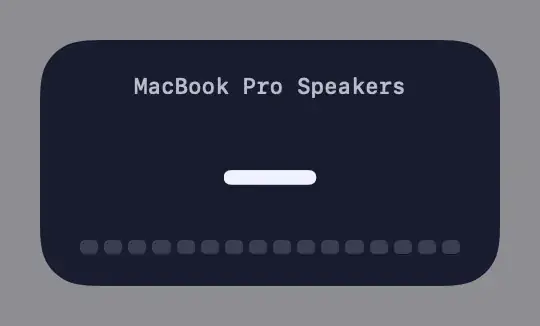
- A volume display with the device name; turn it off in Settings
- Every shortcut in one window, with a filter (⌘/)
| ⌃⌥↑ | Output volume up |
| ⌃⌥↓ | Output volume down |
| ⌃⌥M | Mute output |
| ⌃⌥B | Bypass / resume |
| ⌃⌥O | Next output device |
| ⌃⌥⇧↑ ⌃⌥⇧↓ | Front app volume up or down (off until set) |
| ⌃⌥⇧M | Mute microphone (off until set) |
| ⌘1 … ⌘6 | Counter, Mixer, Equalizer, Devices, Routing, Profiles |
| ⌘K | Find any screen, setting, action or Help answer |
| ⌥⌘B | Bypass / resume in the window |
| ⌘F | Search settings |
| ⌘? | MACvol Help |
| ⌘Z | Undo, also a deleted profile or preset |
Safe, clean sound
MACvol changes each app's volume in memory. It installs no driver and never records, saves or sends your sound.
- Bypass in one click: every app plays as usual in macOS, your edits are kept
- The menu bar stamp shows a strike while Bypass is on
- A limiter catches sudden loud peaks
- A short fade when you switch output, bypass or quit, so no pops
- Volume, EQ and mute changes ramp smoothly
- Recovers by itself after sleep, a sample rate change or an audio system restart
- Bit-transparent when rates match, high-quality resampling when they don't
- Multichannel outputs keep their channel layout
- An app that loses its sound returns to normal playback, with a Retry button
- Problems are explained in plain words with a way to fix them
- Light on the Mac: few wake-ups and little CPU while idle or bypassed
Looks, language and access
Settings › General sets how MACvol looks and behaves. Type a word to jump to any setting.
- Light, dark, or follow macOS
- Interface in English, Tiếng Việt, 한국어, 简体中文 and 日本語, or follow macOS
- Style: MACvol's own look or classic macOS colours
- Motion: follow system, full or reduced; meters stay live
- Show or hide the menu bar icon, open at login
- Compact app rows so more apps fit in the panel
- Works with VoiceOver, Increase contrast, Reduce transparency and Differentiate without colour
- Text never smaller than 11 points; controls at least 28 points
- One notice at a time, and a hint when a page has more below
Getting started and help
A five-step guide on first launch, then Help that explains every menu and setting.

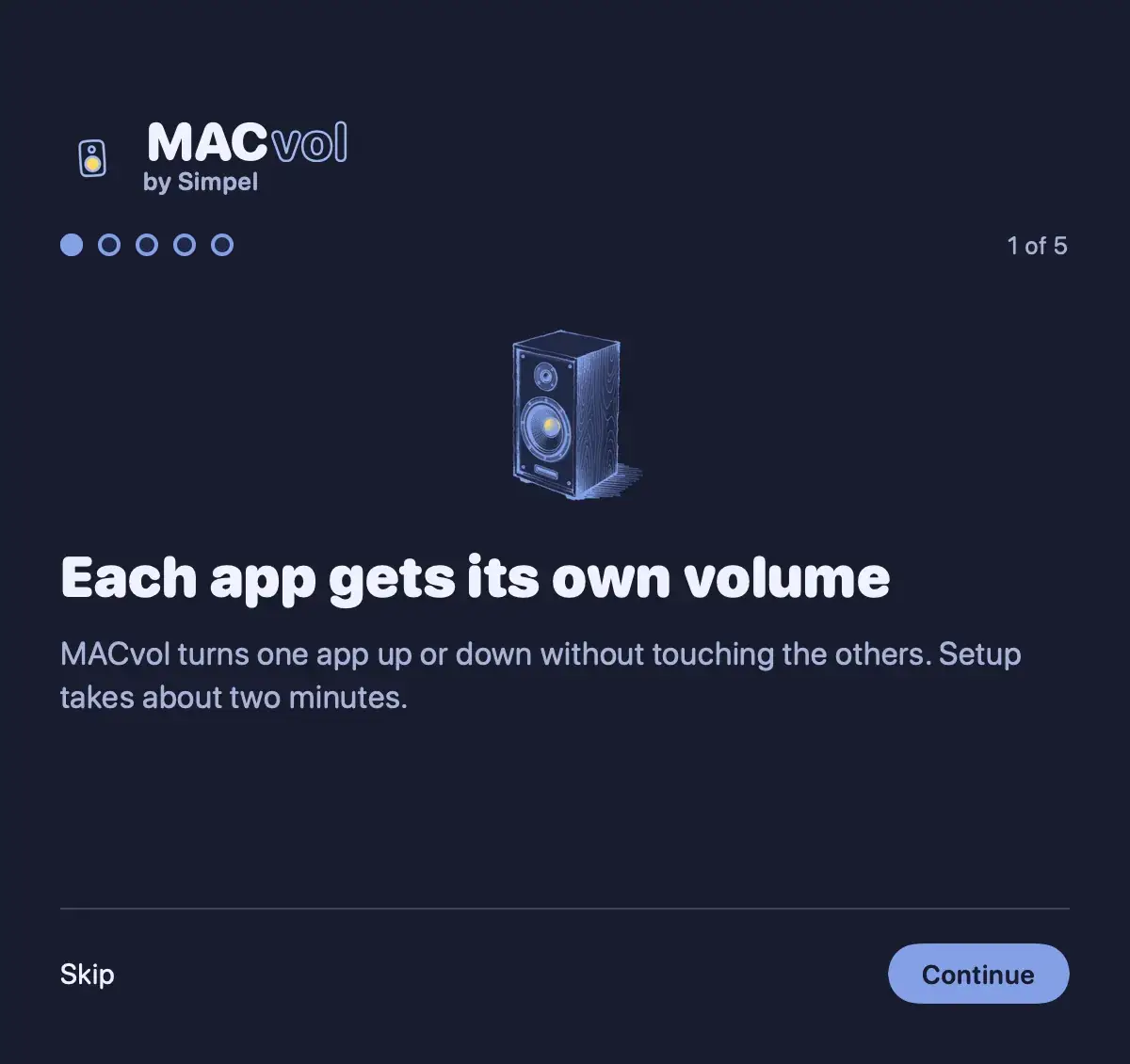
A short intro
Shown the first time you open MACvol.
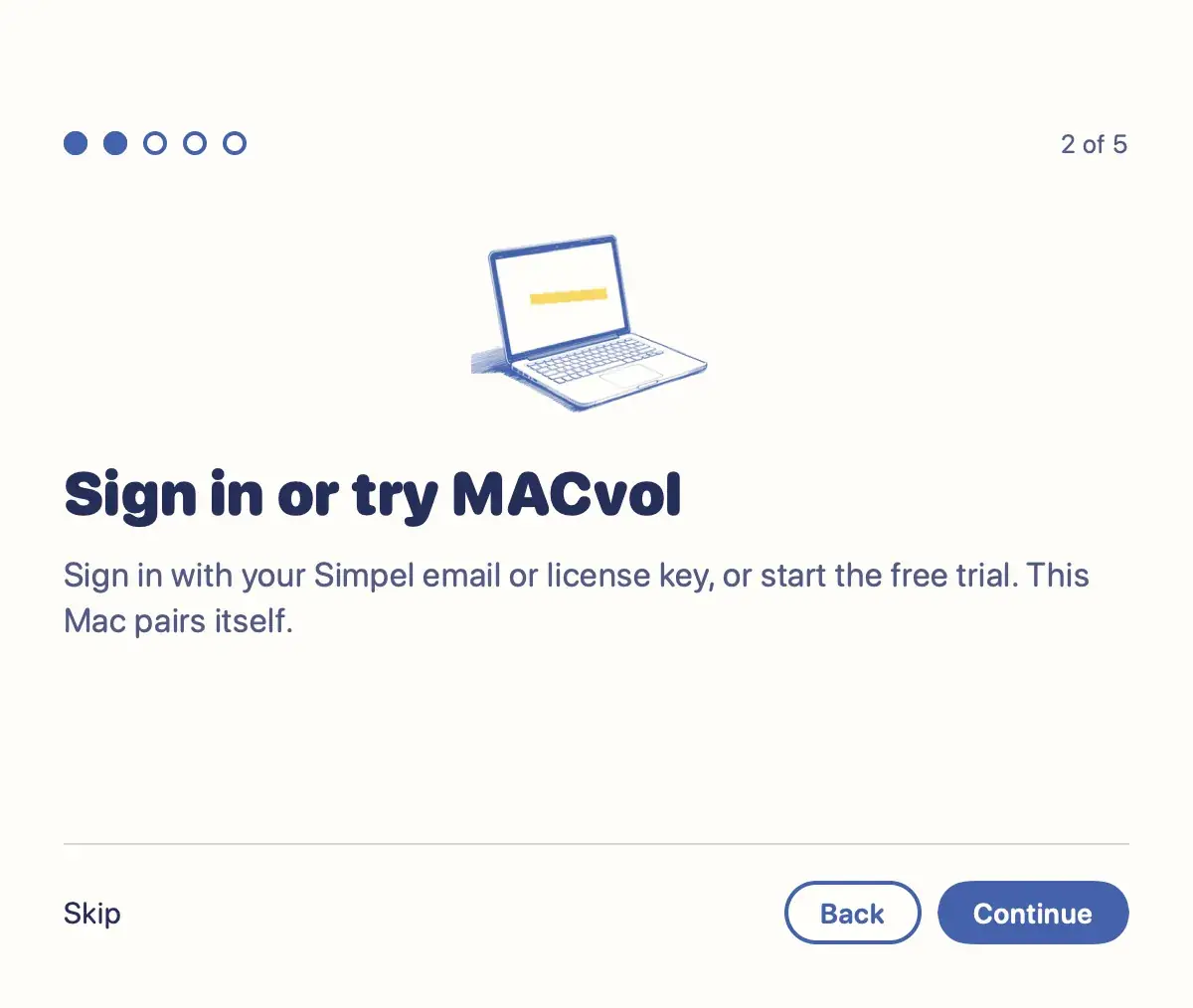
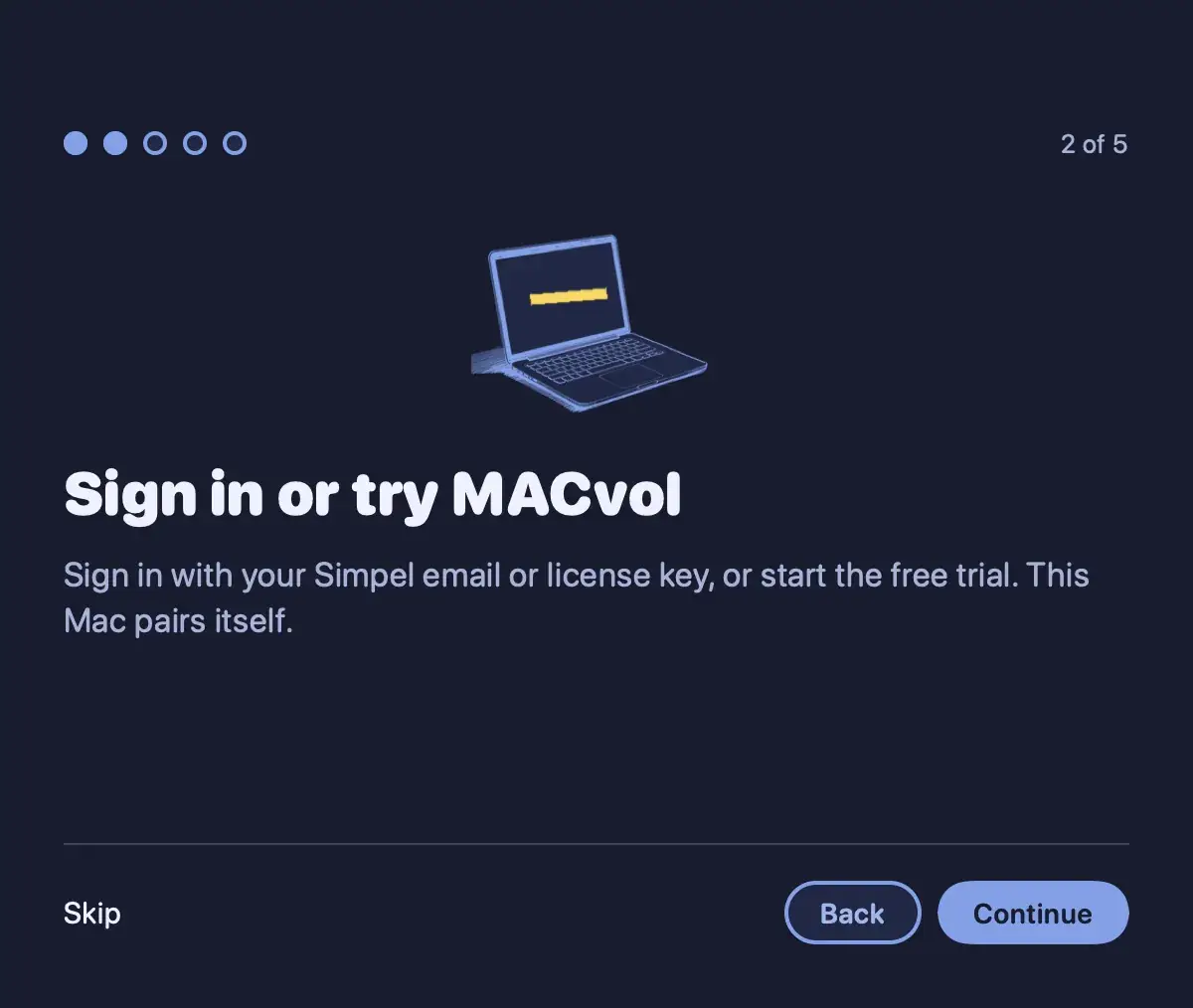
Sign in or try
Use your email or a license key, or start the 14-day trial.
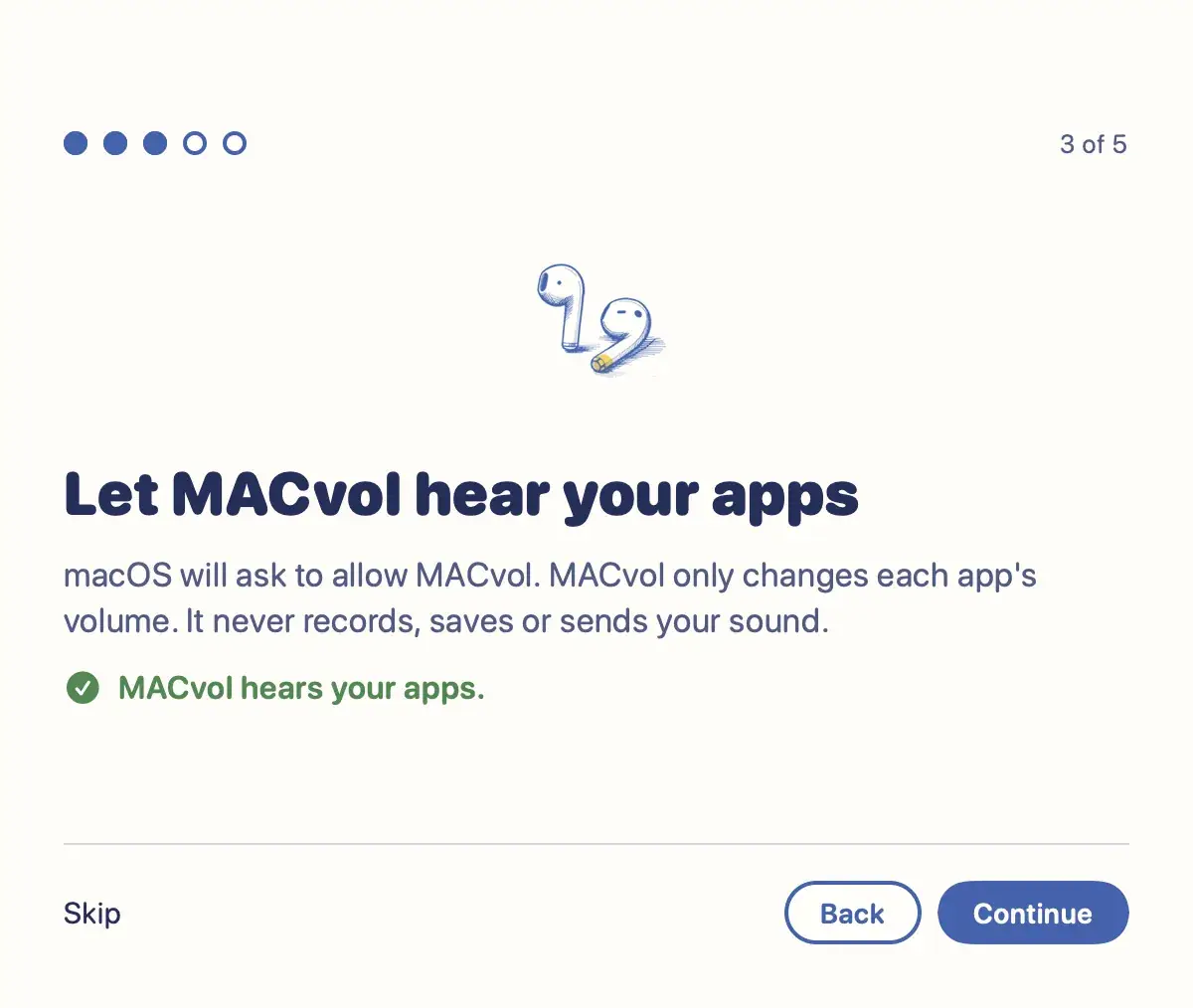
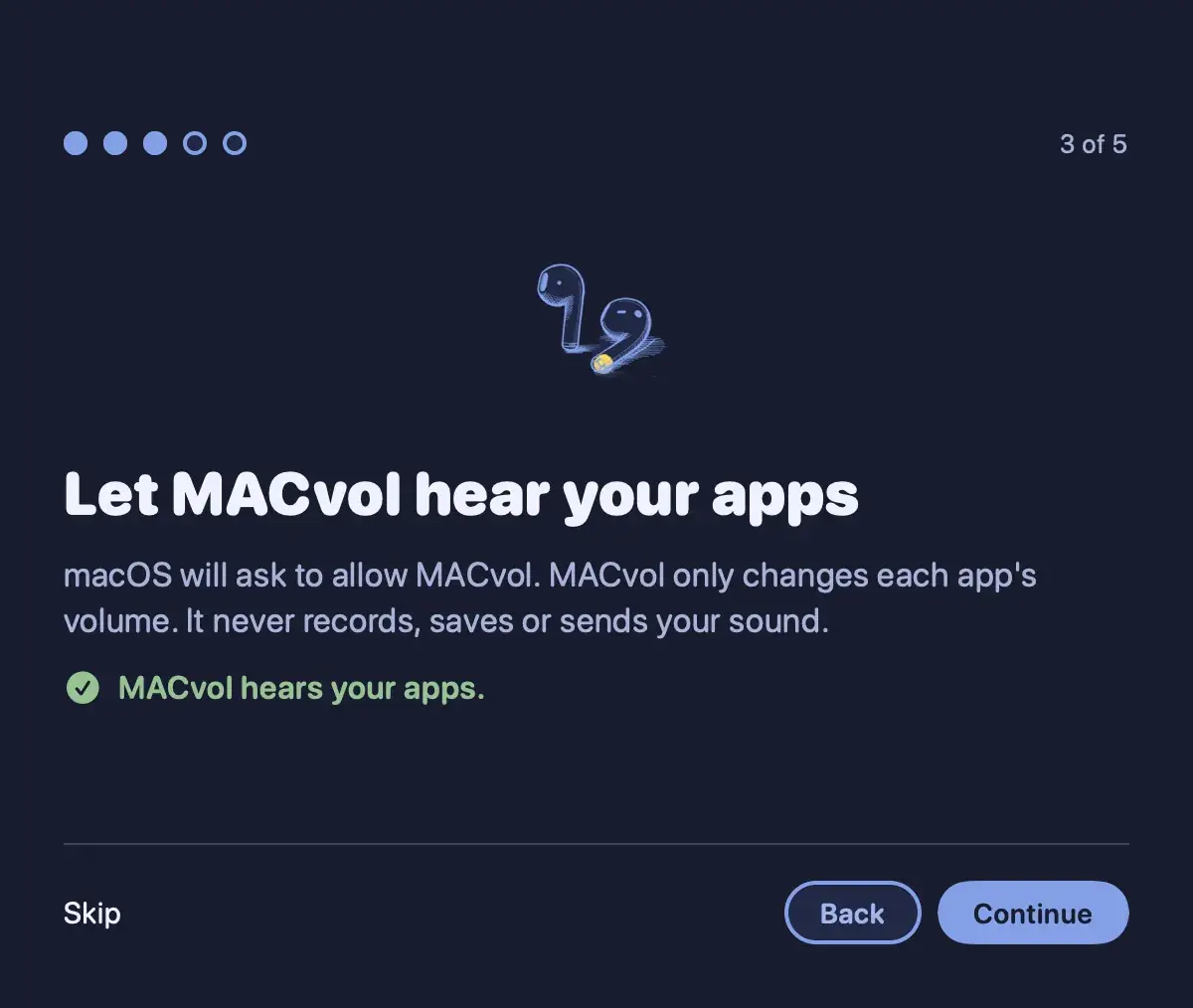
A real test
Allow audio, play a test sound, and see that MACvol hears your apps.
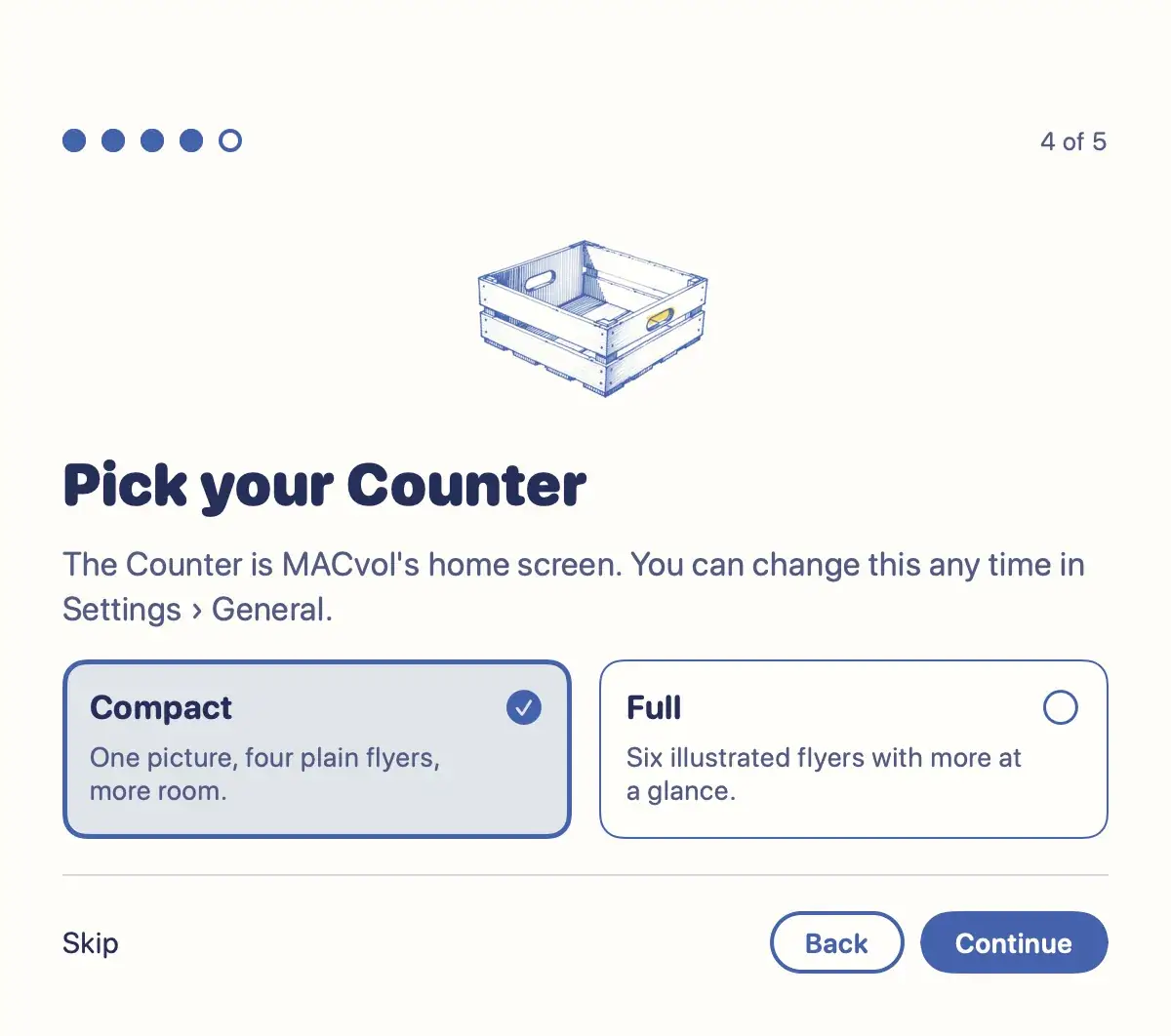
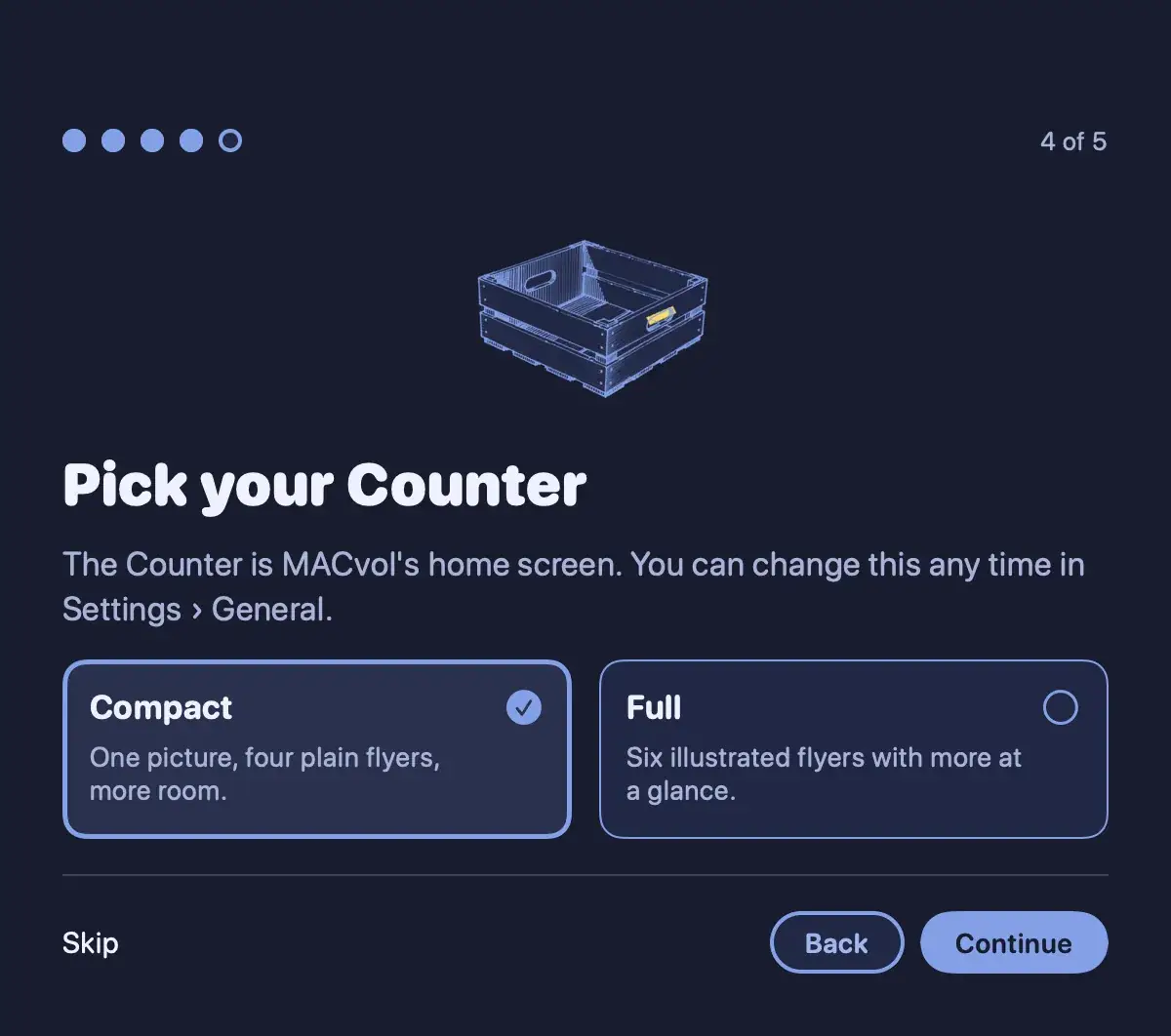
Pick your Counter
Compact or Full; change it any time.
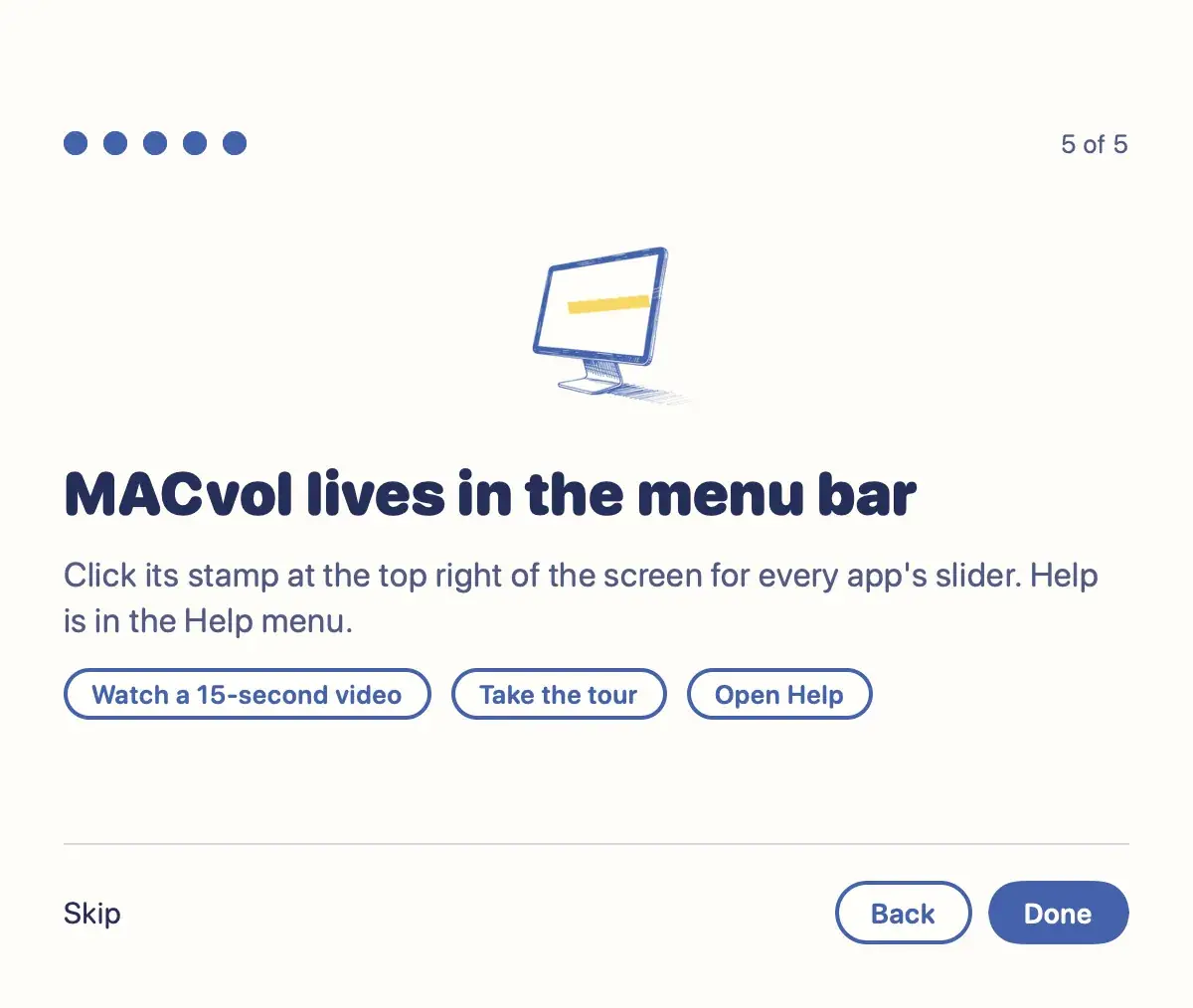
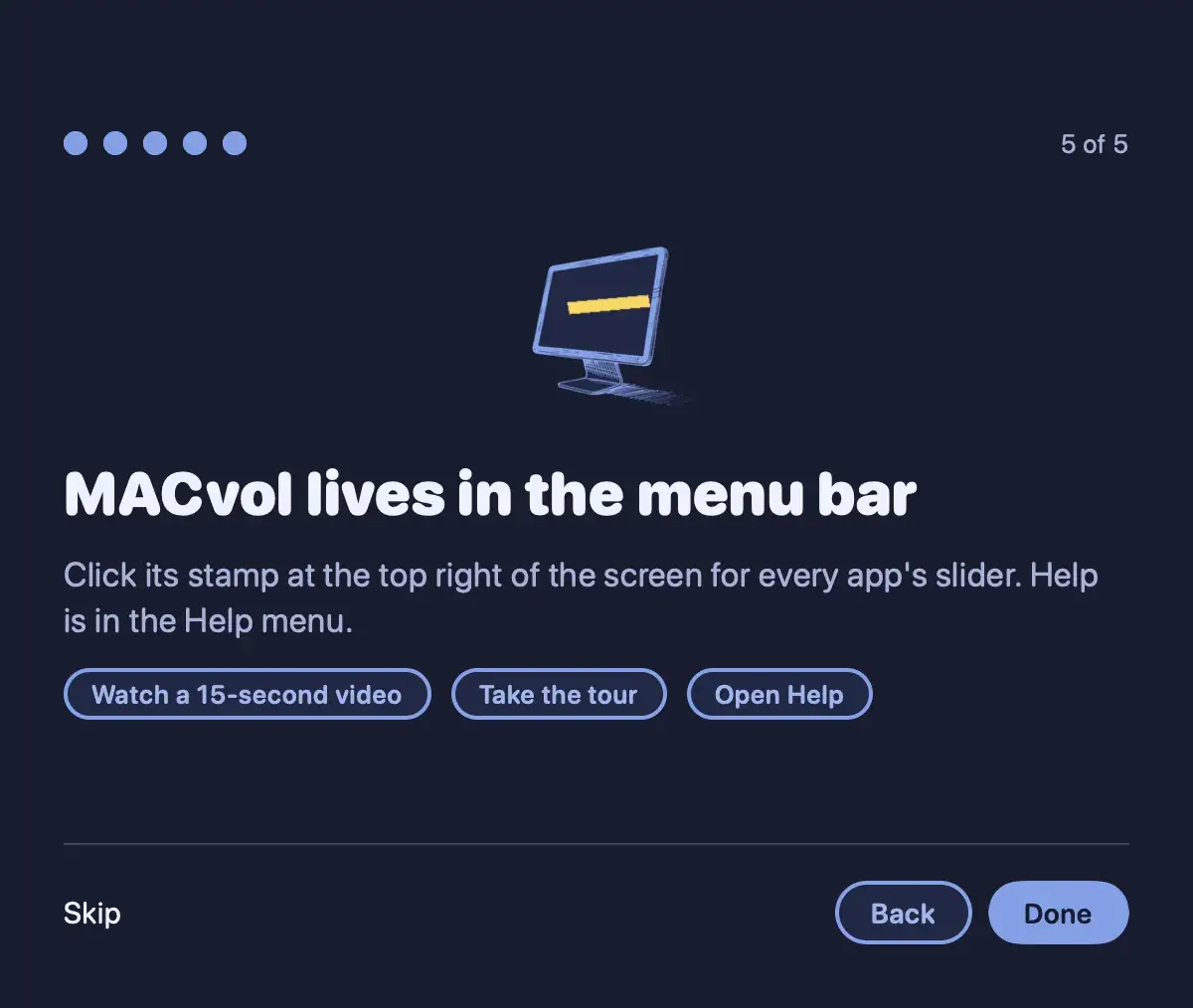
Find the menu bar
Watch a 15-second video, walk through each screen, or open Help.
Videos and how-tos
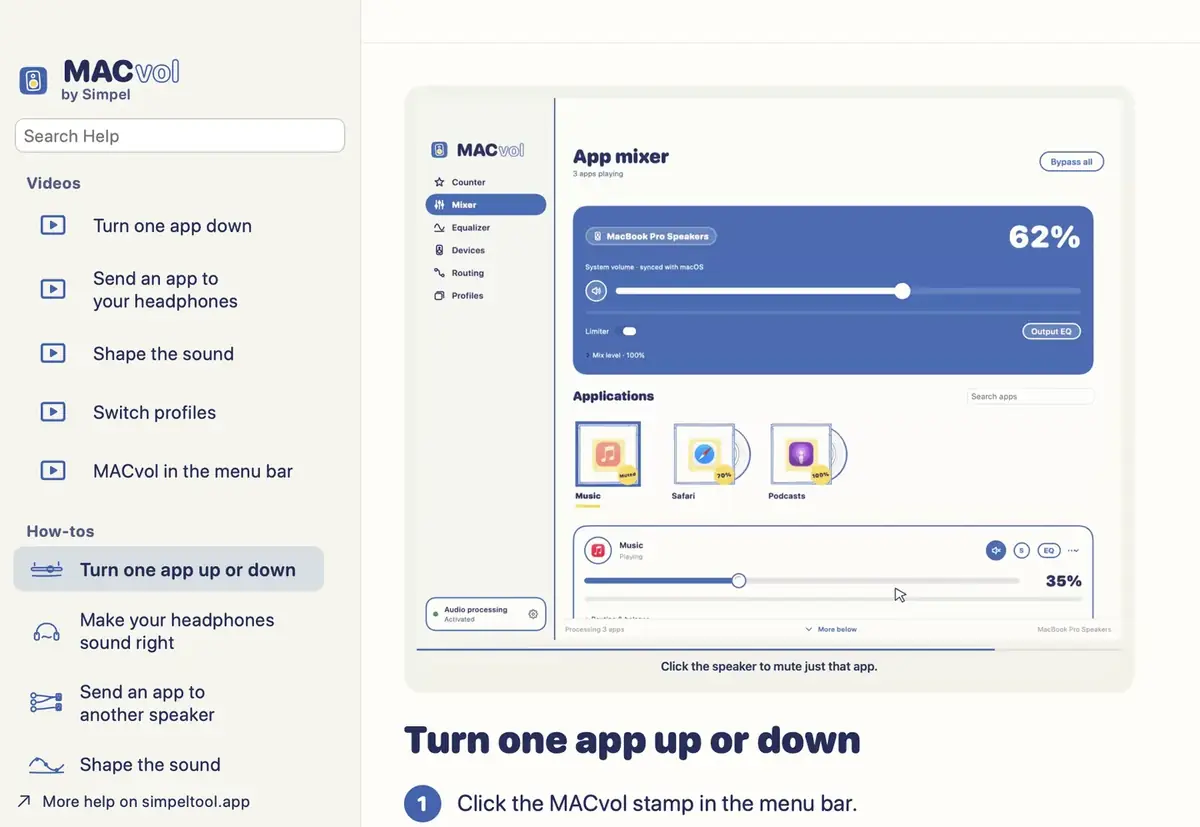
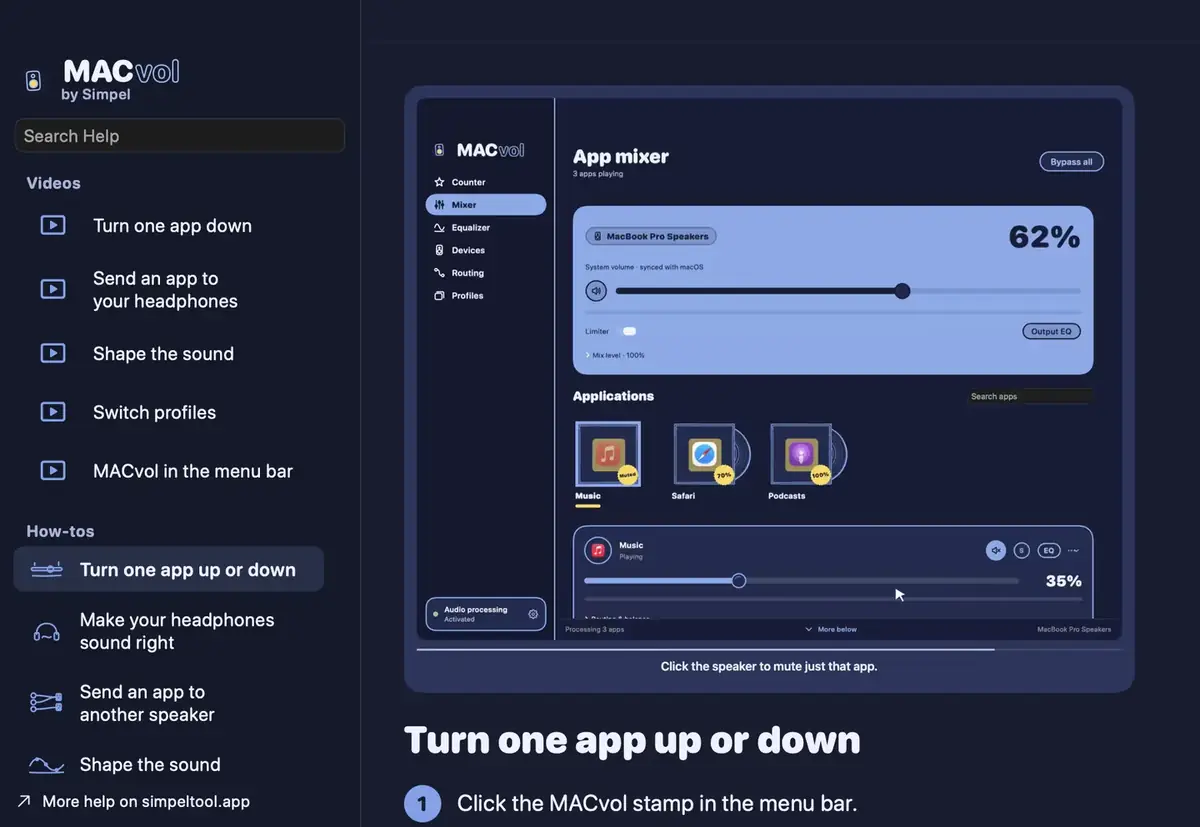
Short guides: turn one app down, send an app to headphones, shape the sound, switch profiles.
Every menu and setting
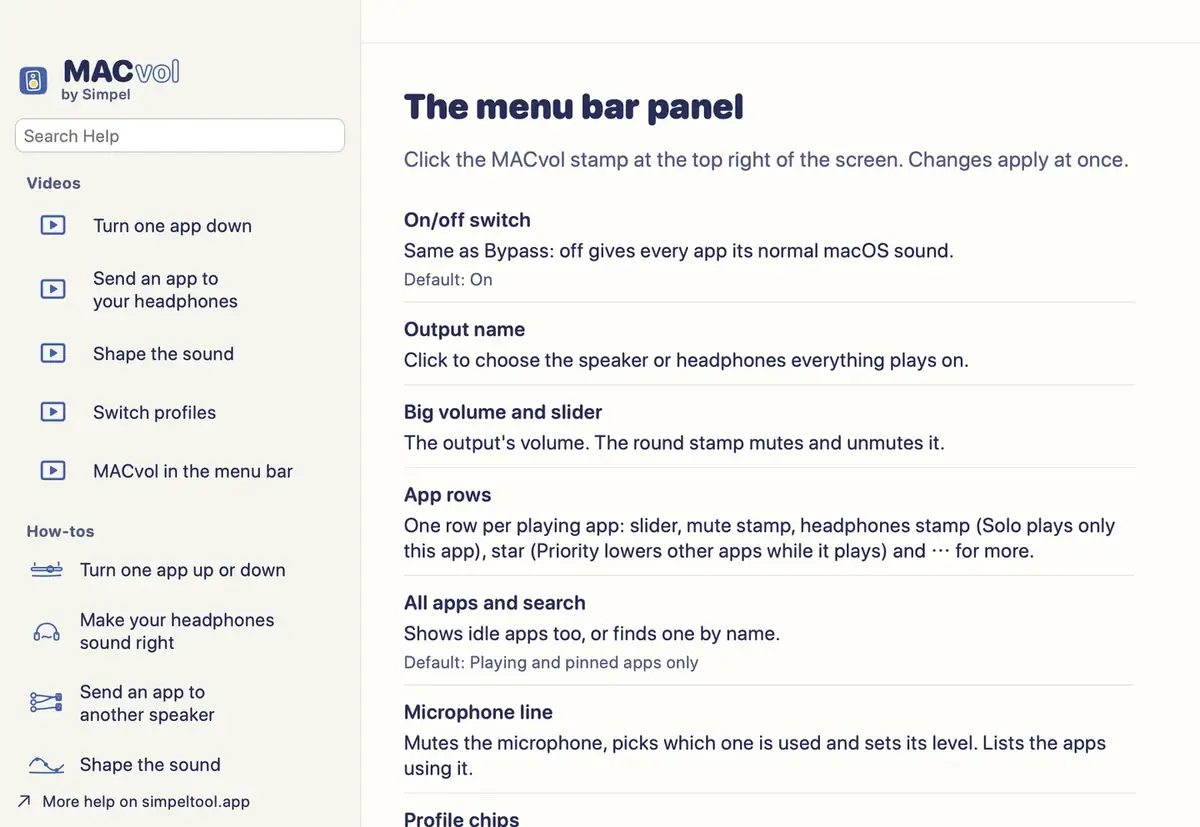
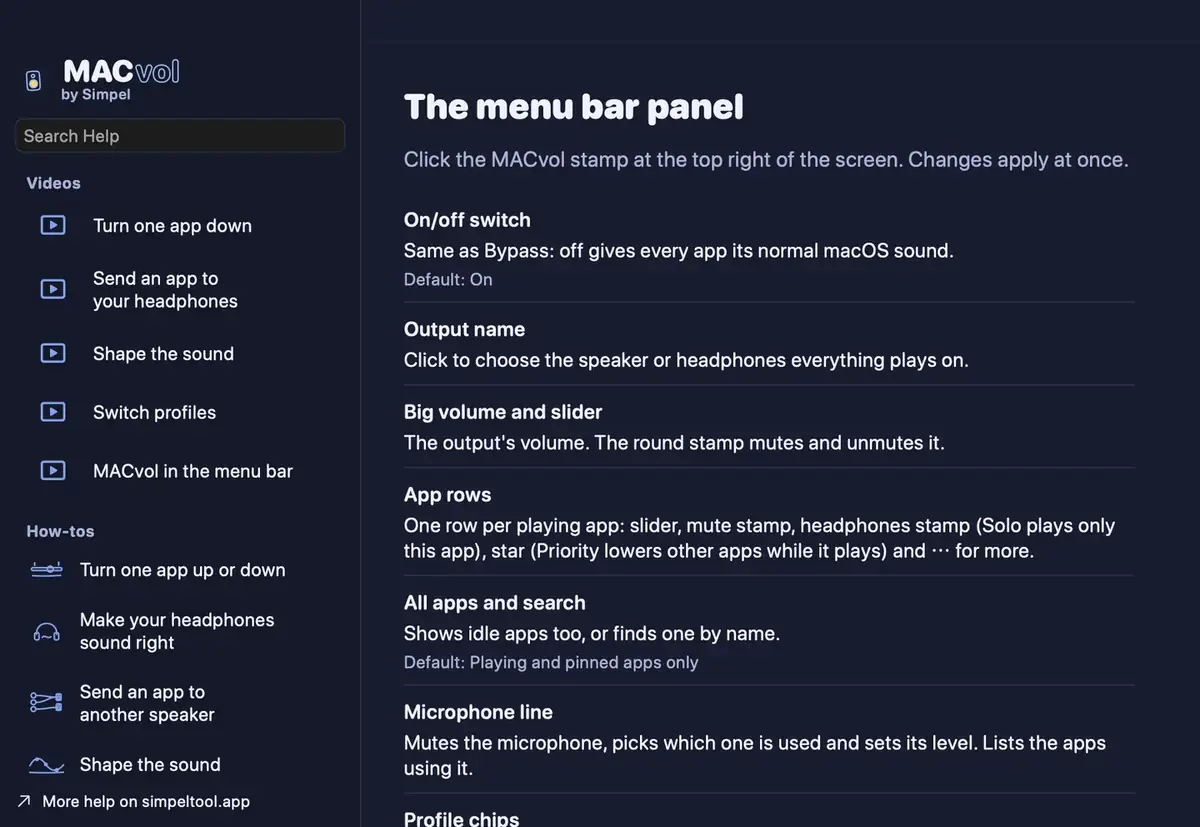
What each item does and its default, with search.
A walk through the window
Points at each part of MACvol in turn; replay it from the Help menu.
Sync and backups
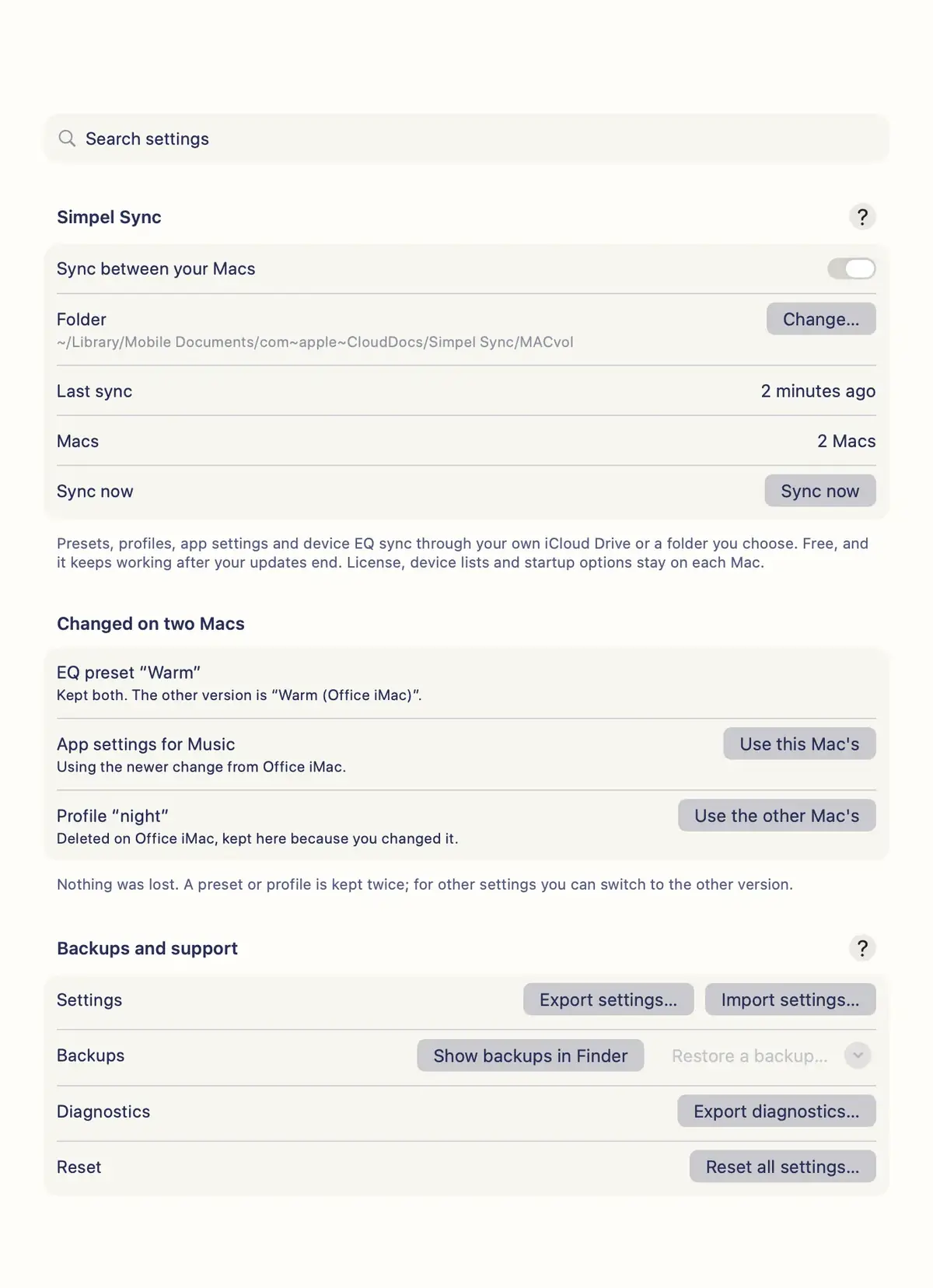
Simpel Sync keeps your setup the same on each Mac, and MACvol keeps dated copies to go back to.
- Where it syncs
- Your own iCloud Drive or any folder you choose. Free, and not tied to your license.
- What comes along
- Presets, profiles, app settings, device EQ by name, ducking, shortcuts, looks and the Counter.
- What stays on this Mac
- License, device lists and startup options.
- Changed on two Macs
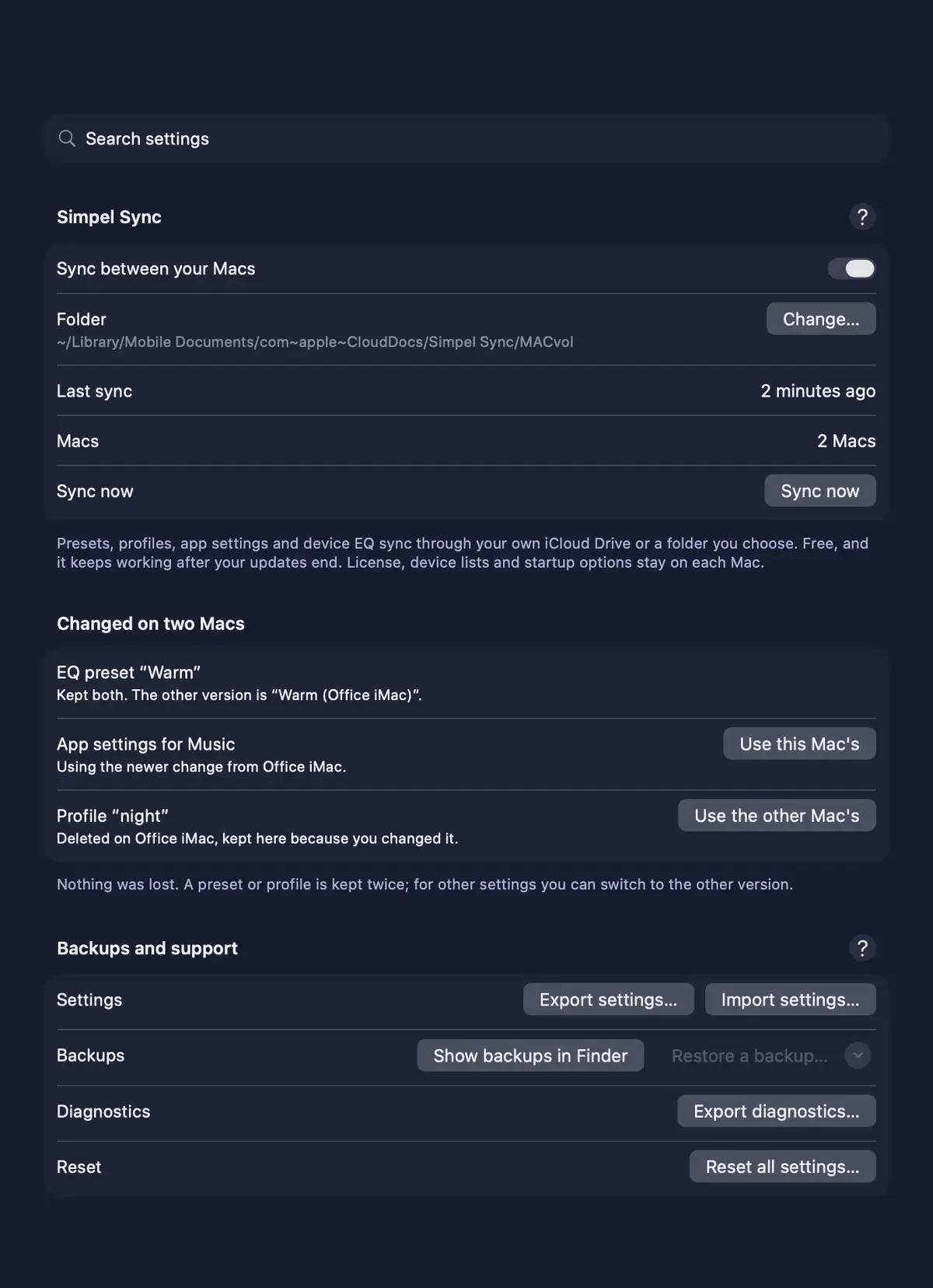
- Nothing is lost: a preset or profile is kept twice; for settings you pick which Mac wins.
- Backups
- Three rotating copies, plus one before every import, reset, restore, move or sync. Restore a backup… goes back.
- Show backups in Finder
- Opens the folder that holds them.
- Damaged settings
- A damaged file is set aside and the newest good backup comes back by itself.
- Reset all settings
- Back to defaults; your license stays and a copy is saved first.
Your account and license
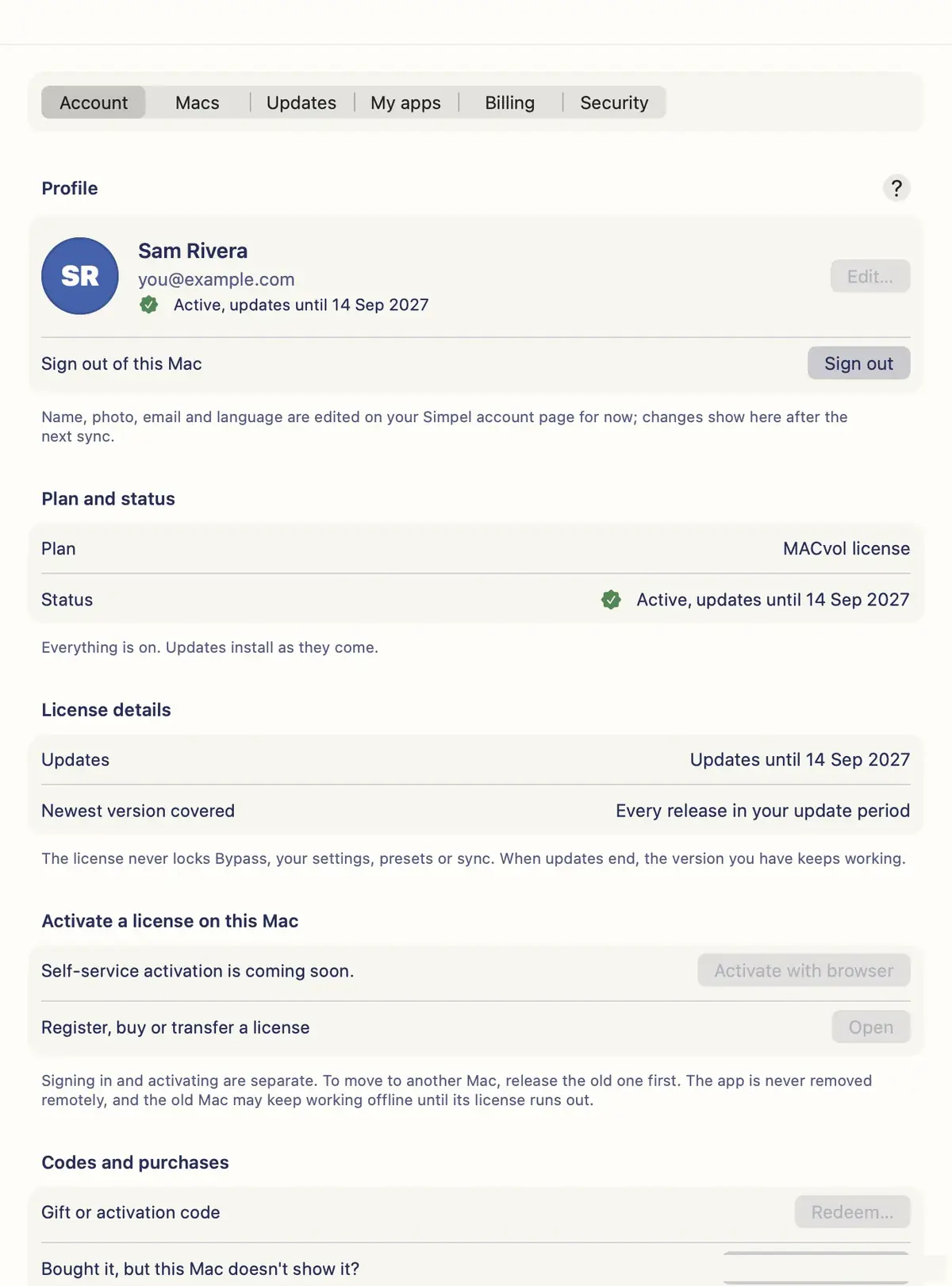
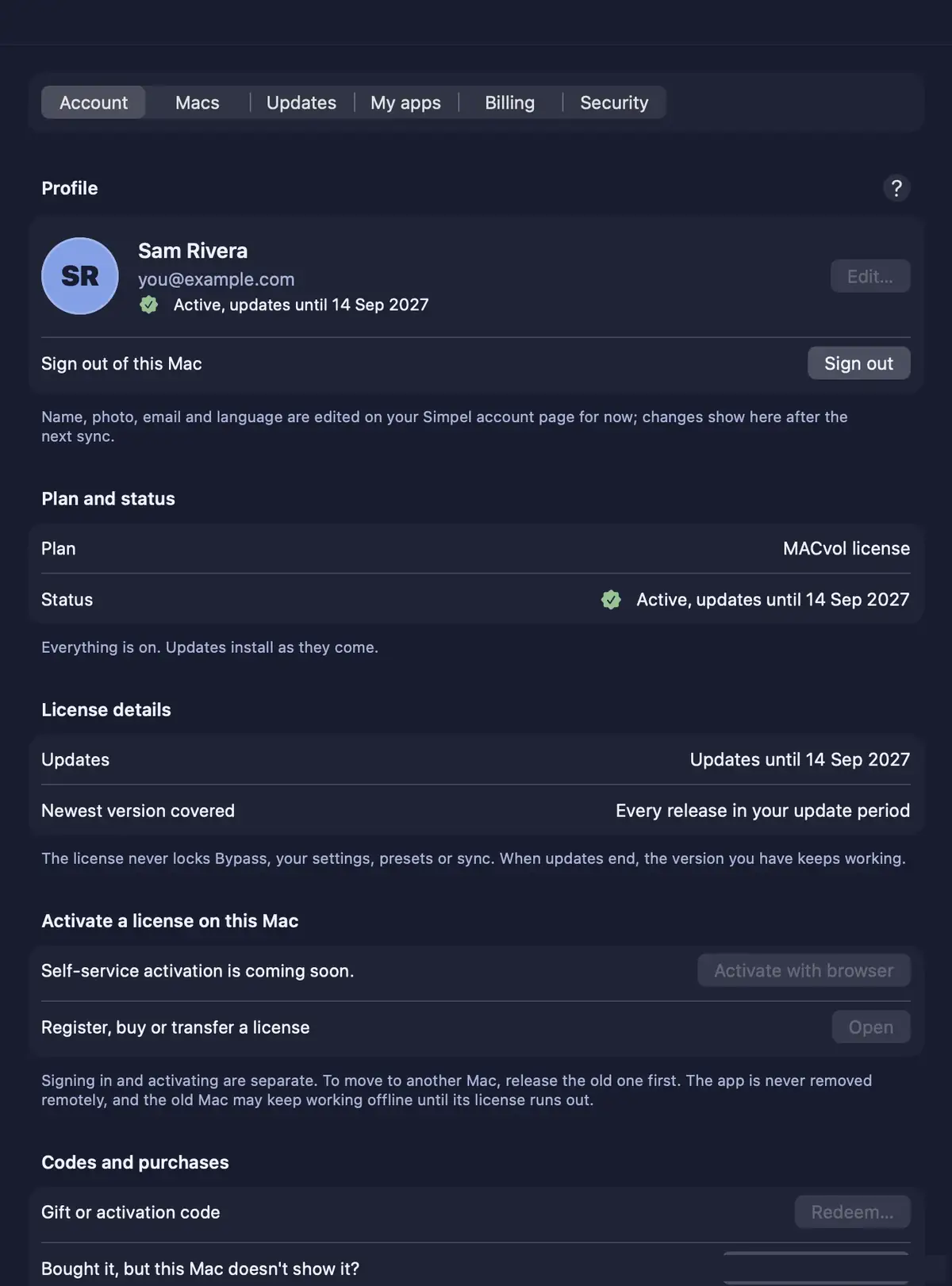
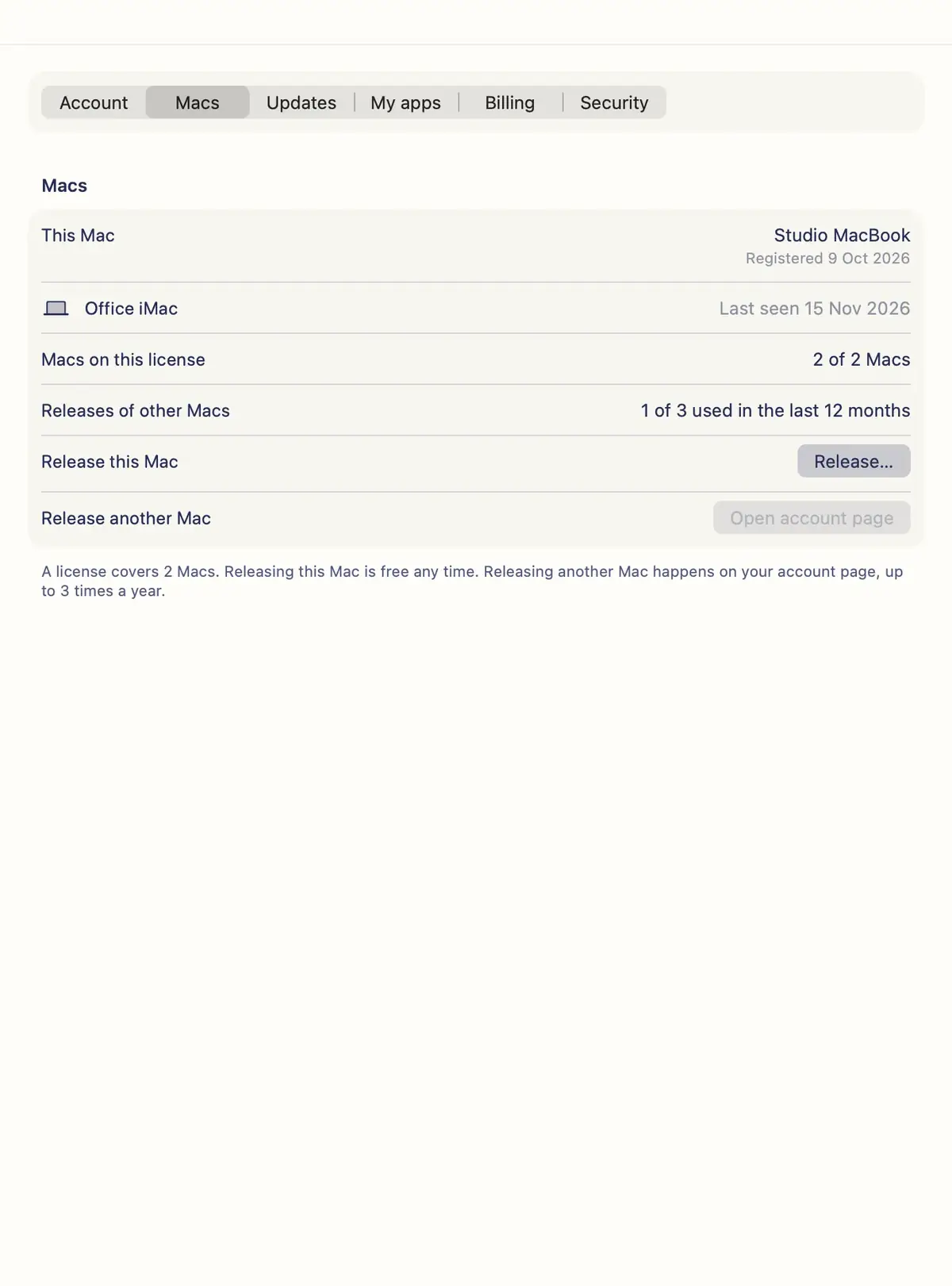
Settings › Account shows your Simpel account, plan, Macs and updates. The license never locks Bypass, your settings, presets or sync.
- Sign in
- With your email and a 6-digit code, or a license key. This Mac pairs itself.
- Free trial
- 14 days, with the days left shown on the account chip.
- Account chip
- At the bottom of the sidebar, in words: active, trial, updates ended, on another Mac, ended or blocked.
- Plan and updates
- Updates until when, and the newest version covered. When updates end, your version keeps working.
- Macs
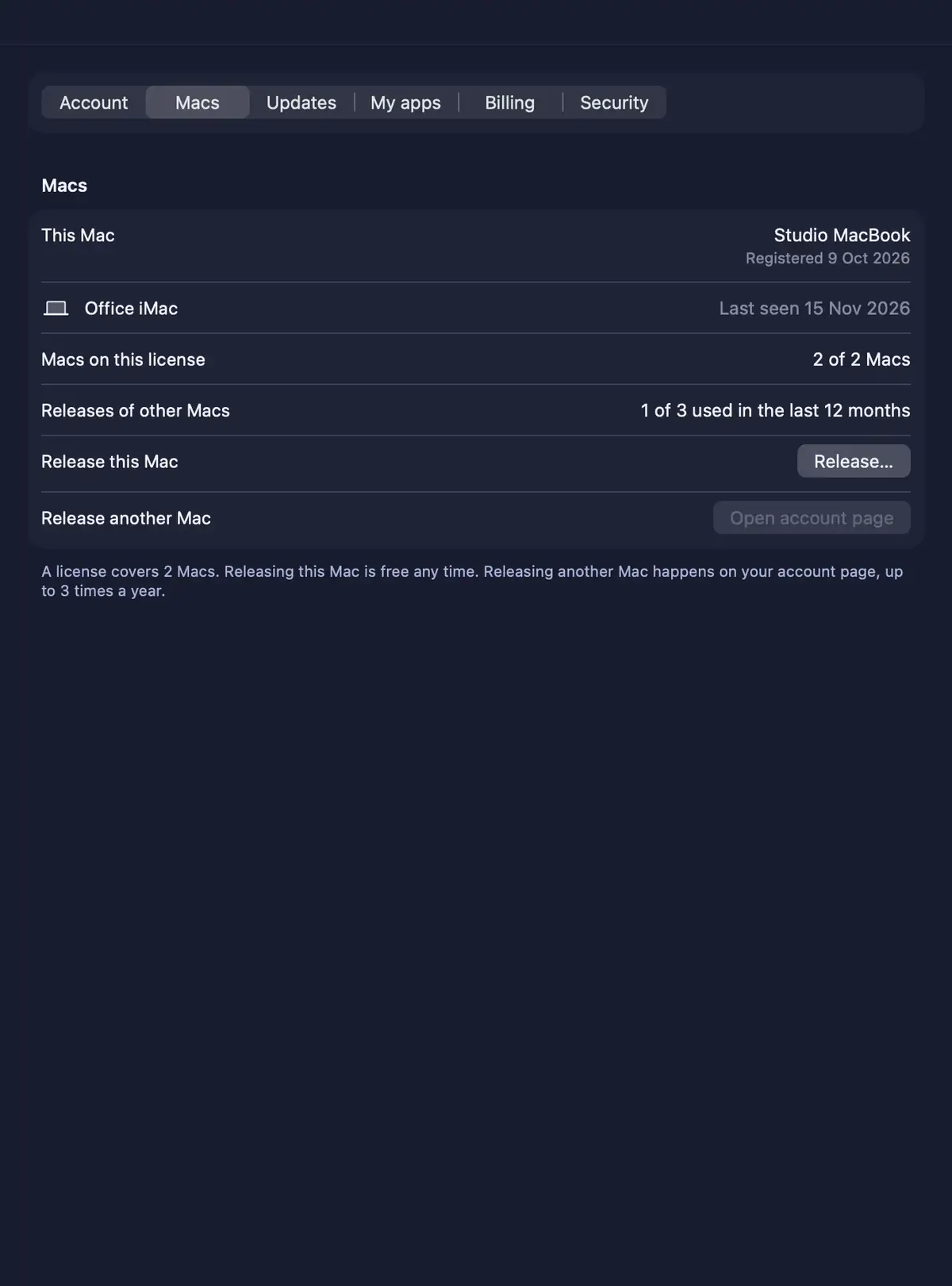
- Two Macs per license. Release this Mac any time; release another up to three times a year.
- Offline
- Keeps working without the internet for a while and renews by itself when online.
- Without a license
- MACvol stays out of the way: your Mac plays sound as usual and you can still export presets and EQ.
- Your apps and receipts
- Every Simpel app, the ones you own shown bright, and your latest receipts.
- Privacy before sign-in
- This Mac shares only a public key and an install ID; no email, account or Mac name.
- Updates
- Signed updates, checked and downloaded in the background if you like; they install when MACvol quits.
- What's new
- The notes for your version, in your language, under Updates.
Control it from scripts and AI assistants
Every feature in the window has a matching local command, backed by the same checks as the buttons.
# read app and device IDs
macvolctl status
# Music at half volume
macvolctl app.volume '{"id":"com.apple.Music","volume":0.5}'
# mute Safari
macvolctl app.mute '{"id":"com.apple.Safari","muted":true}'
# the Podcast preset on the output
macvolctl preset.apply '{"id":"podcast","target":"output"}'
# next speaker, then bypass
macvolctl output.next
macvolctl bypass- A local MCP server with more than 100 tools, bundled in the app
- A command-line tool, also for a Shortcuts "Run Shell Script" action
- Only your own Mac account can reach it; nothing listens on the network
- Volume, devices and presets work right away; sensitive actions need your Allow once per agent
- Deleting or resetting always asks for confirmation
- See and remove paired agents in Settings › Agents & Integrations
- Sensitive changes are written to a local log
Files in and out
Your EQ, presets and settings are never locked inside the app.
| Bring in | Take out | |
|---|---|---|
| Parametric EQ text | Peak, shelf and pass filters, left and right channel sections, UTF-16 files | Same format, full precision, with on/off and mode kept |
| Graphic EQ curve | Fitted to 31 bands with headroom | As parametric text |
| Profiles and presets | A MACvol library file; added or updated by name | One profile, or the whole preset library, to share |
| All settings | Import settings…; same-name devices match by themselves, a copy is saved first | Export settings… |
| Diagnostics | — | One file for support: devices, recent events, settings history. Never any audio; nothing is uploaded. |
- A bad line in an EQ file is skipped, not fatal
- Settings from a newer version open read-only, clearly marked
- Settings are saved safely, with rotating backups
- Export everything in one go from the app's agent tools too
Try it on your own notes
Every feature here is in MACvol today, except the ones marked coming soon.